
Nothing kills a good playlist faster than putting in your headphones and hearing silence from your Galaxy A26 5G. The phone might act like nothing is connected, or audio blasts from the speaker instead. Let's walk through the fixes that actually work for this phone.
If you suspect one side has failed, an online online headphone test settles it quickly. Play each channel on its own and you will know whether it is the headphones or the source.
Restart Your Galaxy A26 5G
Press and hold the Volume Down and Power buttons at the same time for about 10 to 15 seconds. The phone will restart on its own, you don't need to wait for a menu. This force restart clears temporary audio glitches that can mess up headphone detection.
Check the Headphone Jack and USB-C Port
The Galaxy A26 5G has a 3.5mm headphone jack, so lint or pocket fuzz can block a proper connection. Use a wooden toothpick or a soft brush to gently clean inside the jack. If you're using a USB-C to 3.5mm adapter, clean the USB-C port the same way. Don't poke metal objects in there.
Check Volume and Do Not Disturb
Press the Volume Up button while your headphones are plugged in or connected. Make sure media volume is turned up, you can also drag the slider in the Quick Settings panel. Also check that Do Not Disturb isn't muting notifications or media accidentally.
Forget and Re-Pair Bluetooth Headphones
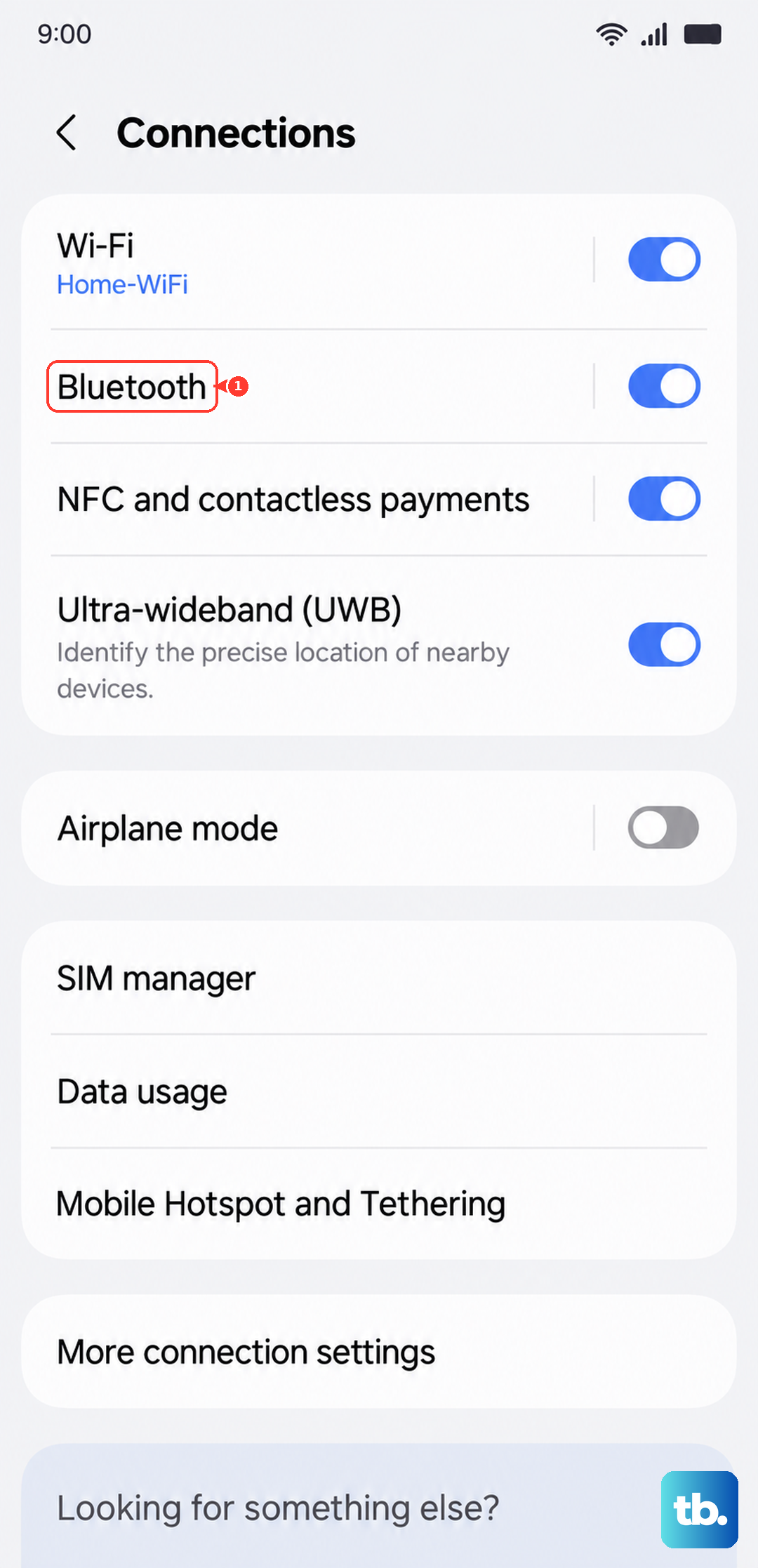
Go to Settings > Connections > Bluetooth. Tap the gear icon next to your headphones and select Unpair (or Forget). Put your headphones back in pairing mode and tap your device under Available devices to reconnect from scratch. A stale pairing profile is a common cause of no sound.
Check Audio Output in Quick Panel
Swipe down twice from the top to open the full Quick Settings panel. Look for the Media output button (it looks like a speaker icon). Tap it and make sure your headphones are selected, not the phone speaker or another Bluetooth device. Sometimes audio gets routed to the wrong output.
Turn Bluetooth Off and On
If you're using wireless headphones, toggle Bluetooth off in Settings > Connections and wait ten seconds. Turn it back on and let your headphones reconnect. This refreshes the Bluetooth stack and can fix silent audio issues.
Clear the System Cache Partition
Turn off your phone. Press and hold the Volume Up and Power buttons until the Samsung logo appears, then release. Use the volume buttons to navigate to Wipe cache partition and press the Power button to select it. Confirm with Yes and then reboot. This clears corrupt system caches that can affect audio processing.
Try Safe Mode to Rule Out Third-Party Apps
Press and hold the Power button until the power menu appears. Then long-press the Power off icon until you see Safe mode. Tap it to restart. If your headphones work in safe mode, a downloaded app is interfering. Uninstall recently installed audio-related apps one by one until you find the culprit.
Update One UI and Android
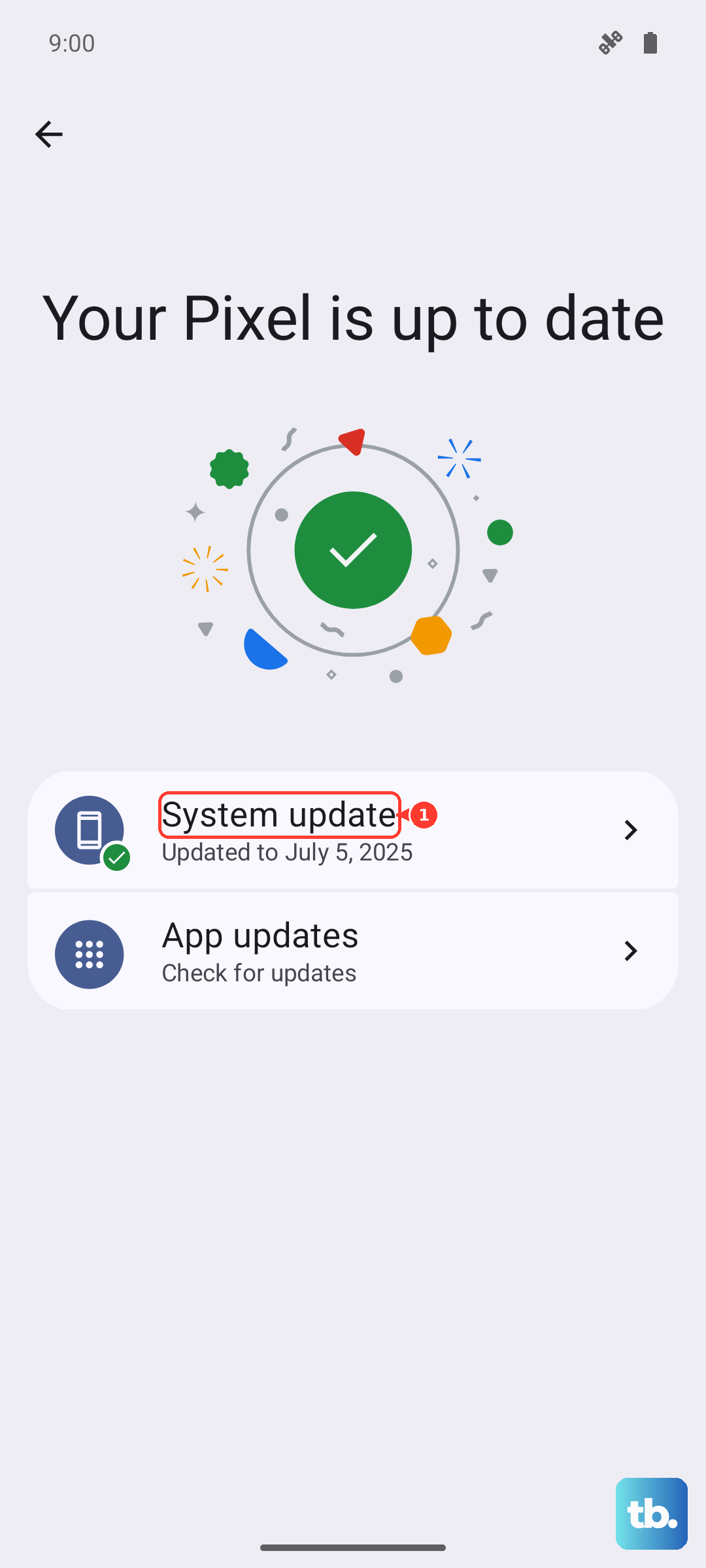
Go to Settings > Software update > Download and install. Samsung regularly patches Bluetooth and audio bugs through system updates. Make sure your Galaxy A26 5G is running the latest version of One UI 7 and Android 15.
Reset All Settings
Go to Settings > General management > Reset > Reset all settings. This won't delete your photos, apps, or data. It only resets system settings like Bluetooth pairings, Wi-Fi passwords, and sound routing preferences. You'll need to re-pair your headphones, but it clears stubborn audio issues that other fixes miss.