
If your Samsung Galaxy A26 5G camera stopped working, don't assume the hardware is dead yet. Most camera failures on this phone are software hiccups that you can fix in a few minutes. Start with the quickest fix, a forced restart.
To know whether you are fixing hardware or software, try a online camera test in the browser. A working preview narrows the problem down to the app you were using.
Key Points
- Force Restart First: Press and hold Volume Down + Power for 10 15 seconds until the phone restarts.
- Clear Camera App Cache: Settings > Apps > Camera > Storage > Clear cache.
- Check Permissions: Go to Settings > Apps > Camera > Permissions and allow everything.
- Update Software & Camera: Settings > Software update; also update Camera via Galaxy Store or Play Store.
- Safe Mode Test: Boot into Safe Mode to rule out third‑party app conflicts.
- Recovery Mode Cache Wipe : Samsung removed the "Wipe cache partition" option from recovery on newer Galaxy phones like the A26 5G; instead, go to Settings > Apps > Camera > Storage > Clear cache, or run Settings > Device care > Optimize now.
Press and hold the Volume Down and Power buttons simultaneously for about 10 15 seconds until the device restarts. That forces the Galaxy A26 5G to reboot even if the screen is frozen. I’ve seen this clear up camera black‑screen issues and app crashes more often than you’d think.
Once it boots back up, open the Camera app and see if it works normally.
Clear the Camera App’s Cache
If the camera still won’t open or shows a black viewfinder, the app’s cached data might be corrupted. Go to Settings > Apps > Camera > Storage and tap Clear cache. Don’t worry, this won’t delete your photos.
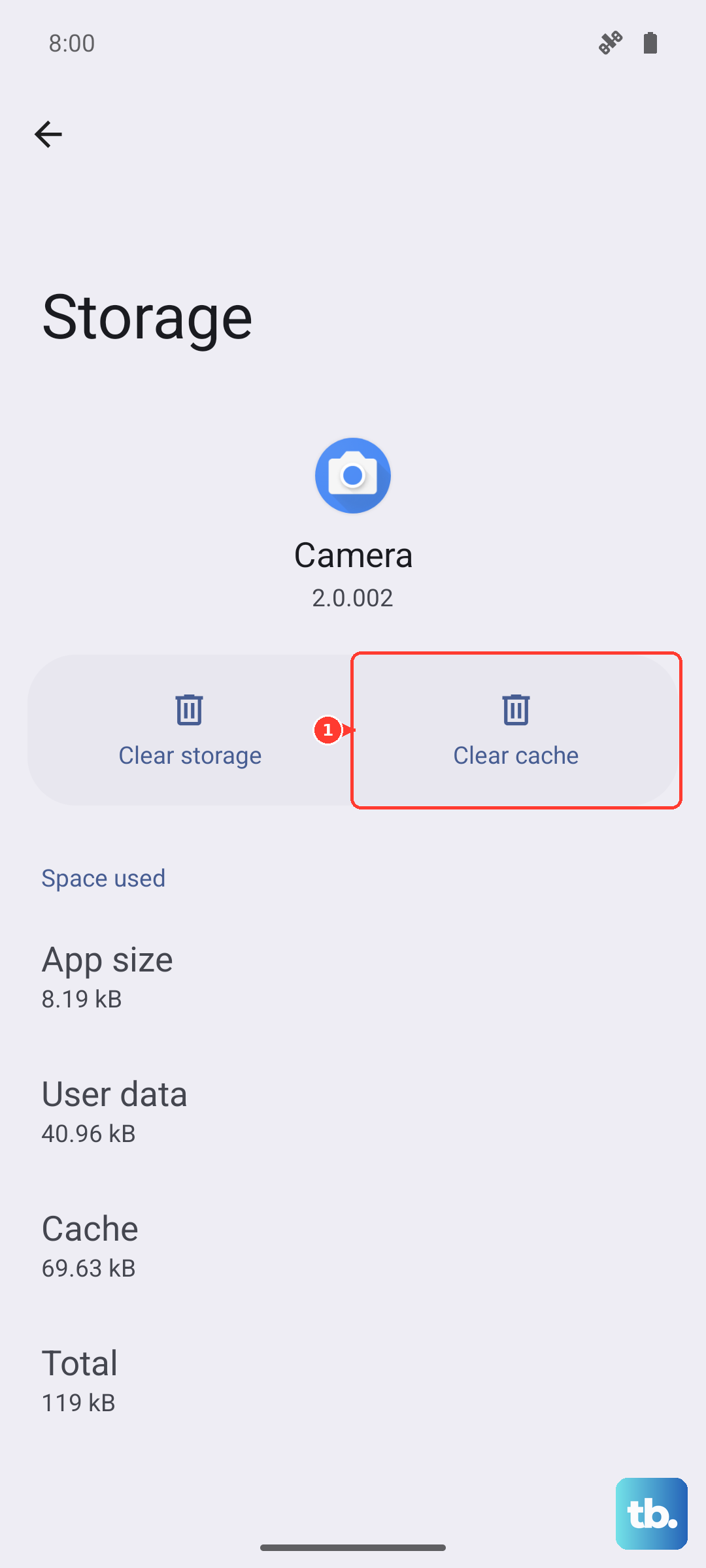
Also tap Clear data if clearing cache alone doesn’t help. That resets the camera app to its factory state, which can fix settings that got messed up.
After clearing, force close the app by swiping it away from the recent apps list, then reopen it.
Check Camera Permissions
The Galaxy A26 5G runs One UI 7 on Android 15, and permission changes are a common culprit. Open Settings > Apps > Camera > Permissions. Make sure Camera and Microphone are both set to Allow.
Sometimes an app update or Samsung’s auto‑optimization can revoke permissions without telling you. I’d also check Storage permission if photos aren’t saving.
Update Your Software (and the Camera App)
Outdated system software can break the camera on the Galaxy A26 5G. Go to Settings > Software update and tap Download and install. Samsung frequently releases camera improvements in security patches and One UI updates.
Don’t forget the camera app itself. Even though it’s a system app, you can update it through the Galaxy Store or Play Store, search for “Camera” and see if an update is pending. Also check for updates to any third‑party camera apps you use.
Boot Into Safe Mode
A third‑party app can interfere with the camera hardware or prevent it from launching. To test this, boot your Galaxy A26 5G into Safe Mode. Press and hold the Power button, then tap and hold the Power off option until you see Safe mode. Tap it to confirm.
Once in Safe Mode, try opening the camera. If it works fine, a downloaded app is causing the conflict. Restart the phone normally to exit Safe Mode, then uninstall recently installed apps one by one until the camera works again.
Wipe the Cache Partition from Recovery Mode
Samsung has a handy troubleshooting option that clears system cache without deleting your data. Power off the phone completely. Then press and hold Volume Up and Power together until the Samsung logo appears, then release both buttons. You’ll enter the recovery menu.
Use the volume buttons to scroll to Wipe cache partition and press the Power button to select it. Confirm when prompted. This cleans out temporary system files that might be conflicting with the camera.
After the wipe finishes, select Reboot system now. The first boot will take a bit longer, that’s normal.
Check for Overheating or Third‑Party Camera Apps
The Galaxy A26 5G can disable the camera if the phone gets too hot. If you were using heavy apps or charging while taking photos, let the phone cool down for 10 minutes and try again.
Some third‑party camera apps (like Snapchat or Instagram) can sometimes leave the camera in a bad state. Close all apps running in the background and open the stock Samsung Camera app to see if it works.
If third‑party apps work but the stock camera doesn’t, you might have a corrupted camera profile. Try resetting app preferences: go to Settings > Apps > tap the three dots menu > Reset app preferences. This won’t delete any data.
Still Broken? Try a Factory Reset (Last Resort)
If none of the above works and the camera still fails, a factory reset can rule out a deep software issue. Back up your photos and data first, this wipes everything. Go to Settings > General management > Reset > Factory data reset.
Set the phone up as new afterward and test the camera before restoring any apps. If the camera works after a clean reset, the problem was software. If it still doesn’t work, it could be a hardware fault with the lens or sensor module.











