
A blurry camera on your Samsung Galaxy A26 5G makes every shot look disappointing. The blur might show up across all lenses, only in certain shooting modes, or make photos look foggy and soft. Before you assume the hardware is busted, these fixes usually sort it out.
Clean the Camera Lens
This is the single most common cause of blurry photos, and it takes about ten seconds to fix. Grab a soft, lint-free microfiber cloth and gently wipe the camera lens on the back of your Galaxy A26 5G. Fingerprints, smudges, and everyday dust sitting on the lens create haze, softness, and blur in your images. Don't use your shirt, paper towels, or any rough fabric, as those can scratch the lens coating over time.
Remove Your Case
Phone cases, especially third-party ones, can sometimes sit slightly off and cover part of the camera array. Pop the case off and take a test photo. If the shot looks sharper, the case was pressing against or fogging the lens. Also check for any camera lens protector, those thin glass or plastic covers often cause more blur than they prevent.
Tap to Focus
Open the Camera app and tap directly on the subject you want to shoot. A focus box appears, and the camera adjusts to lock onto that area. When you're shooting something close up, the phone sometimes focuses on the background instead. Tapping the subject forces the camera to re-evaluate and focus where you actually want it. Try tapping and holding until you see AF/AE Lock at the top of the screen.
Switch Between Camera Lenses
The Galaxy A26 5G has a main lens, an ultrawide, and likely a macro or depth sensor. Open the Camera app and switch between the different zoom levels: 0.5x (ultrawide), 1x (main), and any higher digital zoom options. If only one lens produces blurry images, the problem is specific to that sensor. That narrows it down to either debris on that particular lens or a hardware issue with that module.
Close and Reopen the Camera App
Swipe up from the bottom of the screen and hold to open the recent apps list. Swipe the Camera card away to force close it. Open the Camera app fresh and take another shot. The camera software can occasionally glitch, causing the autofocus to fail or the image processing to produce soft results. A clean restart of the app often clears that up.
Restart Your Galaxy A26 5G
Press and hold the Volume Down and Power buttons simultaneously for about 10-15 seconds until the device restarts. This force restart clears out any stuck processes in the camera software stack without erasing your data. It's the quickest way to reset the camera system and often fixes temporary blur issues.
Disable Scene Optimizer
One UI 7 includes a Scene Optimizer feature that automatically adjusts camera settings based on what you're shooting. Sometimes it overcorrects, leading to soft or oversharpened results. Open the Camera app, tap the settings gear icon in the top corner, and toggle off Scene Optimizer. Take a test photo to see if the blur clears up.
Clear the Camera App Cache
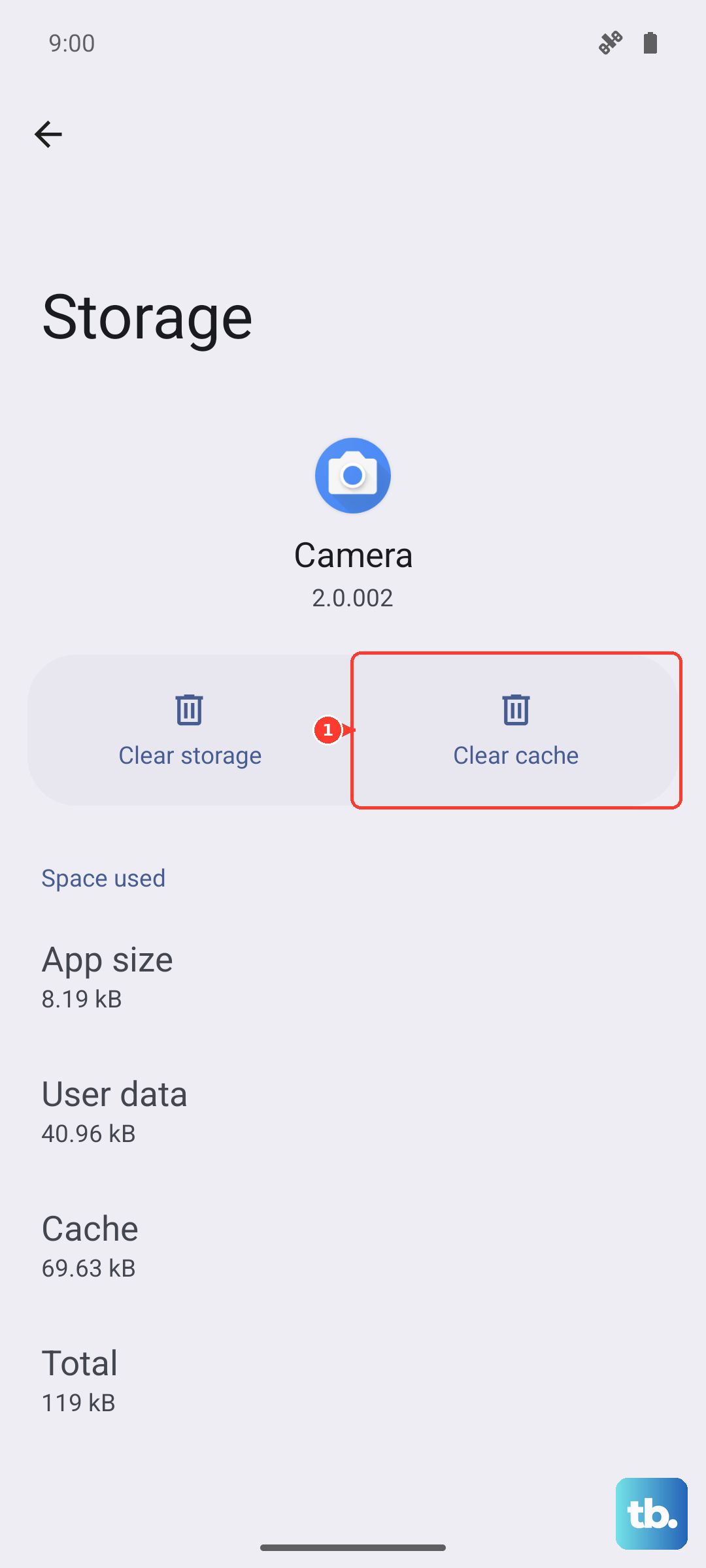
Corrupted cache data can cause the camera to behave oddly, including focusing issues. Go to Settings > Apps > Camera > Storage and tap Clear Cache. Don't tap Clear Data unless you want to reset all camera settings to default. This fix takes about 30 seconds and doesn't delete your photos.
Update One UI 7 and Camera Apps
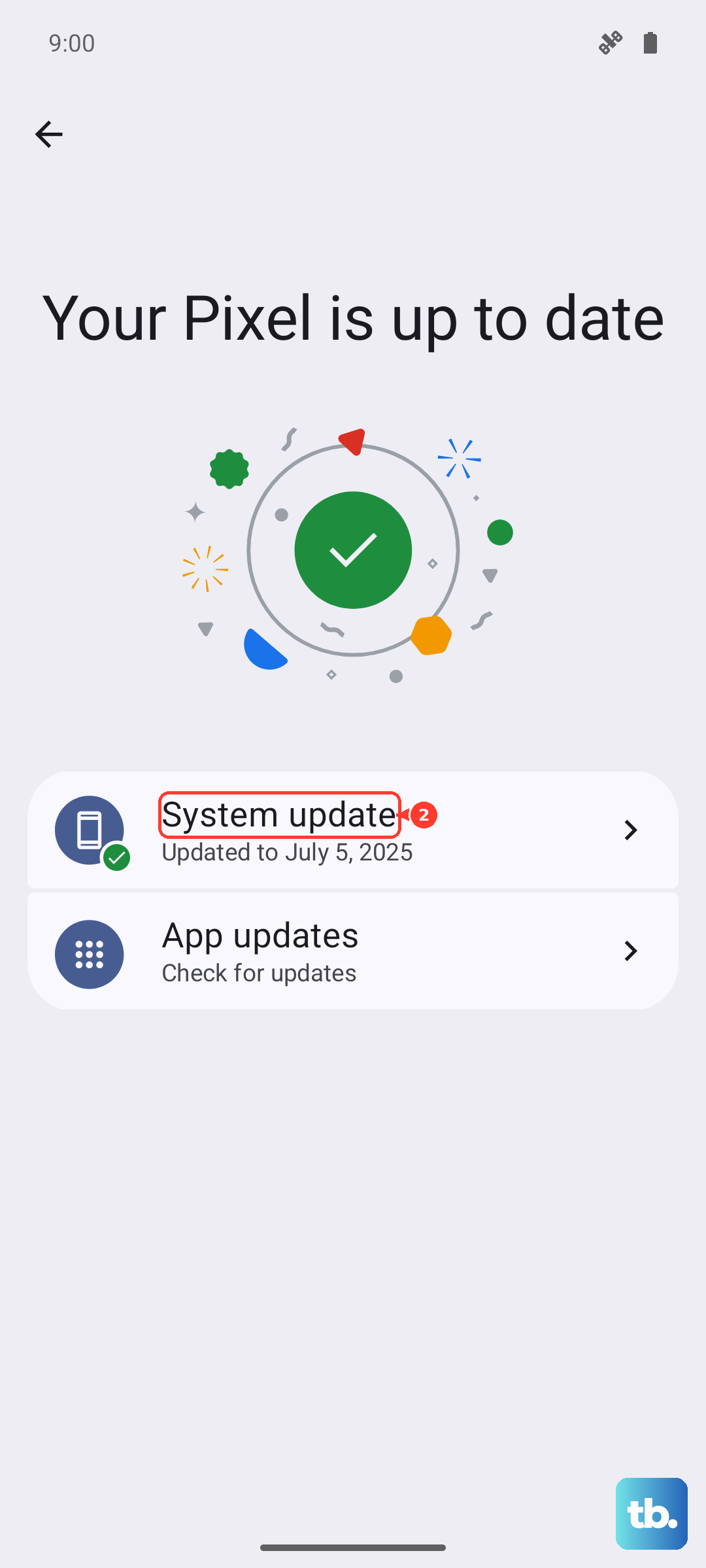
Software updates often include camera improvements and bug fixes for autofocus and image processing. Go to Settings > Software Update > Download and Install to check for system updates. Also open the Galaxy Store and update Samsung Camera from the menu if an update is available. A known camera bug might already have a patch waiting.
Check for Moisture or Condensation
Moving from a cold environment to a warm one, or using the phone in high humidity, can cause condensation to form inside the camera lens. This shows up as foggy, hazy, or blurry photos. Let the phone sit at room temperature for 15-20 minutes to let any moisture evaporate naturally. Don't blow on the lens, as that adds more moisture and makes it worse.