
You tilt your Samsung Galaxy A26 5G expecting the screen to flip, and nothing happens. The accelerometer sensors stopped responding, and the display stays locked in place no matter how you turn the phone.
This is a common issue on Samsung phones running One UI 7, and it usually comes down to a setting that got toggled off or a glitch that cleared up after a restart. Here's exactly how to fix it on the Galaxy A26 5G.
Toggle Auto-Rotate From the Notification Panel
The quickest fix is also the most obvious one, but it's worth starting here. Swipe down twice from the top of your screen to open the full Quick Panel, then look for the auto-rotate icon.
It might say Portrait or show a lock icon if rotation is disabled. Tap it once to switch to Auto Rotate and the icon should turn blue.
If you don't see it right away, swipe left on the Quick Panel to find the hidden icons. You can also tap the pencil icon to edit which toggles show up in that first row.
Enable Home Screen Rotation in Display Settings
Your Galaxy A26 5G might have auto-rotate working inside apps but not on the home screen or lock screen. That's a separate setting in One UI 7.
Go to Settings > Display and look for Auto Rotate Home Screen. Tap the toggle to turn it on if you want the home screen to rotate too.
On some versions of One UI 7, this option appears when you tap the Portrait or Auto Rotate text in the Quick Panel instead of just the icon. That opens a small menu where you can check Home Screen and Voice call screen.
Force Restart the Phone
A normal restart clears most temporary software hiccups, but a force restart is even better when sensors aren't responding. The Galaxy A26 5G has a specific button combination for this.
Press and hold the Volume Down and Power buttons together for about 10 to 15 seconds. Keep holding until the screen goes black and the Samsung logo appears, then let go.
This doesn't delete any of your data. It's just a hard reset for when the software is stuck in a state and won't respond to the normal power menu.
Update Your Software
Screen rotation bugs sometimes get fixed in software updates without much fanfare. Samsung pushes patches for the Galaxy A26 5G regularly through One UI 7 updates.
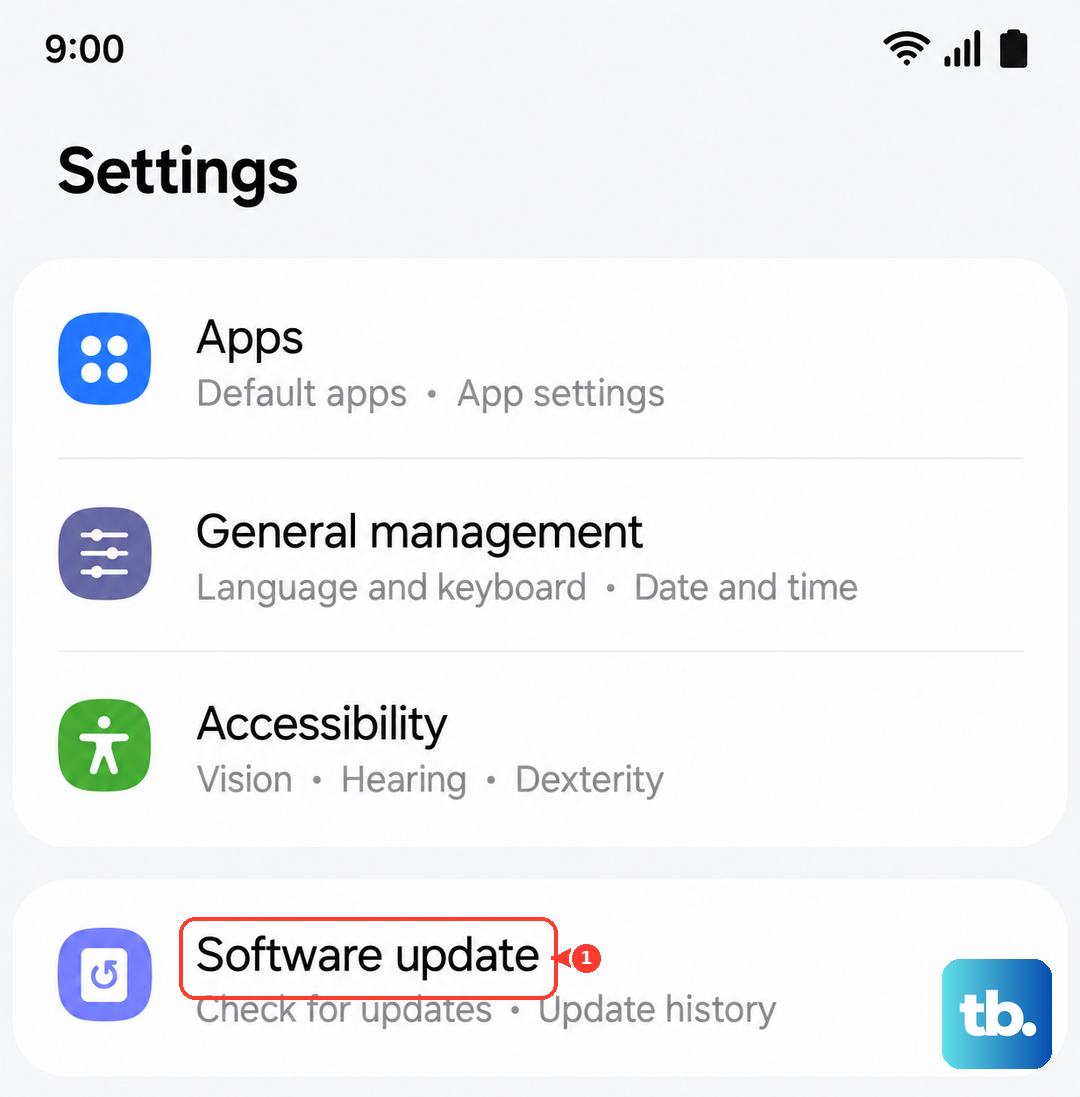
Open Settings > Software Update and tap Download and Install. If there's an update waiting, your phone will download it and prompt you to restart.
I'd also check the Galaxy Store for any system app updates, since the launcher or Settings app might have a pending update that resolves rotation issues.
Test the Sensors With the Secret Diagnostic Menu
Your Galaxy A26 5G has a built-in hardware test that shows whether the accelerometer and gyroscope are working. You can access it through the Phone dialer.
Open the Phone app and dial *#0*#. A test menu appears with several options. Tap Sensor and you'll see live readings for the x, y, and z axes.
Rotate your phone while watching those numbers. If the values change when you tilt the device, the sensors are fine and the issue is software-based. If they stay frozen, there might be a hardware problem.
Check for App Interference in Safe Mode
Third-party apps can override screen rotation settings, especially ones that manage orientation or lock the screen for specific purposes. Safe Mode disables all third-party apps so you can isolate the culprit.
Press and hold the Power button until the power menu appears, then tap and hold the Power Off option. Your phone will boot into Safe Mode with Safe Mode written in the bottom-left corner.
If auto-rotate works fine in Safe Mode, a downloaded app is causing the problem. Restart the phone to exit Safe Mode and uninstall recently added apps one at a time until the issue goes away.
Calibrate the Gyroscope
The gyroscope sometimes needs recalibrating after a drop or after the phone sits in one position for a long time. Samsung doesn't include a one-tap calibration in One UI 7, but you can use the compass calibration to help.
Open the Google Maps app and move your phone in a figure-eight pattern a few times. This recalibrates the compass and often convinces the gyroscope to start working again.
Some users also report that installing a free calibration app from the Galaxy Store and following its on-screen steps restores rotation sensitivity. Just make sure you download one with good reviews.
Keep Your Fingers Off the Screen
The Galaxy A26 5G has a touch-sensitive display that can prevent rotation if it detects any contact. When you tilt the phone, make sure your fingers or palm aren't touching the screen at all.
Try holding the phone by its edges or resting it on a flat surface and tilting it by the frame. If the screen rotates when you're not touching it but stays locked when you are, you've found the problem.
This is more common than you'd think, especially with cases that wrap around the front edge. A case that triggers the edge of the screen can make rotation appear broken when it's really just registering phantom touches.