
When apps keep crashing on your Samsung Galaxy A26 5G, it grinds your whole day to a halt. You're mid-scroll, mid-type, or mid-game and suddenly the app just vanishes. The Galaxy A26 5G runs Android 15 with One UI 7, and while that combo is generally smooth, crashes can still happen for a handful of reasons.
Most of the time the fix is quick and doesn't require any technical know-how. Here are nine things to try, starting with the easiest.
Try a Force Restart
This clears out any temporary glitches that might be tripping up your apps. On the Galaxy A26 5G, press and hold the Volume Down and Power buttons simultaneously for about 10-15 seconds until the device restarts. You'll see the Samsung logo, and once it boots back up, most small software hiccups will be gone.
Update Your Apps
Developers push out fixes all the time. If an app is crashing, it might already be patched. Open the Google Play Store, tap your profile icon in the top right, then tap Manage apps & devices. Hit Update all or update individual apps that have pending updates. Do the same for Galaxy Store apps by opening the Galaxy Store and tapping Updates.
Force Stop the Problematic App
Sometimes an app gets stuck in a weird state. Force stopping it gives you a clean slate. Go to Settings > Apps, find the app that's crashing, tap it, and select Force stop. Then open the app again normally.
Is Your Internet Connection Stable?
Apps that rely on the internet can crash or freeze when the connection is spotty. If you're on Wi‑Fi, try switching to mobile data and see if the crashes stop. Restart your router if you suspect Wi‑Fi issues. On the Galaxy A26 5G, you can also toggle Airplane Mode on and off to refresh all connections.
Clear the App Cache and Data
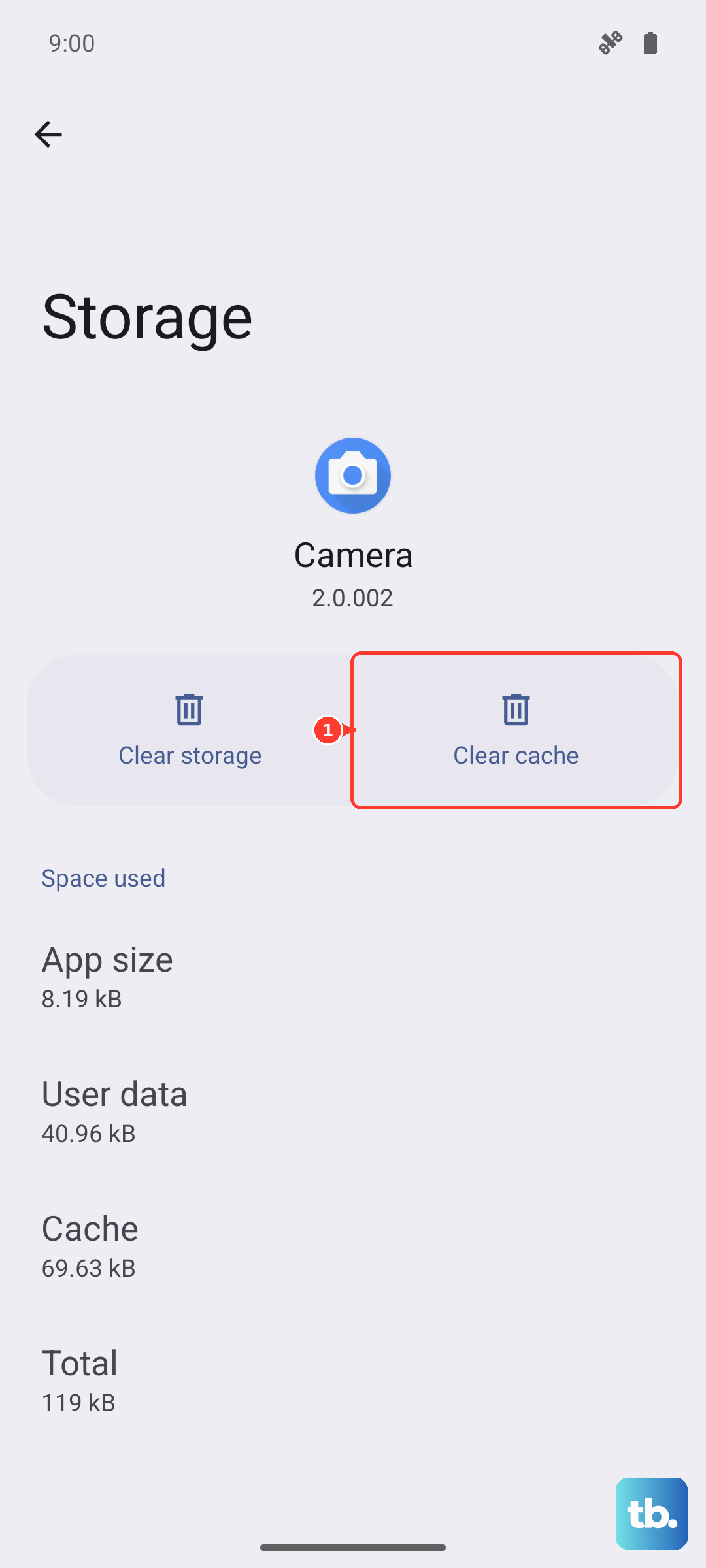
Corrupted temporary files are a common culprit. Go to Settings > Apps, select the crashing app, then tap Storage. First tap Clear cache, this won't remove any personal data. If the app still crashes, tap Clear data. That wipes login info and settings, so you'll need to sign in again, but it often fixes deeper problems.
If clearing cache in Settings doesn't do the trick, you can clear the system cache partition from recovery mode. Turn off the phone, then press and hold Volume Up and Power together. Use the volume buttons to scroll to Wipe cache partition and select it with the Power button. This clears system-level cached data without affecting your personal files.
Free Up Storage Space
When your Galaxy A26 5G's storage gets too full, apps may not have room to save temporary data, leading to crashes. Go to Settings > Battery and device care > Storage to see what's taking up space. Delete unused apps, old downloads, and move photos to cloud storage. Try to keep at least 2-3 GB free.
Reinstall the App
If a specific app keeps crashing and nothing else has helped, uninstall and reinstall it. Long-press the app icon on the home screen or app drawer, tap Uninstall, then grab a fresh copy from the Play Store. This replaces any corrupted app files with a clean version.
Check for a System Update
One UI 7 updates often include app compatibility fixes. Head to Settings > Software update > Download and install. If an update is available, install it and restart your phone. Bug fixes from Samsung can resolve underlying issues that cause apps to crash.
Backup and Factory Reset
This is the nuclear option, and only try it after everything else has failed. A factory reset wipes the phone completely, so back up your photos, contacts, and important data first. Go to Settings > General management > Reset > Factory data reset. After the reset, set up the phone fresh and test the crashing apps before restoring everything. Often this eliminates any lingering system corruption.
Most app crashes on the Galaxy A26 5G are fixable with the first few steps. Start with a force restart and app updates, and you'll likely avoid the heavier stuff.