
If your Samsung Galaxy A16 is taking forever to load web pages or buffer videos, it's a common headache. The good news is there are several settings right on your phone that can often give your internet speed a noticeable boost.
I'd start with the quickest fix first. A simple restart can clear out temporary glitches that might be slowing things down. Just press and hold the Volume Down and Power button together for about ten seconds until you see the Samsung logo appear.
Check Your Mobile Network Mode
Your Galaxy A16 might be connected to a slower network type without you realizing it. You can tell it to prioritize faster connections like 4G or 5G, which makes a big difference for data speed.
Go to Settings > Connections > Mobile networks > Network mode. From here, you can select a preferred mode like "5G/4G/3G/2G (auto connect)" or manually choose "4G/3G/2G (auto connect)" if 5G coverage is spotty in your area.
Enable Data Saver and Adaptive WiFi
Samsung's built-in tools are great for managing your connection. Data Saver stops apps from using mobile data in the background, freeing up bandwidth for what you're actually doing. You can find it under Settings > Connections > Data Usage > Data Saver.
For WiFi, the Adaptive WiFi feature is useful. If your WiFi signal gets weak, it can automatically switch you to mobile data to keep things moving. Turn this on by going to Settings > Connections > WiFi, tapping the three-dot menu, selecting Intelligent WiFi, and toggling on "Switch to mobile data".
Clear Your Browser's Cache and Data
Over weeks of use, your browser stores tons of temporary files that can get corrupted and slow down page loading. Clearing this cache is like giving it a fresh start.
If you use Samsung Internet, open the app, tap the three-line menu, go to Settings > Privacy and security, and select Delete browsing data. Make sure "Cached images and files" is checked. For Chrome, the path is similar: open Chrome, tap the three-dot menu, go to Settings > Privacy and security > Clear browsing data.
Manage Background Apps and Processes
Apps running in the background can quietly eat up your data and processing power. The Galaxy A16 can occasionally lag with heavy multitasking, so reining these in helps.
You can put individual apps to sleep. Go to Settings > Apps, select an app, and tap Battery. Here, you can set it to "Restricted" to prevent background activity. Also, make a habit of closing apps you're not using by tapping the recent apps button and swiping them away.
Reset Your Network Settings
If you're still having issues, this is a more thorough step. It will wipe all your saved WiFi networks, Bluetooth pairings, and mobile network preferences back to default, which can fix deeper configuration problems.
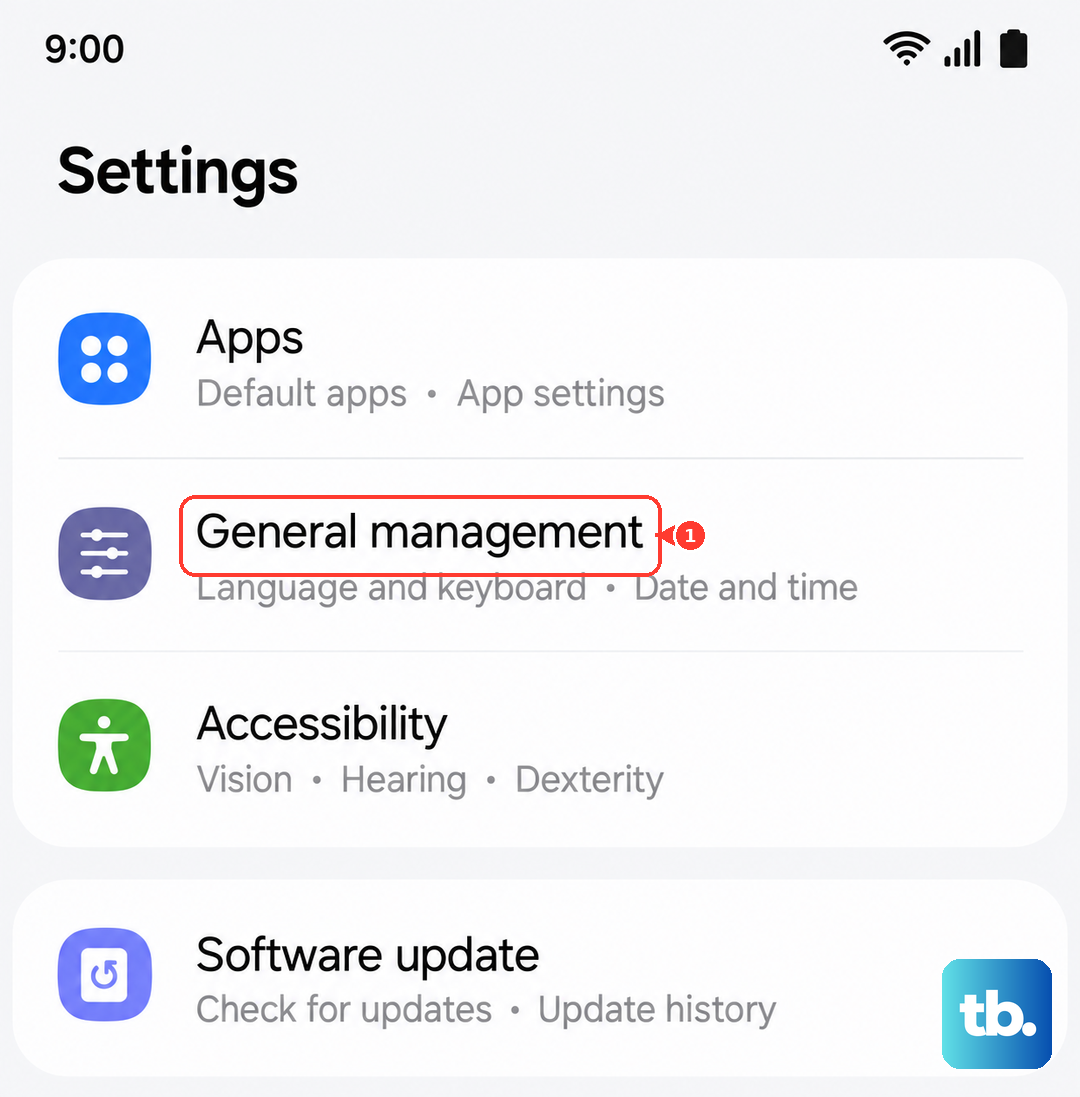
Before you do this, note that you'll need to re-enter WiFi passwords. To proceed, go to Settings > General management > Reset > Reset network settings. Tap to reset and confirm. Your phone will reboot, and you can start reconnecting to your networks.
Update Your Software and Apps
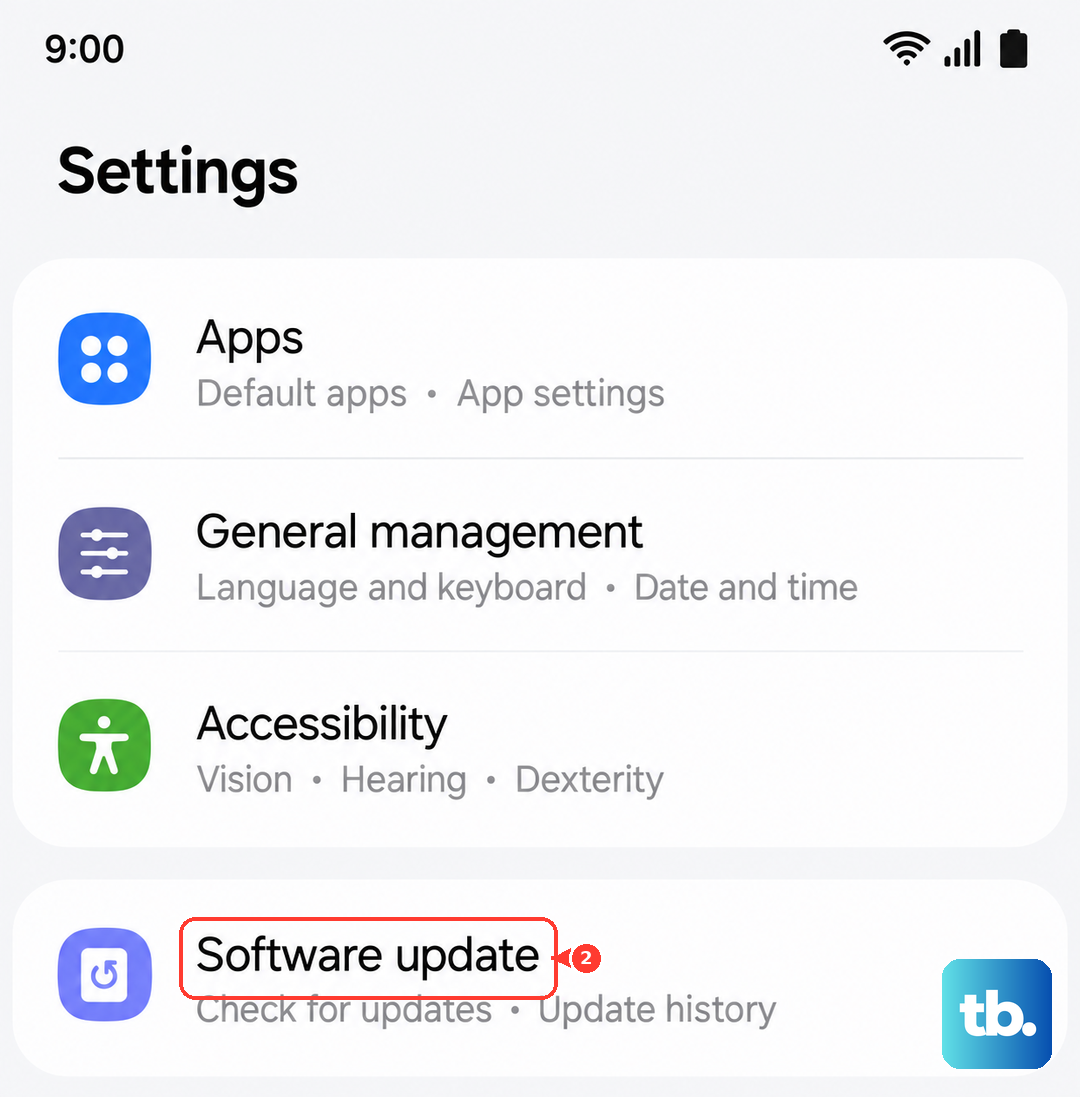
Software updates from Samsung often include performance tweaks and connectivity improvements. It's always worth checking. Go to Settings > Software update > Download and install.
Don't forget about your apps, too. Outdated apps can have bugs that affect performance. Open the Google Play Store, tap your profile icon, and go to Manage apps and device > Updates available to update everything.
Check for a VPN or Proxy
If you're using a VPN app for privacy, it can significantly slow down your connection because your data is being routed through another server. Try temporarily disabling any VPN you have active to see if your speed improves.
Also, check if a proxy is configured by accident. Go to Settings > Connections > More connection settings > Private DNS. Make sure it's set to "Off" unless you specifically use a service like Cloudflare or NextDNS.
Clear the System Cache Partition
This is a step beyond clearing an app's cache. It cleans temporary system files that can accumulate and cause general sluggishness, which might indirectly affect how quickly your phone handles network data.
To do this, power off your Galaxy A16. Then, press and hold the Volume Up and Power buttons together. When you feel a vibration, release the Power button but keep holding Volume Up until you see the Android recovery menu. Use the volume keys to highlight "Wipe cache partition" and press the Power button to select it. Confirm, and then select "Reboot system now".
Use a Different DNS Server
Sometimes, the default DNS server from your carrier or internet provider can be slow. Switching to a faster public DNS like Google DNS or Cloudflare can speed up how quickly website addresses are translated.
For WiFi, go to Settings > Connections > WiFi, tap the gear icon next to your network, select "View more", and tap "IP settings". Change it from DHCP to Static. You can then enter DNS addresses like 8.8.8.8 and 8.8.4.4 for Google DNS. Be careful here, as entering other info incorrectly can break your connection.
Perform a General Performance Cleanup
Since the A16 has a large 5000mAh battery, keeping things running smoothly helps overall performance. Enable Dark Mode to reduce power draw on the AMOLED screen, which can help the system run cooler. Also, make a habit of clearing app caches regularly through the Storage settings to prevent slowdowns.
If you've tried all these steps and your mobile data is still slow, the issue might be with your carrier's network coverage in your specific location. It's worth testing your speed in a different area or contacting your provider to ask about any local outages or account issues.