
Hold down the volume down button and the power button together for at least 10 seconds. Keep holding them until you feel the phone vibrate and see the Samsung logo appear. This force restart is the single most effective fix for an unresponsive Galaxy A16 screen and often resolves temporary software freezes.
A browser based online touch test paints the screen as you touch it, which makes dead zones and ghost touches easy to see and document.
I'd start with this one every time. It's quick, doesn't delete any data, and works for a wide range of touchscreen glitches, especially after an app update or when the phone feels warm from heavy use.
Clean the Screen and Remove Any Protector
Power off the phone and give the screen a thorough clean with a microfiber cloth. Look for any smudges, grease, or moisture that could be interfering with the touch sensors. Pay special attention to the edges where your palm might rest.
If you're using a cheap or old screen protector, try peeling it off temporarily. Some third-party protectors, particularly glass ones that aren't perfectly aligned, can cause dead zones or erratic touch behavior on the A16's display.
Also, make sure your hands are completely dry. The touchscreen can struggle with wet or even slightly damp fingers, which is a common issue if you've just washed your hands.
Boot Into Safe Mode
Safe mode temporarily disables all third-party apps. To enter it, press and hold the power button until the power off menu appears. Then, tap and hold the "Power off" option on the screen until you see a prompt to reboot to Safe Mode.
Tap "Safe mode" to confirm. If the touchscreen works perfectly in Safe Mode, you know a recently downloaded app is the culprit. You'll need to uninstall apps one by one, starting with the most recent, to find the offender.
To exit Safe Mode, simply restart your phone normally. This is a great diagnostic step that doesn't require you to be able to navigate through settings menus while the screen is acting up.
Check for Software Updates
Software bugs can cause touchscreen issues, and Samsung releases patches for them. Connect your A16 to a Wi-Fi network. Go to Settings > Software update > Download and install.
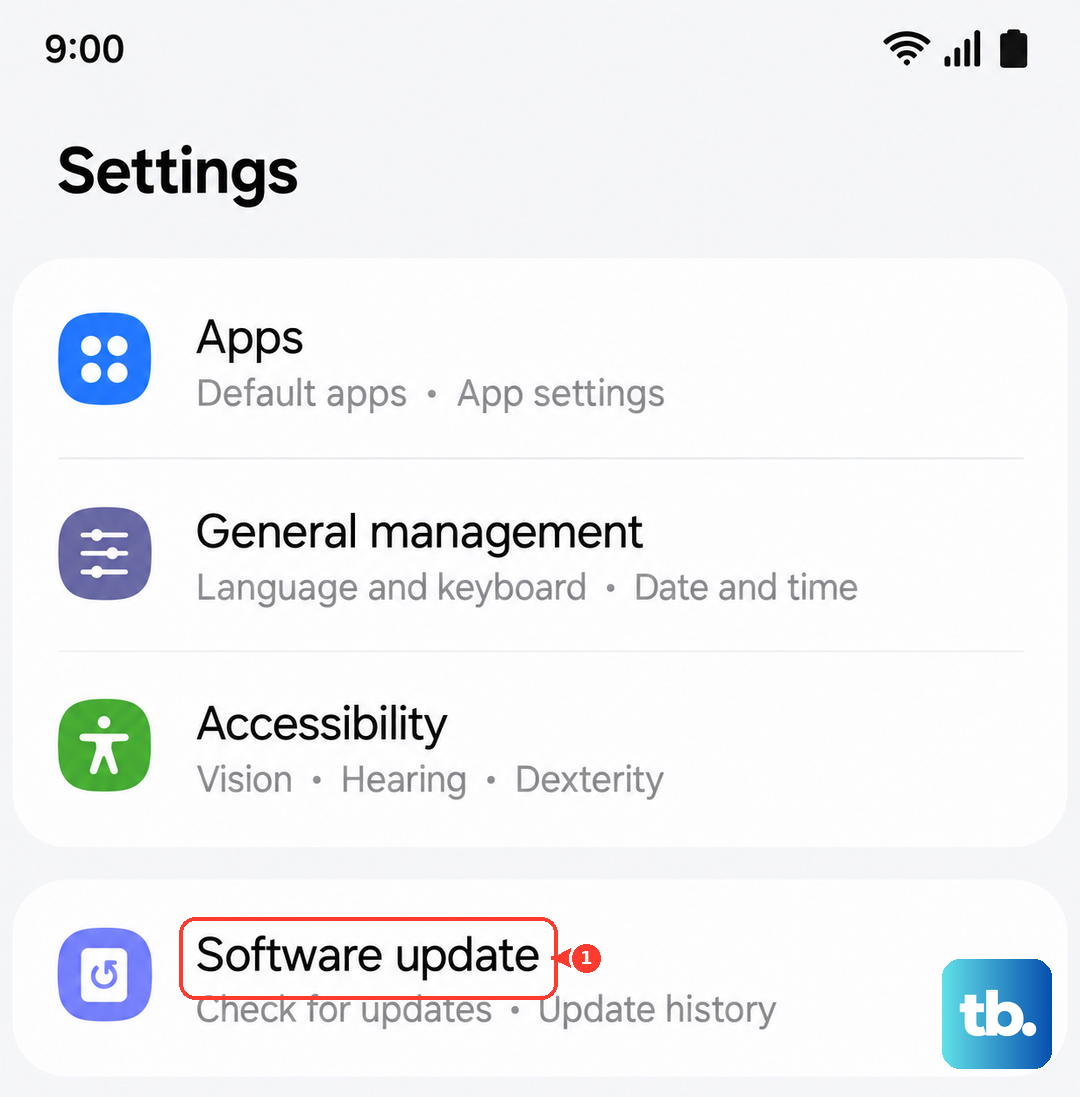
If an update is available, install it. These updates often include stability improvements and fixes for performance hiccups, which can include touchscreen responsiveness. The process takes about 10-15 minutes.
Keeping your phone updated is one of the best ways to prevent these kinds of problems. I've seen updates specifically address "touch sensitivity" issues on similar Galaxy A-series models.
Calibrate the Touch Screen
While Samsung doesn't have a built-in calibration tool in settings, you can use a hidden diagnostic menu. Open the Phone app and dial *#0*#. This will launch the secret service menu.
Tap on "Touch" to start the test. A grid will appear; simply draw on the screen to cover all the squares. This tests the entire touch sensor for dead spots.
If the test reveals areas that don't register your touch, it points to a potential hardware fault. If it passes, the issue is almost certainly software-related.
Close Background Apps and Clear Cache
Too many apps running can overload the system and cause lag, including touch lag. Swipe up from the bottom and hold to see your recent apps, then swipe each one away to close it.
For a deeper clean, go to Settings > Apps, select an app that's been problematic, and tap Storage > Clear cache. Do this for a few large apps like social media or games.
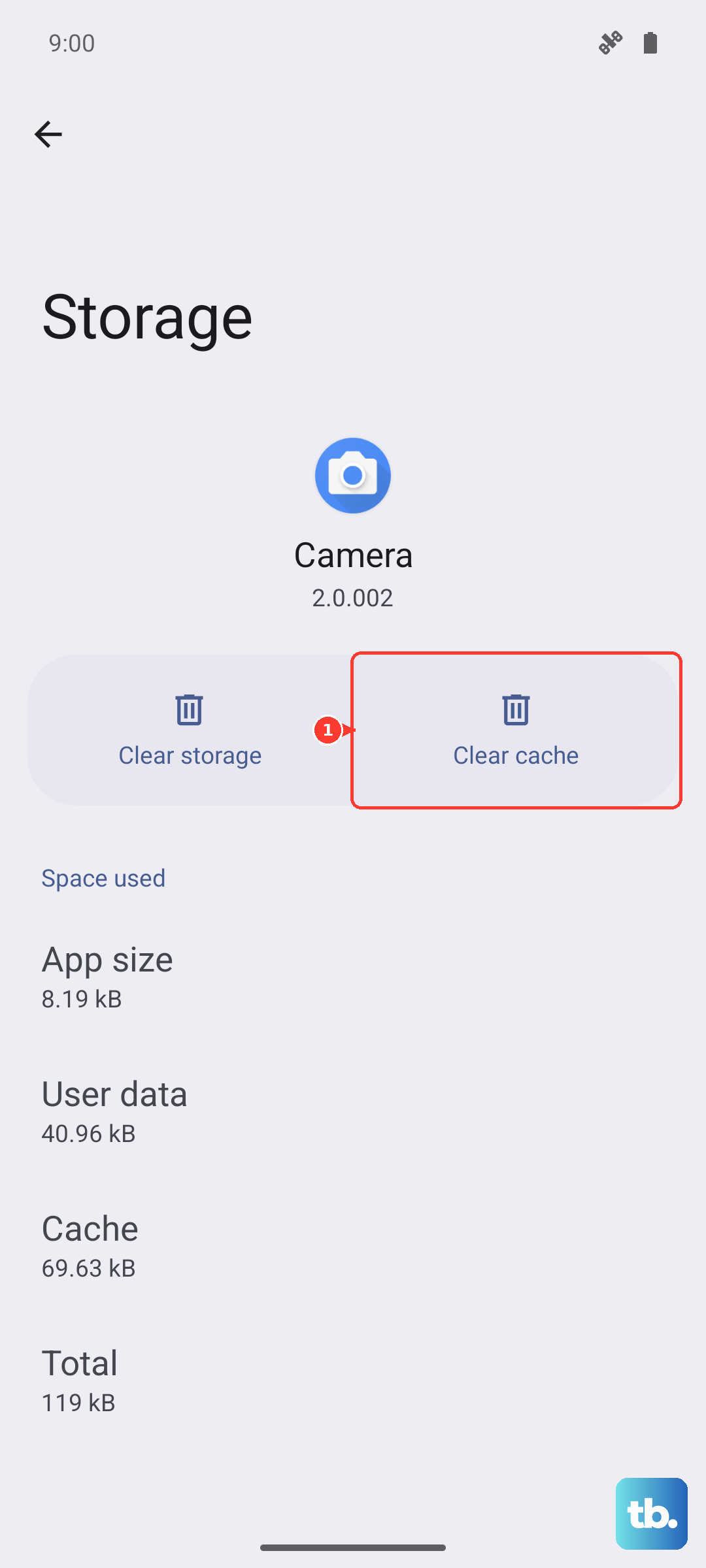
Clearing the cache regularly is a good habit for the A16, as it helps maintain smooth performance and can free up system resources that might be affecting the touchscreen driver.
Perform a Factory Reset
This erases everything on your phone, so it's a last resort. First, ensure all your important data is backed up to your Samsung account or Google Drive. You can initiate a reset even if the screen is partially working.
Go to Settings > General management > Reset > Factory data reset. Tap "Reset" and enter your PIN if prompted. The phone will reboot and take several minutes to wipe itself.
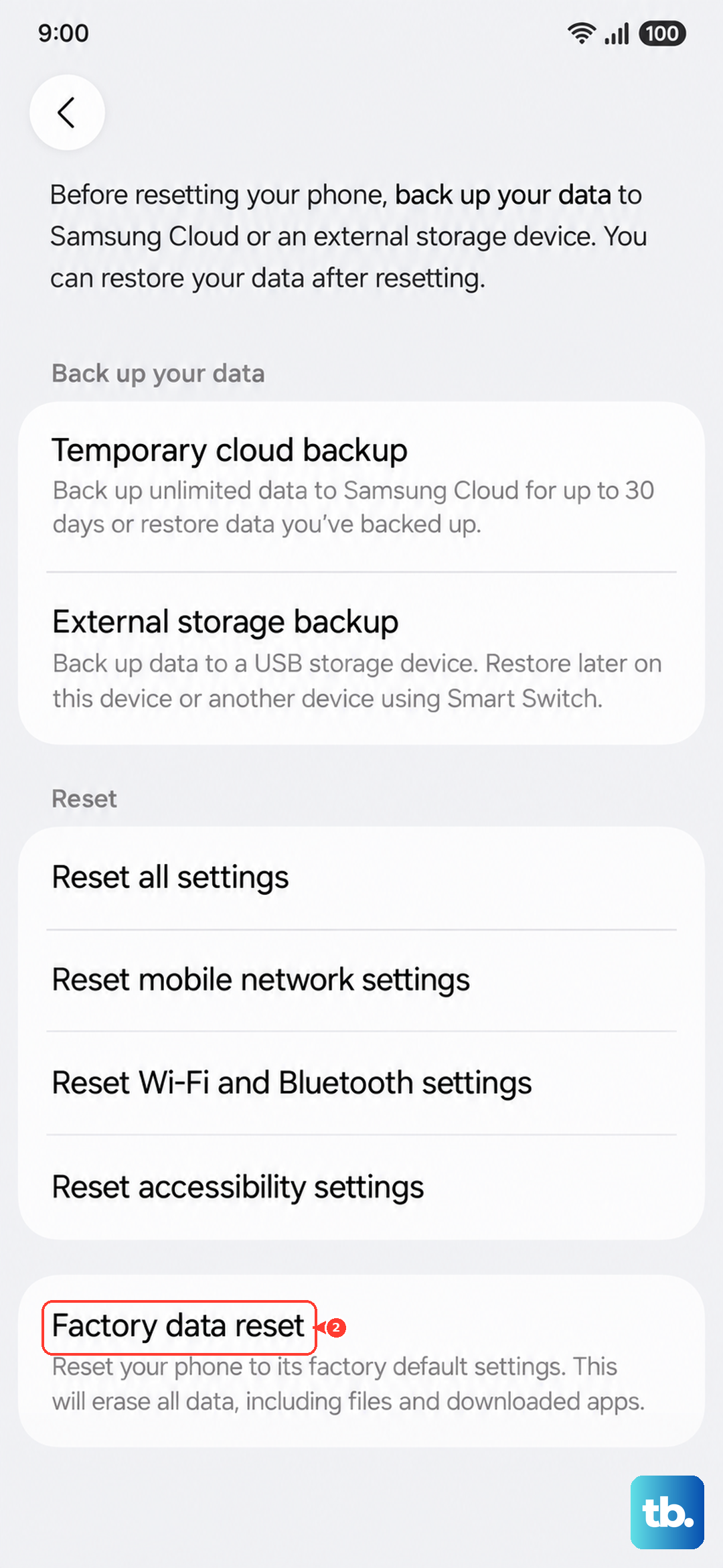
This returns the phone to its out-of-the-box state. If the touchscreen works perfectly after the reset, it confirms a software or app conflict was the cause. If the problem remains, it strongly suggests a physical hardware issue.
Consider Environmental and Hardware Factors
Extreme cold can make touchscreens temporarily sluggish. If your A16 has been in a very cold environment, let it warm up to room temperature for 20 minutes. Also, avoid using the phone while it's charging with a non-Samsung charger, as poor power quality can sometimes cause system instability.
If you've recently dropped the phone or exposed it to moisture, even small amounts, physical damage could be the cause. Look closely at the screen for any new hairline cracks or spots of discoloration.
For a device with a large 5000mAh battery like the A16, performance can sometimes dip if the battery is in poor health, though this is less common on newer models. If all software fixes fail, the touchscreen digitizer itself may need to be replaced by a technician.