If your Samsung Galaxy A16 is getting uncomfortably warm, you're not alone. This is a common issue, especially with a large 5000mAh battery in a slim body. Overheating can cause the screen to dim, apps to lag, and in severe cases, the phone might shut down to protect itself. Let's get it cooled down.
The quickest thing to try is a force restart. Press and hold the Volume Down button and the Power button together for about 10 seconds. Keep holding until you see the Samsung logo appear. This clears any temporary software glitches that might be making the processor work overtime.
Close Background Apps and Check for Updates
Start by swiping up from the bottom of the screen and holding to see your recent apps. Swipe each app window up to close it. A bunch of apps running in the background, especially social media or games, can generate a lot of heat.
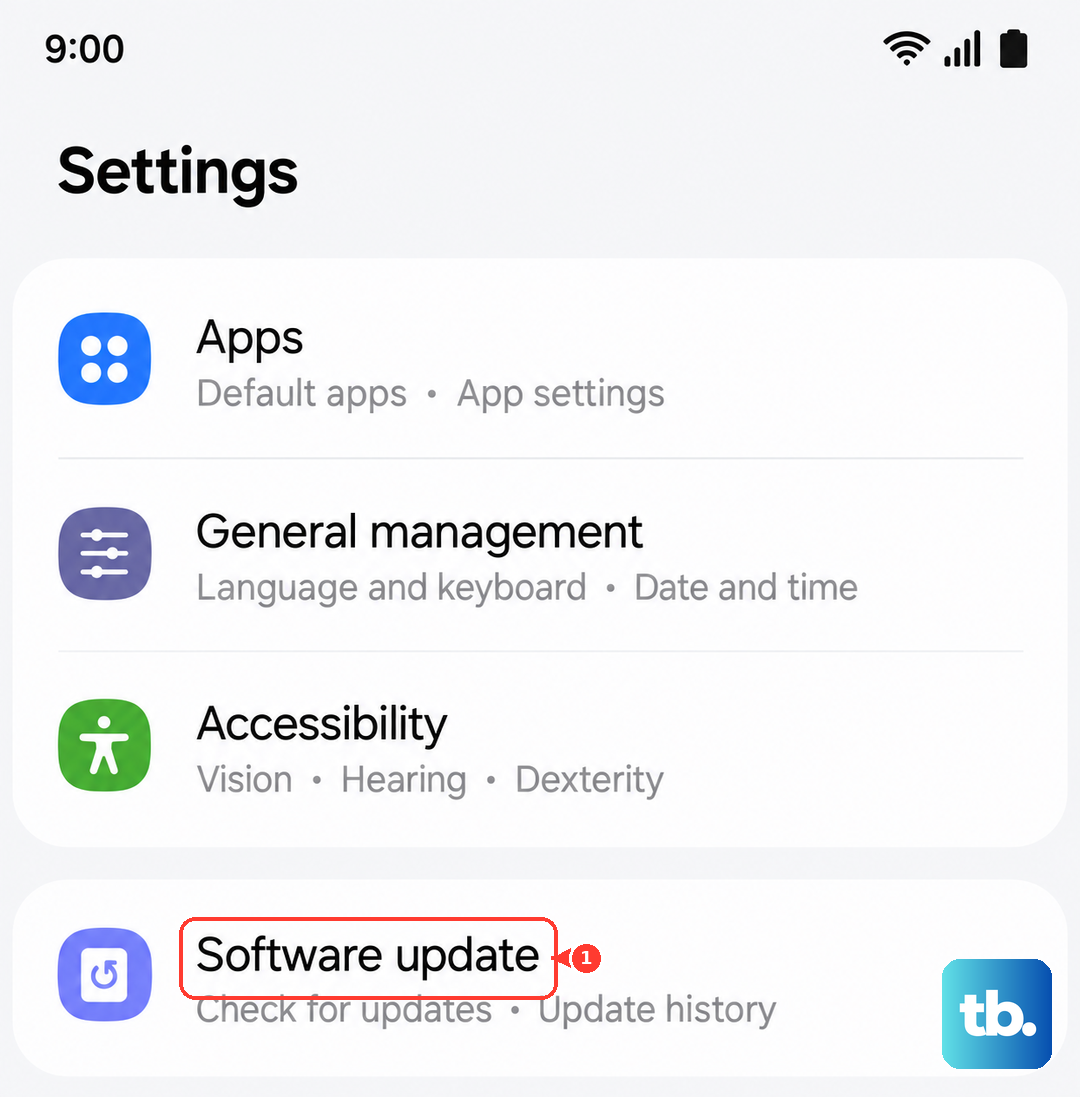
Next, check for software updates. Go to Settings > Software update > Download and install. Samsung frequently releases updates that optimize performance and fix bugs that cause overheating. I've seen updates resolve thermal issues on many Galaxy models.
Identify and Manage Problematic Apps
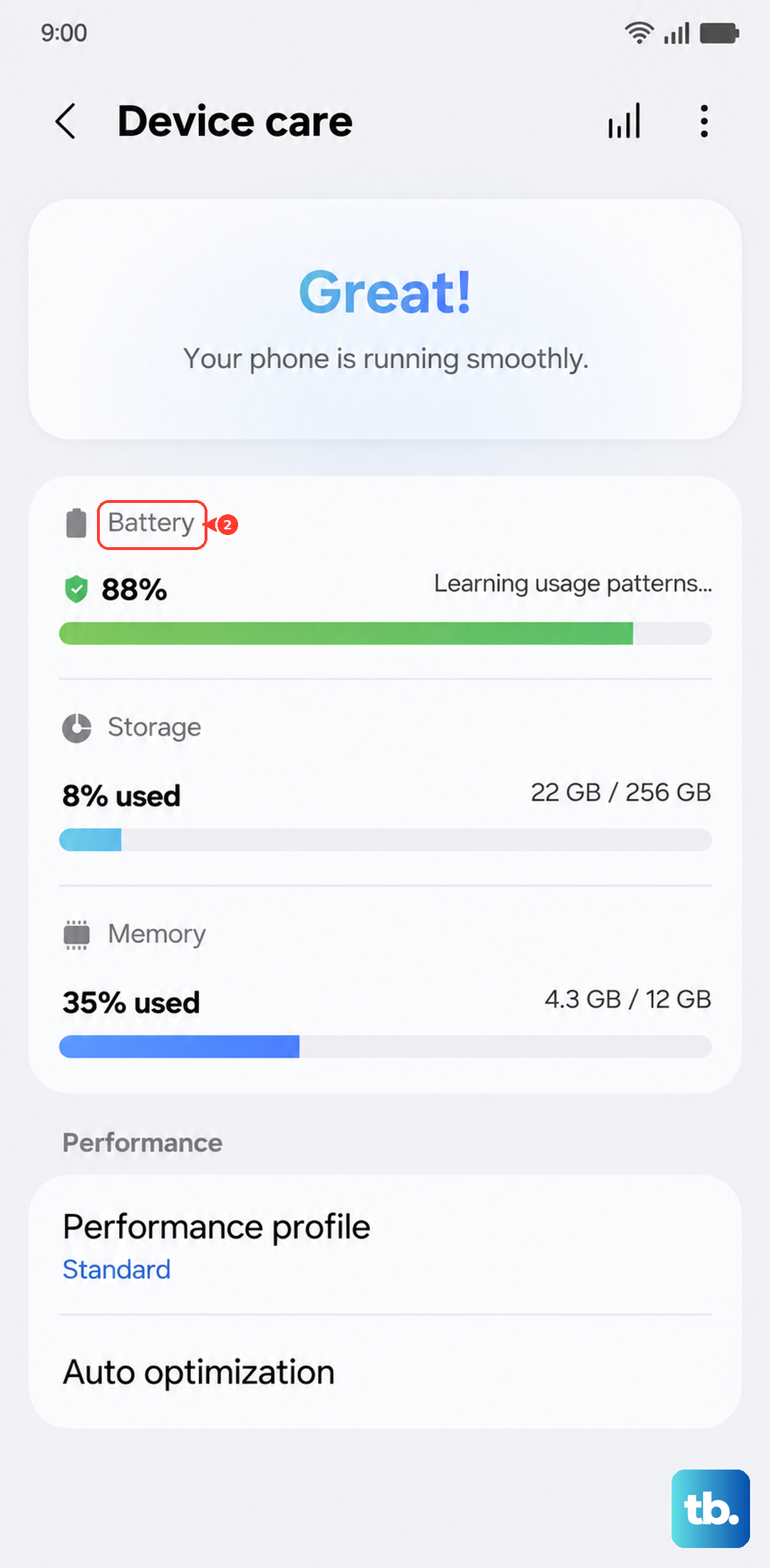
Sometimes, one misbehaving app is the culprit. Go to Settings > Battery and device care > Battery. Tap on the graph and look at the app usage list. If a single app is using a disproportionate amount of battery, it's likely also generating excess heat.
For that app, go to Settings > Apps, select it, and tap Force stop. Then, clear its cache by going into Storage within the app's info page. Clearing app cache regularly is a good habit for the A16 to help maintain smooth performance.
Adjust Your Display and Performance Settings
The A16's AMOLED display is beautiful but can use a lot of power. Enabling Dark Mode gives your battery a break and reduces heat. You can turn it on in Settings > Display > Dark mode.
Also, consider lowering the screen refresh rate if your model supports it. Go to Settings > Display > Motion smoothness. Switching from "High" to "Standard" (60Hz) reduces the workload on the GPU. While the screen won't feel as silky, it can make a noticeable difference in temperature.
Be Smart About Charging
Using your phone heavily while it's charging is a surefire way to make it hot. The processor is working, the battery is accepting a charge, and both processes generate heat. If you need to use it, try to keep the activity light, like browsing text.
Always use the official Samsung 25W charger if you have one. Third-party chargers that don't follow the proper charging protocol can cause the phone to heat up more. While 25W is on the slower side for such a large battery, it's the safe, supported speed for the A16.
Take Off the Case and Mind Your Environment
A thick or poorly ventilated case can trap heat. If your phone feels hot, take it out of the case for a while to let it cool down. This is especially important during long gaming sessions or when using GPS navigation.
Never leave your phone in direct sunlight, like on a car dashboard. The dark screen absorbs heat rapidly, and the ambient temperature can skyrocket. Similarly, avoid using it for intensive tasks in a very hot environment.
Check for Malware and Perform a Reset
Malicious software can run hidden processes that max out your CPU. Run a scan with Samsung's built-in device protection. Go to Settings > Battery and device care and tap the scan button.
If overheating started after a recent app install, try booting into Safe Mode. Press and hold the power button, then tap and hold the "Power off" icon on your screen until you see the Safe Mode prompt. This disables all third-party apps. If the phone runs cool in Safe Mode, a downloaded app is the problem.
When All Else Fails, Back Up and Reset
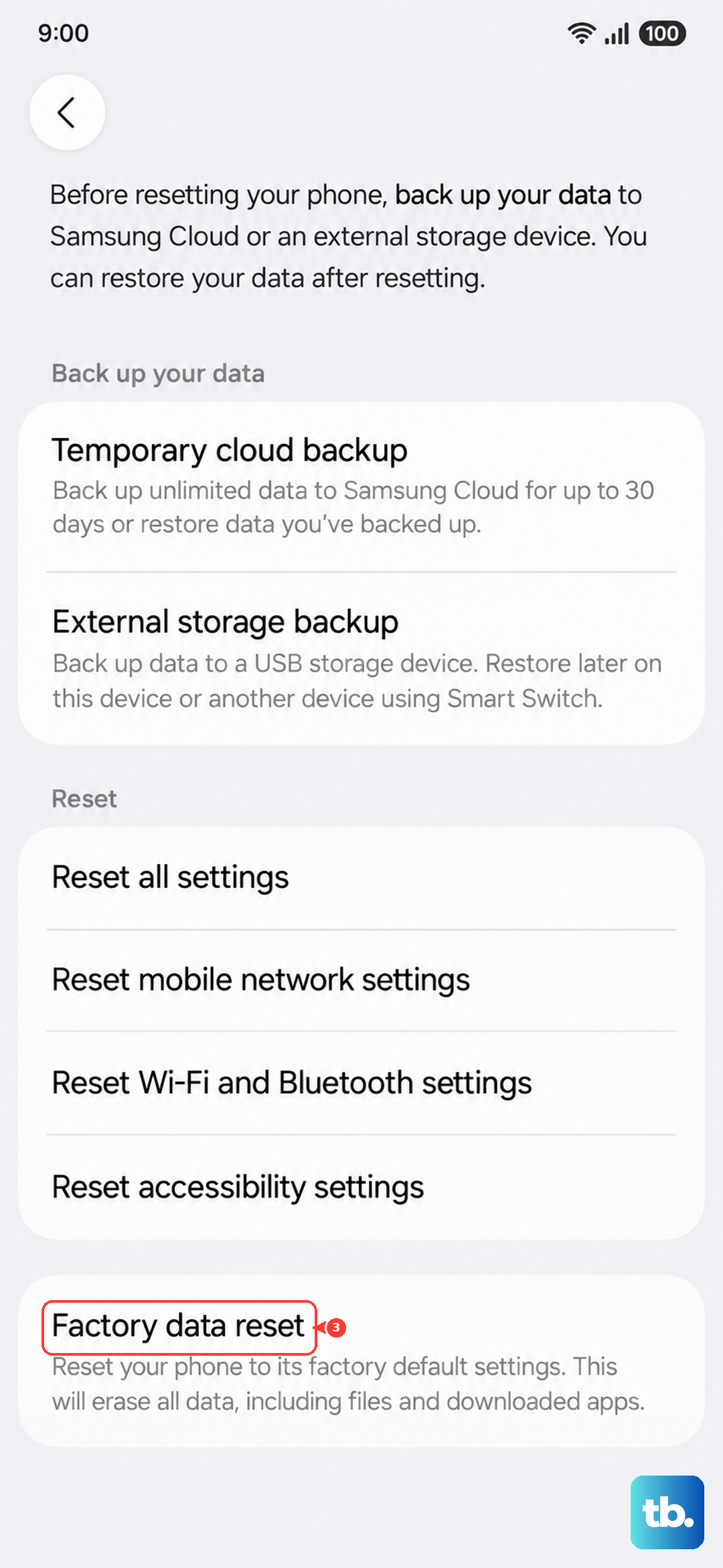
As a last resort, a factory reset can clear out any deep-seated software corruption. Before you do this, make sure all your important data is backed up to Samsung Cloud or your Google account.
Go to Settings > General management > Reset > Factory data reset. This will erase everything and return the phone to its out-of-the-box state. After the reset, set it up as new instead of from a backup to see if the overheating stops.