Missing calls on your Samsung Galaxy A16 can be really annoying, especially when you're expecting something important. You might see the notification pop up later, but you never heard a sound. The good news is this is usually caused by a simple setting that got changed by accident.
On Android phones like the A16, the most common fix is checking your sound mode and volume. I'd start there before trying anything more complicated.
Check Your Sound Mode and Volume
First, look at the right side of your phone. Press the volume up button a few times. You should see a volume slider appear on screen with different icons for media, ringtone, and notifications.
Make sure the slider that's highlighted is for "Ringtone" and not "Media". If it's set to media, tap the three-dot menu next to the slider and select "Ringtone" to adjust the correct one. Drag that ringtone slider all the way to the right.
Also, pull down the notification shade from the top of your screen twice to see your quick settings tiles. Look for an icon that looks like a speaker with a line through it or says "Mute". If you see it, tap it to turn mute off and switch back to sound mode.
Review Do Not Disturb and Focus Modes
One UI's Do Not Disturb and Focus modes are great for quiet time, but they'll silence your ringer if they're left on. Swipe down from the top to open your quick settings and check for a moon icon.
If the moon icon is highlighted, tap it to turn Do Not Disturb off. For a more detailed check, go to Settings > Notifications > Do Not Disturb. Make sure it's toggled off and look at any schedules that might be turning it on automatically.
You should also check any active Focus modes, which are Samsung's version of granular quiet profiles. Go to Settings > Modes and Routines. See if any mode like "Sleep" or "Work" is currently active and turn it off.
Verify Your Ringtone Settings
Sometimes the specific ringtone file can get corrupted. It's easy to test by just picking a new one. Head to Settings > Sounds and vibration > Ringtone.
Try selecting one of the default Samsung tones, like "Over the Horizon". Tap it to preview it, then back out. Have a friend call you to test if it now rings. If you're using a custom song or sound file you downloaded, try switching back to a default tone temporarily.
Disconnect Bluetooth Accessories
If your A16 is connected to a Bluetooth speaker, headphones, or your car, incoming call audio might be routing there instead of your phone's speaker. This happens automatically and can make it seem like the phone is silent.
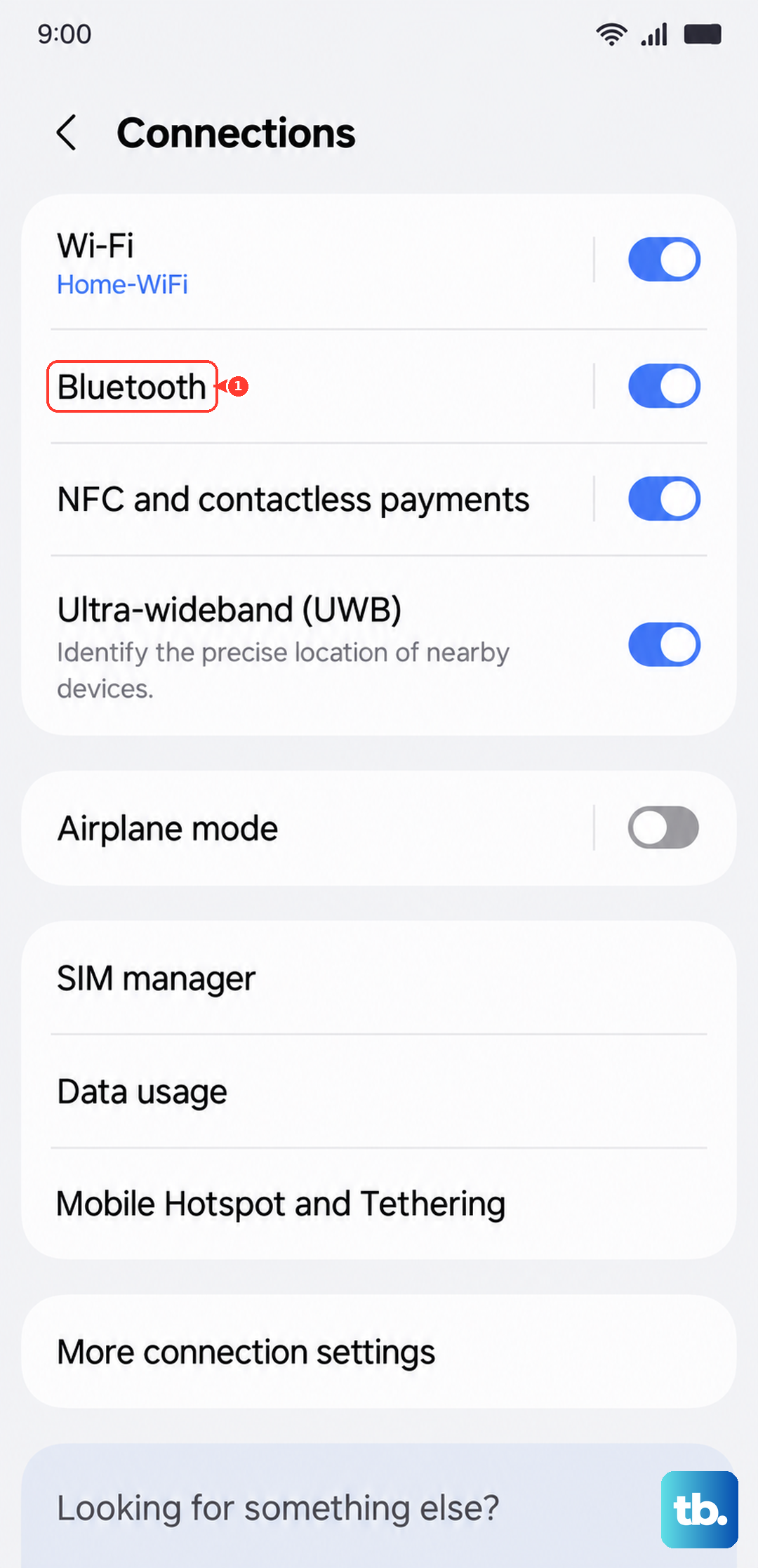
Go to Settings > Connections > Bluetooth. You'll see a list of paired devices. Simply tap the toggle at the top to turn Bluetooth off completely. Now try a test call to see if the ringtone plays from the phone itself.
Check for Blocked Numbers and Call Settings
It's worth making sure the call isn't being blocked or redirected before it can ring. Open your Phone app and tap the three-dot menu in the top right, then go to Settings > Block numbers.
Review the list to ensure the person trying to reach you isn't on it. Also, check for any call forwarding that might be active. In the same Phone settings menu, look for "Call forwarding" and make sure all options are set to "Turn off" or "Use network default".
Inspect App-Specific Notification Permissions
This is a common one on Android. Your phone app needs explicit permission to make sound. Go to Settings > Apps, then find and tap on "Phone" in the list (it might be called "Phone" or "Samsung Phone").
Tap on Notifications. Look for a category called "Incoming calls" or something similar. Make sure the toggle is on, and that the "Sound" option is enabled for that category. Sometimes after an update, these permissions can get reset.
Restart Your Galaxy A16
A simple reboot clears out temporary software glitches that can mess with the sound system. Press and hold the Volume Down button and the Power button on the right side simultaneously.
Keep holding them for about 10 seconds until you feel a vibration and see the Samsung logo. This forces the phone to restart. Once it's back on, test a call immediately.
Clear the Cache for the Phone App
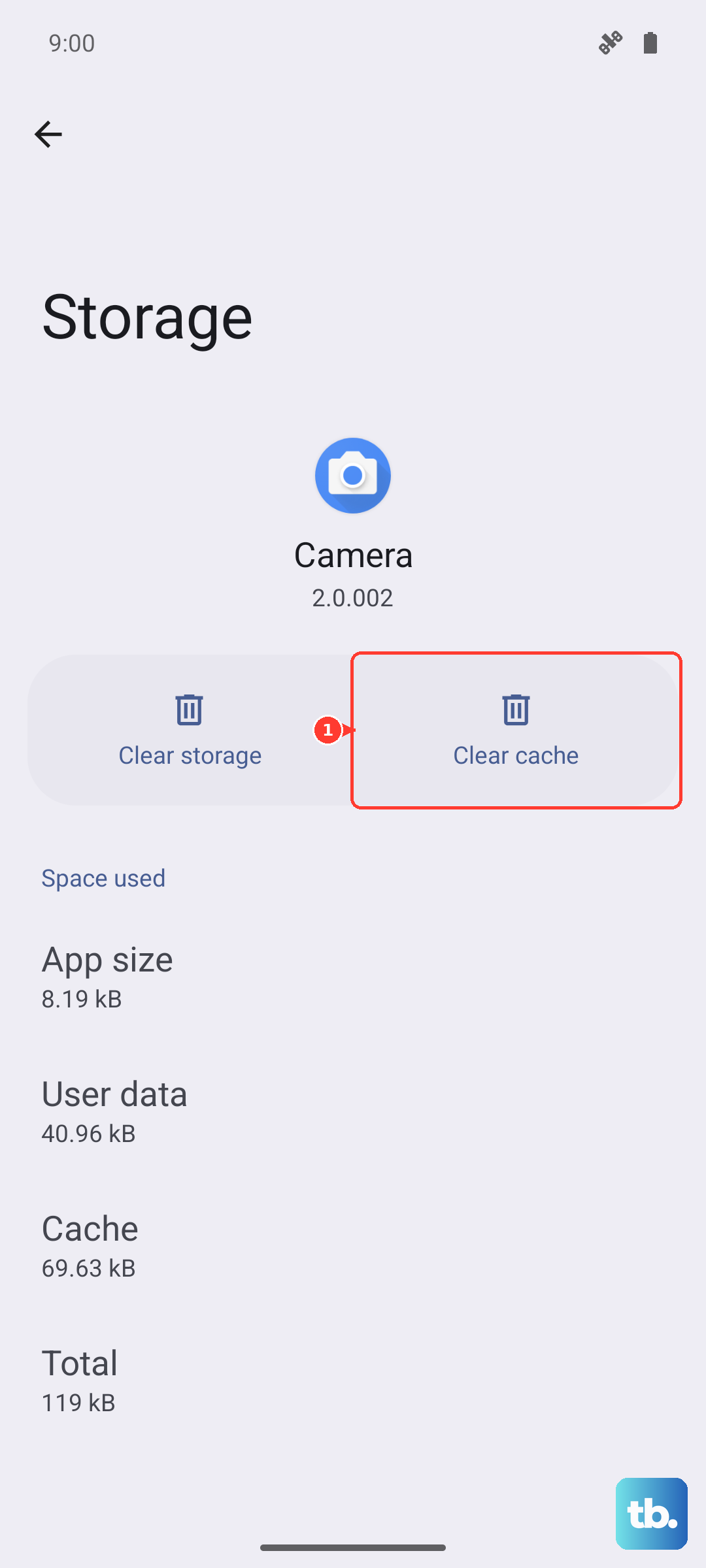
Corrupted temporary data in the Phone app can cause weird behavior. This doesn't delete your call history or contacts. Go to Settings > Apps, find "Phone" again, and tap on it.
Tap on Storage. You'll see two options: "Clear data" and "Clear cache". Tap "Clear cache". This removes temporary files and might resolve the ringing issue. Avoid "Clear data" unless you're desperate, as it resets the app to factory defaults.
Update Your Software
Samsung regularly releases updates that fix bugs, including ones related to audio and calling. Connect to Wi-Fi and go to Settings > Software update > Download and install.
If an update is available, let it install. Samsung lists the Galaxy A16 with six generations of OS upgrades and six years of security updates, so keeping it current is key for stability instead of relying on the launch software version.
Reset All Settings
If you're still stuck, this nuclear option resets every system setting, like Wi-Fi passwords, Bluetooth pairings, and sound profiles, back to factory defaults. Your photos, messages, and apps are safe.
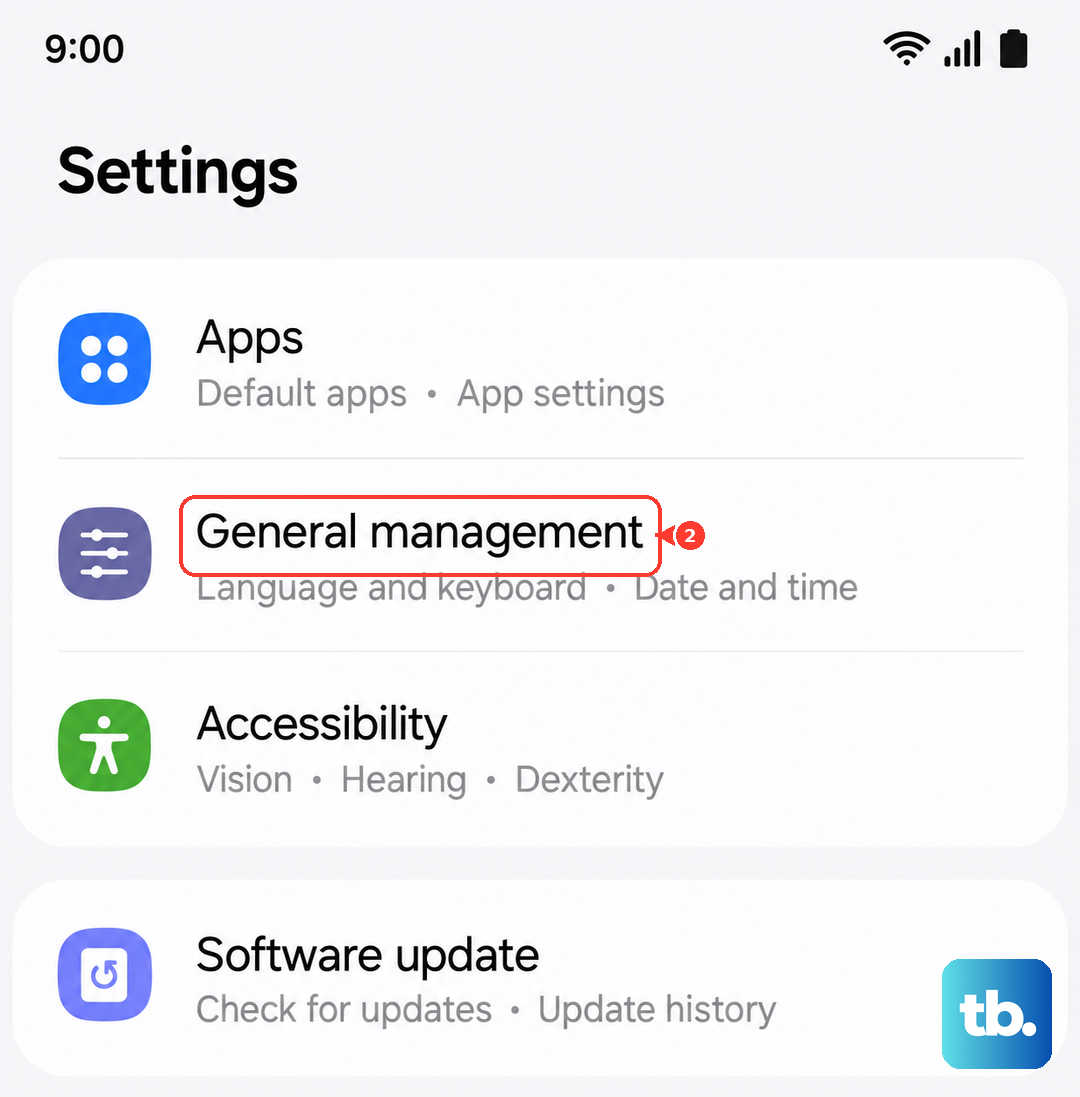
Go to Settings > General management > Reset > Reset all settings. Enter your PIN if asked and confirm. After the phone reboots, you'll need to reconfigure your preferences, but it often clears up persistent sound issues.