If your Samsung Galaxy A16 shows "Not registered on network" or "Emergency calls only," you're stuck without calls, texts, or mobile data. This error means your phone can't authenticate with your carrier's network. It's a common but frustrating problem, often caused by a simple software hiccup or a network setting that's gotten out of sync.
Before you worry about anything serious, try this quick fix. Pull down the notification shade twice to open the Quick Settings panel and tap the Airplane Mode icon to turn it on. Wait about 15 seconds, then tap it again to turn it off. This forces your phone's modem to restart and attempt a fresh connection to the nearest cell tower. It resolves a lot of temporary glitches in about 30 seconds.
Restart Your Galaxy A16
If toggling Airplane Mode didn't work, give your phone a full restart. This clears out any temporary system processes that might be interfering with the network connection. Press and hold the Power button, then tap "Restart" on the screen. Wait for the phone to completely power back on and see if the signal bars return.
For a more thorough refresh, you can perform a force restart. Press and hold the Volume Down button and the Power button together for about 10 seconds. You'll see the Samsung logo appear as the phone reboots. This method can clear deeper software caches that a normal restart might miss.
Check Your SIM Card
A loose or dirty SIM card is a frequent culprit. Power off your Galaxy A16 completely. Use the SIM ejector tool (or a small paperclip) to open the tray on the side of the phone. Carefully remove the SIM card and inspect the gold contacts for any dust, lint, or damage.
Gently wipe the contacts with a soft, dry cloth. Blow into the SIM tray slot to dislodge any debris, then reseat the card firmly. Push the tray back in until it clicks. Power your phone back on and give it a minute to search for the network. I've seen this simple step fix the issue more times than I can count.
Verify Your Carrier Account Status
Sometimes the problem isn't your phone at all. If your prepaid plan has expired or your postpaid bill is overdue, your carrier will suspend service, which shows as a network registration error. Try using your carrier's app on Wi-Fi to check your account balance and status.
If you can't use the app, you'll need to call customer service from another phone. Ask them to confirm your line is active and hasn't been suspended. They can also sometimes reprovision your service on their end, which can kick-start the connection.
Reset the Network Settings on Your A16
This is a powerful step that wipes all your saved network configurations. It deletes your Wi-Fi passwords, Bluetooth pairings, and any custom mobile network settings, returning them to factory defaults. Go to Settings > General management > Reset > Reset network settings.
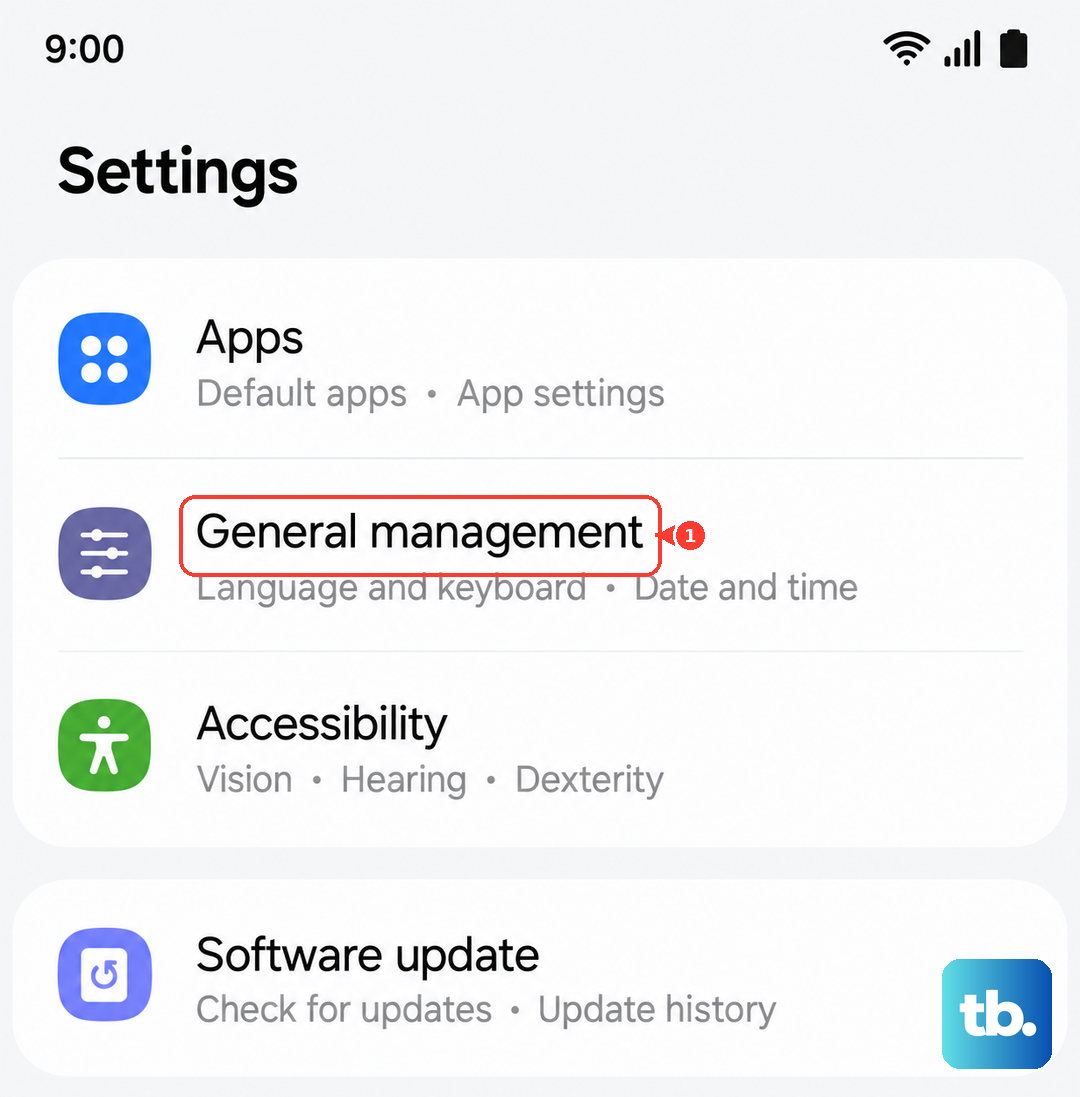
Tap "Reset settings" and confirm. Your phone will restart. After it boots, you'll need to reconnect to your Wi-Fi and re-pair Bluetooth devices, but this often clears corrupted network data that's preventing registration.
Manually Select Your Network Operator
Your phone might be trying to automatically connect to a network that's weak or undergoing maintenance. You can force it to search for and pick your specific carrier. Go to Settings > Connections > Mobile networks > Network operators.
Tap "Search now" and wait for the list to populate. Select your carrier's name from the list. If it successfully registers, you'll see the network name appear. If it fails, it confirms there's an issue with connecting to that specific provider in your current location.
Update Your Phone's Software
Samsung releases updates that fix bugs, including ones related to network connectivity. An outdated version of Android or One UI could have a known issue that's already been patched. Make sure you're connected to Wi-Fi, then go to Settings > Software update > Download and install.
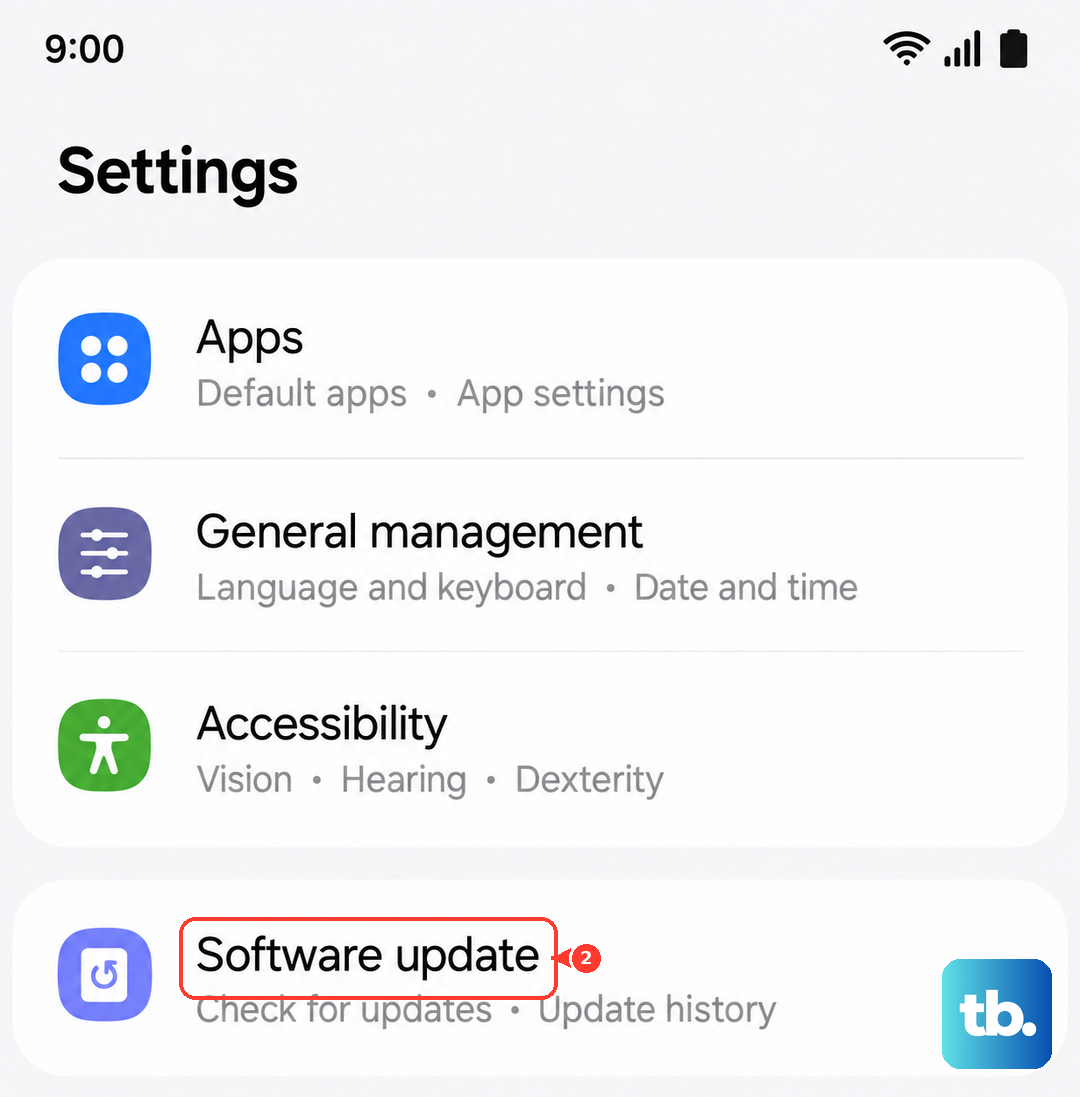
If an update is available, install it. These updates can include modem firmware improvements that directly affect how your phone talks to cell towers. After the update and restart, check if your signal has returned.
Clear the Cache for the Phone Services App
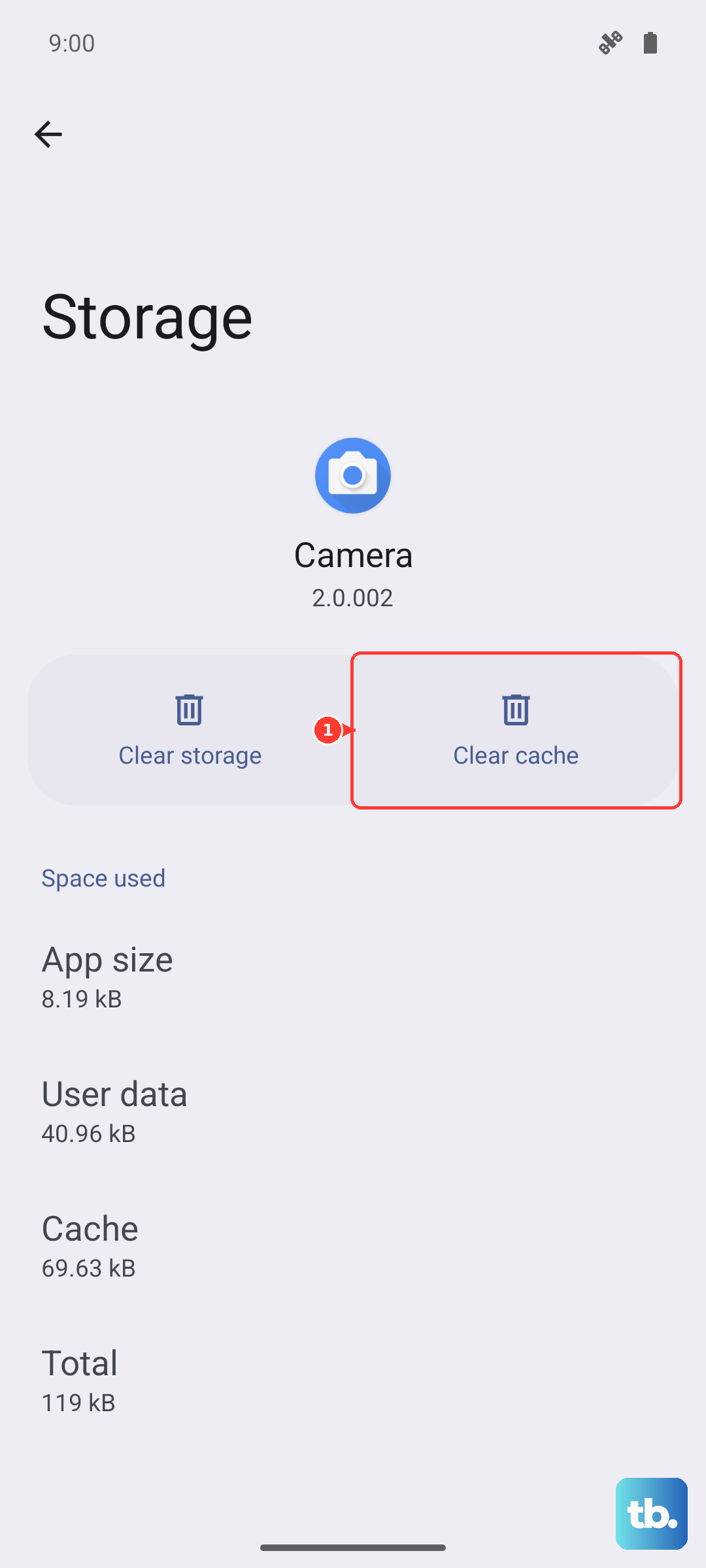
The app that manages your cellular connection can accumulate corrupted temporary files. Clearing its cache is safe and won't delete any personal data. Head to Settings > Apps, then tap the filter icon and select "Show system apps."
Scroll down and find "Phone Services." Tap on it, then go to Storage > Clear cache. Do the same for the "SIM Toolkit" app if you see it. Restart your phone afterward to let the apps rebuild their cache files from scratch.
Try a Different SIM Card
At this point, it's worth testing if the problem is with your SIM card itself. If you have access to another active SIM card from the same carrier (or even a different one), insert it into your Galaxy A16. If the new SIM card connects to the network without any issues, your original SIM is likely faulty.
You'll need to contact your carrier to get a replacement SIM card. They can usually activate a new one for you in a store or send one out. If the borrowed SIM also shows "Not registered on network," the issue is almost certainly with your phone's hardware or software.
Perform a Factory Reset
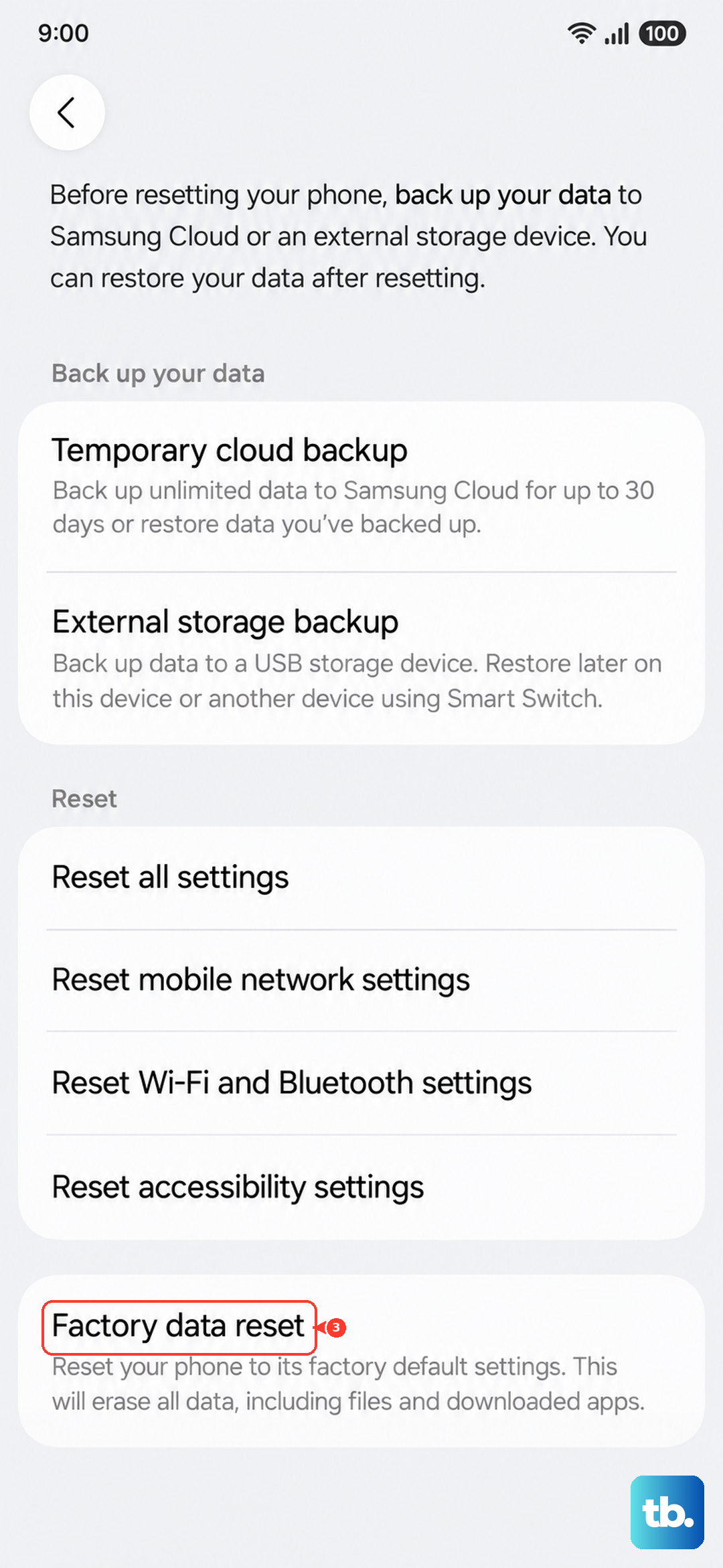
This is your last resort before considering a hardware problem. A factory reset will erase all data, apps, and settings from your phone, so you must back up everything important first. Use Samsung Cloud or a computer to save your photos, contacts, and files.
Once backed up, go to Settings > General management > Reset > Factory data reset. Tap "Reset" and follow the prompts. After the reset is complete, set up the phone as new, don't restore a backup immediately. Just insert your SIM and see if it registers on the network. If the error persists after a clean install, the issue is likely a faulty antenna or modem component requiring professional repair.