
So your Samsung Galaxy A16 won't charge. You've plugged it in, maybe tried a different cable, and the screen stays stubbornly dark. It's a frustrating spot to be in, especially with a phone that's supposed to have a massive 5000mAh battery. The good news is that simple checks can often help you fix charging problems without a trip to a repair shop.
Whether the phone is completely dead or it just won't accept a charge past a certain point, we'll walk through the solutions. I'd start with the quick force restart, as that clears up a lot of weird software hiccups on One UI.
Force Restart Your Galaxy A16
This should always be your first move. A simple force restart can clear temporary glitches that are preventing the charging system from working properly. Hold the buttons for more than seven seconds; this doesn't delete any of your data.
For the Galaxy A16, press and hold the Volume down button and the Side button at the same time. Keep holding them both for more than 7 seconds until the device restarts. Once it boots back up, plug in your charger and check for the charging indicator.
Inspect and Clean the USB-C Port
Debris in the charging port is one of the most common causes of charging issues, and the A16's USB-C port is no exception. Lint, dust, and pocket debris get packed in there over time, creating a physical barrier that stops the cable from making a good connection.
Turn the phone off first, then use a flashlight to look closely into the port. If you see lint or debris, it may be preventing a good connection. Carefully remove visible debris with a soft, dry brush. Avoid metal objects or liquids, as these could damage the charging port.
You can also try gently tapping the phone with the port facing down to dislodge anything loose. After cleaning, plug your cable back in and see if it seats more firmly and starts charging.
Test a Different Cable and Power Source
You need to figure out if the problem is with your phone or your accessories. The easiest way is to swap things out one by one. Start by trying a different USB-C cable, preferably one you know works with another device.
Next, try a different wall charger adapter. If you have a Samsung 25W adapter, use that to ensure you're getting the fastest possible charge your A16 supports. Also, try plugging into a different wall outlet entirely, in case the first one is faulty.
Finally, take your phone out of its case. A thick or poorly aligned case can sometimes prevent the USB-C plug from being inserted all the way, which will stop charging completely.
Check for Software Updates
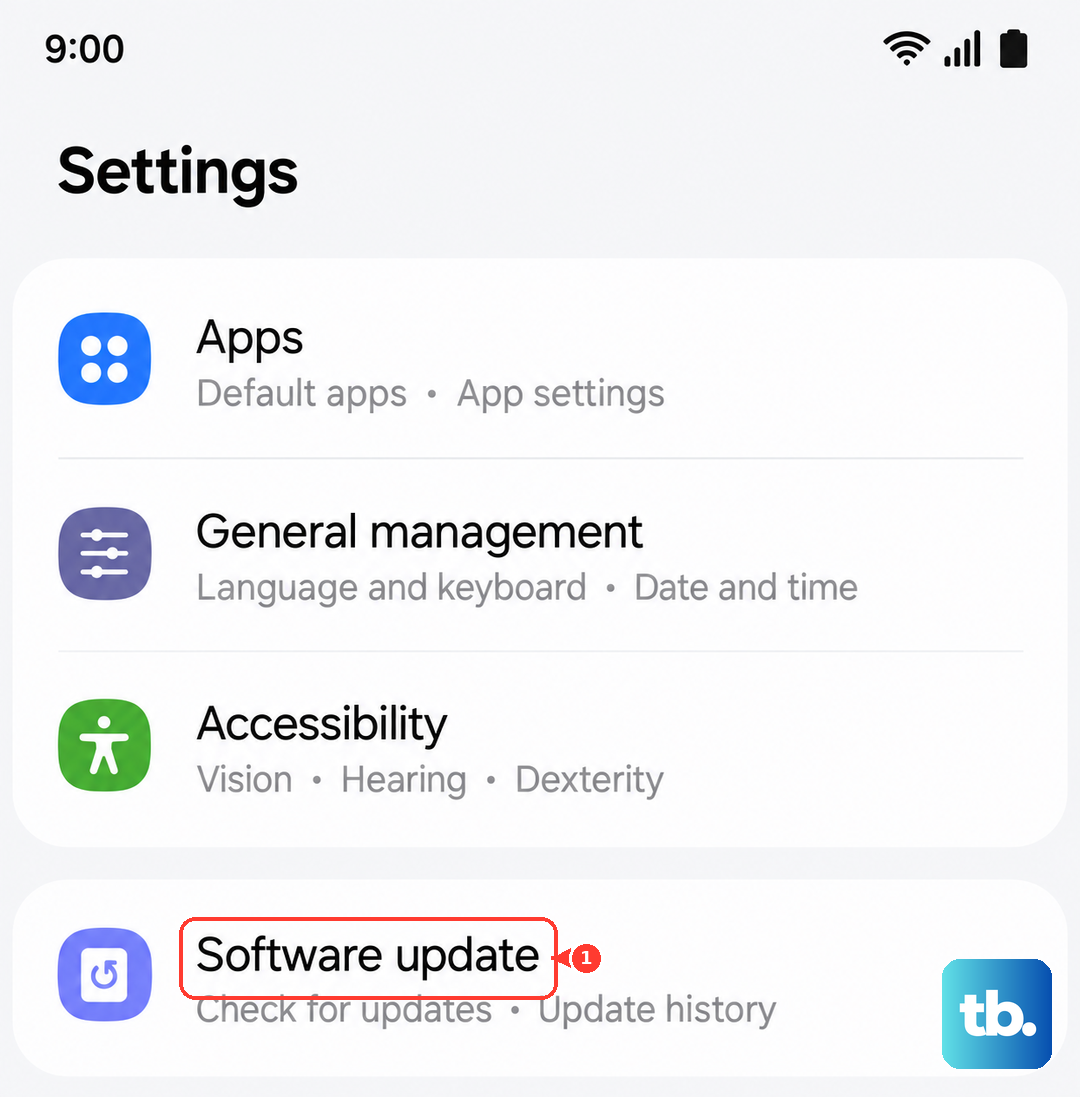
Software glitches can occasionally interfere with battery management and charging. Installing available updates can help address software issues. If your phone has enough battery to turn on, it's worth checking for an update.
Go to Settings > Software update and tap "Download and install." If an update is available, let it install completely. After the phone restarts, try charging it again. Keeping your phone updated can also help with occasional performance lag.
Let a Dead Battery Charge Up First
If your Galaxy A16's battery has been completely drained to zero, it may take some time to turn on or show a charging symbol. Give it time to charge before trying to start it again. Don't panic.
Plug it into a wall charger using a known-good cable and adapter, then leave it alone for at least 30 minutes. Don't keep trying to turn it on during this time. After a half-hour, press and hold the Side button to see if it responds. If you see the Samsung logo or a battery icon, you're back in business.
Look at Battery Health and Settings
Battery protection can limit how far your Galaxy A16 charges, and other settings can affect charging behavior. Go to Settings > Battery. You can also review battery usage through Device care.
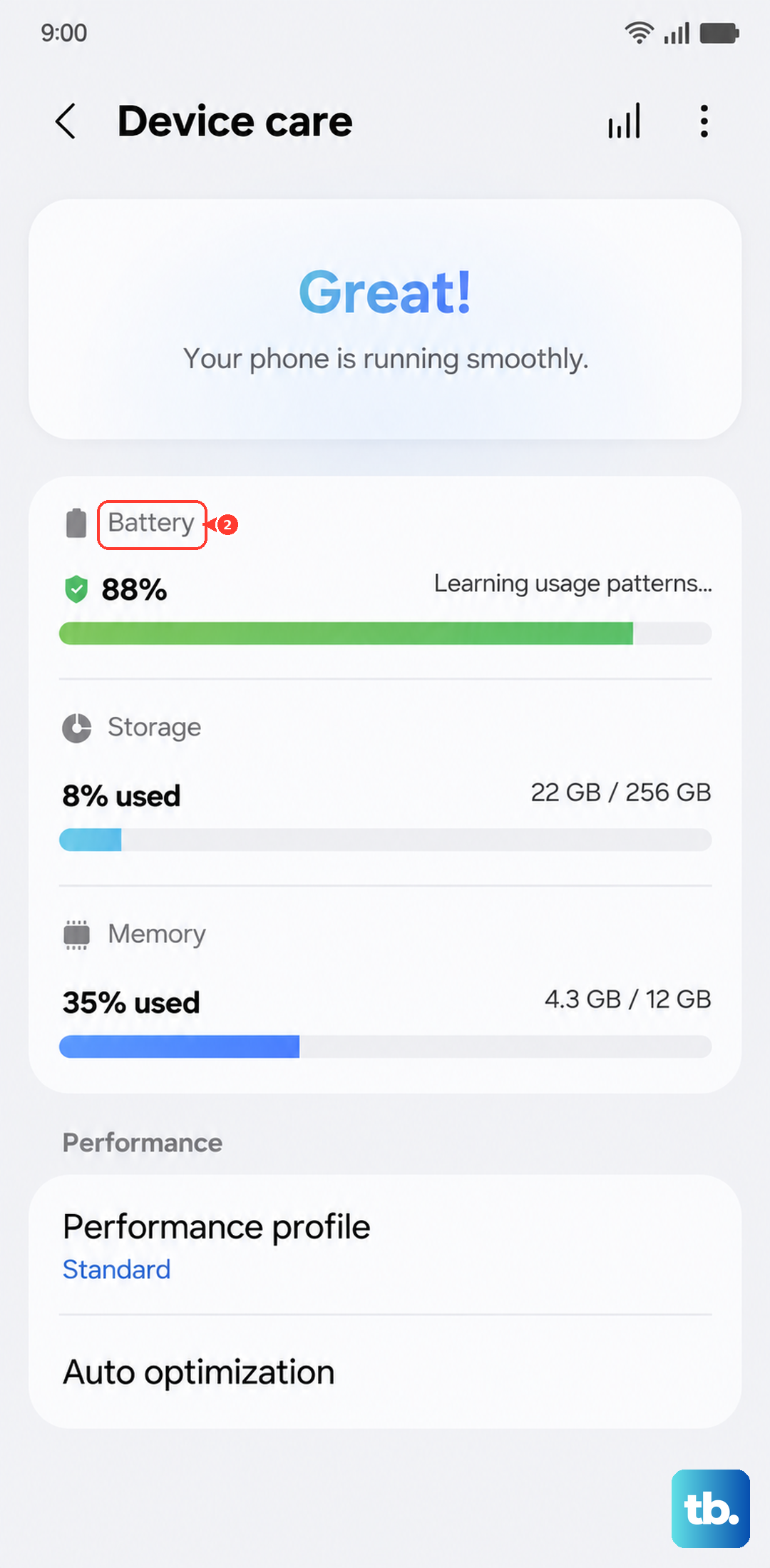
Here, you can review battery usage and check for any power-hungry apps that might be running. Open Battery protection to check its selected option. Maximum stops charging at the limit you set, while Adaptive can stop at 80% during sleep and charge to 100% before you wake. If charging stops early, select a different option or turn off Battery protection.
I've found that enabling Dark Mode on the A16's AMOLED screen can help extend battery life between charges, giving you a bit more leeway if charging is acting up.
Charge with the Phone Powered Off
If a background app or process is causing trouble, charging with the phone completely off can bypass the issue. Press and hold the Side and Volume down buttons together for a few seconds, then tap "Power off" and tap "Power off" again to confirm. Once the device is fully off, plug in your charger.
You should see a large battery icon appear on the display. If it charges normally while off but not while on, an app or system process may be contributing to the problem.
Consider the Charging Environment
Your Galaxy A16 has built-in temperature protection. If the phone or the battery gets too hot, it will slow down or stop charging entirely to prevent damage. This can happen if you're charging in direct sunlight, under a pillow, or while using a demanding app.
If the phone feels warm to the touch, unplug it and let it cool down in a shaded spot. Then try charging again. Also, be aware that the 25W wired charging, while decent, can still feel slow for such a large battery, so don't be alarmed if it doesn't fill up as fast as a flagship model.
Perform a Factory Reset (Last Resort)
If all else fails, a major software corruption might be to blame. A factory reset will wipe your phone back to its original settings, so this is an absolute last resort. Make sure you have a recent backup of your data before proceeding.
You can do this through the settings menu if your phone turns on. Go to Settings > General management > Reset > Factory data reset, review the information, then tap "Reset". Enter your screen lock and Samsung account password if prompted, then tap "Delete all". If the phone won't turn on normally, you can try entering Recovery Mode. With the phone off, connect it to a computer via USB-C, then press and hold Volume Up and the Side button simultaneously until the recovery menu appears. Use the volume keys to navigate to "Wipe data/factory reset" and select it with the Side button. Confirm "Yes" or "Factory data reset", then select "Reboot system now". A recovery reset may require the last Google account's username and password, so make sure you know them before proceeding.
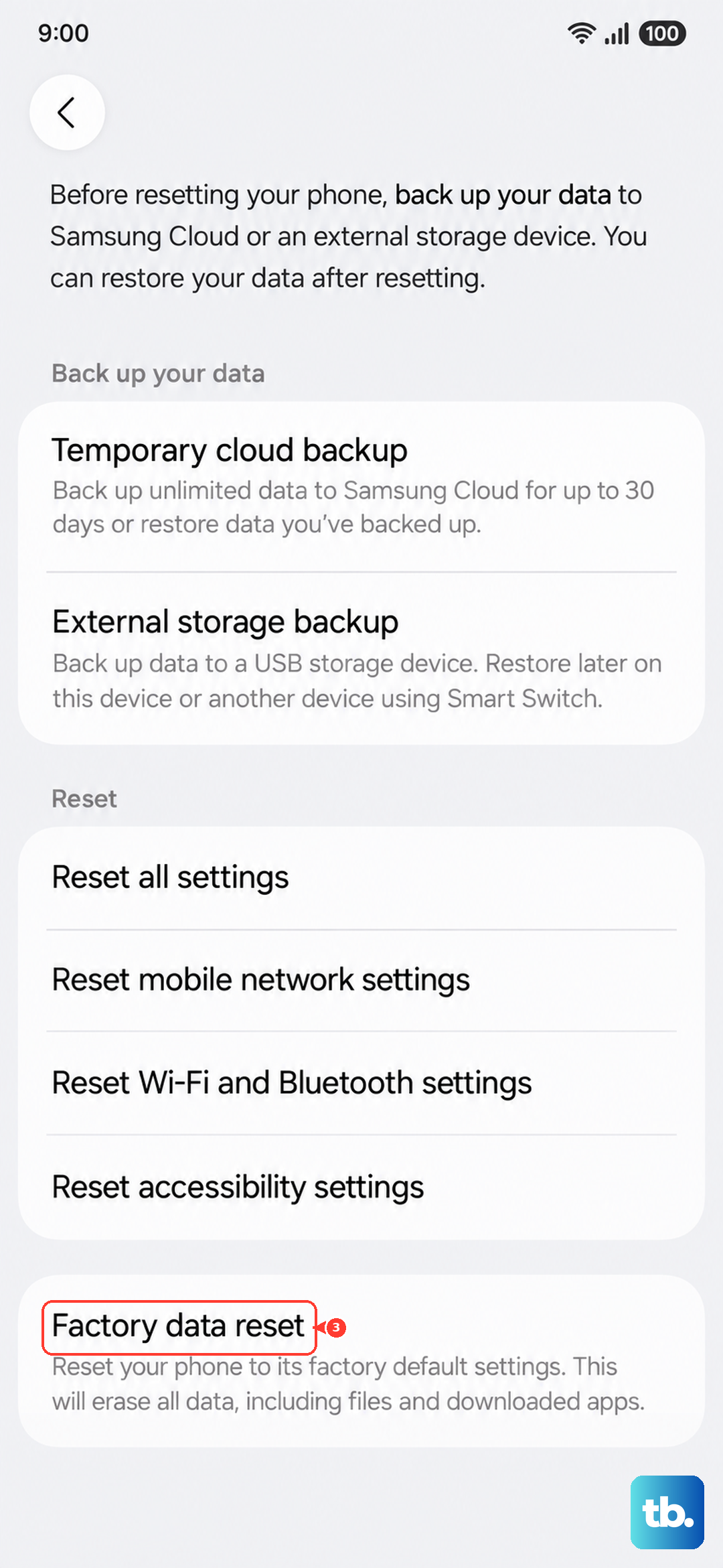
After the reset, set the phone up as new and test the charging immediately. If it still doesn't work, a hardware problem, such as a damaged charging port or a failing battery, may be the cause. Arrange a hardware inspection at a Samsung service center.