
Seeing a "No SIM card" or "Insert SIM card" error on your Samsung Galaxy A16 can stop you from making calls or using mobile data. This usually happens because of a simple software hiccup or a bit of dirt in the tray, and you can often fix it in a minute or two.
Start With a Force Restart
This is the quickest fix for most temporary glitches on the Galaxy A16. Press and hold the Volume Down button and the Power button at the same time. Keep holding them for about 10 seconds until you see the Samsung logo appear, then let go. This forces a clean reboot and can clear up the SIM detection error right away.
Check the SIM Card Tray
Power your phone off completely. Use the SIM ejector tool that came in the box to pop out the tray. Take a close look at the SIM card itself, checking the small gold contacts for any scratches, dirt, or corrosion. Gently wipe the contacts with a clean, dry microfiber cloth. While you're at it, blow into the SIM card slot on the phone to dislodge any dust. Carefully reinsert the tray, making sure the SIM is seated correctly and the tray clicks fully into place.
To rule out a bad SIM card, try putting it into another phone if you can. If the other phone also says "No SIM," then the card itself is likely the issue and you'll need to contact your carrier for a replacement.
Toggle Airplane Mode and Verify SIM Status
Swipe down from the top of your screen twice to open the full Quick Settings panel. Tap the Airplane Mode icon to turn it on, wait about 10 seconds, then tap it again to turn it off. This resets all the phone's radio connections in one go.
Next, go into your settings to make sure the SIM hasn't been accidentally disabled. Open Settings, then tap Connections. Select SIM card manager. Here, you should see your SIM listed. Make sure the switch next to it is turned on. If you're using dual SIMs, check both.
Update Your Phone's Software
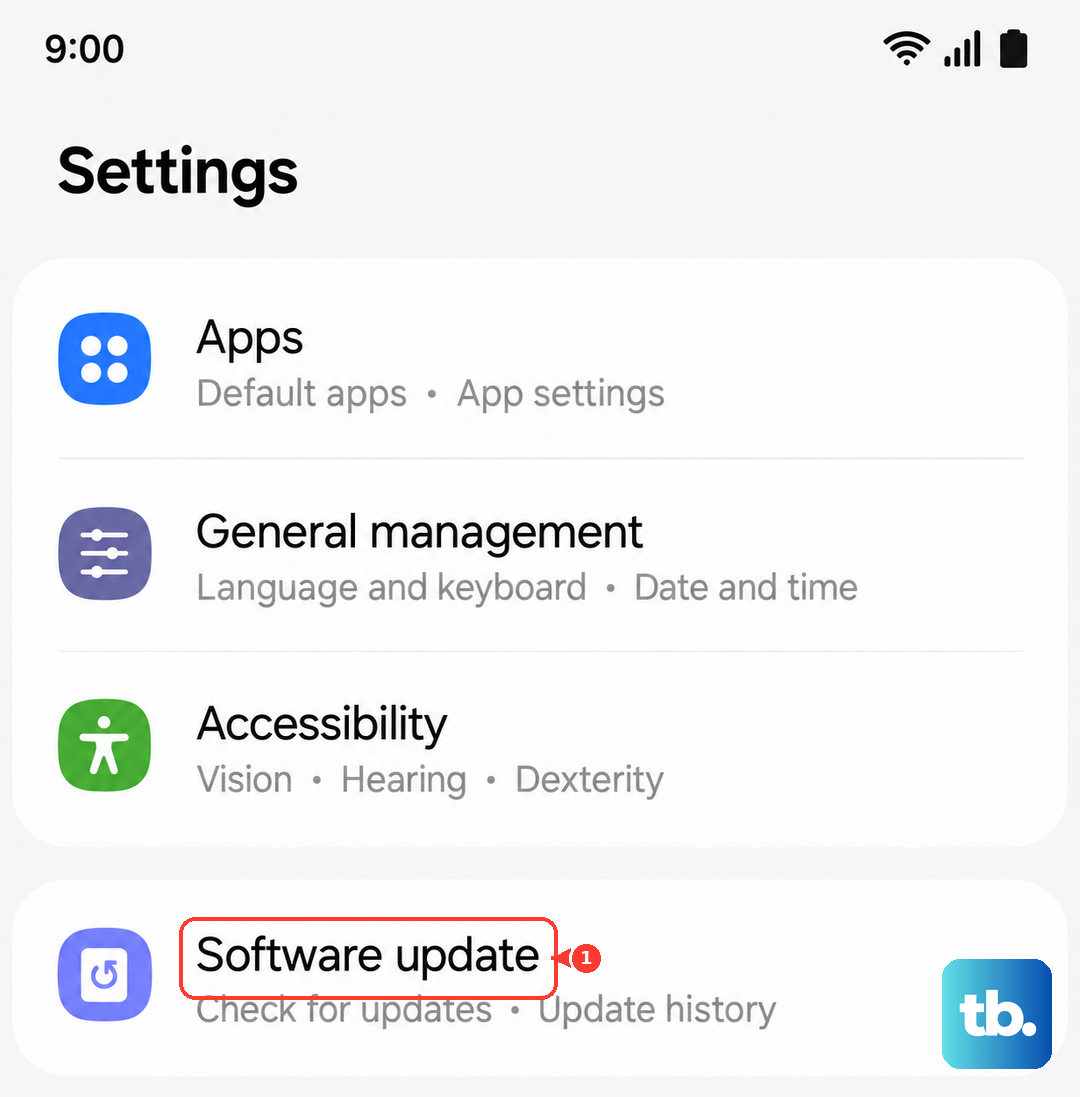
Software bugs in Android 14 or Samsung's One UI 6.1 can sometimes interfere with the SIM card reader. Keeping your phone updated is a good habit for general performance, too. Go to Settings and scroll down to Software update. Tap Download and install. If an update is available, let it complete and then restart your phone.
Reset Your Network Settings
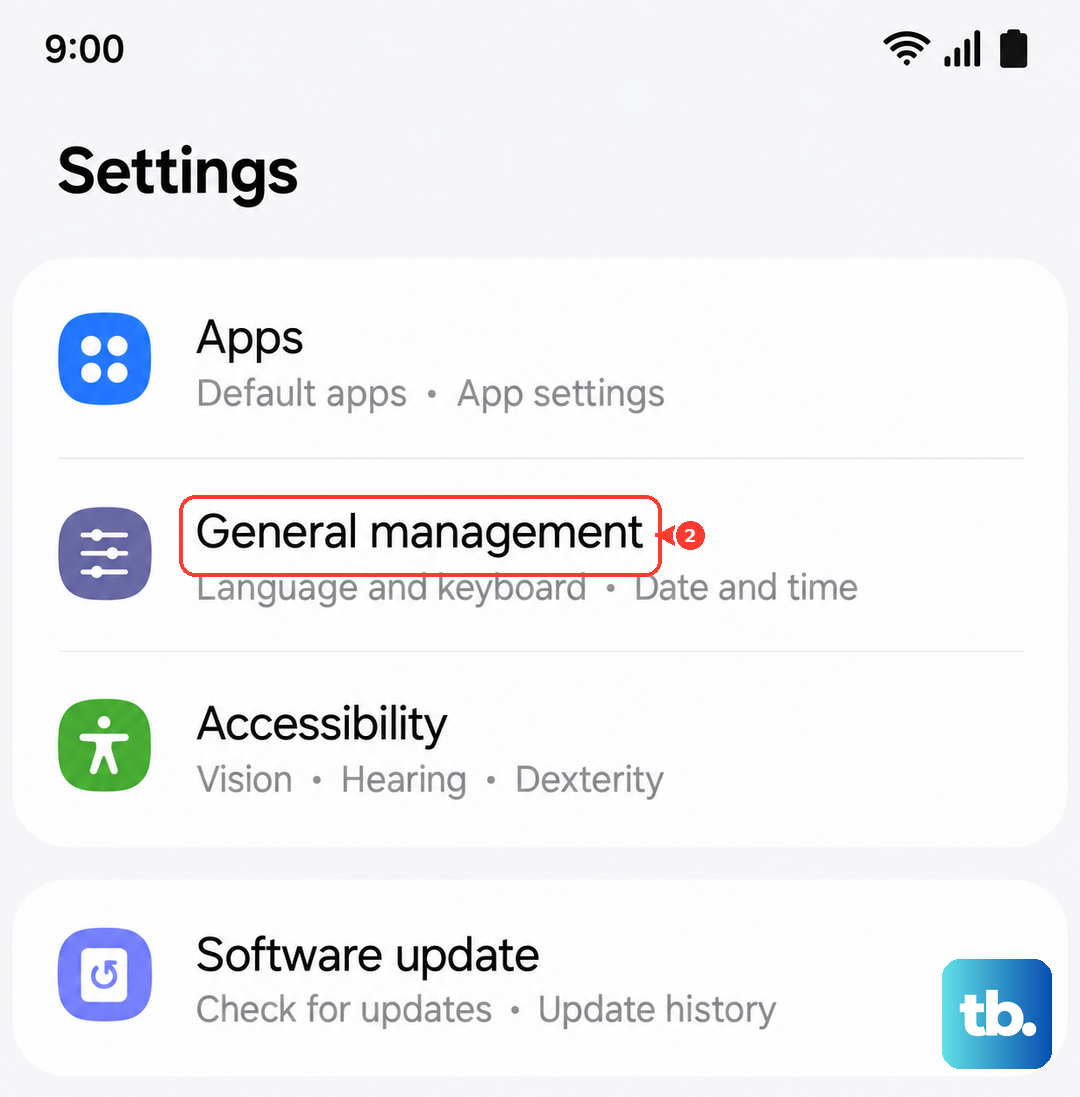
This clears out any corrupted network configurations without touching your personal photos, messages, or apps. You will have to reconnect to Wi-Fi networks and re-pair Bluetooth devices afterward. To do this, go to Settings > General management. Tap Reset, then select Reset network settings. Tap the reset button at the bottom and confirm.
Clear the Cache for SIM Services
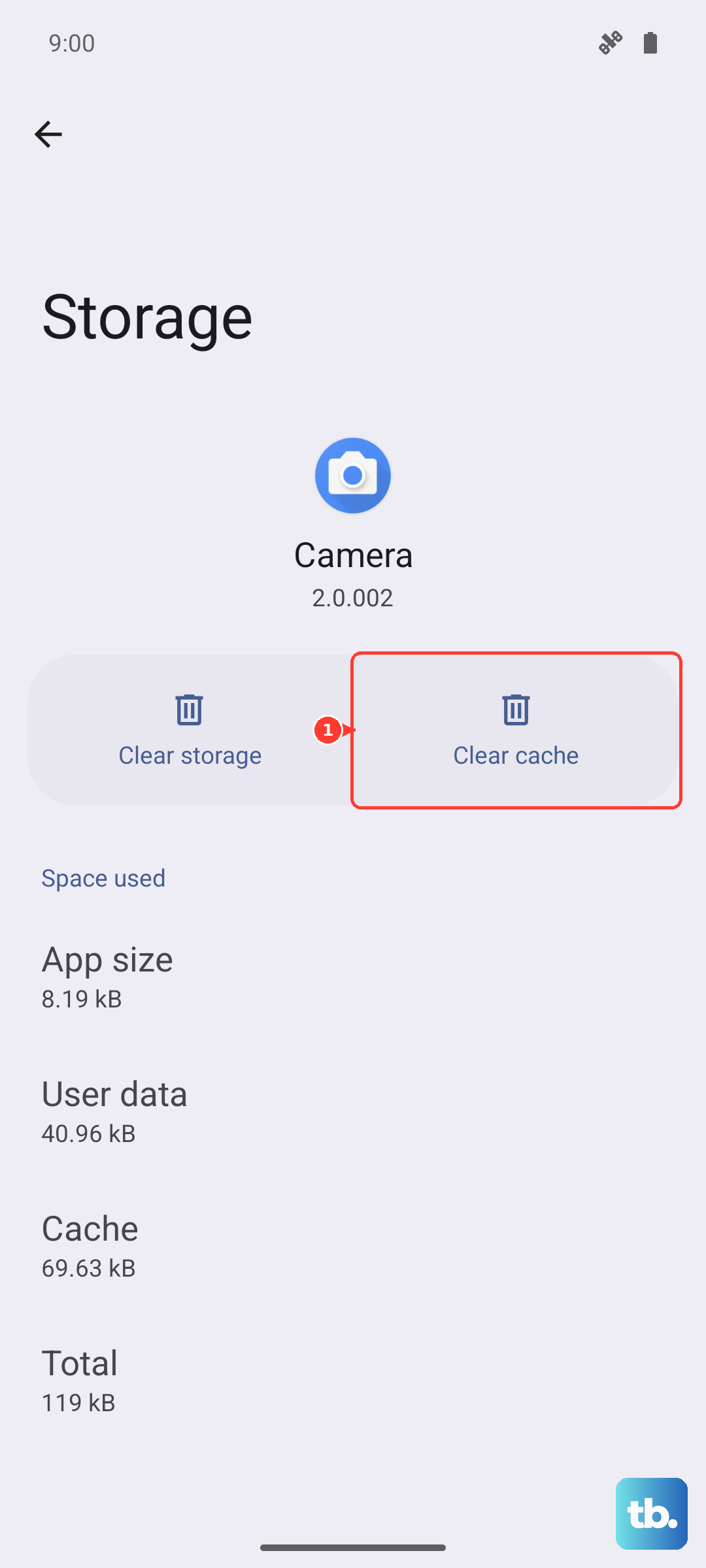
Cached data for system apps that manage your SIM can sometimes cause problems. Open Settings and go to Apps. Tap the three-dot menu in the top right and select Show system apps. In the search bar, type "SIM." Look for apps like SIM Card manager or SIM Toolkit. Tap on one, then go to Storage. Tap Clear cache. Do this for any SIM-related system apps you find.
Check Your APN and Network Mode
Incorrect Access Point Name (APN) settings will stop your mobile data from working and can sometimes cause broader SIM errors. Go to Settings > Connections > Mobile networks > Access Point Names. Tap the three dots and select Reset to default. Your phone should automatically populate the correct settings from your carrier.
Also in the Mobile networks menu, tap Network mode. Make sure it's set to the automatic option, usually 5G/4G/3G/2G (auto connect). This lets your A16 find the best available signal.
Try Manual Network Selection
If the automatic connection is failing, you can manually tell your phone which carrier to use. Go back to Settings > Connections > Mobile networks. Tap Network operators. Your phone will search for a moment. When the list appears, select your specific carrier (e.g., T-Mobile, Verizon, AT&T) instead of choosing "Select automatically."
Consider a Factory Reset
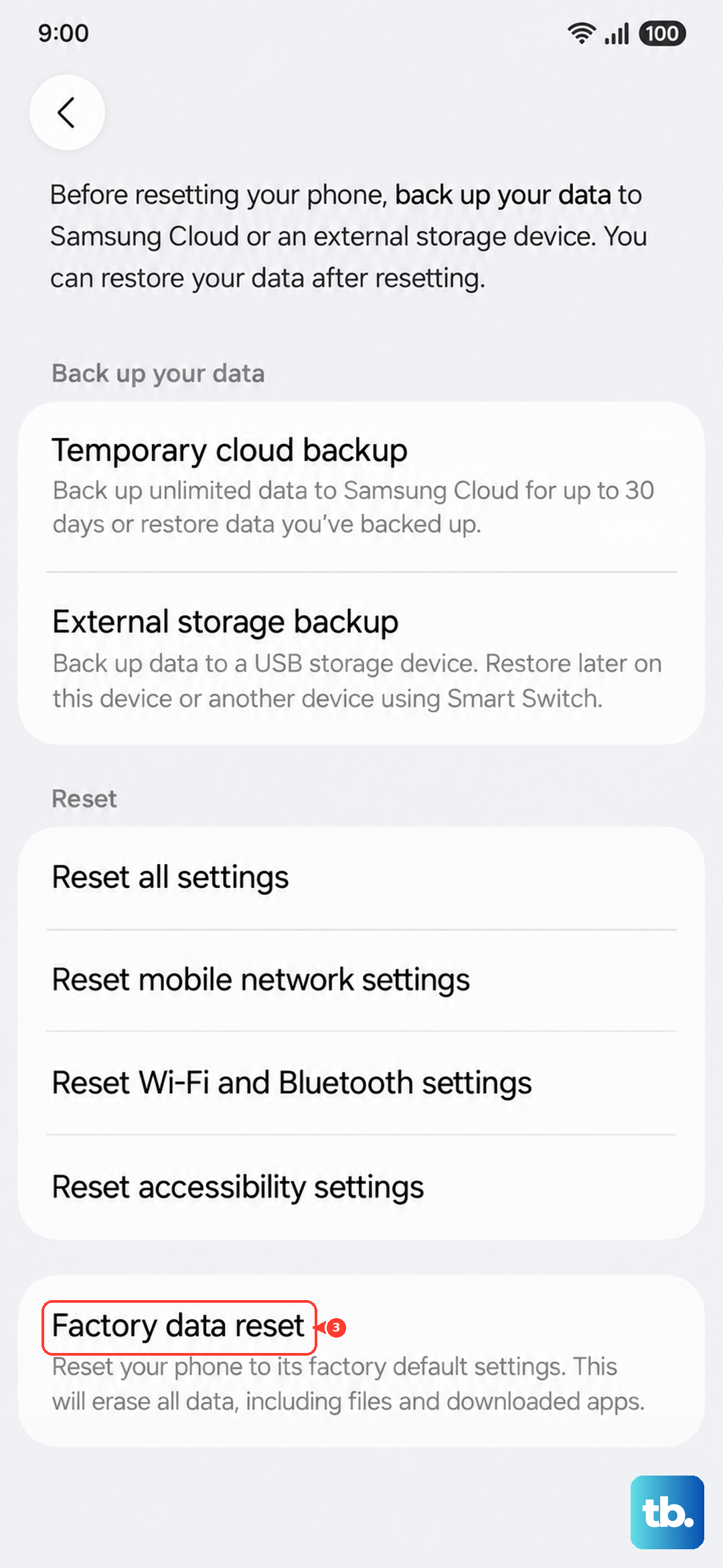
If you've tried everything else and the SIM works in other phones, a deeper software issue might be the cause. A factory reset will wipe your phone back to its original state, so this is a last resort. Make absolutely sure you have backed up all your important data first. To proceed, go to Settings > General management > Reset > Factory data reset. Follow the prompts to erase everything. After the reset, set the phone up as new and test the SIM before restoring your backup.
Look for Physical Damage
If the problem started after you dropped the phone or got it wet, there could be internal damage. Inspect the SIM tray closely for any bends or cracks. The tiny pins inside the phone's SIM slot can also get bent. If you suspect hardware damage, the next step would be to contact Samsung support or visit a reputable repair shop for an inspection.