
That "Unfortunately, the keyboard has stopped" message on your Galaxy A16 can really bring your texting to a halt. It's a common Android hiccup, but the good news is you can almost always fix it yourself without losing any data.
I'd start with the quickest fix first. Just force stop the keyboard app. Go to Settings > Apps, then find and tap on Samsung Keyboard. If you use Gboard or another third-party keyboard, look for that app instead. Tap Force Stop and confirm. Now, just open any app where you type to see if it's working again.
Restart Your Galaxy A16
If force stopping didn't do the trick, a full phone restart is your next best move. This clears out any temporary software glitches that might be interfering. Just press and hold the Power button, then tap Restart on the screen.
For a more thorough refresh, you can perform a force restart. Press and hold the Volume Down button and the Power button together for about 10 seconds. Let go when you see the Samsung logo. This is different from a normal restart and can resolve deeper system freezes.
Clear the Keyboard's Cache and Data
Corrupted temporary files are a frequent culprit for app crashes. Clearing the cache is safe and won't delete your personal typing history or saved words. If the problem persists, you can then clear the app data, but this will reset the keyboard to its default settings.
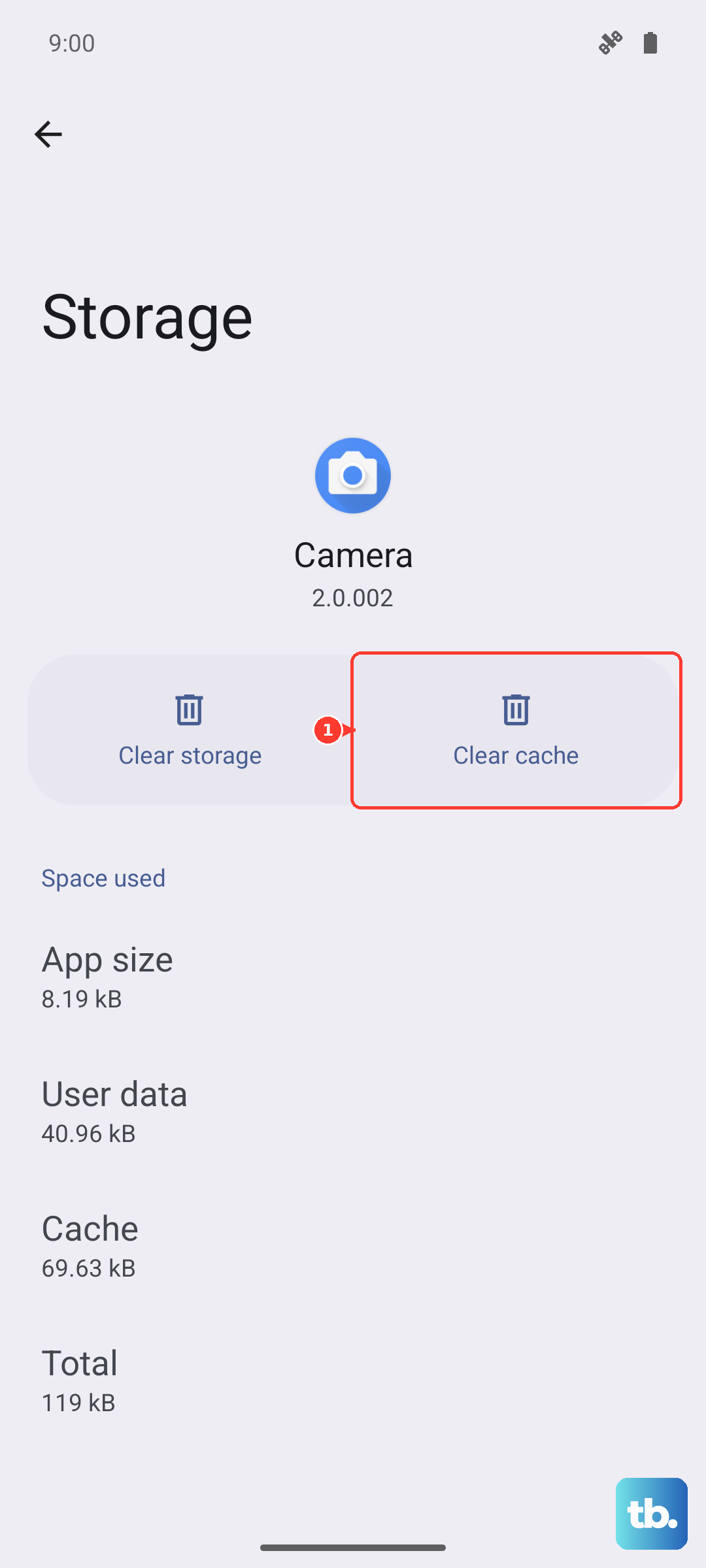
Head back to Settings > Apps and select Samsung Keyboard. Tap on Storage. First, tap Clear Cache. Test the keyboard. If it's still failing, return to this menu and tap Clear Data, then confirm. You'll need to re-select the keyboard and set any preferences again, like your preferred language.
Check for Keyboard and System Updates
An outdated keyboard app can have bugs that newer updates fix. Open the Google Play Store, tap your profile icon, and go to Manage apps & device. Under "Updates available," see if Samsung Keyboard or your third-party keyboard is listed.
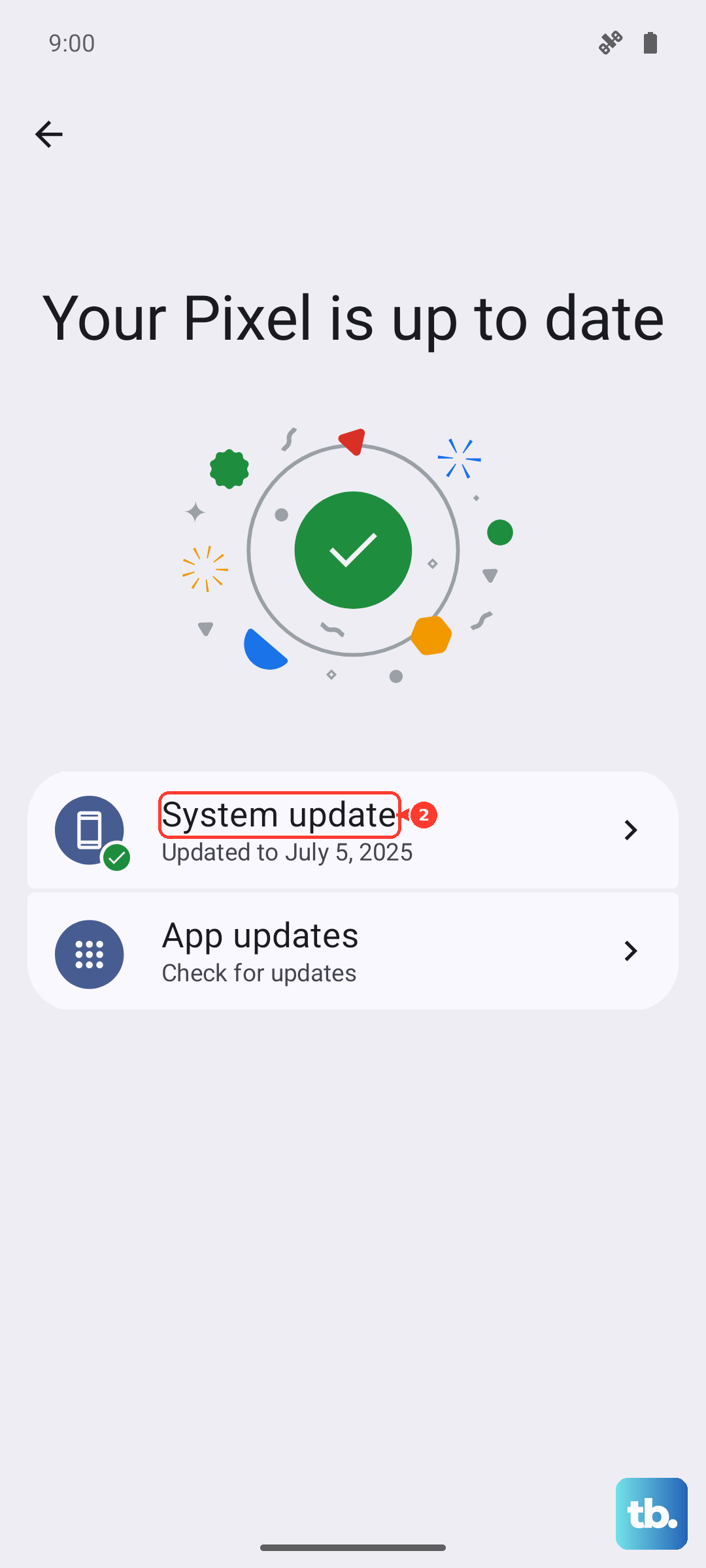
It's also smart to check for a full system update. Samsung regularly releases patches that fix various issues, including keyboard stability. Go to Settings > Software update and tap Download and install. Using the phone while it updates can sometimes cause lag, so it's best to let it run uninterrupted.
Reset Your Keyboard Settings
If a custom setting is causing a conflict, resetting the keyboard can help. This won't erase your apps or files, just the keyboard's configuration. Navigate to Settings > General Management > Language and input > On-screen keyboard.
Tap on Samsung Keyboard, then look for the three-dot menu in the top right and select Reset to default settings. Confirm your choice. You'll have to go through the keyboard's setup screen again, but it often resolves persistent crashes.
Boot Into Safe Mode
This is a great way to figure out if a recently downloaded app is causing the trouble. Safe mode temporarily disables all third-party apps. First, press and hold the Power button until the power menu appears. Then, press and hold the Power off option on your screen.
You'll see a "Safe mode" prompt. Tap it to restart. If your keyboard works perfectly in safe mode, you know a downloaded app is the problem. Start by uninstalling apps you added around the time the keyboard issues began.
Try a Different Keyboard App
Sometimes the simplest solution is to just switch keyboards while you troubleshoot the main one. Installing Gboard (Google's keyboard) or SwiftKey from the Play Store gives you a fully functional keyboard immediately. After installing, you'll be prompted to enable it in your language settings.
This is a perfect workaround to keep you typing. You can always switch back to the Samsung keyboard later after trying other fixes.
Clear the Dictionary App's Data
The dictionary service on your A16 works hand-in-hand with the keyboard for predictions and spell check. If its data is corrupted, it can crash the keyboard. Go to Settings > Apps, tap the three-dot menu, and select Show system apps.
Find and select Dictionary or Dictionary Provider. Tap Storage, then Clear Data and confirm. Restart your phone afterward for the changes to take full effect.
Reset All Settings
If you've tried everything else and the keyboard is still unresponsive, this is a strong next step. It will reset all your system settings, like Wi-Fi passwords, Bluetooth connections, and display preferences, back to factory defaults without touching your photos, messages, or apps.
Go to Settings > General Management > Reset > Reset all settings. Enter your PIN if prompted and confirm. After your phone reboots, you'll need to reconfigure your settings, but your keyboard should be back to a clean, working state.