When your Samsung Galaxy A16 starts restarting on its own, it's more than just annoying. It can interrupt calls, stop downloads, and make the phone feel unreliable. This can point to a software hiccup, a misbehaving app, or sometimes a deeper system issue.
Before you try anything, it's a good idea to make sure your important stuff is backed up. You can use Samsung Cloud or Google One. This way, if you need to do a more serious reset, your photos and messages are safe.
Force Restart Your Galaxy A16
This is almost always the first thing I'd try. A force restart clears out the phone's temporary memory and can stop a minor software glitch in its tracks. It's different from just turning it off and on.
For the Galaxy A16, press and hold the Volume down button and the Side button at the same time. Keep holding them for more than 7 seconds until the phone restarts. Then you can let go and let the phone boot up normally.
Check for a Problematic App
A newly installed or recently updated app may be the cause. Think about if the restarting started after you got a new game or social media app. You can start by booting the phone into Safe Mode, which temporarily disables all third-party apps.
To enter Safe mode, press and hold the Side button and Volume down button together until the power menu appears. Then, touch and hold "Power off" on your screen. Tap "Safe mode" when it appears. If the phone runs smoothly in Safe mode, a downloaded app is likely the culprit.
From there, you'll need to uninstall apps one by one, starting with the most recent. After removing an app, restart the phone normally and use it for a while to see if the problem is gone.
Clear the App Cache
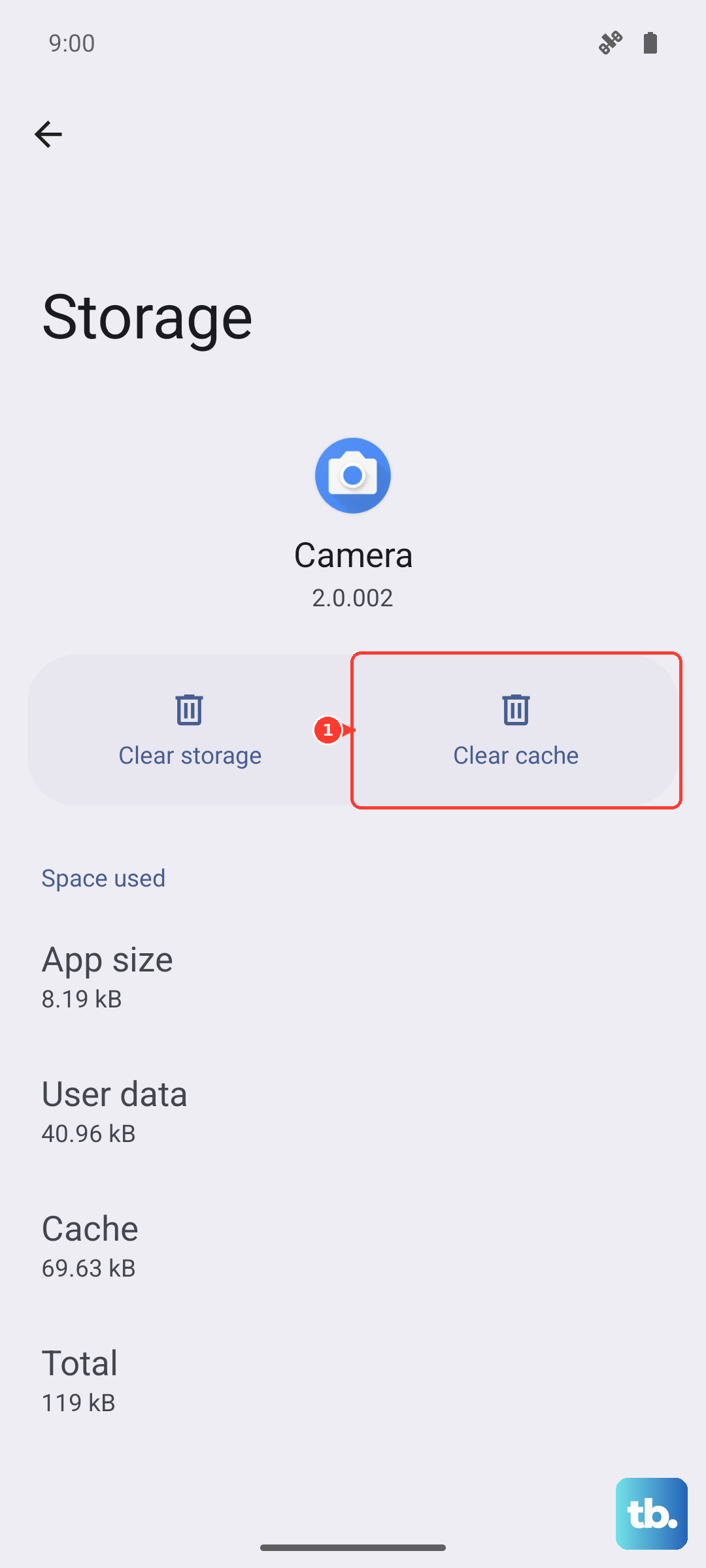
Sometimes an app's stored data gets corrupted. Clearing the cache for a specific app can help without deleting your login info or personal data within the app. It's a good maintenance habit for the A16 to help with occasional lag, too.
Go to Settings > Apps. Select the app you suspect, then tap Storage. You'll see the option to "Clear cache." For a broader approach, you can clear the system cache partition. Turn off the phone and connect it to a computer with a USB cable, then press and hold Volume up and the Side button to boot into recovery. If "Wipe cache partition" is available, use the volume buttons to highlight it and press the Side button to select it. Confirm "Yes," then select "Reboot system now."
Update Your Apps and Software
Running outdated software is a classic recipe for instability. Make sure all your apps are up to date through the Google Play Store. More importantly, check for a system update from Samsung.
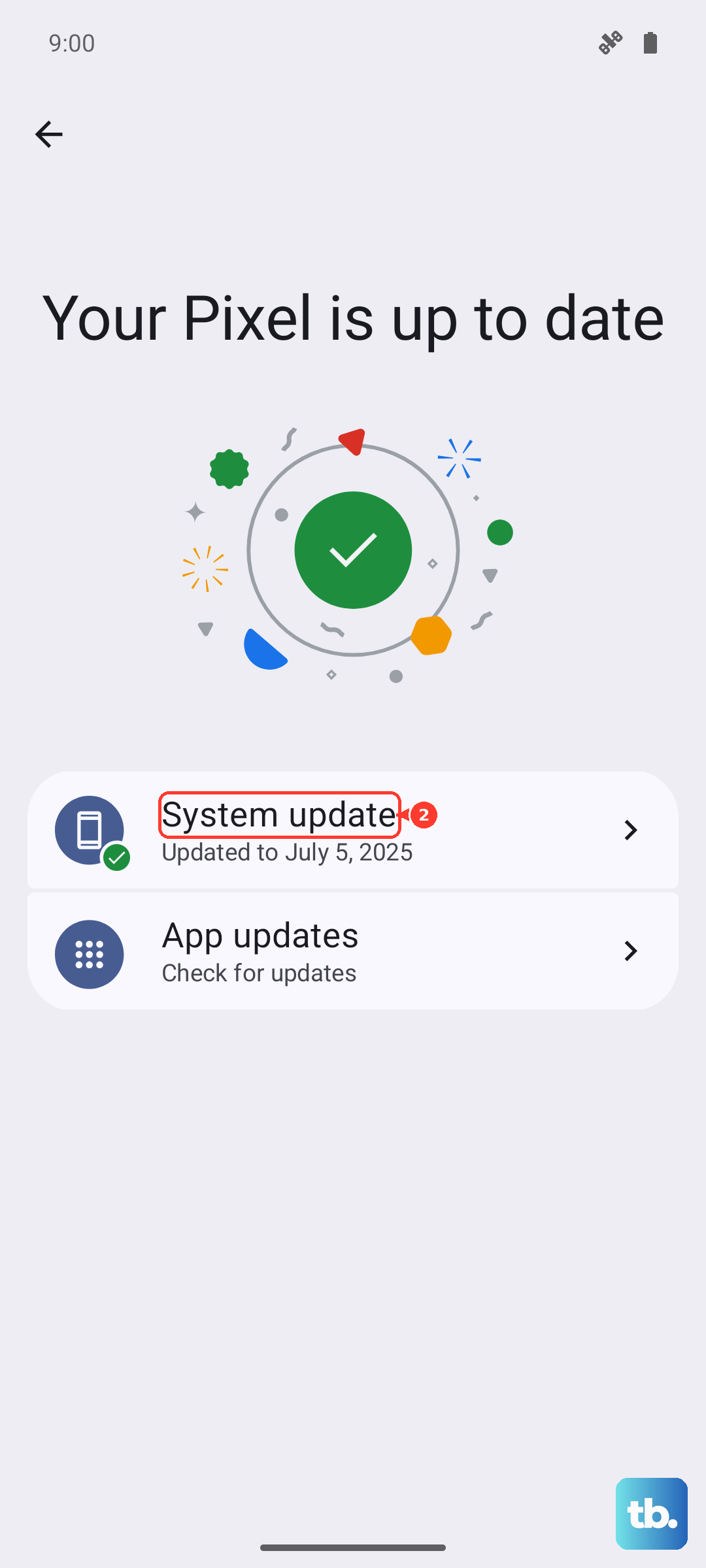
Go to Settings > Software update and tap Download and install. Software updates can improve stability, enhance security, and fix minor bugs. If an update is available, follow the on-screen instructions to download and install it.
Free Up Storage Space
If your phone's internal storage is completely full, the operating system doesn't have room to work properly. This can lead to all sorts of strange behavior, including restarts. The Galaxy A16 does support a microSD card for expandable storage, but keeping internal space free still helps.
Head to Settings > Device care > Storage. This will show you what's taking up space. Look for old downloads, large video files, or apps you no longer use. Consider moving photos and videos to Google Photos or another cloud service to free up gigs of space quickly.
Check for Overheating
The Galaxy A16's 5000mAh battery can get warm during heavy use or fast charging. If the phone gets too hot, it may shut down to protect its components. Feel the back of the phone. Is it unusually warm?
If it is, take it out of any case, stop using it for a bit, and move it out of direct sunlight. Avoid using intensive apps like games or the camera while it's charging, especially with a 25W fast charger, as this generates more heat.
Inspect Your SIM Card and SD Card
If you suspect a loose or faulty SIM card, check that it is seated properly in the tray. Power off your A16 completely. Use the SIM eject tool to pop out the tray and remove the SIM card.
Gently clean the metal contacts on the card with a dry cloth. Reinsert the card firmly and power the phone back on. If you're using a microSD card for storage, try removing it temporarily to see if the restarts stop, as a failing card can also cause issues.
Reset All Settings
If the problem persists, you can reset all your system settings to their defaults without touching your personal data like photos and messages. This resets settings to their defaults while keeping security and language settings, accounts, personal data, and settings for downloaded apps.
Go to Settings > General management > Reset > Reset all settings. Tap Reset settings, enter your PIN or password if prompted, and tap Reset. Your phone will restart. Your apps and files will remain, so you can check whether the restarts have stopped without restoring a backup.
Perform a Factory Reset
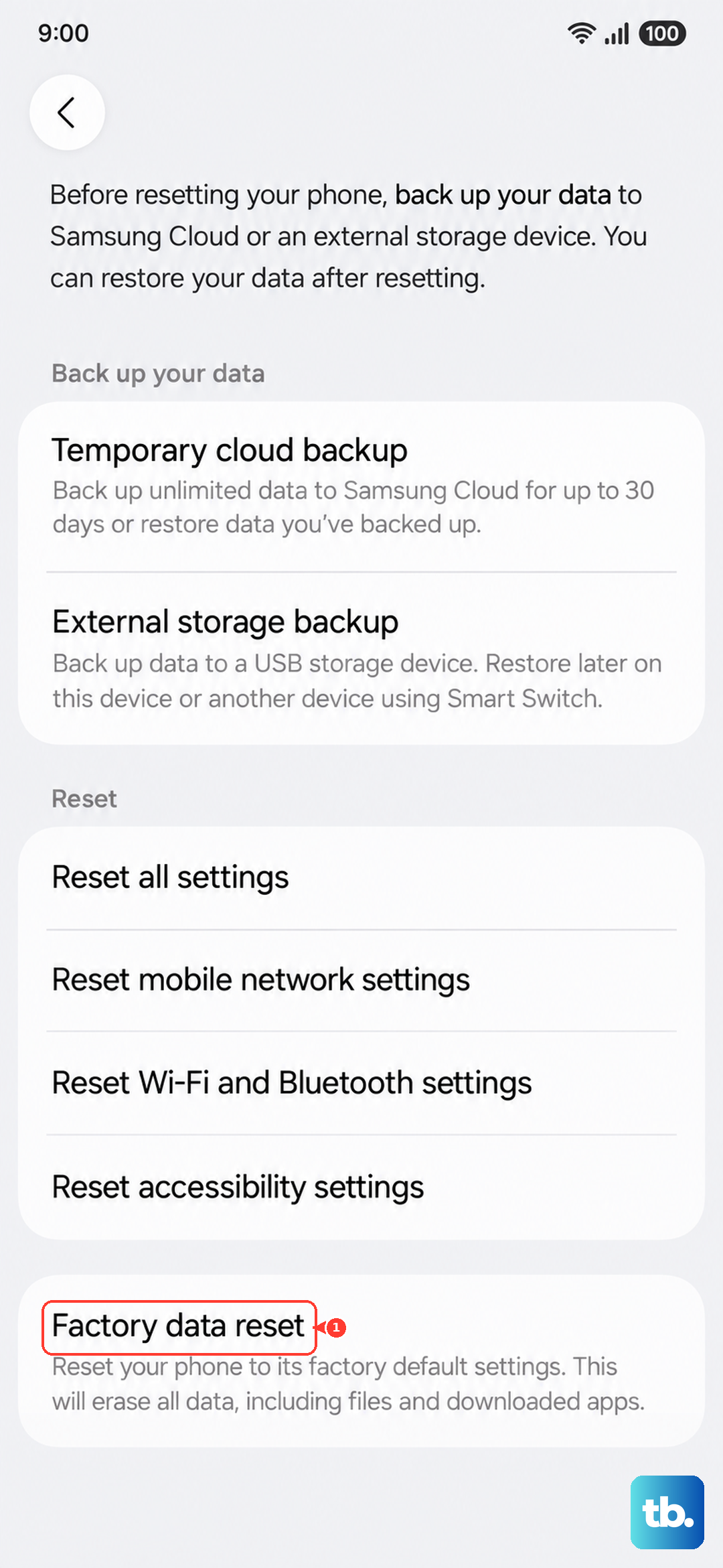
This is the last software step. A factory reset will erase everything on your phone and return it to its original out-of-the-box state. This will delete all your data, so back up your important files before you reset the phone.
You can do this through the settings menu by going to Settings > General management > Reset > Factory data reset. Review the information, tap Reset, and enter your screen lock if asked. Enter your Samsung account password if prompted, then tap Delete all.
If your phone is stuck in a restart loop and you can't access settings, you can try the hardware keys: power off, connect the phone to a computer with a USB cable, then hold Volume up and the Side button to enter recovery mode.
Use the volume buttons to highlight "Wipe data/factory reset" and the Side button to select it. Confirm "Factory data reset," then select "Reboot system now." After a recovery reset, if a Google account and screen lock were set up on the phone, you'll need to sign in with that Google account's username and password.