You plug a pair of earbuds into your Galaxy A16, or pair them over Bluetooth, and nothing happens. The sound keeps coming out of the phone's own speaker, one side stays silent, or the headphones connect but play no audio at all. It is a frustrating glitch on a phone you rely on for music, calls, and video, and the cause is usually small and fixable.
To rule out the headphones themselves, try a online headphone test in the browser. If every tone plays cleanly, focus on the device settings covered next.
Before you blame the hardware, there is one detail about this model that changes everything. The Galaxy A16 and A16 5G (models SM-A165 and SM-A166) do not have a 3.5mm headphone jack at all, so the way you connect headphones is different from older phones. Work through the fixes below in order, starting with the simplest checks and moving toward the official resets only if you need them.
Start by confirming your headphones are the right kind for this phone
The single most common reason headphones seem broken on the A16 is that they were never compatible to begin with. Samsung's official spec pages list the earjack as USB Type-C, meaning there is no round 3.5mm port to plug into. If you have been trying to insert a standard 3.5mm plug, the phone has nothing to accept it.
You have three supported ways to get audio out of this model. Connect USB-C wired headphones that support Digital Output, use a USB-C to 3.5mm adapter with your existing 3.5mm headphones, or pair wireless headphones such as Galaxy Buds over Bluetooth. Samsung also warns that some USB Type-C earphones and USB Type-C adapters (sold separately) may not be compatible with your Galaxy device, so a generic pair or a cheap adapter that does nothing may simply be the wrong kit rather than a fault in your phone.
Rule out a muted media slider before anything else
It sounds obvious, but a muted media channel is one of the easiest things to miss, because the ringer can be loud while media audio is silent. Samsung's guidance is direct. Make sure the media volume is not set to mute, noting that when muted, the speaker icon will be gray and crossed out.
- 1.Press the Volume up or Volume down button on the side of the phone.
- 2.Expand the volume panel to reveal the full set of sliders.
- 3.Raise the Media slider, and confirm its icon is not gray and crossed out.
- 4.Open a music or video app and play something to test the headphones.
Give USB-C headphones, the adapter, and the port a hard look
If you are on wired USB-C headphones (or a USB-C adapter), a quick swap test tells you fast whether the headphones, the adapter, or the phone is at fault. Samsung's wired-headphone guidance is to try another set of headphones on your phone or tablet, or try your current headphones with another device.
While you are at it, remove the headphones and any connected accessories such as cases, charms, or skins, then restart the phone before testing again.
If you are using a USB-C to 3.5mm adapter, remove the adapter and connect the headphones directly to the phone to see whether the adapter is the weak link.
Finally, inspect the connector for bending or damage, and shine a flashlight into the USB-C port to check for lint, debris, or bent pins that stop a clean connection.
Restart the phone to clear a stuck audio session
A simple restart clears temporary software glitches that can leave audio routing confused, especially after the phone has been switching between speaker, wired, and Bluetooth output. Use the normal restart if the phone is responsive.
Press and hold the Volume down button and the Side button (or Power button) at the same time. After a few seconds, different power options will appear. Tap Restart, and then tap Restart again.
If the screen is frozen and the power menu will not appear, force a restart instead. Press and hold the Volume down button and the Side button (or Power button) simultaneously until the device turns off and turns back on. Reconnect your headphones once the phone is back at the home screen.
Get Bluetooth headphones back in range and pair them fresh
For wireless headphones, distance and stale pairing data cause most dropouts. Keep the headphones close to the phone, make sure Bluetooth is switched on from the Quick settings panel, and confirm the headphones are not already connected to another nearby device such as a tablet or laptop.
If the connection is unreliable or silent, forget the headphones and pair them again from scratch.
Go to Settings > Connections > Bluetooth.
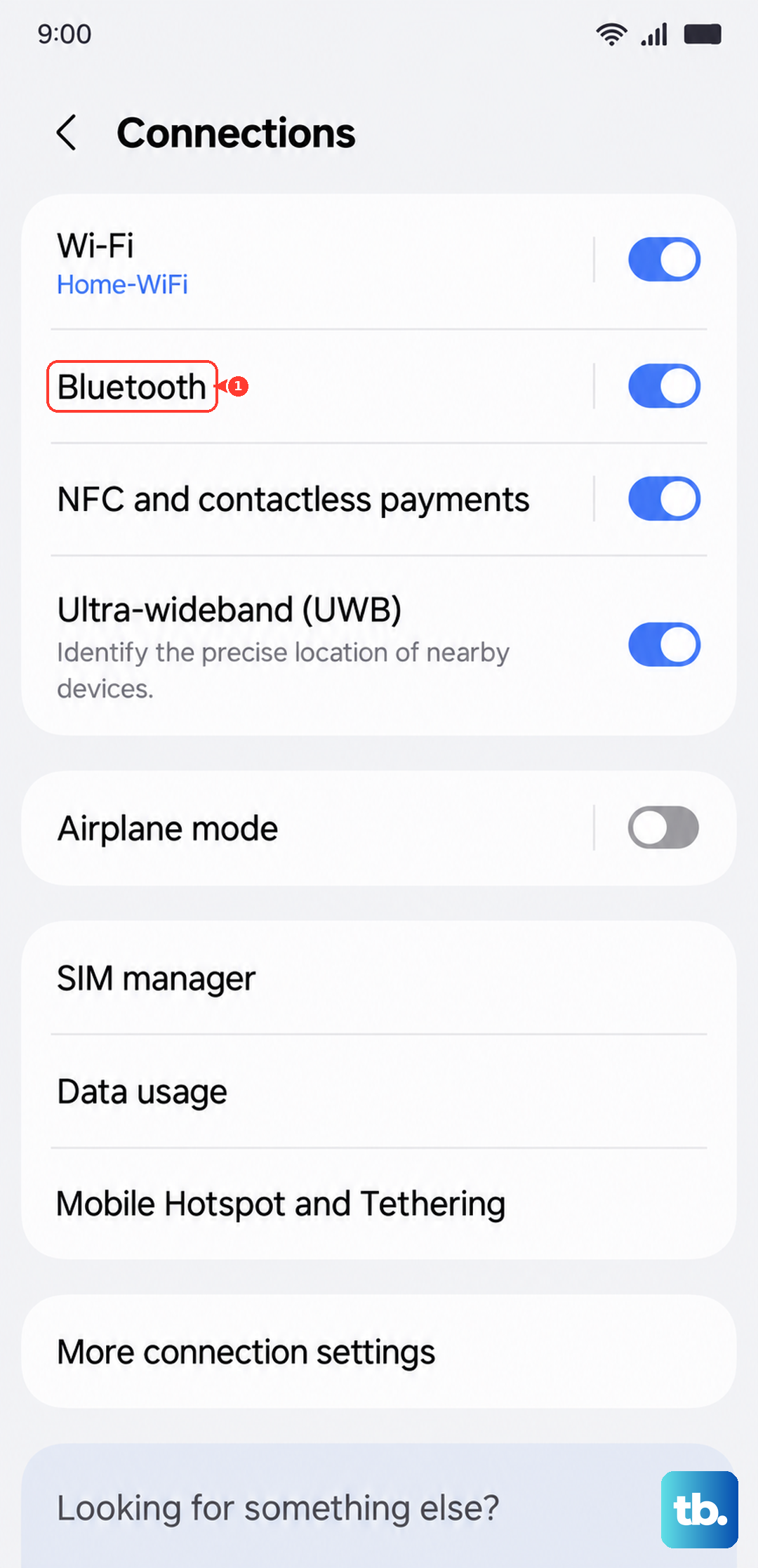
Tap the Settings icon next to the device.
Tap Forget device.
Turn Bluetooth on and select the device from the list to pair again.
Switch on the Calls and Audio outputs your earbuds need
Sometimes Bluetooth headphones connect successfully but still produce no sound, which usually means the output channels are turned off for that device. Samsung's guidance is to enable both output types so calls and media actually route to the headphones.
Go to Settings > Connections > Bluetooth.
Tap the Settings icon next to your connected headphones.
Make sure the output switches for both Calls and Audio are activated.
Keep the two devices close together and away from walls, routers, and electrical equipment, since those can block or scramble the wireless signal.
Let a software update patch a known audio bug
Samsung commits the A16 5G to six generations of One UI and Android OS upgrades along with six years of security updates, and those updates regularly fix audio and Bluetooth bugs. If your headphones broke after a system change, a pending update may already contain the fix.
Open Settings.
Tap Software update or System updates.
Tap Download and install. Depending on your carrier, this may appear as Check for system updates or Check for software updates.
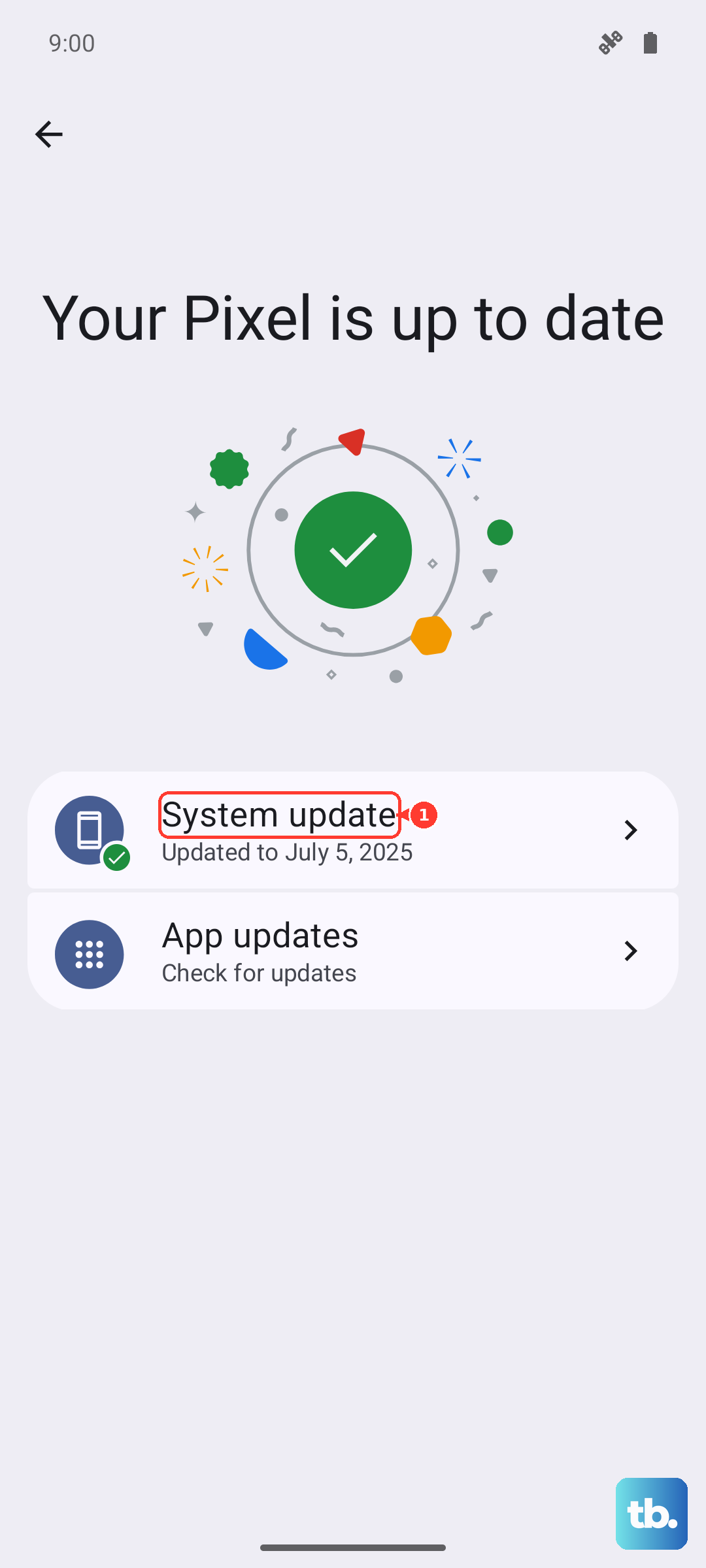
Let any available update finish installing, then restart and test the headphones again.
Boot into Safe mode to expose a misbehaving app
A downloaded app can hijack audio routing or interfere with Bluetooth. Safe mode temporarily disables every third-party app so you can tell whether one of them is the culprit, because in Safe mode your device will not run any third-party apps.
Completely power off the phone.
Turn on the device, and when the Samsung logo appears, press and hold the Volume down button.
If done correctly, Safe mode will display in the bottom-left corner of the screen.
Now test your headphones. If they work normally in Safe mode, a recently added app is the problem, so restart to exit Safe mode and uninstall recently added apps one at a time until audio behaves again.
Wipe stored networks with a Wi-Fi and Bluetooth reset
If Bluetooth pairing keeps failing no matter how many times you forget and re-pair, clearing all stored connections gives the radios a clean slate. This is a focused reset, not a full wipe.
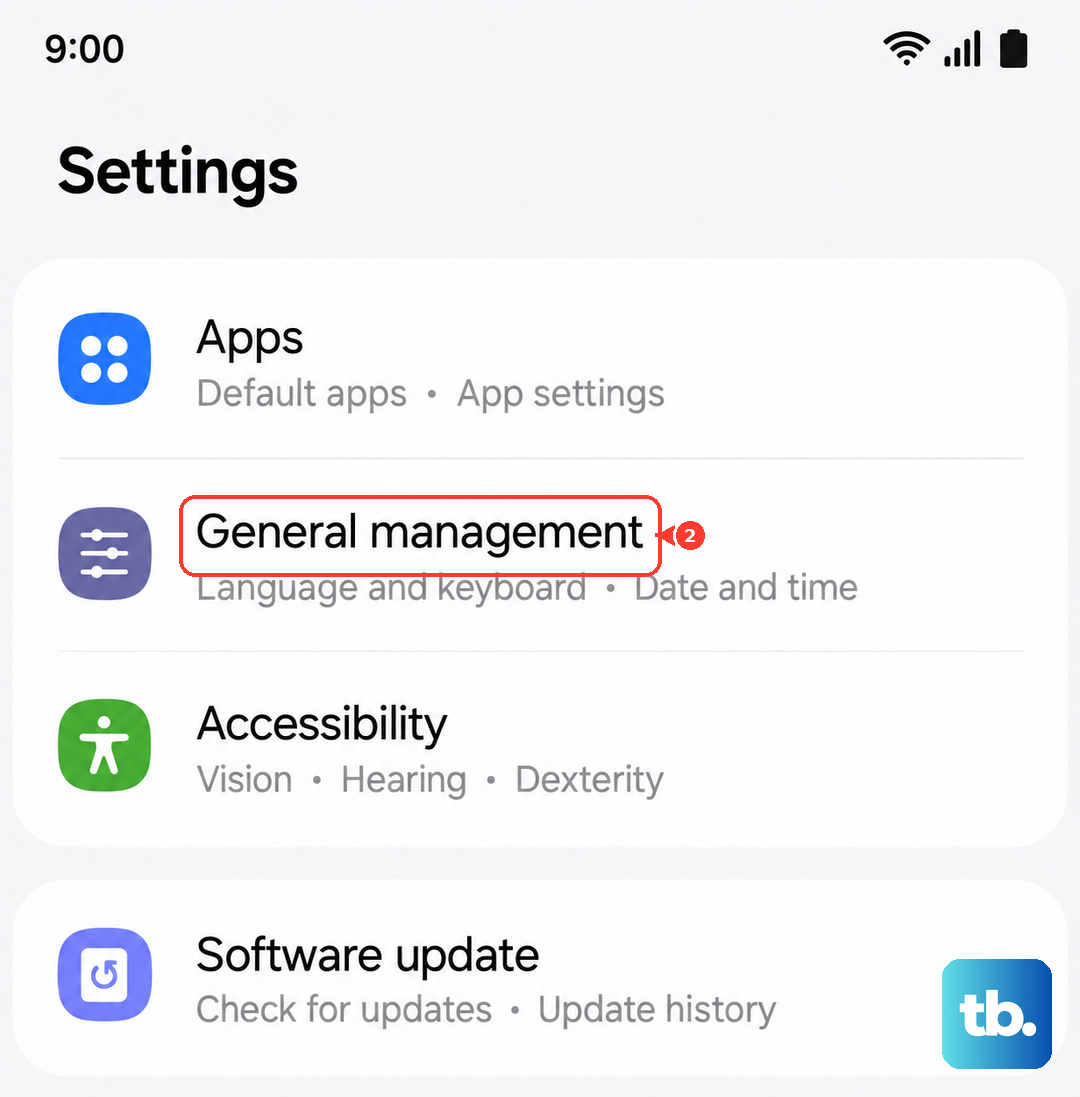
Go to Settings > General management > Reset > Reset Wi-Fi and Bluetooth settings, then tap Reset settings. This removes your saved Wi-Fi networks and paired devices, so you will need to pair the headphones again afterward, but it does not erase your personal data such as photos or messages.
When nothing else works, reset the phone or reach Samsung
A factory data reset is the last software step, and it should only come after everything above has failed. It returns the phone to its out-of-box state, so back up your data first. Samsung's warning is explicit. Please save any information you need prior to the factory reset because your personal information may not be recovered.
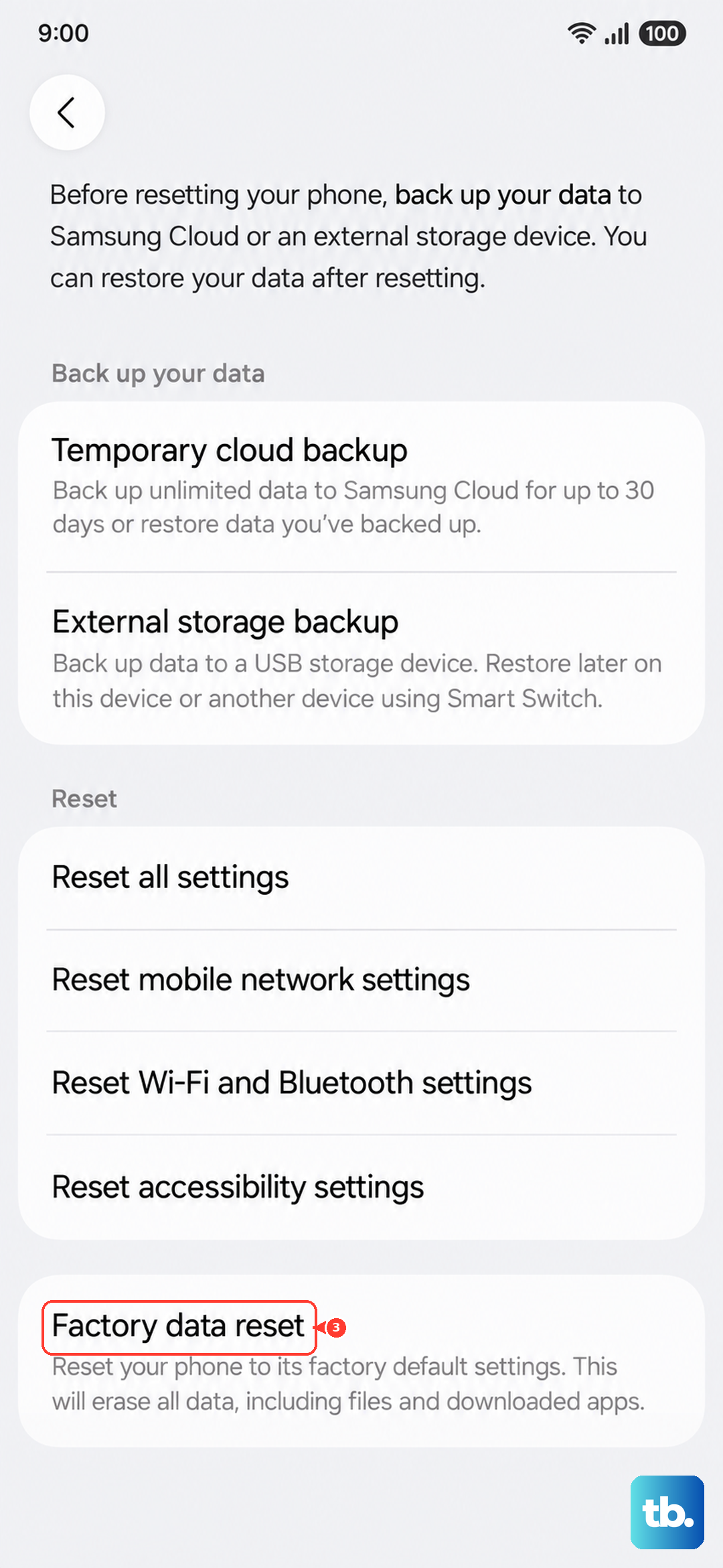
When you are ready, go to Settings > General management > Reset > Factory data reset and follow the prompts. If your headphones still will not work after a clean reset, the problem is likely hardware rather than software. At that point, contact Samsung Support to chat, book a repair, or visit a Samsung Service Center to have the USB-C port or audio components checked.
Frequently Asked Questions
Does the Samsung Galaxy A16 have a headphone jack?
No. Samsung's official spec pages for both the A16 (SM-A165) and the A16 5G (SM-A166) list the earjack as USB Type-C, and the only audio-related accessory in the box is a USB-C to USB-C data cable. To use headphones, connect USB-C wired headphones, use a USB-C to 3.5mm adapter, or pair wireless headphones such as Galaxy Buds.
Why do my USB-C headphones not work on the Galaxy A16?
The most likely reasons are compatibility and connection quality. Samsung notes that some USB Type-C earphones and USB Type-C adapters sold separately may not be compatible with the device, and that wired USB-C headphones need to support Digital Output. Try the headphones on another device, remove any adapter and connect directly, and check the USB-C port for debris or bent pins.
Will Reset Wi-Fi and Bluetooth settings delete my photos or apps?
No. Resetting Wi-Fi and Bluetooth settings only clears saved networks and paired devices, so you will need to pair your headphones again, but it does not erase personal data. A factory data reset is the only step that wipes the phone, and Samsung advises saving any information you need beforehand because it may not be recoverable.
How do I get out of Safe mode after testing my headphones?
Simply restart the phone. Safe mode is temporary, so a normal restart returns the device to its usual state with all of your apps re-enabled. Use the power menu or hold the Volume down and Side button together to restart.
My Bluetooth headphones connect but play no sound. What now?
Go to Settings > Connections > Bluetooth, tap the Settings icon next to the connected headphones, and make sure the output switches for both Calls and Audio are turned on. Also confirm the media volume is not muted and that the headphones are close to the phone and away from interference such as routers and walls.