
When your Samsung Galaxy A16's GPS stops locking on, it can leave you stranded without navigation. This is especially frustrating on a phone where you might already be managing occasional performance lag. The good news is most GPS problems on the A16 are software-related and can be fixed without much hassle.
Refresh Your GPS Connection
Start by pulling down the Quick Settings panel from the top of your screen. Tap the Location icon to turn it off, wait about 30 seconds, and then tap it again to turn it back on. This simple reset clears the temporary connection to the satellites and often solves the issue right away.
If that doesn't do it, a full restart is your next best move. Press and hold the Volume Down and Power buttons together for about 10 seconds until you feel the phone vibrate and the Samsung logo appears. This force restart is a bit more thorough than a standard reboot and can clear up minor system glitches affecting the GPS radio.
Check Your Location Settings and Permissions
Head into your Settings and tap on 'Location'. First, make sure the main switch at the top is turned on. Right below that, tap 'Location services' or 'Improve accuracy'. For the best possible GPS performance, you'll want to select 'High accuracy' mode.
This mode uses your GPS sensor along with Wi-Fi and mobile networks to pin down your location quickly. It uses a bit more battery, but it's essential for reliable navigation. Also, double-check that your mapping app, like Google Maps, has permission to use your location. Go to Settings > Apps > [Your Maps App] > Permissions to confirm.
Disable Power Saving and Toggle Airplane Mode
Your Galaxy A16's power saving modes are great for extending battery life, but they can limit background processes like GPS. Go to Settings > Battery and device care > Battery and make sure any power saving mode is switched off while you're navigating.
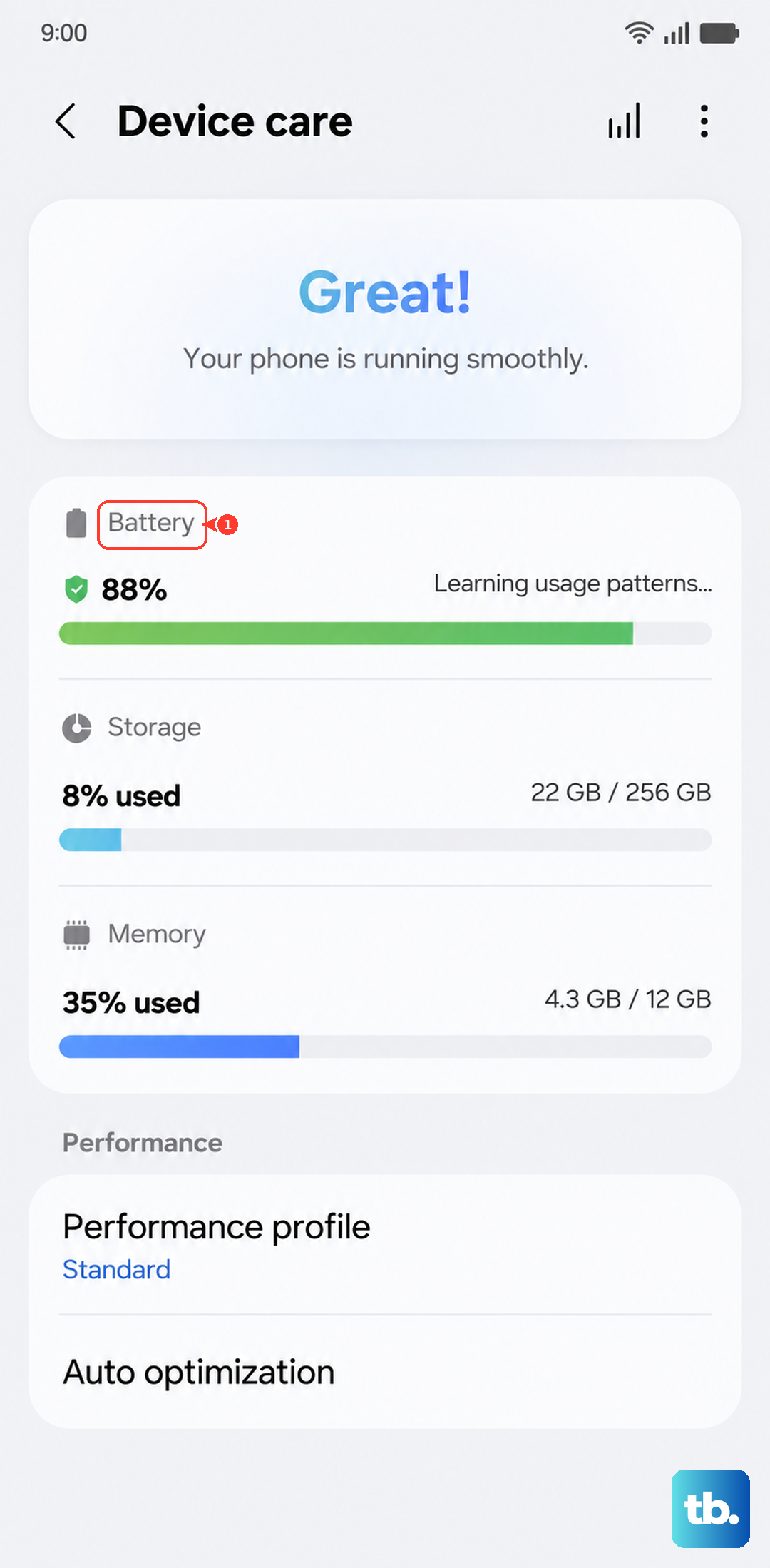
Next, try the airplane mode trick. Swipe down for Quick Settings and tap the airplane icon to enable it. Wait 15 seconds, then tap it again to disable it. This resets all the phone's wireless radios, including the one for GPS, and can clear up any conflicts that were preventing a solid signal.
Update Your Software and Apps
Outdated software is a common culprit. First, check for a system update by going to Settings > Software update > Download and install. Samsung regularly releases updates that can fix bugs affecting various components, including location services.
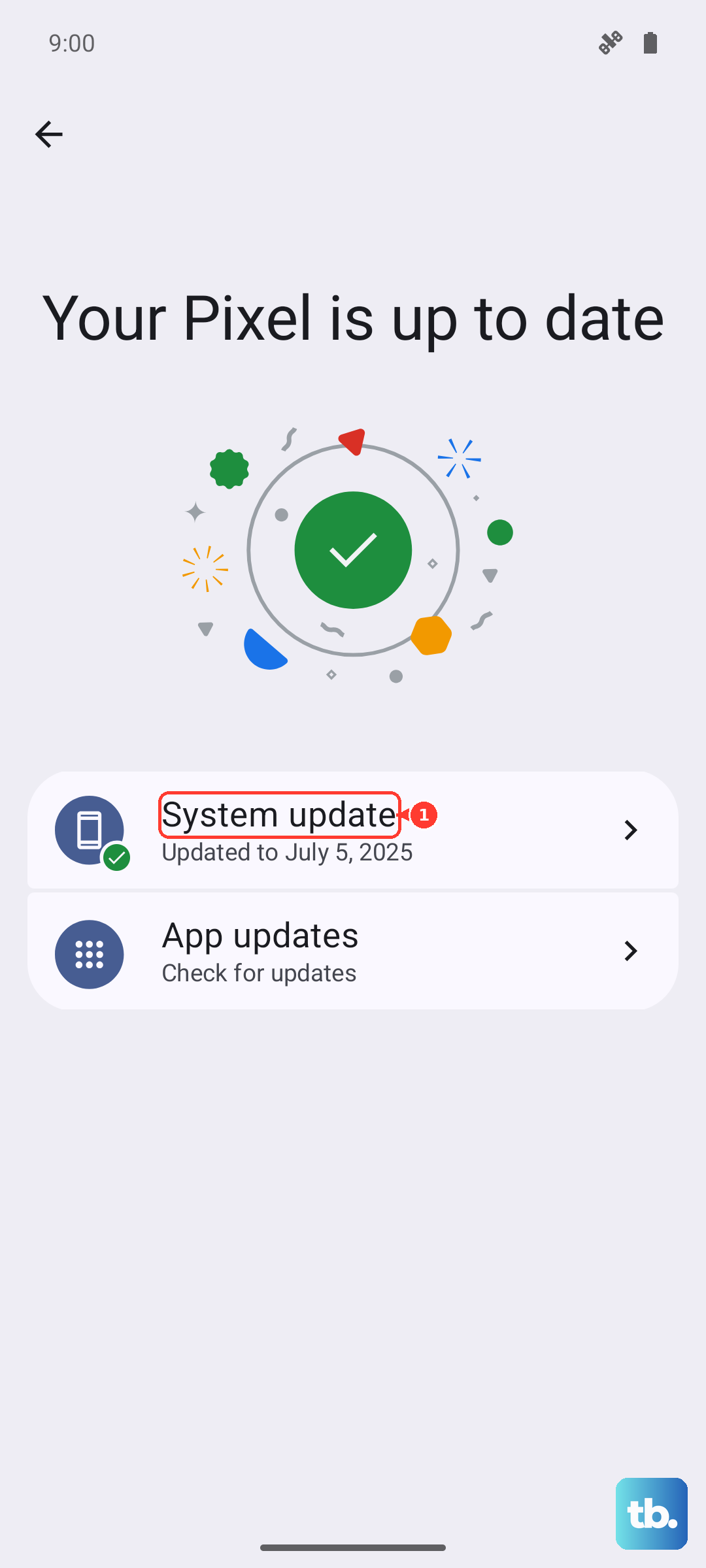
Then, open the Google Play Store, tap your profile icon, and go to 'Manage apps & device'. Look for updates available for Google Maps, Waze, or any other navigation app you use. Installing the latest versions ensures compatibility with your phone's current software.
Clear the App Cache and Data
If a specific app is acting up, its stored data might be corrupted. I'd recommend clearing the cache first, as this won't delete your saved places. Go to Settings > Apps, select your maps app, then tap 'Storage'. Hit 'Clear cache'.
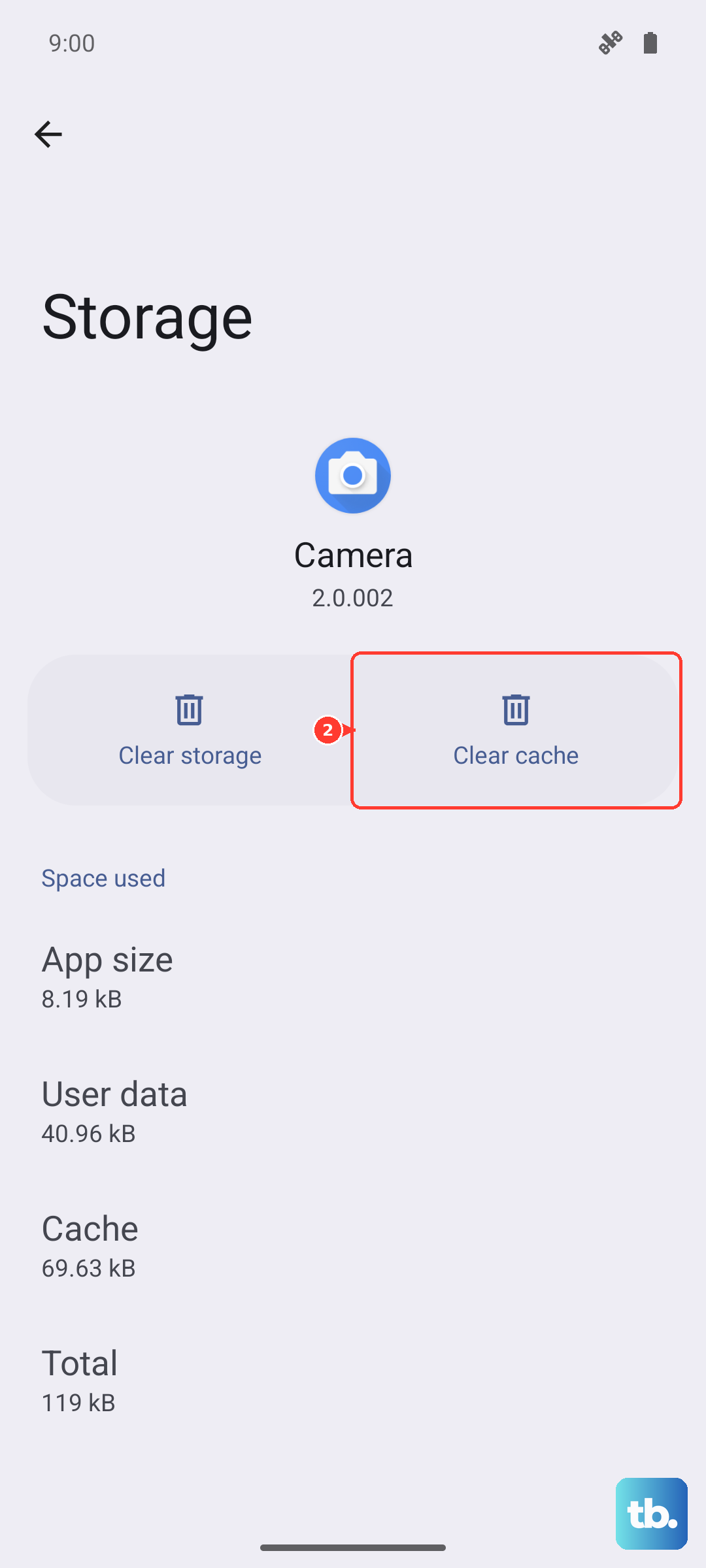
If the GPS is still problematic only in that app, you can go back and tap 'Clear data'. Just be warned, this will reset the app to its default state and you'll need to sign back in and reset any preferences. It's a more thorough fix for stubborn app-specific issues.
Test in Safe Mode and Check for Obstructions
To rule out a third-party app causing trouble, boot into Safe Mode. Press and hold the power button until the power menu appears. Then, tap and hold the 'Power off' option on your screen. You should see a prompt to reboot into Safe Mode. Tap it.
In Safe Mode, test your GPS with Google Maps. If it works perfectly here, a recently downloaded app is likely interfering. Restart your phone normally to exit Safe Mode and try uninstalling apps one by one to find the culprit. Also, remember that GPS needs a clear view of the sky. Thick phone cases, being inside a building, or heavy tree cover can all weaken or block the signal.
Clear the System Cache Partition
For a deeper system clean without touching your personal data, try wiping the cache partition. First, power off your Galaxy A16 completely. Then, press and hold the Volume Up and Power buttons together until the Samsung logo appears, then release.
You'll see the Android Recovery screen. Use the volume down button to highlight 'Wipe cache partition' and press the power button to select it. Confirm the action, and once it's done, select 'Reboot system now'. This clears temporary system files that could be causing conflicts.
Assess for a Hardware Problem
If you've tried all the software fixes and your GPS is still dead, it's time to check the hardware. Download a free app like 'GPS Test' or 'GPS Essentials' from the Play Store. Open it and go to the satellite view.
Take the phone outside to an open area. If the app shows your phone connecting to multiple satellites but your maps app still can't get a lock, the issue is likely software-based. However, if the satellite app shows zero connections even after several minutes outdoors, there may be a physical problem with the GPS antenna inside the phone.