
When your Samsung Galaxy A16 won't download apps, it can bring your phone to a standstill. You might see the download stuck on "Pending" or get an error code you don't understand. I've found that on the A16, this is usually a quick fix involving the Play Store or your network settings.
Let's get your app downloads working again. We'll start with the simplest solutions first.
Check Your Internet Connection First
This is the most common reason downloads fail. The Galaxy A16 needs a stable connection, whether on Wi-Fi or mobile data. Pull down the notification shade from the top of your screen and make sure you're connected.
If you're on Wi-Fi, try switching to mobile data for a moment. Some public Wi-Fi networks block the ports the Play Store uses. Just tap the Wi-Fi icon to turn it off and the mobile data icon to turn it on, then try your download again.
Restart Your Galaxy A16
A simple restart clears out temporary glitches that can freeze the download manager. Press and hold the Power button until the menu appears, then tap "Restart."
If your screen is completely unresponsive, you can force a restart. Press and hold the Volume Down button and the Power button together for about 10 seconds until you feel a vibration and see the Samsung logo.
Clear the Google Play Store Cache
Corrupted cache data in the Play Store app itself is a frequent culprit on Android devices. Clearing it is safe and won't delete your apps or account.
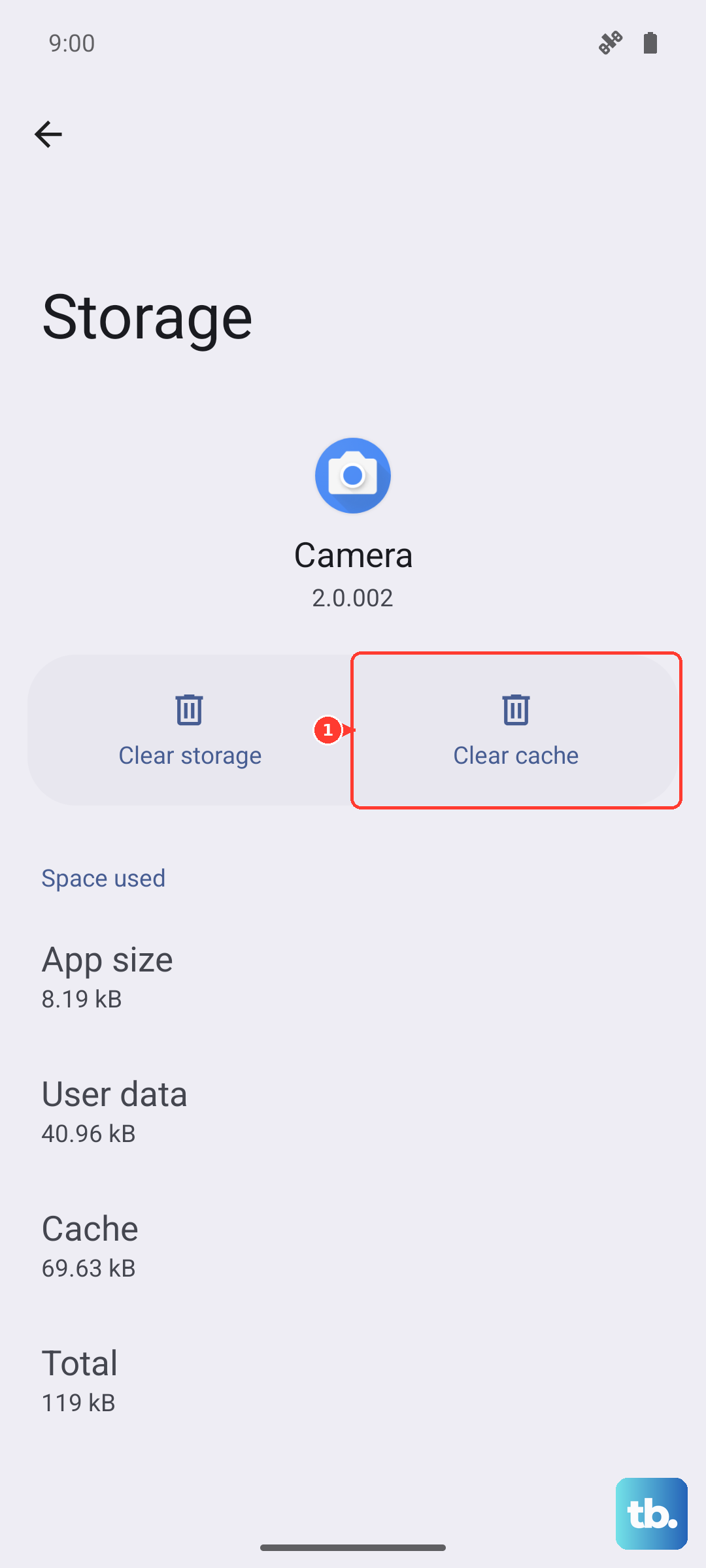
Go to Settings > Apps, then find and tap "Google Play Store." Tap Storage, then tap "Clear Cache." Try your download again. If it still fails, you can go back and tap "Clear Data" as a next step, which will reset the Play Store to its default state.
Verify Your Date and Time Settings
Google's servers use your phone's time to authenticate downloads. If your date or time is wrong, downloads will often fail silently.
Open Settings > General Management > Date and time. Make sure "Automatic date and time" is turned on. If it's already on and you're having issues, try turning it off and back on again to refresh the sync.
Check for Software Updates
An outdated version of Android or One UI can sometimes cause conflicts with the Play Store. Samsung regularly releases updates that fix these kinds of bugs.
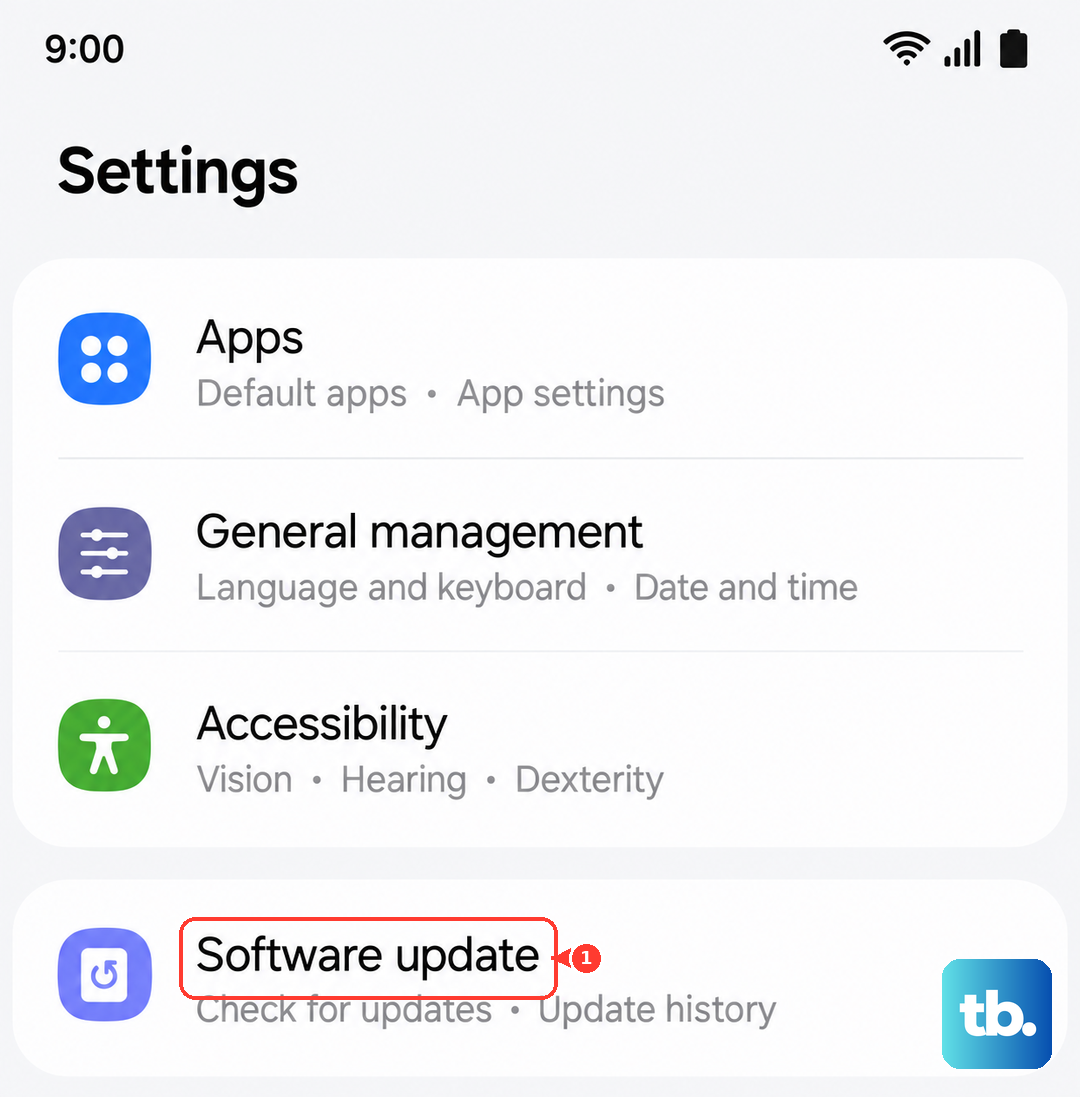
Go to Settings > Software update and tap "Download and install." If an update is available, it's a good idea to install it. Make sure your phone is charged above 50% and connected to Wi-Fi before starting.
Free Up Storage Space on Your Device
The Galaxy A16 comes with a base amount of storage, and if it's full, you can't install anything new. You might see an "Insufficient storage" error.
Head to Settings > Battery and device care > Storage. This screen shows you what's using space. You can tap "Clean now" for suggestions, or manually review and delete old downloads, photos, and videos. Clearing app cache regularly, which you can also do from this menu, is a great habit to maintain performance on the A16.
Review Your Google Account Sync
Sometimes the sync between your phone and your Google account gets stuck, which can disrupt downloads. Refreshing it can help.
Navigate to Settings > Accounts and backup > Manage accounts. Select your Google account, then tap "Sync account." You'll see a list of items like Gmail and Contacts. Tap the three-dot menu in the top right and select "Sync now" to manually refresh everything.
Ensure Download Manager is Enabled
The Download Manager is a system app that handles all downloads on your phone. It should never be disabled, but it's worth checking.
Go to Settings > Apps, then tap the three-dot menu and select "Show system apps." Scroll down and find "Download Manager." If the button says "Enable," tap it. If it's already enabled, you can tap it, then tap Storage and choose "Clear Cache" to give it a fresh start.
Remove and Re-add Your Google Account
This step refreshes your account's connection to the Play Store and can resolve deeper authentication issues. Don't worry, your contacts and emails are stored in the cloud and will come back.
Go to Settings > Accounts and backup > Manage accounts. Tap your Google account, then tap "Remove account." Confirm, then go back and tap "Add account" to sign back in with the same email and password. You'll need to reconnect things like Samsung Cloud backup afterward.
Check App-Specific Permissions
The Google Play Services app needs proper permissions to function. Let's make sure nothing is blocked.
Open Settings > Apps, find "Google Play Services," and tap it. Go to Permissions. Ensure all permissions, especially "Storage," are allowed. Then, go back and tap "Modify system settings" and make sure that toggle is also on.
Address Specific Download Errors
If you're seeing a numeric error code, it can point you to a more specific fix. For error DF-BPA-09, you'll need to clear data for Google Services Framework. Find it in Settings > Apps (show system apps), tap it, go to Storage, and tap "Clear Data."
For error 491 or 492, it's often related to payment or cache. Try clearing the cache and data for the Play Store and Google Play Services, as described earlier. A simple reboot after doing this often does the trick.