The "session expired" message means Facebook ended your current login and wants you to sign in again. It usually shows up after a stretch of inactivity, a password change, corrupted cache or cookies, or a sudden network or IP change that Facebook reads as a possible security risk.
Most of the time this is harmless. It is a security feature doing its job, not a sign that anything is broken with your account. The fixes below move from the fastest options to deeper ones, and they cover the Facebook app on iPhone and Android plus Facebook in a desktop browser.
Quick Reference for the Session Expired Error
Use this table to jump straight to the fix that matches what you are seeing. Start at the top and work down, since the first few options solve most cases in under a minute.
| What you are seeing | Likely cause | Fastest fix |
|---|---|---|
| Logged out once, error after a long time away | Normal session timeout | Log back in (Fix 1) |
| App keeps showing the error | Temporary app glitch | Force quit and reopen (Fix 2) |
| Error repeats after every login | Corrupted cache or cookies | Clear cache and cookies (Fix 3, 9) |
| Error after a recent password change | All sessions ended on purpose | Sign in with the new password (Fix 11) |
| Error on every site, not just Facebook | Connection or device clock issue | Check internet and clock (Fix 5, 12) |
| Only happens on one browser | Extension or browser data conflict | Switch browser, disable extensions (Fix 13, 14) |
1. Log Out and Log Back In
The simplest fix is to fully log out of Facebook and sign back in. This forces Facebook to issue a fresh session and clears whatever expired token triggered the error.
In the app, tap the menu icon, scroll down to Log Out, then sign in again with your email or phone number and password. On a computer, open the menu in the top right, choose Log Out, and log back in.
If you have several accounts saved on the login screen, pick the correct one and re-enter the password rather than tapping a saved profile, since a stale saved login can keep failing.
2. Force Quit and Relaunch the App
A temporary glitch in the running app can leave the session in a bad state. Force quitting clears that and reloads Facebook cleanly.
On iPhone, swipe up from the bottom and pause to open the app switcher, then swipe the Facebook card up to close it. On Android, open recent apps and swipe the Facebook card away, or go to Settings > Apps > Facebook and tap Force stop. Reopen the app afterward.
3. Clear the App Cache and Cookies
Facebook stores temporary files and cookies to keep you signed in. When that data gets corrupted, your session can break repeatedly, so clearing it often fixes the loop.
On Android, go to Settings > Apps > Facebook > Storage and tap Clear cache. Avoid Clear storage or Clear data unless nothing else works, since that signs you out and resets app preferences.
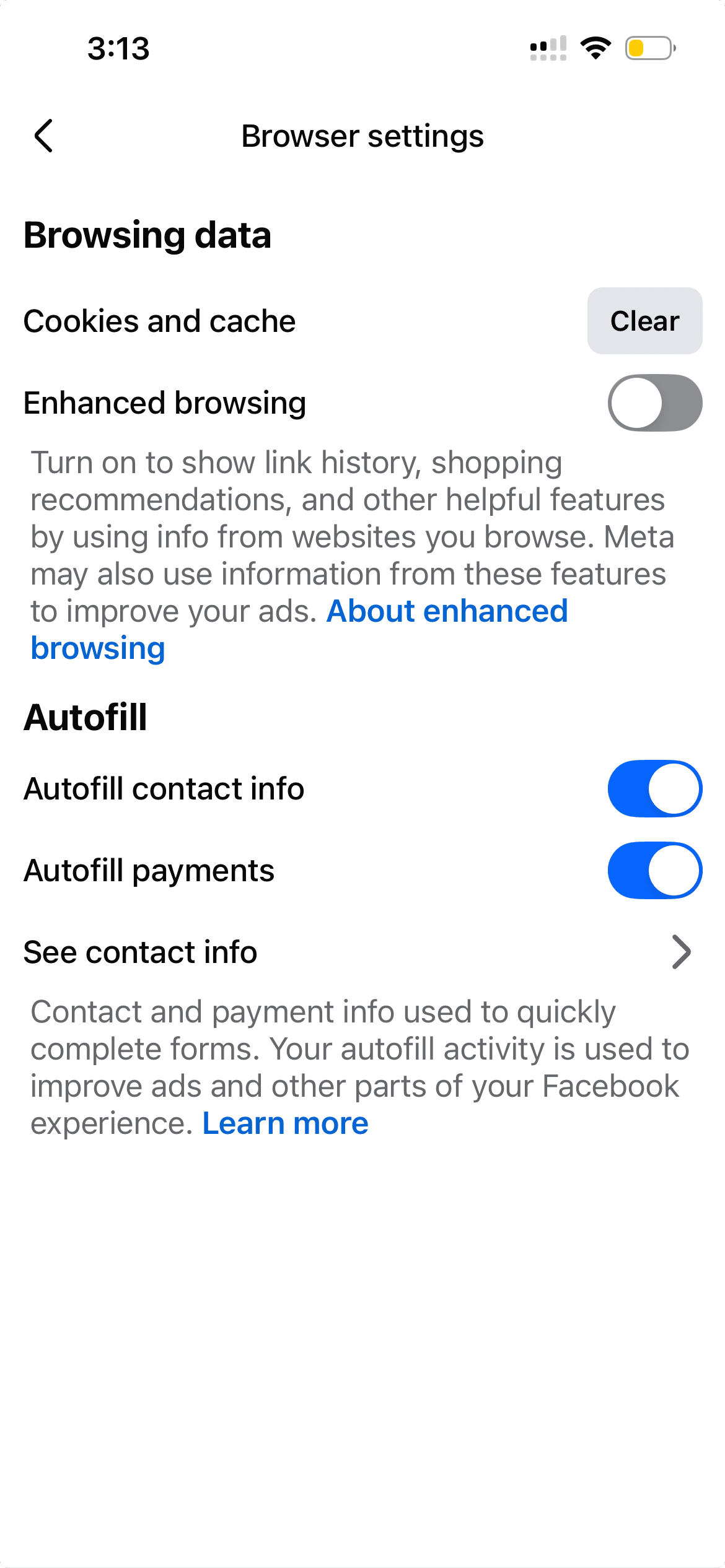
On iPhone there is no per-app cache button in iOS settings, so clear it inside the app. Open Facebook, tap the menu icon, go to Settings & privacy > Settings, scroll under Preferences to Browser, then tap Clear next to "Cookies and cache."
4. Update the Facebook App
An outdated app can clash with Facebook's current security and session systems. Updating to the latest version is a quick way to rule that out.
Open the App Store on iPhone or Google Play on Android, search for Facebook, and install any pending update. Turning on automatic app updates keeps you on the current version going forward.
5. Check Your Internet Connection
A weak or dropping connection can interrupt the session handshake and trigger the expired error. Confirm your connection is stable before digging deeper.
Open another website or app to see if the internet works at all. If it is slow, restart your router, or toggle Airplane mode on and off for a few seconds on your phone to reset the mobile connection.
Switching between Wi-Fi and mobile data changes your IP address, which Facebook can read as a security event and end the session. Try staying on one network while you log back in.
6. Restart Your Device
A full restart clears stuck background processes and temporary memory that can keep an app from holding a session. It is a small step that resolves a surprising number of cases.
Power the phone or computer off completely, wait about ten seconds, then turn it back on and open Facebook again. This is worth doing before the heavier fixes below.
7. Confirm Facebook Is Not Down
If Facebook's servers are having problems, you may see session and login errors no matter what you do on your end. Rule this out before reinstalling anything.
Check whether friends are reporting the same problem, or look at a public outage tracker. If there is a confirmed outage, the fix is simply to wait until Facebook restores service.
8. Reinstall the Facebook App
If the error keeps coming back, a corrupted install may be the cause. Reinstalling gives you a completely fresh copy with a clean cache and no leftover broken data.
Delete the Facebook app, restart your device, then reinstall it from the App Store or Google Play. Sign in afterward and the session should be created from scratch.
9. Clear Cache and Cookies in Your Browser
If the error appears when you use Facebook on a computer, stale browser cookies are a common cause. Facebook relies on these cookies for your session, and clearing them forces a clean login.
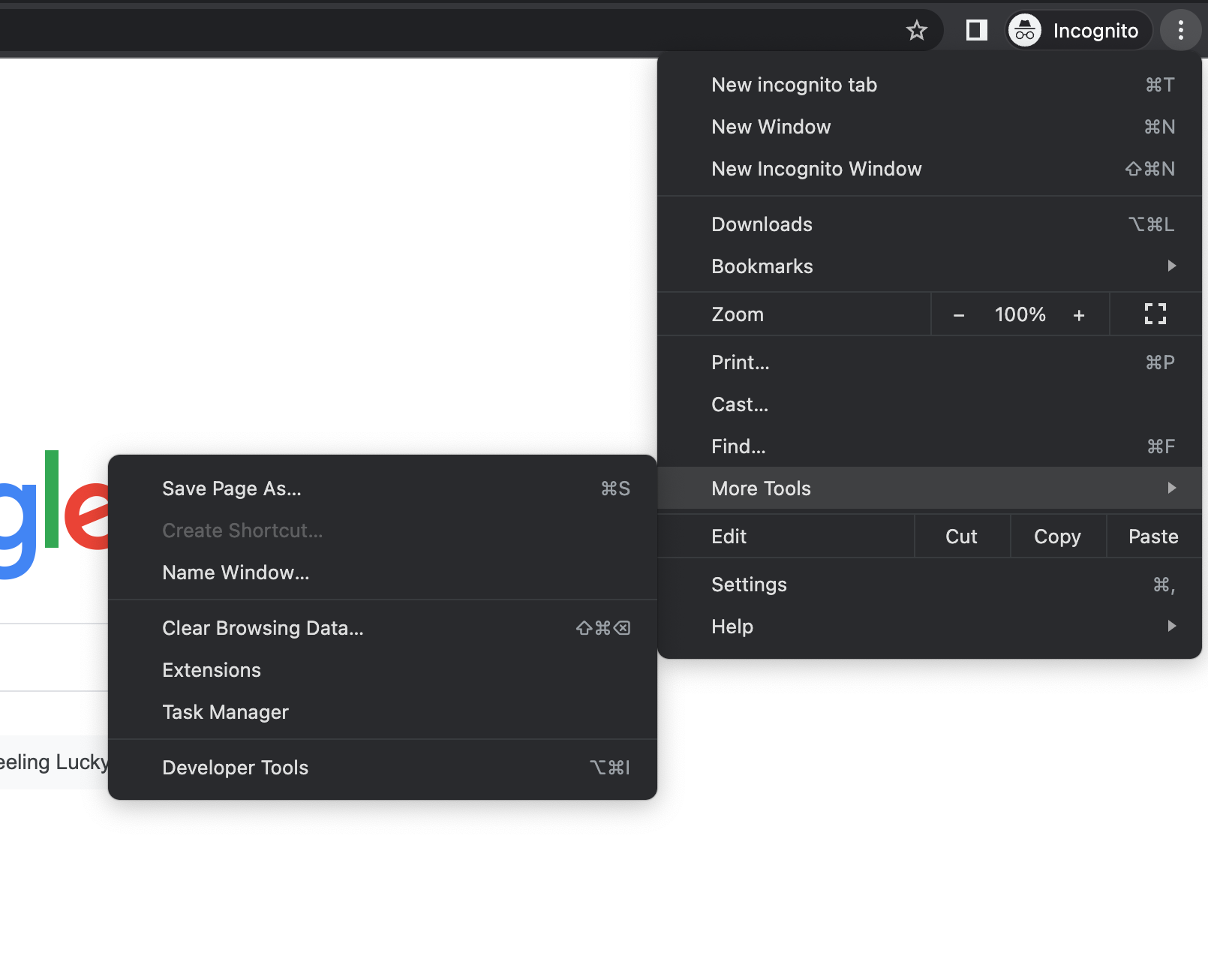
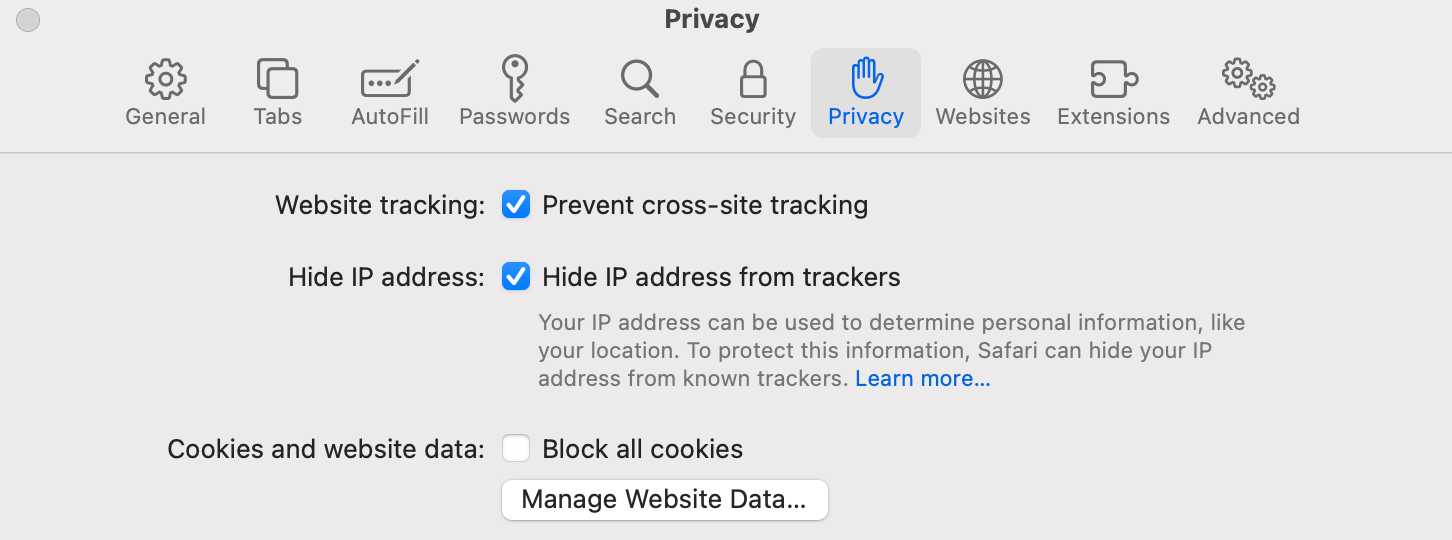
In Chrome, open the three-dot menu and choose Delete browsing data (older versions call it Clear browsing data), tick "Cookies and other site data" and "Cached images and files," then confirm to clear it. In Safari on Mac, open Safari > Settings > Privacy, choose Manage Website Data, and remove the Facebook entries.
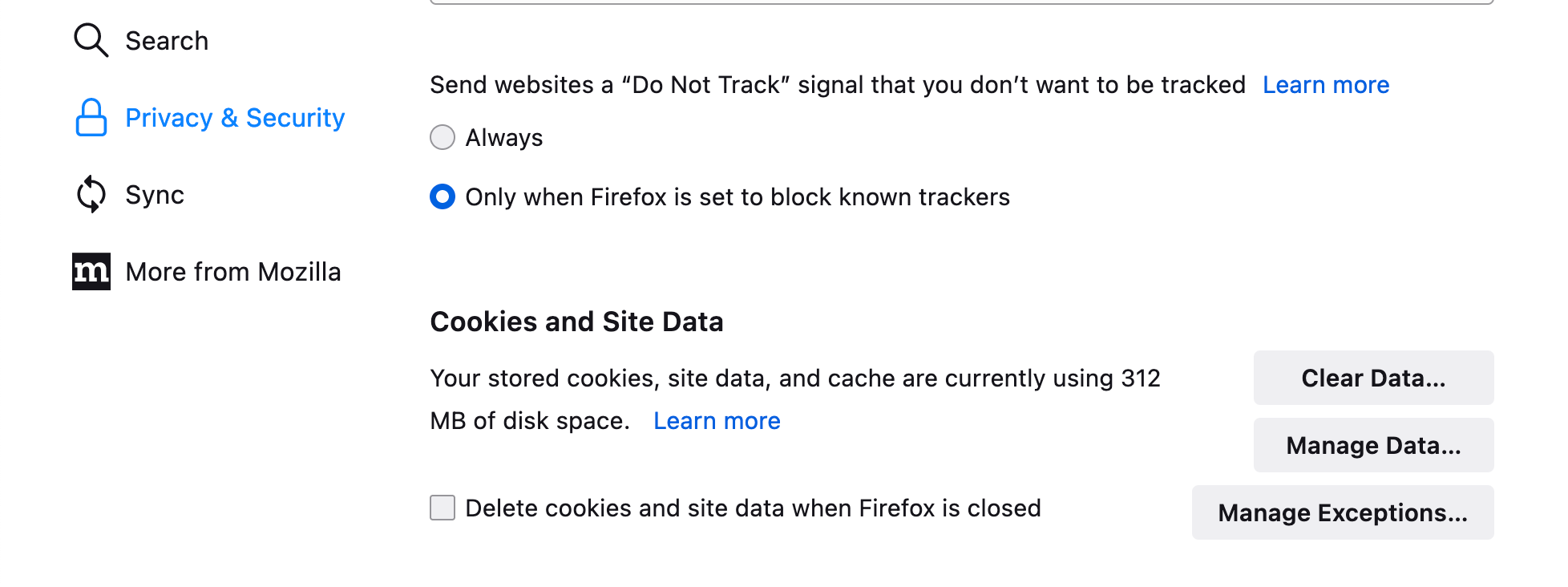
In Firefox, open the menu and go to Settings > Privacy & Security, then under "Cookies and Site Data" click Clear Data and confirm. After clearing, reload Facebook and sign in again.
10. Review Where You Are Logged In
Facebook ends sessions when it spots activity it does not recognize. Checking your active sessions lets you remove any device you do not recognize and force a clean state on your own device.
In the app, tap the menu icon, go to Settings & privacy > Settings, then open Accounts Center > Password and security > Where you're logged in. On desktop, the same list lives under Settings & privacy > Settings > Accounts Center > Password and security > Where you're logged in.
Tap any session you do not recognize and choose Log out. Ending an unknown session can stop repeated forced logouts and is also a sensible security step.
11. Reset Your Facebook Password
If you recently changed your password and selected log out of all devices, every other session ends on purpose, which produces the expired error until you sign in with the new password. A password reset is also the right move if you cannot log in at all.
To reset it, go to facebook.com/login/identify, enter the mobile number or email tied to your account, and follow the prompts to verify your identity and set a new password. If you cannot get in at all, start the recovery flow on the official account recovery help page.
After resetting, sign in with the new password on each device you use so every session is rebuilt with the current credentials.
12. Set the Correct Date and Time
Secure connections check your device clock against the website's security certificate. If the date or time is wrong, your device can reject a valid connection, which can surface as login and session errors.
On iPhone, go to Settings > General > Date & Time and turn on Set Automatically. On Android, open Settings > System > Date & time and enable the automatic date and network time options.
An accurate clock also matters for two-factor authentication. Time-based codes from an authenticator app fail when the clock drifts, so fixing the time can resolve login codes that keep getting rejected.
13. Try a Different Browser
When the error only appears in one browser, the problem is usually local to that browser rather than your account. Testing another browser quickly isolates it.
Open Facebook in Chrome, Firefox, Safari, or Edge. If it works in a second browser, the issue lives in the first one, and clearing its data or resetting it will likely fix it.
14. Disable Browser Extensions
Ad blockers, anti-tracking tools, and privacy extensions can strip or block the cookies Facebook needs to hold a session. Turning them off helps confirm whether one is the culprit.
Open your browser's extensions page, disable extensions one at a time, and reload Facebook after each. When the error stops, you have found the extension to keep off for Facebook or replace.
Opening Facebook in a private or incognito window, which runs without extensions by default, is a fast way to test this theory in seconds.
15. Check Security Software and VPNs
Antivirus suites, firewalls, and VPN or proxy connections can interfere with how Facebook manages your session. A VPN in particular changes your apparent location and IP, which Facebook may treat as suspicious and end the session.
Temporarily turn off your VPN or proxy and try again. If that fixes it, connect to a server closer to your real location, or leave the VPN off while using Facebook.
If the problem started after installing security software, briefly disable it to test, then add Facebook to its list of trusted sites or apps so it stops interfering.
How to Keep Facebook Sessions From Expiring
Most session drops trace back to a few habits, so a little maintenance prevents repeat interruptions. None of these stops Facebook's normal security timeouts, but they cut down the avoidable ones.
Keep the app and your browser updated, clear cache when the app starts misbehaving, and stick to a stable connection rather than hopping between networks mid-session. Keep your device clock on automatic, limit the number of privacy extensions that touch Facebook, and remove any unknown devices from Where you're logged in.
If your real goal is making the app run smoothly, our guide on Facebook not loading covers related fixes for blank screens and feeds that will not refresh.
Frequently Asked Questions
Why does Facebook keep saying my session expired?
Repeated session expired messages usually come from corrupted cache or cookies, an outdated app, an unstable connection, or frequent network and IP changes. Clearing the app cache, updating Facebook, and staying on one network while you log in resolves most repeat cases.
Does session expired mean I was hacked?
Usually no. The message is most often a normal security timeout or a cache and cookie problem, not a sign of a breach. To be safe, open Where you're logged in under Accounts Center and log out any device you do not recognize, then change your password.
How do I stay logged in to Facebook?
Use the official app or save your login in the browser, keep both updated, and avoid clearing cookies or switching networks constantly. Facebook will still end sessions after long inactivity or a password change, since that is a built-in security feature you cannot fully turn off.
Why does switching from Wi-Fi to mobile data log me out of Facebook?
Changing networks changes your IP address, and Facebook can read a sudden IP change as a possible security risk and end the session. Staying on one connection while you sign in, then switching afterward, reduces how often this happens.
Can a wrong date and time cause the session expired error?
Yes. Secure connections compare your device clock to the site's security certificate, and a wrong clock can make valid connections fail and surface as session or login errors. Set the date and time to automatic on your phone or computer to rule this out.
How do I fix Facebook session expired without losing my saved passwords?
Clear only the app cache rather than app data or storage, since cache clearing does not remove saved logins. In a browser, clear cookies and cache for Facebook specifically instead of everything, or sign out and back in, which refreshes the session without touching other saved passwords.
First published October 14, 2025. Last updated June 4, 2026.