Your laptop has been acting strange: pop-ups you never asked for, a browser homepage you did not set, programs launching on their own, or a fan that spins hard while nothing seems to be running. Those are classic signs that something malicious has slipped onto your Windows 11 machine. The good news is that everything you need to find and remove a virus is already built into Windows, so you do not have to install or pay for a third-party tool. This guide walks you through the official Microsoft Defender Antivirus scans, in the right order, plus the settings that stop the infection from coming back.
Open Windows Security and Find the Threat Hub
Everything starts in the Windows Security app, which runs Microsoft Defender Antivirus. Select Start and open the app by searching for "Windows Security," or navigate through Start > Settings > Privacy & security > Windows Security. Inside the app, select Virus & threat protection.
This screen is the control center for removing malware. It continuously monitors your device for threats such as viruses, malware, and spyware, and it is where every scan is launched. If you prefer a one-step shortcut, paste windowsdefender://threat/ into the address bar of File Explorer or the Run box, and it opens the Virus & threat protection screen directly.
Start With a Quick Scan
Before committing to anything lengthy, run a fast check. On the Virus & threat protection screen, under Current threats, select Quick scan. A quick scan checks the places malware is most likely to hide, which makes it a sensible first read on the health of your PC.
Microsoft describes the quick scan as useful when you do not want to spend the time running a full scan on all your files. It often catches common infections in just a couple of minutes. To launch one directly, use the shortcut windowsdefender://quickscan/.
Run a Full Scan When You Suspect Infection
If the quick scan finds nothing but your laptop still behaves oddly, go deeper. On the Virus & threat protection screen, under Current threats, select Scan options, choose Full scan, then select Scan now.
A full scan scans every file and program on your device, so it takes considerably longer than a quick scan, and your laptop may feel slower while it works. That trade-off is worth it: Microsoft specifically recommends a full scan when you think the PC is infected. You can also trigger it with the shortcut windowsdefender://fullscan/.
If you only want to examine a specific download folder or USB drive rather than the whole system, a Custom scan checks only the files and folders you select. Open it from Scan options, or use windowsdefender://customscan/.
Use a Microsoft Defender Offline Scan for Hidden or Stubborn Malware
Some malware is built to hide from antivirus software while Windows is running. To beat it, you can scan from outside the operating system. On the Virus & threat protection screen, select Scan options, choose Microsoft Defender Antivirus (offline scan), then select Scan now.
Save any open files first, because your PC will restart automatically. Warning: this step reboots the machine, so close your work before you begin. The scan then runs outside of Windows, in the Windows Recovery Environment, using the latest threat definitions, which means persistent malware cannot hide or defend itself. When the offline scan finishes, the laptop restarts back into Windows on its own. The direct shortcut is windowsdefender://wdoscan/.
When the Same Virus Keeps Coming Back
If you remove something but the same malware reappears, Microsoft's guidance is to lean on the offline scan again. Go to Virus & threat protection > Scan options > Microsoft Defender Antivirus (offline scan) > Scan now, remembering that the PC restarts before it scans.
Recurring infections are often a sign that your protection is out of date. Make sure your definitions are current by going to Virus & threat protection > Virus & threat protection updates > Check for updates. Also confirm that Cloud-delivered protection is turned On under Virus & threat protection settings, since cloud lookups help catch the newest threats that local definitions may not yet recognize.
Review What the Scan Actually Found
After any scan, including an offline scan, you will want to see the results and act on them. Open the Windows Security app and select Protection history. This view lists the threats Microsoft Defender Antivirus detected and the actions it took.
Checking Protection history is how you confirm the cleanup worked rather than assuming it did. If a stubborn item appears here repeatedly across scans, that is your cue to return to the offline scan and the definition update steps above.
Turn On Real-Time and Tamper Protection
Removing a virus is only half the job; you also want Windows to block the next one automatically. On the Virus & threat protection screen, select Manage settings under Virus & threat protection settings. Confirm that Real-time protection is set to On. It scans files and programs as they are accessed and alerts you to suspicious activity.
On the same Manage settings screen, confirm that Tamper protection is On. Tamper Protection prevents malicious apps from changing important Microsoft Defender Antivirus settings, such as real-time protection and cloud-delivered protection. As an administrator you can still adjust those settings yourself in the Windows Security app, but other apps cannot touch them. If you ever turn real-time protection off temporarily, Microsoft notes that it will soon turn on automatically again to protect your device.
Why Real-Time Protection Might Show as Off
Do not panic if real-time protection appears disabled. If you have installed a compatible non-Microsoft (third-party) antivirus product, Microsoft Defender Antivirus automatically turns itself off, and that other product handles protection instead. This is by design.
Microsoft recommends not running more than one real-time antivirus at the same time, because doing so can affect performance. If you do not have another security product, or your existing one has expired, Microsoft Defender Antivirus will automatically turn back on. So before you try to re-enable Defender's real-time protection by hand, check for any other antivirus first and uninstall it if you no longer want it.
Uninstall Suspicious or Unwanted Programs
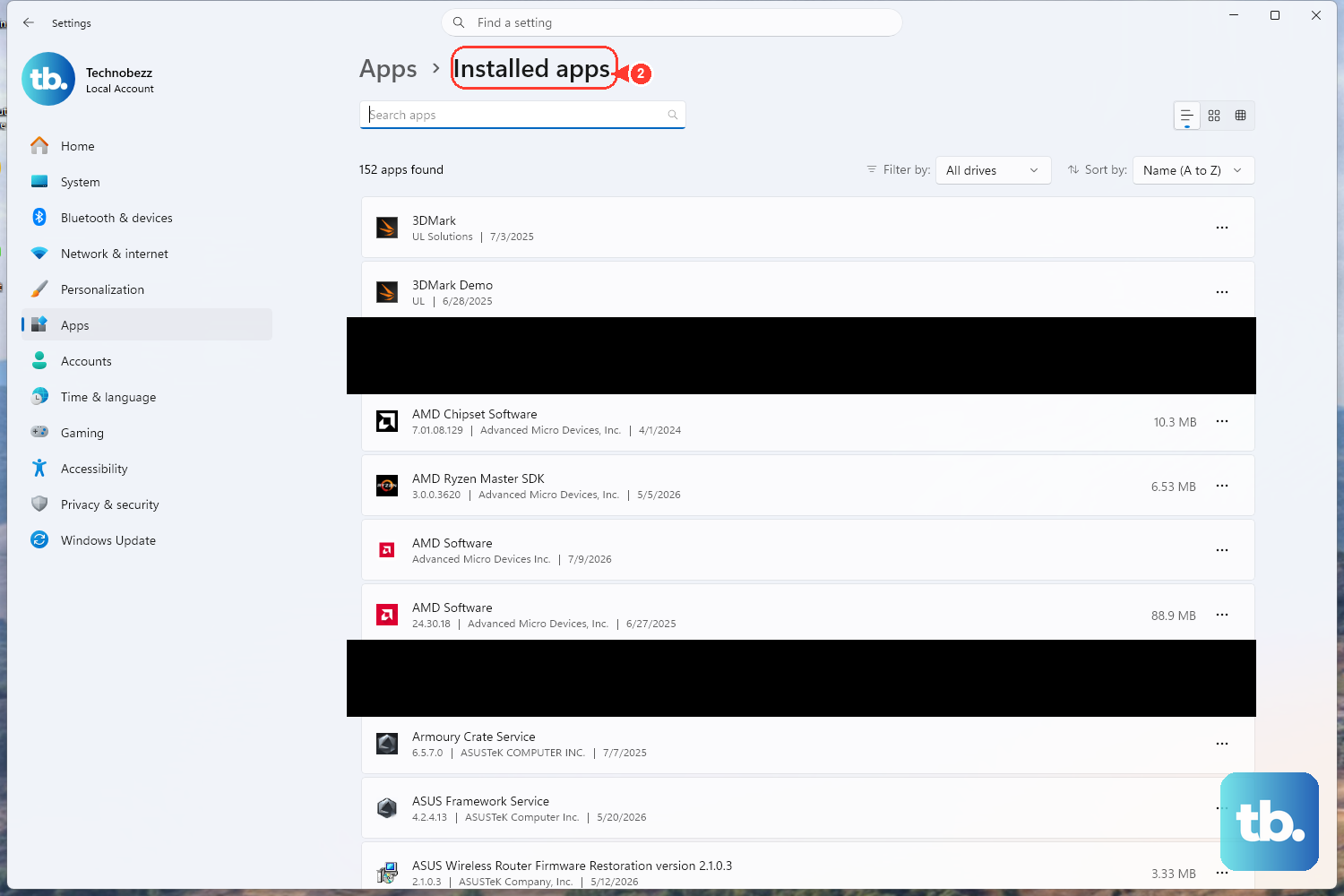
Sometimes the problem is an unwanted application that arrived bundled with a download. To remove it, go to Start > Settings > Apps > Installed apps, select the program you do not recognize, then select Uninstall. A reboot may be required after the removal completes.
One important safeguard: before you remove any existing security software, make sure Microsoft Defender Antivirus is enabled and Windows Firewall is turned on. You never want to leave the laptop with no protection running, even for a few minutes.
Keep the Infection From Returning
A clean scan today does not help much if the same hole stays open tomorrow. Keep Windows current through Windows Update, since Microsoft releases security updates that help protect the PC. Keep your threat definitions current too, via Virus & threat protection > Virus & threat protection updates > Check for updates.
For day-to-day safety, use SmartScreen in Microsoft Edge to help block phishing and malware sites, and leave both User Account Control (UAC) and Tamper Protection on. Finally, the most effective habit costs nothing: avoid opening suspicious email attachments and downloads, which is how most infections start in the first place.
Frequently Asked Questions
Do I need to buy antivirus software to remove a virus from Windows 11?
No. Microsoft Defender Antivirus is built into Windows 11 (and Windows 10) through the Windows Security app, and no third-party tool is required or recommended. Microsoft also distributes the Windows Malicious Software Removal Tool through Windows Update to clean up specific prevalent malware.
What is the difference between a Quick scan and a Full scan?
A Quick scan checks the places malware is most likely to hide and is useful when you do not want to spend time scanning everything. A Full scan checks every file and program on your device, takes longer, and is what Microsoft recommends when you think the PC is actually infected.
When should I use the Microsoft Defender Offline scan?
Use it for hidden, persistent, or recurring malware. The offline scan restarts your PC and runs in the Windows Recovery Environment using the latest definitions, so malware cannot hide or defend itself while Windows is loaded. Save your open files first, because the machine will restart automatically.
Why does my real-time protection say it is turned off?
If you have a third-party antivirus installed, Microsoft Defender Antivirus automatically turns itself off and lets that product handle protection. Running two real-time antivirus products at once can affect performance. If the other product is removed or expires, Defender turns itself back on automatically.
How do I check whether the virus was actually removed?
Open the Windows Security app and select Protection history. It shows the threats Microsoft Defender Antivirus detected and the actions it took, so you can confirm the cleanup succeeded. If the same item keeps reappearing there, run another offline scan and update your definitions.