That translucent "Activate Windows. Go to Settings to activate Windows." message sitting in the bottom-right corner of your screen is one of the most persistent annoyances in Windows. It hovers over games, video calls, and screenshots, and no amount of clicking will dismiss it. The good news is that there is a clear, supported way to make it disappear for good, and it has nothing to do with sketchy tricks or downloaded tools.
The watermark is not a bug or a display glitch. It is Windows telling you that your installation has not been recognized as genuine, and the only reliable way to clear it is to genuinely activate your copy. This guide walks you through checking your status, running the built-in repair tool, and handling the situations that most often knock activation loose, on both Windows 10 and Windows 11.
Why the Watermark Shows Up in the First Place
The "Activate Windows" watermark appears because your copy of Windows is not activated, meaning the activation status is not currently recognized as genuine. Activation is the process that pairs your product key or digital license with your device's hardware, and until that pairing is confirmed, Windows flags the installation with the overlay.
It is worth being clear about one thing up front: the watermark is removed only by genuinely activating Windows, not by hiding it. There is no supported setting that turns off the overlay while leaving Windows unactivated, so every step below is aimed at restoring proper activation rather than masking the symptom.
This guidance applies to Windows 11 and to Windows 10 (version 1607 or later). If you are running an older operating system, the activation process is handled separately under Microsoft's "Activate Windows 7 or Windows 8.1" content instead.
Check How Your Copy Is Currently Activated
Before you change anything, find out exactly where you stand. The Activation page tells you whether Windows is activated, and if it is, whether that activation comes from a digital license, a digital license linked to your Microsoft account, or a product key. This detail decides which of the later steps will actually help you.
On Windows 11, select Start > Settings > System > Activation.
On Windows 10, select Start > Settings > Update & Security > Activation.
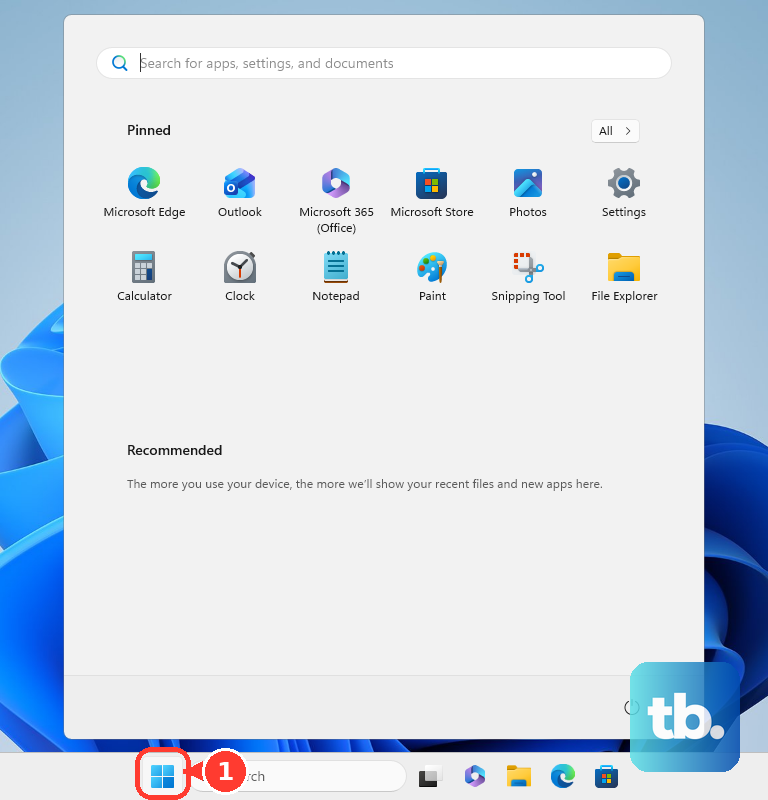
Read the status line at the top of the page to confirm whether Windows reports itself as activated and which method it is using.
If the page says Windows is already activated, the watermark should clear shortly; if it reports that Windows is not activated, continue with the steps below.
Get the Basics Right: Internet, Date, and Time
Activation requires an active internet connection, so the first thing to confirm is that you are genuinely online. Many activation failures come down to nothing more than a dropped connection at the moment Windows tried to verify itself.
Microsoft also lists an incorrect device date or time, and connections blocked by a firewall or proxy, among the common causes of activation errors. Check that your clock is accurate and that no security software or network restriction is silently blocking Windows from reaching activation servers. Sorting these out first can spare you a lot of troubleshooting later.
Run the Built-In Activation Troubleshooter
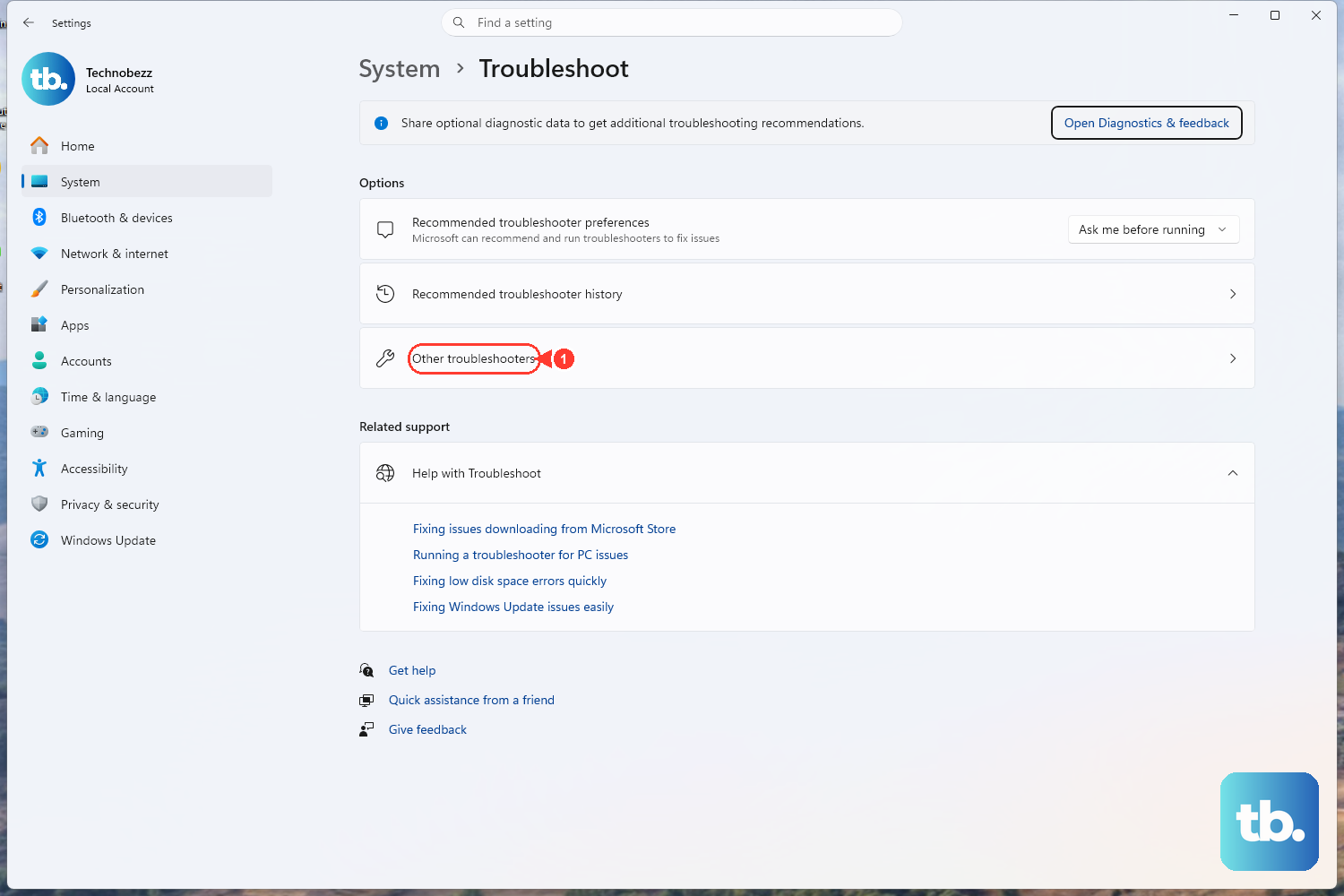
Windows includes a dedicated Activation troubleshooter that runs diagnostics and attempts to fix most activation problems automatically. This is the first automated fix to try, and for many people it is the only step they need.
You must be signed in as an administrator for this to work. Note that the Troubleshoot option appears only when Windows is not activated, and it disappears once activation succeeds, so its absence is actually a sign that you are already activated.
For Windows 11, go to Start > Settings > System > Activation and select Troubleshoot.
For Windows 10, go to Start > Settings > Update & Security > Activation and select Troubleshoot.
Let the troubleshooter run its diagnostics and apply any fix it recommends.
If the troubleshooter resolves the problem, the watermark will clear once activation is confirmed.
Enter a Valid Product Key
If Windows is not activated and you have a valid 25-character product key, you can enter it directly and let Windows activate online. A product key needs to be valid and obtained from Microsoft or a licensed retailer for activation to succeed.
In Windows 11, go to Start > Settings > System > Activation.
In Windows 10, go to Start > Settings > Update & Security > Activation.
Select Change product key and enter your 25-character key.
Once the key is accepted, Windows activates online automatically and the watermark goes away.
Link Your Microsoft Account to Protect Your License
A digital license is tied to your device's hardware, which means a major hardware change can break activation later on. To guard against that, link the license to a Microsoft account; doing this before any hardware change is the single best insurance you can take.
You will need to be signed in as an administrator using a Microsoft account rather than a local account for this to work.
Open Start > Settings > System > Activation.
Select Add an account.
Enter your Microsoft account and password, then select Sign in.
After this, the status should change to read "Windows is activated with a digital license linked to your Microsoft account," which is exactly the state you want before you ever open the case.
Reactivating After You Change Hardware
After a significant hardware change, such as replacing the motherboard, Windows may no longer match its license and the watermark can return even on a copy that was previously activated. As long as you linked your license to a Microsoft account beforehand, the troubleshooter can move that license to the new hardware.
- 1.Go to
Start > Settings > System > Activation > Troubleshoot. - 2.When the troubleshooter reports "Windows can't be activated on your device," select I changed hardware on this device recently and select Next.
- 3.Sign in with your linked Microsoft account.
- 4.Check the box next to This is the device I'm using right now.
- 5.Select Activate.
This per-screen flow is documented for the Windows 11 path. The same troubleshooter exists on Windows 10 under Settings > Update & Security > Activation, so you start it the same way even if the individual screens differ slightly.
Matching Error Codes to What Went Wrong
If activation keeps failing, the specific error code Windows shows you is the fastest way to understand the cause. Run the troubleshooter first, and if it cannot resolve the issue, use the code to look up the exact problem on Microsoft's activation errors page.
Here are the codes Microsoft documents and what each one points to:
0xC004F211: the device hardware changed.
0xC004F213: no product key was found.
0xC004F212: the product key is not compatible with this edition of Windows.
0x803F7001: a valid license could not be found.
0xC004C003: the product key you entered is not valid, which can happen when a key meant for one device has been used elsewhere.
0xC004FC03: you are not connected to the internet, or a firewall is blocking the connection.
0x80072F8F: an incorrect date or time, or trouble connecting to the activation service.
Several of these tie straight back to the earlier steps. A code about hardware changes points you to the reactivation flow, while connection and date/time codes confirm that getting the basics right really does matter.
Frequently Asked Questions
Can I remove the watermark without activating Windows?
No. The watermark exists specifically because Windows is not recognized as genuine, and it is removed only by genuinely activating your copy. There is no supported setting that hides the overlay while leaving Windows unactivated, so activation is the only reliable path.
The Troubleshoot button is missing from my Activation page. What does that mean?
The Troubleshoot option appears only when Windows is not activated, and it disappears once activation succeeds. If you cannot see it, that usually means your copy is already activated. Make sure you are also signed in as an administrator, since the option requires administrator access.
Will linking a Microsoft account fix activation after I swap my motherboard?
It is what makes the fix possible. A digital license is tied to your hardware, so linking it to a Microsoft account beforehand lets the troubleshooter move the license to the new hardware afterward. With the account linked, you run the troubleshooter, choose the hardware-change option, sign in, confirm it is the device you are using, and select Activate.
Activation keeps failing even though I have a key. What should I check?
Confirm you are connected to the internet, since activation requires it, and verify that your device's date and time are correct. Also check that a firewall or proxy is not blocking the connection. If the error persists, note the error code Windows shows and look it up on Microsoft's activation errors page.
Does it matter where my product key came from?
Your product key must be valid and obtained from Microsoft or a licensed retailer for activation to succeed. The codes 0xC004C003 (key not valid, often from being used on another device) and 0xC004F212 (key not compatible with your edition of Windows) are common signs that a key will not activate your current installation.