
When your Redmi Note 14 Pro's volume buttons stop responding, it can leave you scrambling to adjust a call or media playback. You press the rocker, but nothing happens, no on-screen indicator, no change in sound. The good news is that most of the time, this is a software hiccup or a simple obstruction that you can fix yourself without a trip to a service center.
Before you assume the worst, work through these practical fixes. I'd start with the first one, as it's the most common culprit I've seen with button issues.
Remove Your Phone Case
Begin with the simplest check. Take your Redmi Note 14 Pro out of its case. A case that's slightly misaligned, worn out, or has a thick lip can physically block the volume rocker from being fully pressed. This is especially true for cases that claim extra drop protection, as they often have more material around the buttons.
Without the case, test the buttons again. If they work, you've found your issue. You might need a different case or could carefully trim any obstructive material from the button area of your old one.
Perform a Force Restart
A force restart is your best friend for clearing out temporary software glitches that can cause hardware controls to freeze. This process doesn't delete any of your personal data, apps, or files. It simply gives the system a fresh start.
For the Redmi Note 14 Pro, press and hold the Power button for at least 15 seconds. Keep holding it until you see the Xiaomi or HyperOS logo appear on the screen, then you can let go. Wait for the phone to boot up completely and then test the volume buttons immediately.
Clean the Volume Rocker
Dust, lint, and pocket debris are leading causes of sticky or unresponsive buttons. The Redmi Note 14 Pro's buttons have small gaps where grime can accumulate over time, preventing the internal contact from being made.
You can use a can of compressed air to blow gently around the edges of the volume rocker. For more stubborn gunk, lightly dampen a cotton swab with a small amount of isopropyl alcohol (90% or higher is best) and carefully clean around the button. Be gentle to avoid pushing debris further inside, and let the area dry completely before testing.
Check for Software Updates
Bugs in the system software, whether it's Android 14 or Xiaomi's HyperOS layer, can sometimes cause input issues. Manufacturers regularly release updates that include fixes for these kinds of problems.
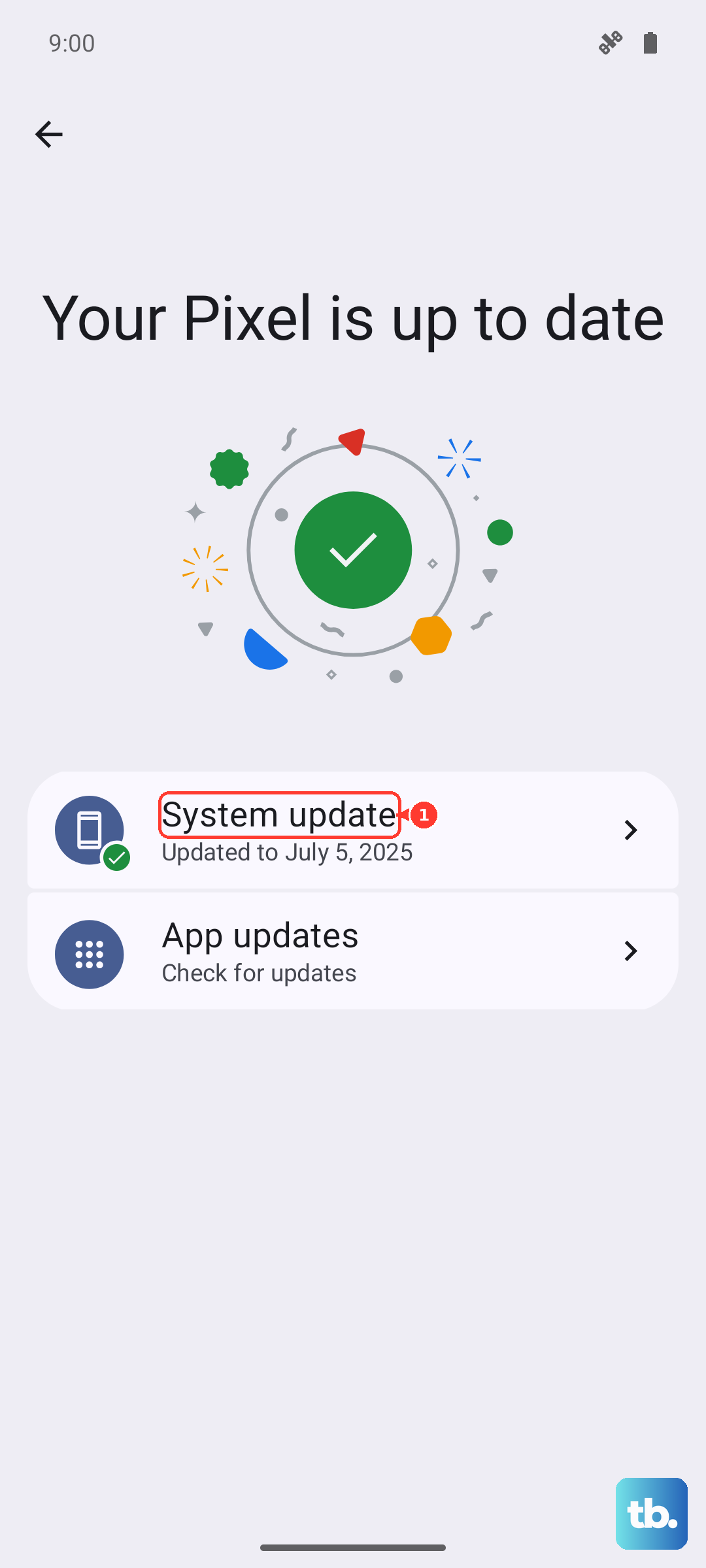
Go to Settings > About phone > System update. Tap "Check for updates" and install any available update. Make sure your phone is connected to Wi-Fi and has at least 50% battery, or plug it into your 45W HyperCharge adapter while updating.
Test the Buttons in Safe Mode
If a recently installed third-party app is causing a conflict, booting into Safe Mode can help you confirm it. Safe Mode temporarily disables all apps you've downloaded, leaving only the original system software running.
To enter Safe Mode on the Redmi Note 14 Pro, press and hold the Power button until the power menu appears. Then, press and hold the "Power off" option on your screen. A prompt to reboot to Safe Mode will pop up, tap "OK". Once in Safe Mode (you'll see "Safe Mode" in the bottom corner), test your volume buttons. If they work normally here, a downloaded app is likely the cause. Restart normally and try uninstalling apps you installed around the time the problem started.
Check Accessibility Settings
Certain accessibility features can alter or disable hardware button functions. It's worth a quick look to make sure nothing is accidentally enabled. Head to Settings > Additional settings > Accessibility.
Look through the menu for any features related to button controls or volume. Specifically, check if "Volume key shortcut" is set to do something unexpected, or if any "Service" like TalkBack is turned on, as these can intercept button presses.
Try the On-Screen Volume Control
While you're troubleshooting, remember you can still adjust volume directly from the software. Swipe down from the top of your screen twice to open the full Quick Settings panel. You should see a volume slider there that you can drag.
You can also adjust media volume by going to Settings > Sound & vibration and using the sliders. If the on-screen controls work but the physical buttons don't, it strongly points to a problem with the button hardware or its direct software driver.
Inspect for Physical Damage
Take a close look at the volume rocker itself. Has your phone been dropped recently? Even with Gorilla Glass Victus 2 protecting the screen, a hard impact on the side could damage the internal mechanism of the buttons.
Check if the button feels loose, stuck in one position, or has a different "click" feel than the power button. Any visible dent or crack near the button area is a clear sign of physical damage that likely requires professional repair.
Reset All Settings
This is a more substantial step than a restart but less drastic than a full factory reset. It will revert all your system settings, like Wi-Fi passwords, Bluetooth pairings, display brightness, and ringtones, back to their factory defaults. Your personal data, photos, and apps will remain untouched.
Go to Settings > About phone > Factory reset. Then, select "Reset all settings" (not "Erase all data"). Enter your lock screen password if prompted and confirm. After the phone reboots, you'll need to reconfigure your preferences, but it can clear out corrupted settings causing the button failure.
Perform a Factory Reset (Last Resort)
If every other step has failed, a factory reset is the final software fix. This will erase everything on your Redmi Note 14 Pro and return it to the state it was in when you first turned it on. This is critical: you must back up all important data first. Use Xiaomi Cloud, Google Drive, or transfer files to a computer.
Once backed up, go to Settings > About phone > Factory reset > Erase all data (factory reset). Follow the prompts. If the volume buttons still don't work on a completely fresh software installation, the issue is almost certainly a hardware fault with the button flex cable or motherboard connection.