
If your Redmi Note 14 Pro videos are stuttering, freezing, or lagging during playback, you're dealing with a common but annoying problem. It can happen for a few different reasons, but most of them are pretty straightforward to fix.
Start with a free Hz test to confirm what the screen actually outputs. If the measured value is lower than expected, the fixes below show where to change it.
Before we jump into the fixes, it helps to know what you're seeing. Stuttering is when the video looks choppy and skips frames. Lag or buffering is when the video pauses to load. Freezing is when the picture stops entirely, sometimes while the audio keeps going.
Restart Your Phone
This is always the best place to start. A simple restart can clear out temporary glitches in the system or in an app that might be causing the playback issues. Just press and hold the power button for about 15 seconds until you feel the phone vibrate and the screen goes black, then wait for it to boot back up.
Check Your Internet Connection
If you're streaming from YouTube, Netflix, or any other service, a weak connection is the most likely culprit. The Redmi Note 14 Pro supports fast Wi-Fi 6, but that doesn't help if your router is far away or overloaded.
Try switching between Wi-Fi and your mobile data to see if the problem goes away. If you're on Wi-Fi, you can also try moving closer to the router. For a more thorough check, run a speed test using an app like Speedtest by Ookla.
Free Up Storage Space
When your phone's storage is nearly full, it can struggle with tasks that need to read and write data quickly, like playing high-resolution video. The Dimensity 7300 Ultra chip is capable, but it needs room to work.
Head to Settings > About phone > Storage to see how much space you have left. If you're below 5GB free, it's time for a cleanup. Delete old downloads, clear app caches, and consider moving photos and videos to cloud storage or a computer.
Update Your Software and Apps
An outdated version of HyperOS or the video app itself can have bugs that cause stuttering. Manufacturers release updates specifically to fix these kinds of performance issues.
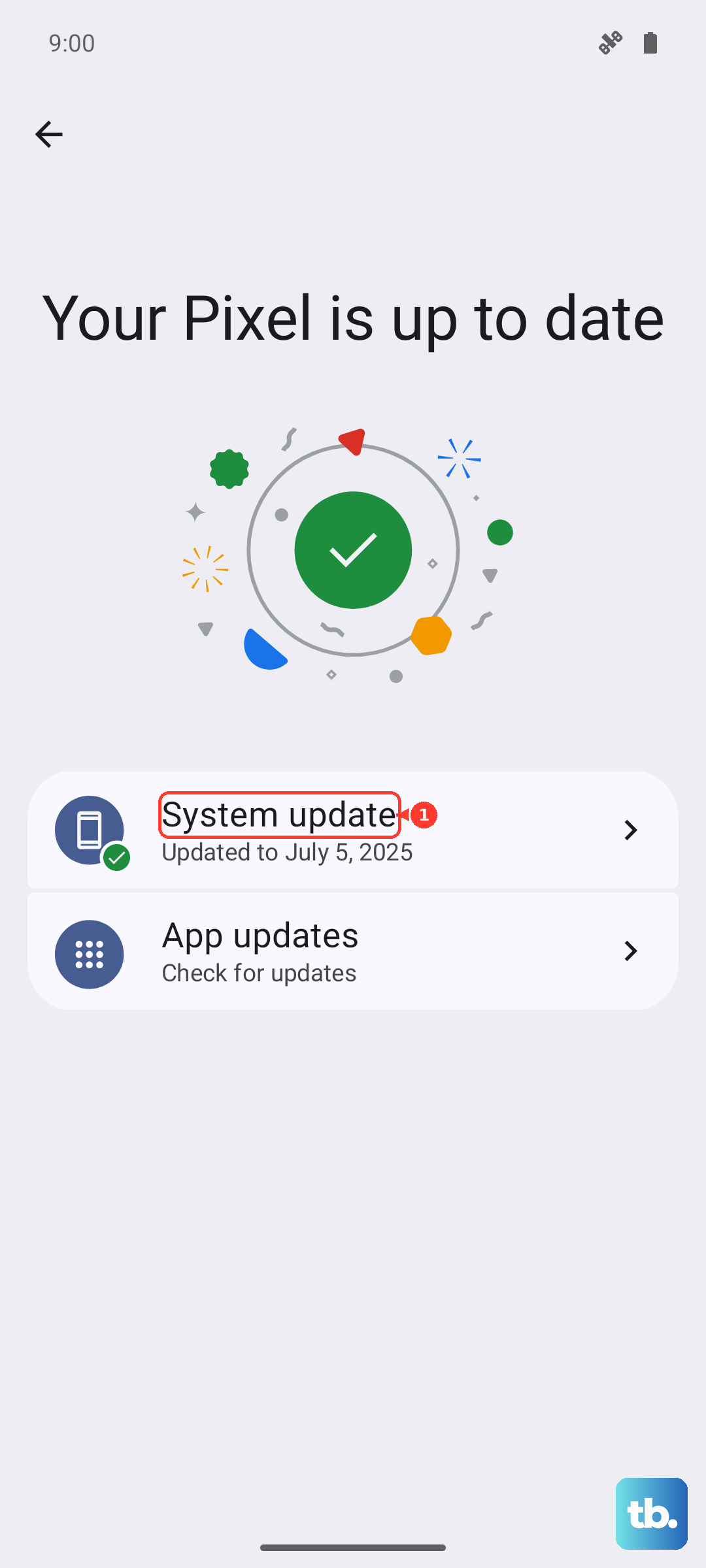
First, check for a system update by going to Settings > About phone > MIUI version and tapping "Check for updates." Then, open the Google Play Store, tap your profile icon, and go to "Manage apps & device" to update all your apps, especially the one you're having trouble with.
Close Background Apps
Too many apps running in the background can use up the phone's RAM and processing power, leaving less for smooth video playback. Swipe up from the bottom of the screen and hold to enter the recent apps view, then swipe each app window up to close it.
You can also check which apps are using the most battery, as they're often the ones working hardest in the background. Go to Settings > Battery to see a breakdown.
Clear the App's Cache and Data
If the problem is only happening in one specific app, like YouTube or MX Player, its stored data might be corrupted. Clearing the cache is safe and won't delete your login info or saved videos.
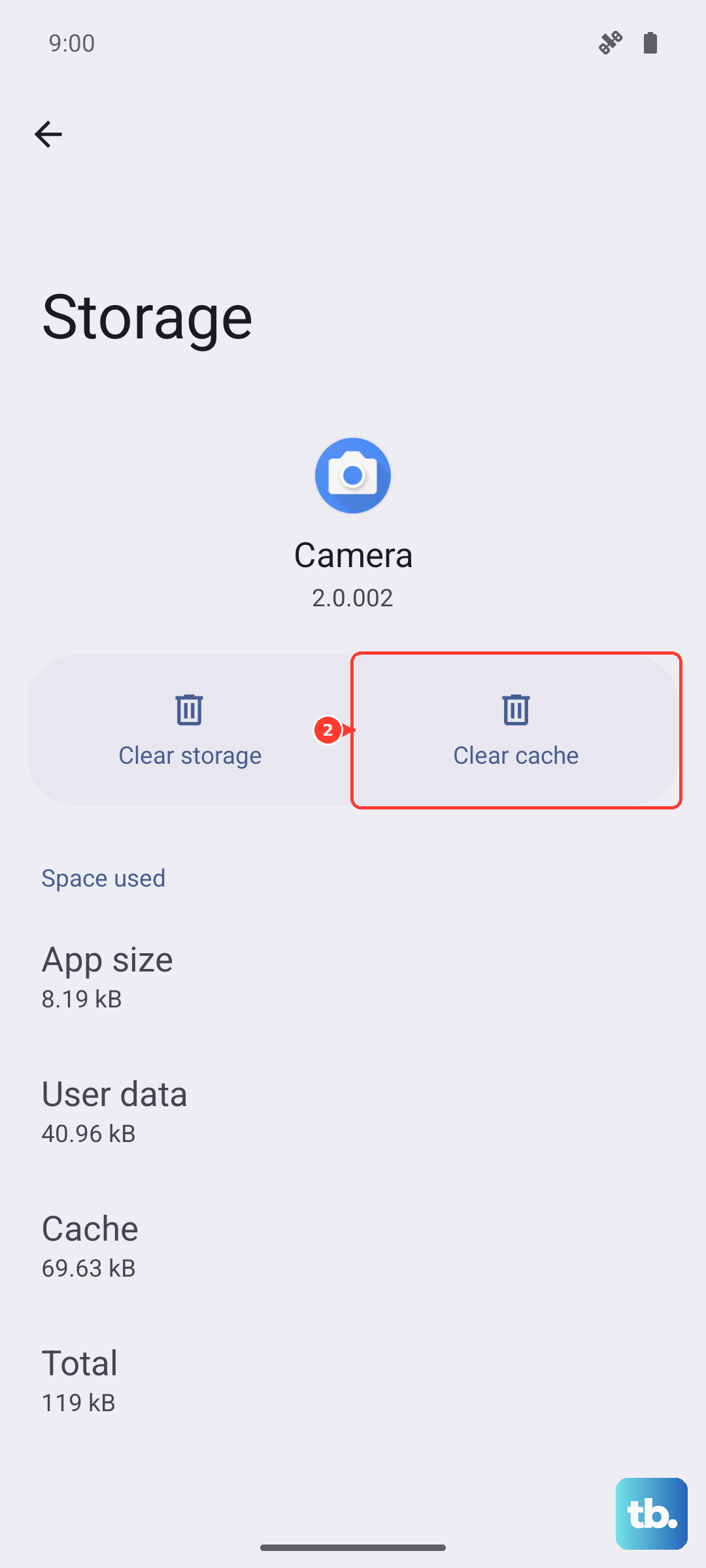
Go to Settings > Apps > Manage apps, find the video app, and tap on it. Select "Clear cache." If that doesn't work, you can try "Clear data," but be aware this will reset the app to its default state and you'll need to log in again.
Disable Battery Saver and Adjust Performance Mode
Battery Saver mode limits background activity and can throttle the processor to save power, which sometimes leads to video stutter. Make sure it's turned off by checking Settings > Battery.
You can also try switching your performance profile. Go to Settings > Battery > Performance profile. Try selecting "High performance" or "Balanced" instead of "Power saving" to give the video app more resources.
Check Video Resolution and Codec
Sometimes a video file itself is the problem, especially if it's a very high-resolution file or uses a codec your phone struggles with. Try playing a different video from a standard source, like a YouTube video at 1080p, to see if the issue is with that specific file.
If you're playing local files, consider using a different video player app from the Play Store. Some players, like VLC, have broader codec support and better performance tuning than the default gallery app.
Reset App Preferences
This is a less drastic step than a full reset. It will reset all your app permissions, default apps, and background restrictions to their factory defaults without deleting any of your personal data.
Go to Settings > Apps > Reset app preferences and confirm. You'll need to re-grant permissions to apps the next time you use them, but it can resolve conflicts causing playback issues.
Perform a Factory Reset
If nothing else has worked, a factory reset is the final step. This will erase everything on your phone and return it to its original out-of-the-box state. It's crucial to back up all your important photos, messages, and files before proceeding.
You can back up to your Mi Account or Google Drive. To reset, go to Settings > About phone > Factory reset. Tap "Erase all data" and follow the prompts. After the phone restarts, set it up as new and test video playback before restoring your backup, just to be sure.