
If your Redmi Note 14 Pro isn't ringing or showing incoming calls, the first thing I'd check is the Do Not Disturb mode. Swipe down from the top of your screen twice to open the full Quick Settings panel and look for the moon icon. If it's highlighted, tap it to turn it off. This is a surprisingly common reason calls go silent.
Another quick fix is to force restart your phone. Just press and hold the Power button for about 15 seconds until you see the Redmi logo appear. This can clear out a temporary software glitch that might be blocking the phone app.
Check Your Network and SIM Card
Start by looking at your signal bars in the top-right corner. If you're seeing only one bar or an "X," you might simply be in a poor coverage area. Try moving to a different location or near a window. You can also quickly toggle Airplane mode on and off from the Quick Settings to force the phone to reconnect to the network.
Your SIM card could also be the issue. Power off your phone completely, then use the SIM ejector tool to pop out the tray. Take out the SIM card, give the gold contacts a gentle wipe with a soft cloth, and carefully reseat it. Make sure it's sitting flush in the tray before you slide it back in.
If you're still having trouble, it's worth giving your carrier a quick call from another phone. They can check for any outages in your area or confirm there are no issues with your account, like an unpaid bill that might have suspended service.
Review Call and Notification Settings
Xiaomi's HyperOS has several layers of settings that can silence calls. First, open the Phone app, tap the three-dot menu in the top-right, and go to Settings > Call Settings. Look for an option called "Call Barring" or "Call Rejection" and make sure incoming calls aren't blocked there.
Next, check your notification settings for the Phone app specifically. Go to Settings > Apps > Manage apps, find "Phone" in the list, and tap on it. Go to Notifications and ensure all notification categories, especially for incoming calls, are toggled on and set to make a sound.
Also, look at the "Floating notifications" or "Pop-up notifications" setting within the Phone app's notification menu. If this is disabled, incoming calls might not appear on your screen at all, sending them straight to voicemail.
Disable Call Forwarding and Smart Features
Call forwarding could be silently redirecting all your calls. To check, open the Phone app, dial *#*#002#*#* and tap the call button. This code disables all conditional call forwarding. You can also check manually by going into the Phone app's Settings > Call Settings and looking for a "Call forwarding" option.
The phone also has built-in spam protection that can be overly aggressive. In the Phone app, go to Settings > Caller ID and spam protection. You can try turning this off temporarily to see if it's mistakenly filtering legitimate calls. Also, tap on "Blocked numbers" to review the list and unblock any contacts by mistake.
Reset Network Settings
If calls are dropping or you're having general network instability, resetting your network settings can help. This will erase saved Wi-Fi passwords, Bluetooth pairings, and mobile data preferences, so be prepared to reconnect to your networks afterward.
To do this, go to Settings > Additional settings > Back up and reset. Tap on "Reset phone" and then select "Reset Wi-Fi, mobile & Bluetooth." Confirm the reset and let your phone reboot. This often clears up persistent connection issues that affect calling.
Update Your Software and Clear App Data
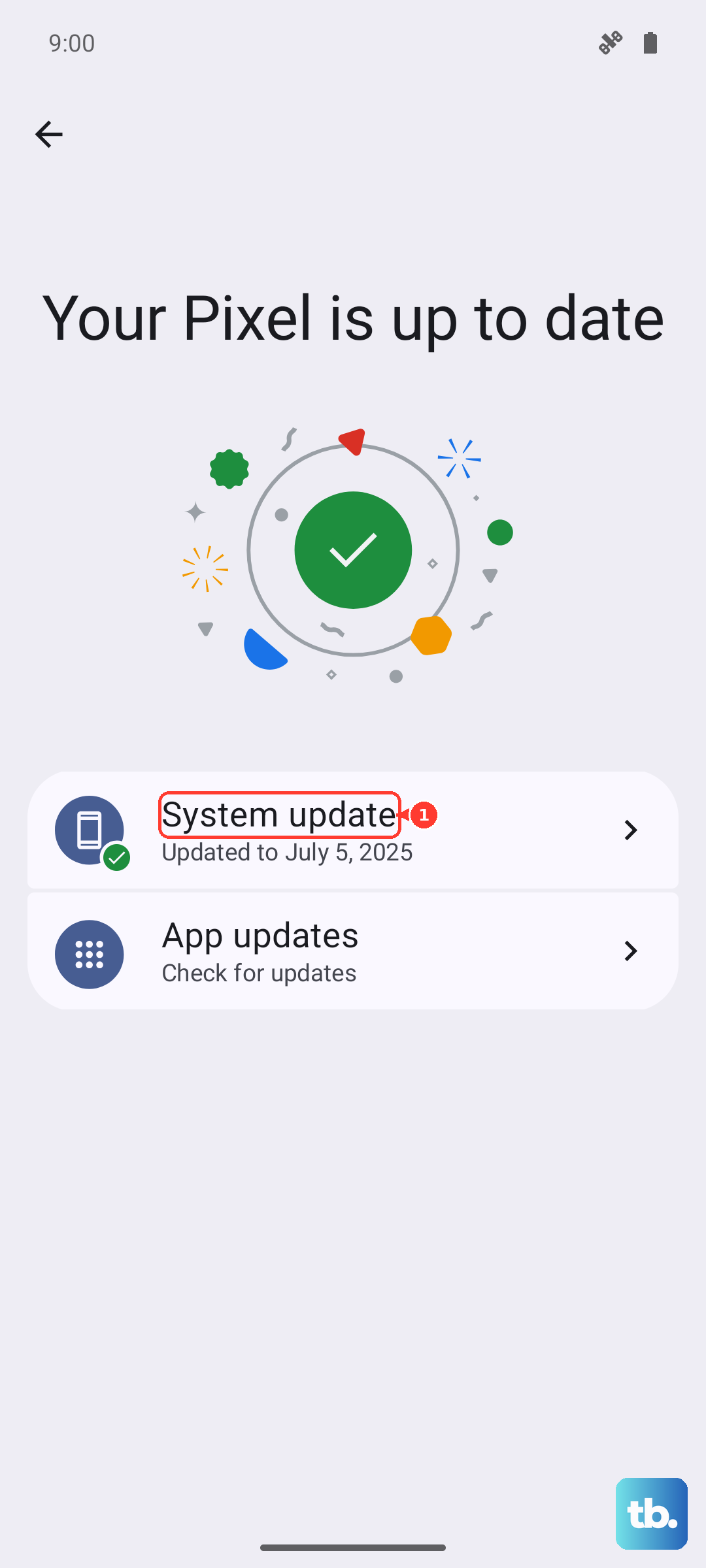
Outdated software can have bugs that break calling functions. Go to Settings > About phone > MIUI version. Tap on "Check for updates" and install any available system updates. Keeping your Redmi Note 14 Pro on the latest version of HyperOS is crucial for stability.
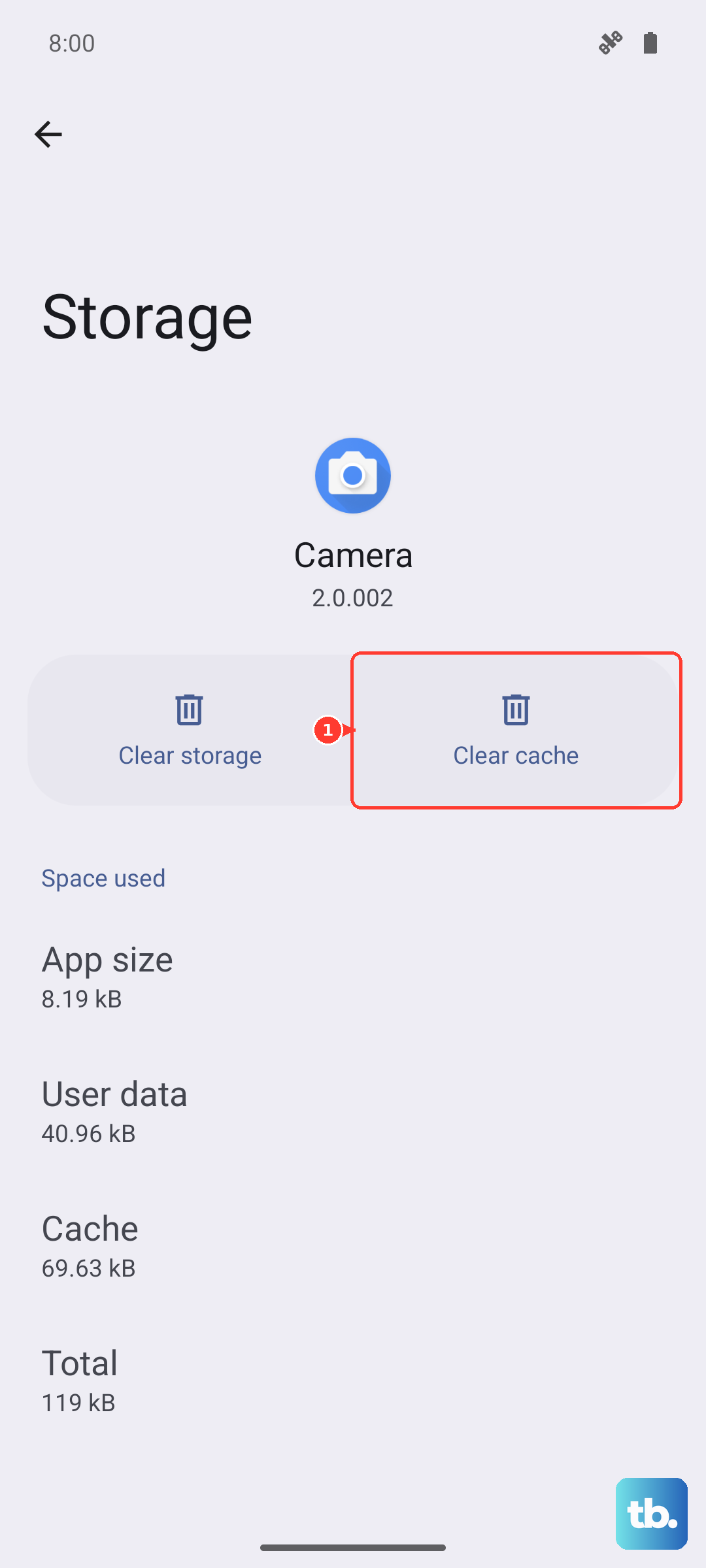
Corrupted data in the Phone app itself is another possibility. Head back to Settings > Apps > Manage apps and find the "Phone" app again. This time, tap on Storage usage at the bottom. First, tap "Clear cache." If the problem persists, you can then tap "Clear data." Be aware that clearing data will reset the app's preferences, but it won't delete your contacts or call history.
Check for Problematic Third-Party Apps
An app you recently installed could be interfering with call functions. This is especially true for call recorder apps, heavy-duty security apps, or any app that requests permission to manage calls. Think back to what you installed just before the problems started.
You can test this by booting your phone into Safe Mode. Press and hold the Power button until the power menu appears, then long-press the "Power off" option. Tap "OK" when prompted to reboot to Safe Mode. If your calls work normally here, a third-party app is the culprit. Restart normally and start uninstalling recent apps one by one to find the offender.
Consider a Factory Reset
If you've tried everything else and incoming calls are still broken, a factory reset is the final step. This will wipe your phone back to its original out-of-the-box state, so it's absolutely critical to back up everything important first. Use Xiaomi Cloud or transfer your files to a computer.
To perform the reset, go to Settings > Additional settings > Back up and reset > Erase all data (factory reset). You may need to enter your screen lock password. Follow the prompts to complete the reset. After it's done, set up the phone as new before restoring your data, to see if the core issue is resolved.