
If your Redmi Note 14 Pro is starting to feel sluggish, you're not alone. Even with its capable Dimensity 7300 Ultra chip, performance can dip over time due to storage bloat, background tasks, or software quirks. The good news is you can almost always speed it back up without needing a new phone.
I'd start with a simple restart. It's the quickest way to clear out temporary glitches and stop any runaway processes. Just press and hold the power button for about 15 seconds until you see the phone reboot. This fixes a surprising number of lag issues right away.
Free Up Storage Space
When your phone's storage gets too full, everything slows down. HyperOS needs breathing room to operate smoothly. Head to Settings > Storage to see what's taking up space. The built-in cleaner tool is pretty good at identifying junk files, duplicate photos, and app caches you can safely delete.
Pay special attention to large video files and apps you haven't used in months. If your photo gallery is huge, consider using Xiaomi's cloud service or backing up to Google Photos to free up gigabytes. Aim to keep at least 10-15% of your total storage free.
Update Your Software and Apps
Running outdated software is a common cause of lag and bugs. Xiaomi frequently releases HyperOS updates that include performance optimizations and bug fixes. Check for them by going to Settings > About phone > HyperOS version and tapping "Check for updates."
Don't forget your apps, too. Open the Google Play Store, tap your profile icon, and go to Manage apps & device > Updates available. App developers constantly push updates that can improve efficiency and fix memory leaks that slow things down.
Manage Background Apps and Processes
Too many apps running in the background will choke the Dimensity chip's resources. You can close them by swiping up from the bottom, holding, and then swiping away app windows. For more control, go to Settings > Apps > Manage apps.
Look for apps with high battery usage here. You can restrict their background activity by selecting the app, going to Battery saver, and choosing Restrict background activity. This is especially useful for social media and messaging apps that constantly refresh.
Reduce Animations and Visual Effects
The fancy transition animations in HyperOS look great but can make the phone feel less snappy, especially if it's under load. You can speed up the perceived performance by scaling them back. Go to Settings > Additional settings > Accessibility > Visibility enhancements.
Here, you can turn on Remove animations. This makes opening and closing apps feel instantaneous. It's a small change that makes the entire interface feel much faster.
Clear App Caches Individually
Over time, apps store tons of temporary data that can slow them down. Unlike iPhones, Android gives you direct control. Go to Settings > Apps > Manage apps, select a large app like Chrome, Instagram, or TikTok, and tap Clear cache.
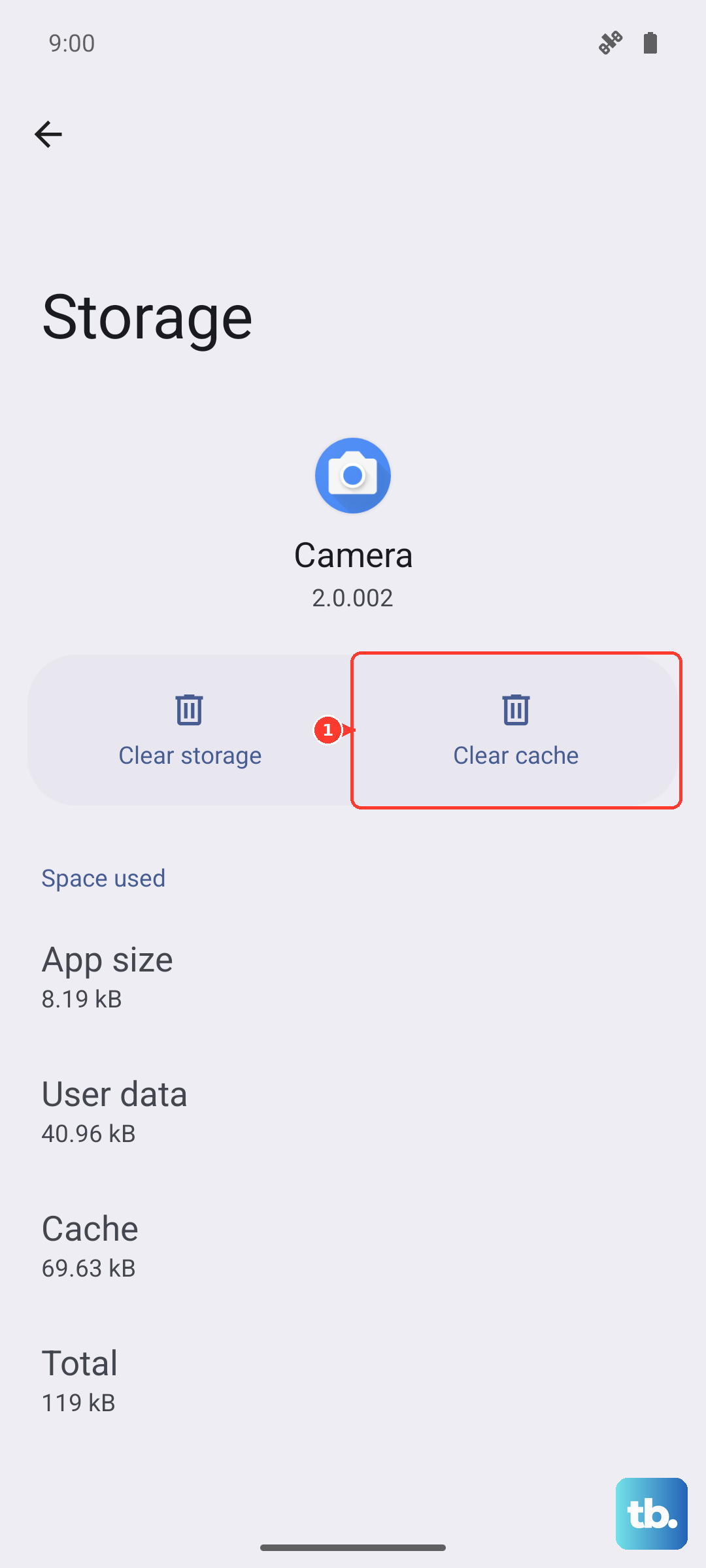
This deletes temporary files without touching your login info or saved data. Do this for a few of your most-used apps every couple of months. It's like giving each app a fresh start.
Review and Disable Unnecessary Notifications
Constant notification interruptions can make your phone feel busy and slow. Many system apps and pre-installed services on Xiaomi phones can bombard you. Go to Settings > Notifications & control center > App notifications.
Scroll through the list and turn off notifications for apps that don't need to alert you. This reduces background checks and wakes, freeing up CPU cycles and making your phone feel more responsive.
Check for Problematic Apps
Sometimes, one misbehaving app is the culprit. Boot your phone into Safe Mode to check. Press and hold the power button, then long-press the "Power off" icon on-screen until you see the Safe Mode prompt. Tap to confirm.
In Safe Mode, all third-party apps are disabled. If your phone runs smoothly here, you know a downloaded app is causing the lag. Restart normally and try uninstalling recently added apps one by one to find the offender.
Optimize Battery and Performance Settings
Your Redmi Note 14 Pro has built-in tools to prioritize performance. Open the Security app and tap on Battery. Here, you can select a Performance mode instead of Balanced or Power saver. This tells the chipset to prioritize speed over battery life.
Also, enable the Memory extension feature if it's available. It uses a portion of your storage as extra RAM, which can help with multitasking and keeping more apps ready in the background without slowdowns.
Limit Widgets and Live Wallpapers
While they look cool, animated live wallpapers and widgets that update constantly (like weather or news) drain resources. Consider switching to a static wallpaper. Long-press on your home screen widgets you don't absolutely need and remove them.
Each widget is a small, always-running app. Reducing them minimizes the number of things your phone has to update every time you glance at the home screen, contributing to a smoother overall feel.
Perform a Soft Reset of Settings
If you've tried everything and the lag persists, a settings reset can help. This won't delete your photos or apps, but it will reset all your preferences to default. Go to Settings > About phone > Factory reset.
Then, choose Reset all settings (keep data). You'll have to reconfigure things like Wi-Fi passwords, ringtones, and display settings, but it can resolve deep-seated software conflicts causing performance issues. It's a strong step before considering a full factory reset.