
When your Redmi Note 14 Pro's keyboard suddenly stops popping up or you get a "Keyboard has stopped" error, it can really halt your day. This is a common hiccup on Android phones, especially with the transition to HyperOS, but there are several straightforward ways to get it working again.
Force Restart Your Phone
This is often the quickest fix for any temporary software glitch, including a frozen keyboard. It's a soft reset that doesn't delete any of your data. Just press and hold the Power button for about 15 seconds until you feel the phone vibrate and see the Redmi logo appear on the screen.
Once it boots back up, try opening an app like Messages or Chrome to see if the keyboard responds. I'd start with this one, as it clears out a lot of minor system hiccups.
Restart the Keyboard App
If a simple restart didn't do the trick, the keyboard app itself might be stuck. You can force it to close and restart fresh. Head to Settings > Apps > Manage apps.
You'll need to find your keyboard in the list. If you're using the default Xiaomi keyboard, look for "System Keyboard" or "MIUI Keyboard." If you use Gboard or SwiftKey, find those apps instead. Tap on it, then hit Force stop and confirm. Open any app that needs typing to test it.
Clear the Keyboard's Cache and Data
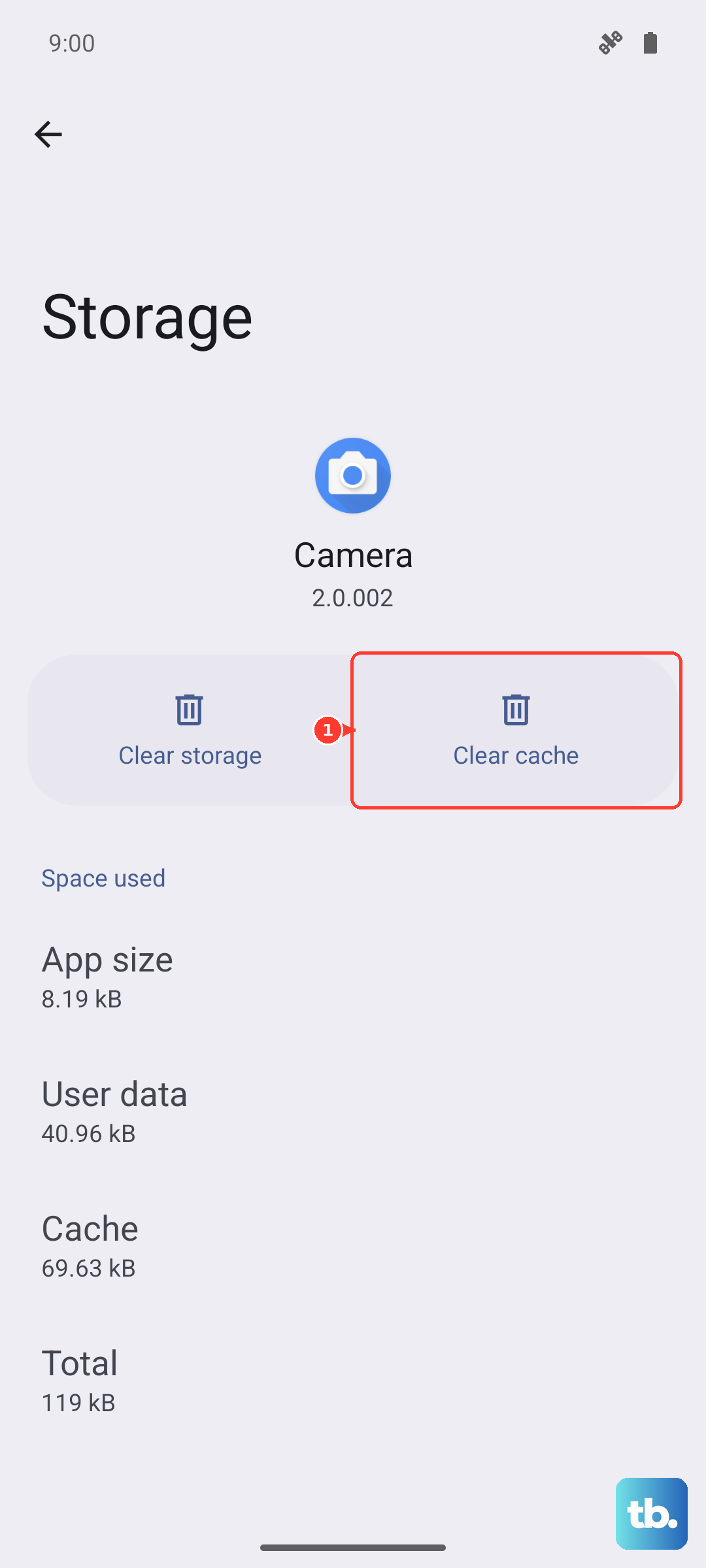
Corrupted temporary files can cause the keyboard to crash. Clearing the cache is safe and won't delete your personal dictionary or saved words. In the same app info screen (Settings > Apps > Manage apps > [Your Keyboard]), tap on Storage & cache.
Tap Clear cache first. If that doesn't work, you can try Clear data. Be aware that clearing data will reset the keyboard to its default settings, so you'll lose any custom themes or personalized preferences.
Check Your Default Keyboard Setting
Sometimes, after an update or by accident, the system can forget which keyboard to use. Go to Settings > Additional settings > Languages & input > On-screen keyboard.
Here, tap on Manage on-screen keyboards. Make sure your preferred keyboard (like Gboard or the System Keyboard) is toggled on. Then, go back and check Current keyboard to ensure it's set correctly.
Update Your Keyboard App
An outdated keyboard app can have bugs that cause it to fail, especially after a HyperOS update. Open the Google Play Store, tap your profile icon, and go to Manage apps & device.
Under "Updates available," see if there's an update for your keyboard app, whether it's Gboard, SwiftKey, or even a system update for the Xiaomi keyboard components. Keeping apps updated is one of the best ways to prevent these issues.
Boot Into Safe Mode
If the keyboard works fine but then suddenly stops, a recently installed third-party app might be interfering. Booting into Safe Mode temporarily disables all apps you've downloaded. To enter Safe Mode on the Redmi Note 14 Pro, press and hold the Power button until the power menu appears.
Then, press and hold the "Power off" option on the screen. A prompt will ask if you want to reboot to Safe Mode. Tap OK. If your keyboard works perfectly in Safe Mode, you know a downloaded app is the culprit. You'll need to uninstall apps one by one, starting with the most recent, to find the offender.
Update Your Phone's Software
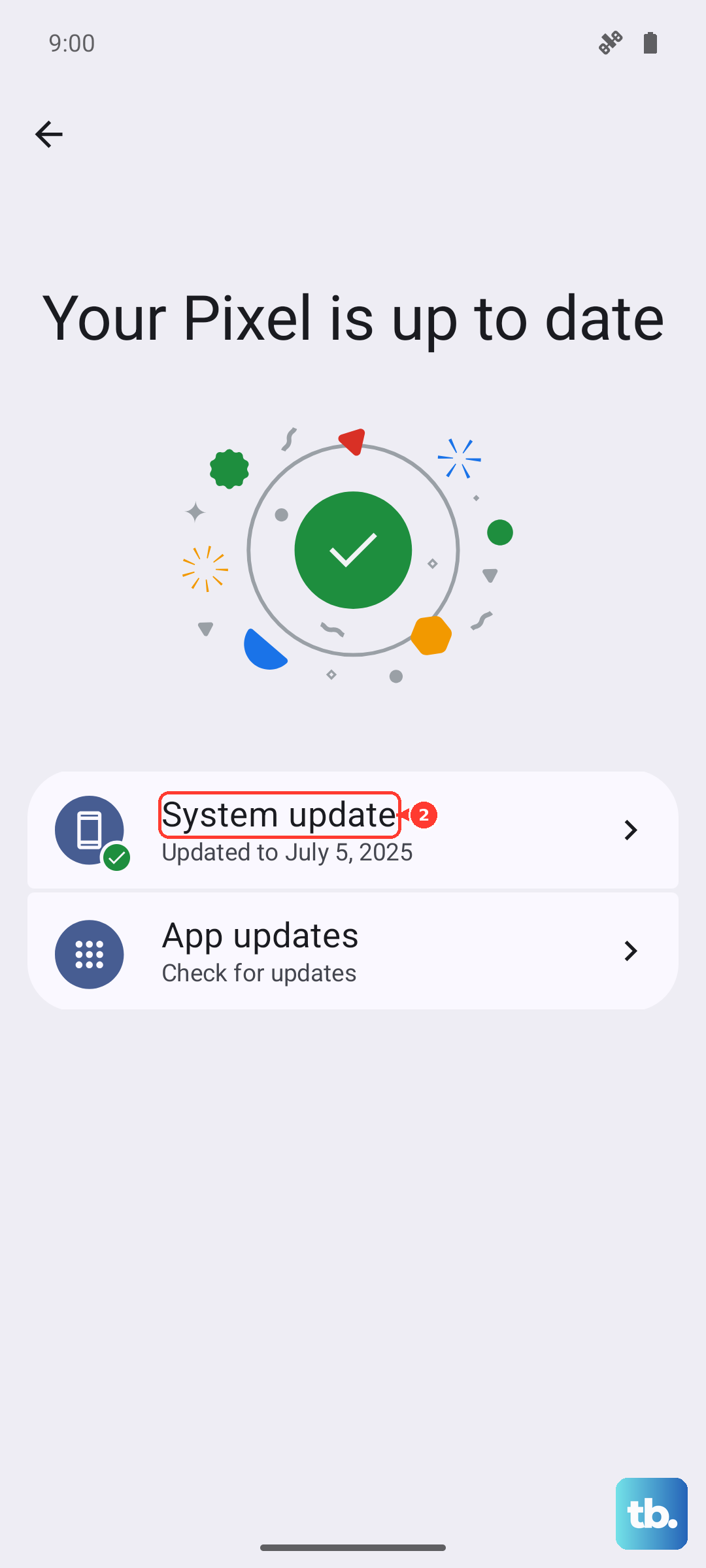
System bugs in HyperOS or Android can sometimes break core functions like the keyboard. Xiaomi regularly releases updates with fixes. Go to Settings > About phone > MIUI version.
Tap "Check for updates." If an update is available, make sure your phone is charged above 50% and connected to Wi-Fi before installing. The Dimensity 7300 Ultra processor handles updates quickly, so this shouldn't take too long.
Reset All App Preferences
This is a broader fix than just resetting the keyboard. It will reset permissions, default apps, and background restrictions for all applications without deleting any of your personal data or files. Navigate to Settings > Apps > Manage apps.
Tap the three-dot menu in the top right and select Reset app preferences. Confirm your choice. After the phone applies the reset, you'll need to re-grant permissions when you use apps for the first time, but it can resolve conflicts causing the keyboard to fail.
Try a Different Keyboard App
As a workaround while you troubleshoot the main issue, installing a different keyboard from the Play Store can get you typing again immediately. Apps like Gboard (Google's keyboard) or SwiftKey are excellent alternatives.
Once installed, go back to Settings > Additional settings > Languages & input > On-screen keyboard and enable the new keyboard, then set it as your default. This can also help you determine if the problem is with the system keyboard specifically or a deeper system issue.