
When your Redmi Note 14 Pro gets stuck in a restart loop, it can feel like you're completely locked out of your phone. This is often a software hiccup with HyperOS or a misbehaving app, but it can sometimes point to a deeper issue. Before you worry, there are several effective fixes you can try right now.
I'd recommend starting with a simple force restart. It's the quickest way to clear out any temporary glitches that might be causing the problem.
Perform a Force Restart
This is your first and fastest step. It doesn't erase any data, it just forces the phone's hardware to reboot, which can clear up minor software freezes. For the Redmi Note 14 Pro, press and hold the Power button for at least 15 seconds. Keep holding it until you see the Xiaomi or Redmi logo appear on the screen, then you can let go.
If the phone was just frozen, this should get it back to normal. If it starts booting only to restart again, you'll need to move on to the next steps.
Boot into Safe Mode
Safe Mode is a diagnostic tool that loads your phone with all third-party apps disabled. If the restarting stops in Safe Mode, you know for sure that a downloaded app is the culprit. To enter Safe Mode on the Redmi Note 14 Pro, first turn the phone off completely.
Then, press and hold the Power button. The moment you see the Redmi logo appear, immediately press and hold the Volume Down button. Keep holding it until the phone finishes booting up. You should see "Safe Mode" in the bottom corner of the screen.
If the phone is stable in Safe Mode, you'll need to identify the problematic app. Think about what you installed or updated just before the restarts began. You can start uninstalling recent apps one by one from Settings > Apps > Manage apps until the problem stops.
Check for System Updates
Xiaomi frequently releases updates for HyperOS that fix bugs and improve stability. An outdated system can have conflicts that lead to boot loops. Make sure your phone is connected to Wi-Fi, then go to Settings > About phone > HyperOS version.
Tap on the "Check for updates" button. If an update is available, download and install it. The phone will restart as part of the process, which might resolve the issue entirely. It's a good habit to keep automatic updates turned on to avoid these problems in the future.
Clear App Cache and Data for Problematic Apps
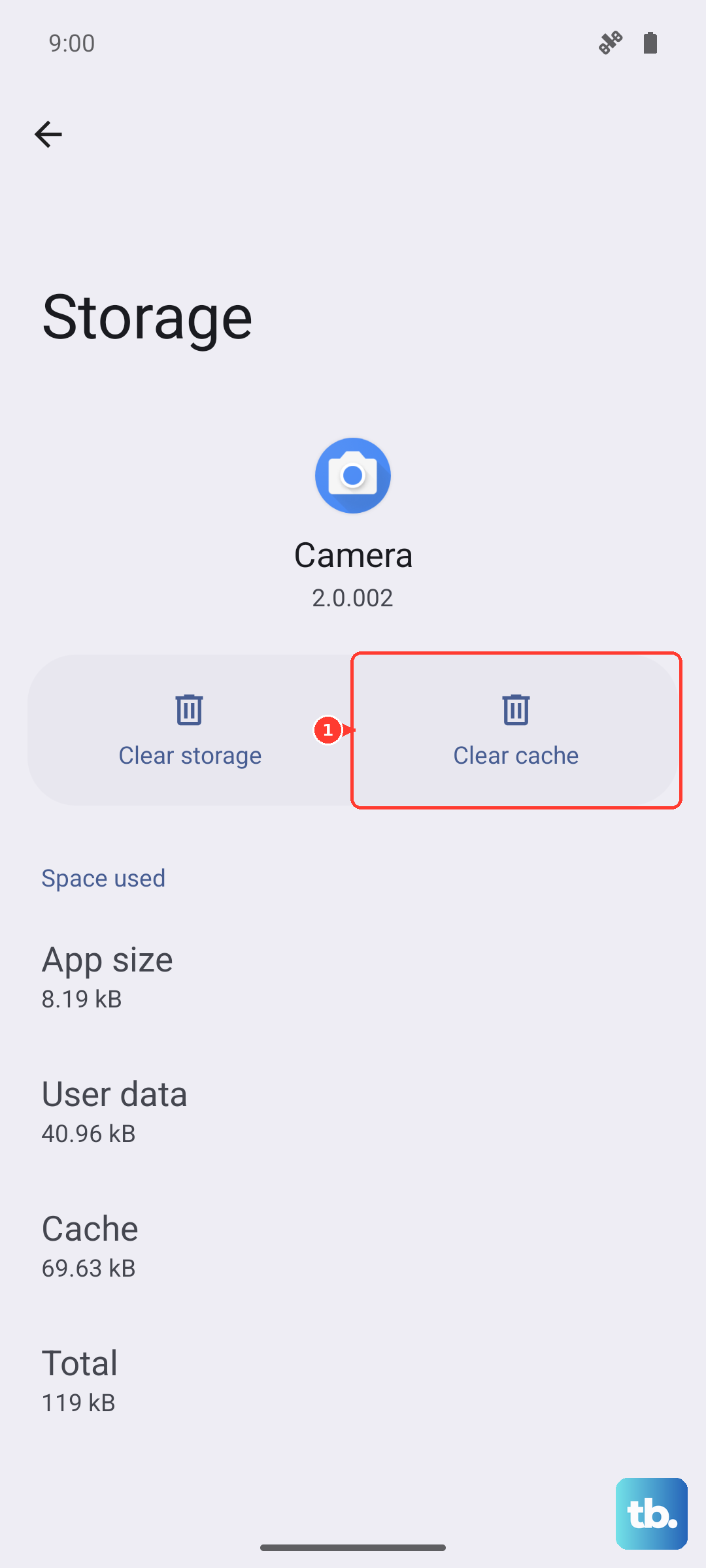
Sometimes an app's stored data gets corrupted, which can cause system-wide instability. If you suspect a specific app, you can clear its cache first, which is safe and won't delete your login info. Go to Settings > Apps > Manage apps and find the app in question.
Tap on it, then select Clear cache. If the problem persists, you can try Clear data, but be warned this will reset the app to its freshly installed state, deleting any saved information within it. For system-critical apps like the Google Play Store or Google Play Services, a cache clear is often a good troubleshooting step.
Free Up Storage Space
The Redmi Note 14 Pro's Dimensity 7300 Ultra processor needs some breathing room to operate smoothly. If your internal storage is completely full, the system can become unstable and crash. Go to Settings > Storage to see how much space you have left.
If you're below 1GB free, you need to clean up. Delete old downloads, offload photos and videos to the cloud, and uninstall apps you no longer use. This simple step fixes more problems than you might think.
Check for Overheating
Modern phones are designed to shut down or restart if they get too hot to prevent damage. The Redmi Note 14 Pro can get warm during intensive tasks like gaming or using the camera for long periods, especially in night mode which requires more processing.
If the phone feels very hot to the touch just before it restarts, let it cool down completely. Remove the case, avoid using it while charging, and keep it out of direct sunlight. Persistent overheating could point to a battery or software issue.
Reset All Settings
This is a more thorough step that resets all your preferences, like Wi-Fi passwords, Bluetooth pairings, and display settings, back to factory defaults without touching your personal data or apps. It can fix conflicts caused by a misconfigured setting.
Go to Settings > About phone > Factory reset. Here, tap on Reset all settings. You'll need to enter your lock screen PIN or password to confirm. After the reset, you'll have to reconnect to Wi-Fi and re-pair Bluetooth devices, but it's often worth it.
Use the Mi Flash Tool for a Clean Install
If you're comfortable with a computer, using Xiaomi's official Mi Flash Tool to reinstall the firmware is a powerful solution. This is like a factory reset but at a deeper system level, ensuring you have a clean, uncorrupted version of HyperOS. You'll need to download the correct firmware file for your specific Redmi Note 14 Pro model from Xiaomi's official sources.
This process requires enabling USB debugging and unlocking the bootloader, which will erase all data. Because of this, it's a last-resort software fix. I'd only recommend this if you've tried everything else and are facing a persistent boot loop.
Inspect the Hardware
If all software solutions fail, it's time to consider the hardware. While the Gorilla Glass Victus 2 is durable, a hard drop could have damaged internal components. Also, try using a different, high-quality USB-C cable and a 45W HyperCharge compatible adapter.
Some regions didn't include a charger in the box, so you might be using an underpowered or faulty third-party one. A bad power source can cause unstable voltage, leading to random reboots. If a different charger and cable don't help, the issue may require professional diagnosis at a service center.