
When your Redmi Note 14 Pro's GPS stops locking on, it can leave you stranded in more ways than one. This is usually a quick software hiccup, but I've seen it happen more often when the phone's power-saving features are aggressive or after a system update. Let's get your navigation back on track.
Refresh Your GPS Connection
The fastest thing to try is simply toggling location services off and on. Swipe down from the top of your screen to open the Control Center and tap the location icon. Wait about ten seconds, then tap it again to turn it back on. This forces the GPS radio to reinitialize and can clear up a temporary glitch instantly.
If that doesn't do it, a full restart is your next best move. Press and hold the power button until the power menu appears, then tap restart. For a more forceful reset, you can press and hold the power button for 15 seconds or more until the screen goes black and the phone reboots itself.
Check Your Location Settings in HyperOS
HyperOS on your Note 14 Pro has a few layers of location controls that can interfere. First, open Settings and go to Location. Make sure the main toggle at the top is on. Right below that, tap on Location services.
Here, you want to select High accuracy mode. This uses GPS, Wi-Fi, and mobile networks together to get the fastest, most precise lock. The "Battery saving" mode, which only uses Wi-Fi and networks, will often cause navigation apps to fail.
Review App Permissions and Battery Settings
Even with location on, your specific app might be blocked. Go to Settings > Apps and select your navigation app, like Google Maps or Waze. Tap on Permissions and ensure Location is set to "Allow all the time" or at least "Allow only while using the app."
Next, check your battery saver. Aggressive power management can shut down GPS. Go to Settings > Battery and make sure any power saving mode, like "Battery saver," is turned off. You can also tap on App battery saver for your maps app and set it to "No restrictions."
Update Your Software and Apps
An outdated app or system software can break GPS functionality. Head to the Google Play Store, tap your profile icon, and go to Manage apps & device to update all your apps, especially navigation ones.
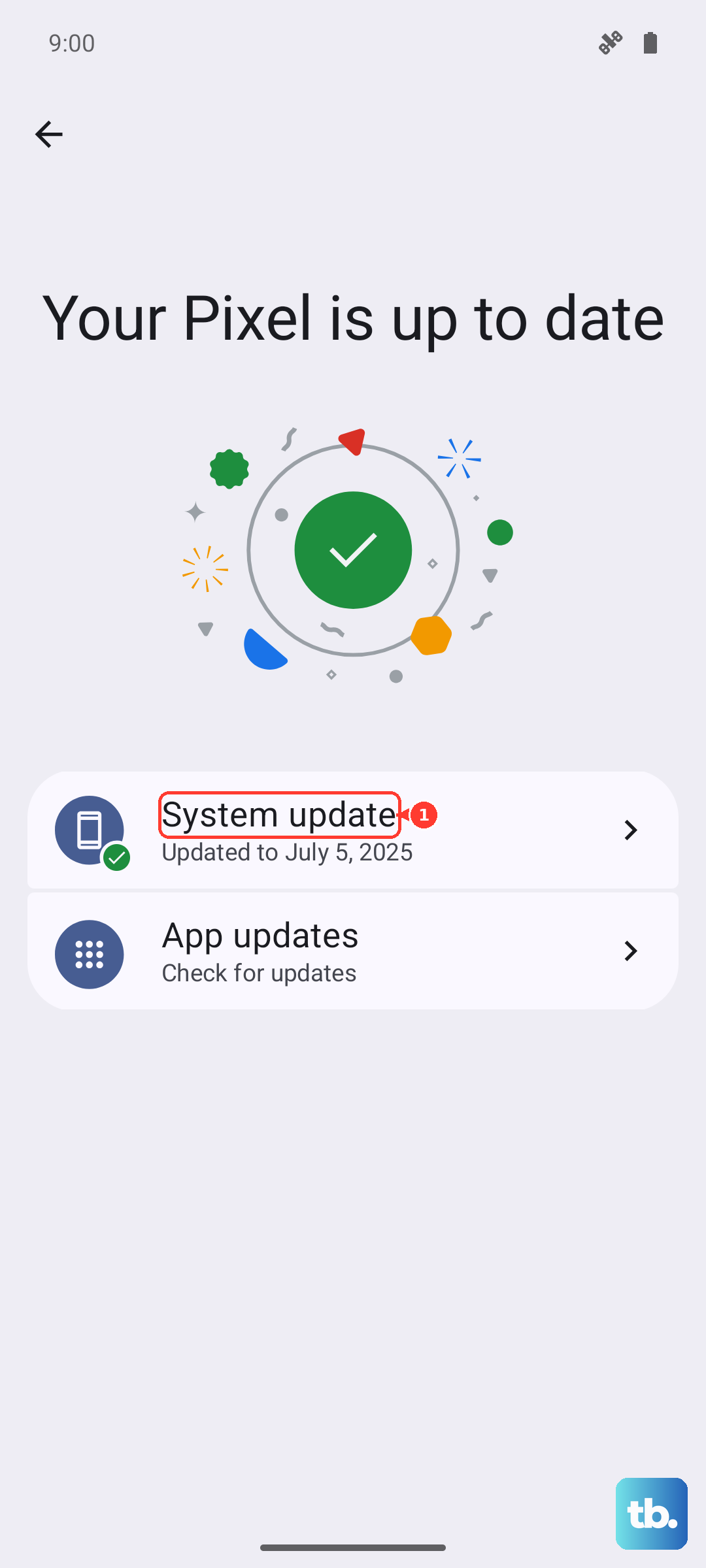
Then, check for a HyperOS update. Go to Settings > About phone > HyperOS version and tap "Check for updates." Installing the latest system update can resolve bugs that affect the GPS sensor and other hardware.
Clear App Data and Cache
Sometimes the app's stored data gets corrupted. Go back to Settings > Apps > [Your Maps App]. Tap on Storage & cache. First, tap "Clear cache." This is safe and won't delete your saved places.
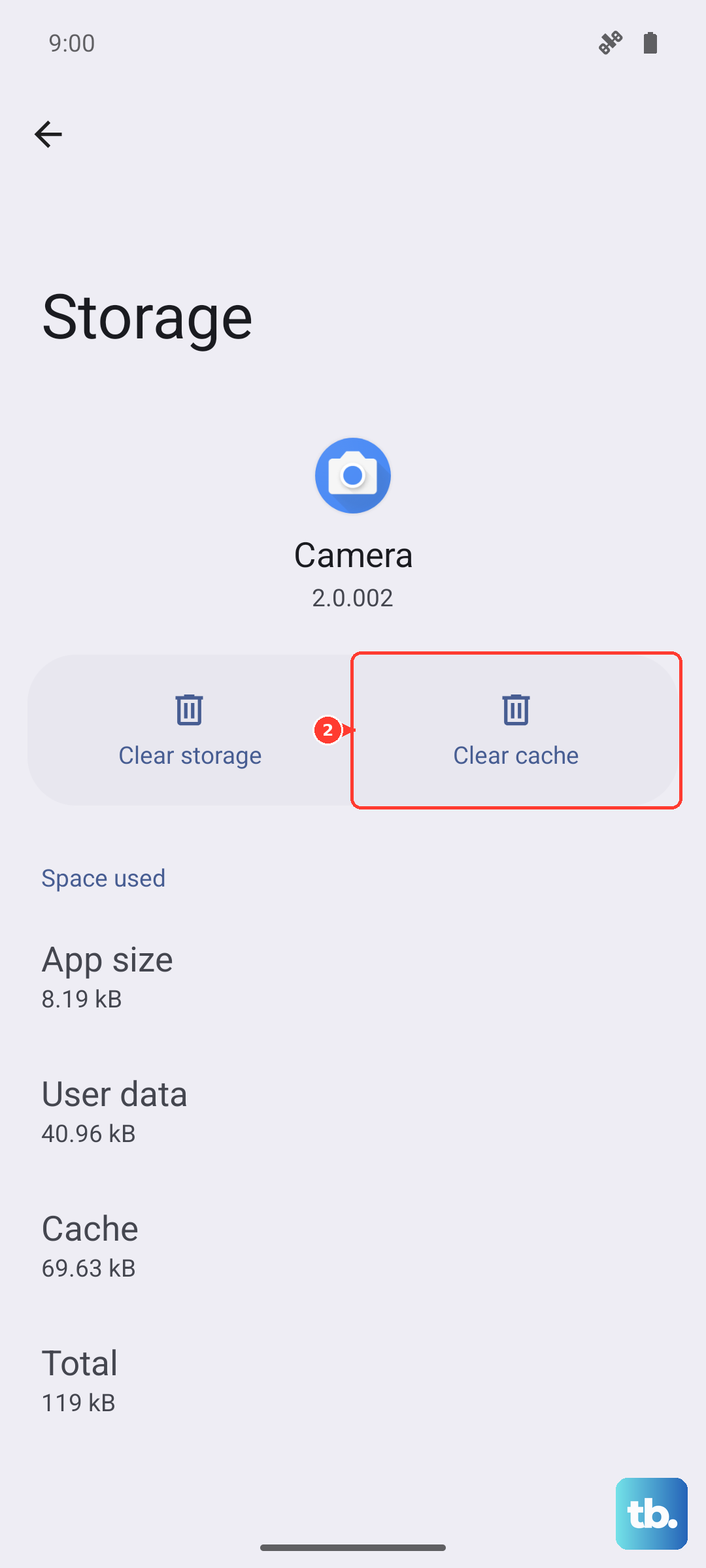
If the problem persists, you can tap "Clear storage" or "Clear data." Be warned, this will reset the app completely, so you'll need to log back in and may lose offline maps.
Test in a Clean Environment
Third-party apps can sometimes cause conflicts. To test this, reboot your phone into Safe Mode. Press and hold the power button, then when the "Power off" option appears, press and hold it until you see a prompt to reboot to Safe Mode.
Tap OK. In Safe Mode, test your GPS with Google Maps. If it works perfectly here, a recently installed app is likely the culprit. Restart normally to exit Safe Mode and try uninstalling apps one by one to find the offender.
Improve Your Signal Reception
Your physical environment plays a huge role. Thick phone cases, especially those with metal elements, can block the GPS antenna. Try removing the case temporarily. Always try to get a clear view of the sky, as GPS signals don't penetrate buildings, dense trees, or car roofs well.
For a more technical check, download a free app like "GPS Test" from the Play Store. Open it outdoors and look at the satellite screen. If it shows multiple satellites with strong signals but your maps app still can't get a lock, the issue is software. If it shows zero satellites, there could be a deeper problem.
Reset Your Network and Location Settings
This resets Wi-Fi, Bluetooth, and mobile data settings along with location preferences, so you'll have to reconnect to networks afterward. Go to Settings > System > Reset options. Tap on Reset Wi-Fi, mobile & Bluetooth and confirm.
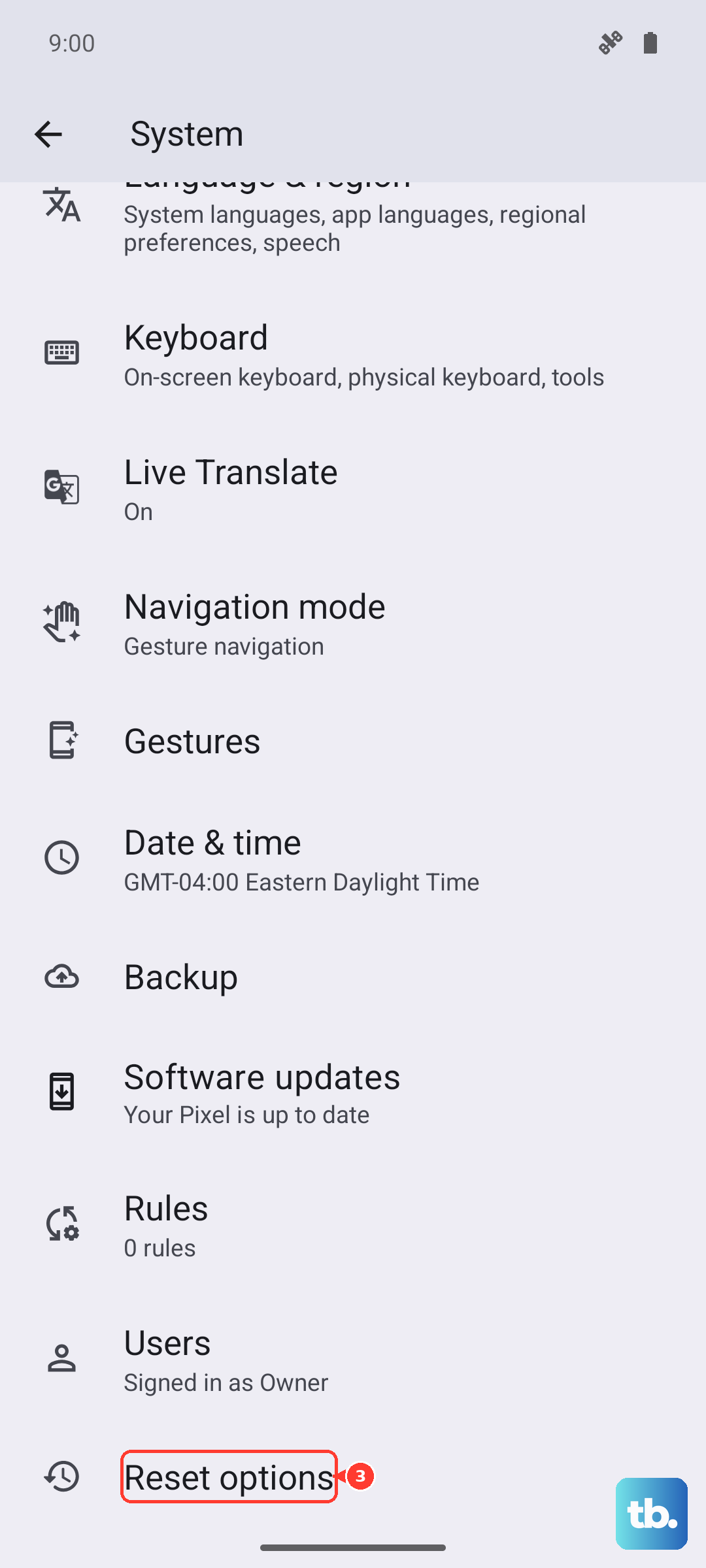
After that, go back and tap on Reset location & scanning settings. This will revert all your location permissions and scanning settings back to default, which can eliminate a misconfiguration.
Wipe the System Cache Partition
This clears temporary system files that can become corrupted. First, power off your Redmi Note 14 Pro completely. Then, press and hold the Power and Volume Up buttons together until the Mi Recovery screen appears.
Use the volume buttons to navigate to "Wipe cache partition" and select it with the power button. Confirm the action, then select "Reboot to system" when it's done. Your personal data will not be affected by this step.