
If your Redmi Note 14 Pro's camera app is crashing, freezing, or just showing a black screen, start with a simple restart. Press and hold the power button until the shutdown menu appears, then tap Restart. I've seen this clear up temporary software glitches that can lock up the camera hardware.
Start with a free webcam test to rule out a hardware fault. If a live preview appears there but not in your app, the camera is fine and the app is the problem.
Key Points
- Force Close and Restart the Camera App: Swipe up from the bottom of your screen and hold to enter the recent apps view.
- Clear the Camera App's Cache and Data: Go to Settings > Apps > Manage apps and find the Camera app in your list.
- Check for System and App Updates: Open Settings, tap on About phone, then tap MIUI version.
- Disable Any Third-Party Camera Apps or Mods: If you've installed a ported Google Camera (GCam) mod or another camera app, it can sometimes conflict.
- Boot Into Safe Mode: Press and hold the power button until the power menu appears.
- Check for Physical Damage or Obstructions: Give all the camera lenses a good wipe with a microfiber cloth.
- Reset App Preferences: This won't delete your personal data, but it will reset all your app permissions, notifications, and default apps.
- Perform a Network Settings Reset: Go to Settings > Connection & sharing > Reset Wi-Fi, mobile networks and Bluetooth.
- Consider a Factory Reset: Before you do this, make absolutely sure you have a complete backup of your photos, contacts, and important files.
Give the phone a full minute to reboot completely before trying the camera again. Sometimes background processes need that extra time to settle.
Force Close and Restart the Camera App
Swipe up from the bottom of your screen and hold to enter the recent apps view. Find the Camera app preview and swipe it all the way up to close it. Wait a few seconds, then tap the Camera icon again to launch it fresh.
This is the quickest fix for an app that's simply stuck. If the camera was working and then suddenly froze, this forces it to reload all its components from scratch.
Clear the Camera App's Cache and Data
Go to Settings > Apps > Manage apps and find the Camera app in your list. Tap on it, then go to Storage usage. Tap Clear cache first. This gets rid of temporary files that might be corrupted.
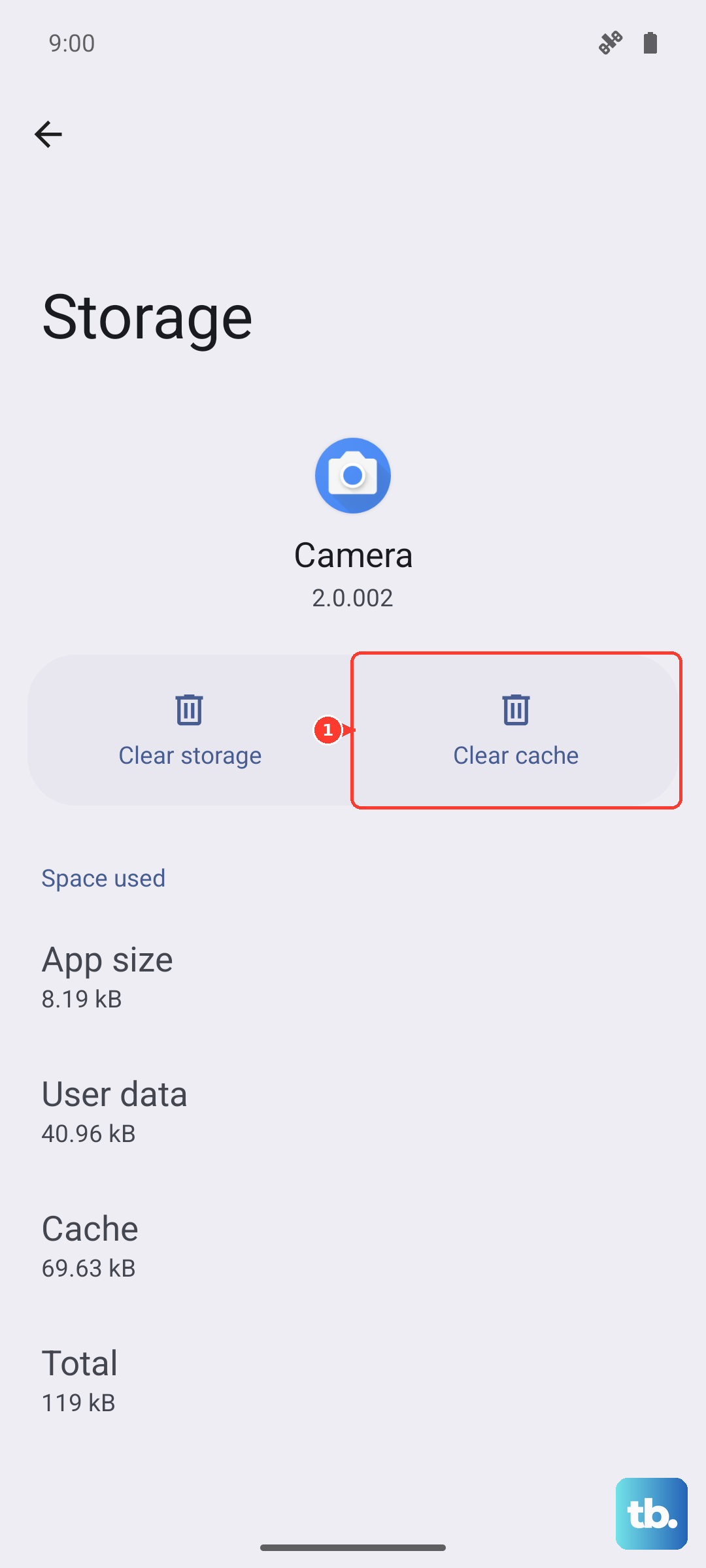
If the problem persists, go back and tap Clear data. A warning will pop up, this will reset the camera app to its default settings. You'll lose any custom modes or settings within the app, but your photos and videos are safe in your gallery.
Check for System and App Updates
Open Settings, tap on About phone, then tap MIUI version. Tap "Check for updates" to see if HyperOS has a newer version available. Xiaomi frequently releases updates that fix camera performance and stability.
Also, open the Google Play Store, tap your profile icon, and go to Manage apps & device. Check if there's an update available for the stock Camera app itself. Sometimes the camera processing can be slow, especially in night mode, and an app update can optimize it.
Disable Any Third-Party Camera Apps or Mods
If you've installed a ported Google Camera (GCam) mod or another camera app, it can sometimes conflict with the stock camera's access to the hardware. Try uninstalling any third-party camera apps you don't absolutely need.
Restart your phone after removing them. The Redmi Note 14 Pro's camera hardware works best with its native software, which is tuned specifically for the Dimensity 7300 Ultra chipset.
Boot Into Safe Mode
Press and hold the power button until the power menu appears. Now, press and hold the "Power off" option on your screen. A prompt will ask if you want to reboot to Safe Mode, tap OK.
In Safe Mode, all third-party apps are temporarily disabled. If your camera works perfectly here, then a recently installed app is interfering with it. You'll need to uninstall apps one by one, starting with the most recent, to find the culprit.
Check for Physical Damage or Obstructions
Give all the camera lenses a good wipe with a microfiber cloth. Smudges, fingerprints, or a dirty case can absolutely cause blurry photos or make the camera struggle to focus. Check that the camera bump isn't cracked.
Even with Gorilla Glass Victus 2, a sharp impact can damage the lenses or sensors underneath. Also, make sure any screen protector or camera lens protector you're using has precise cutouts and isn't partially covering a lens.
Reset App Preferences
Go to Settings > Apps > Manage apps. Tap the three-dot menu in the top right and select Reset app preferences. This won't delete your personal data, but it will reset all your app permissions, notifications, and default apps.
The Camera app might have lost its permission to access the hardware. After doing this, open the camera and grant it permissions again if prompted. This can resolve issues where the app seems to have no access to the camera module.
Perform a Network Settings Reset
This might seem unrelated, but camera apps sometimes use network services for location tagging, cloud sync, or AI scene detection. Go to Settings > Connection & sharing > Reset Wi-Fi, mobile networks and Bluetooth.
Tap the reset option at the bottom. You'll need to reconnect to your Wi-Fi networks and re-pair Bluetooth devices afterward, but it can clear out corrupted connectivity data that's affecting other system functions.
Consider a Factory Reset
Before you do this, make absolutely sure you have a complete backup of your photos, contacts, and important files. Go to Settings > About phone > Factory reset and follow the prompts.
This is the last resort software fix. It will wipe your phone back to its out-of-the-box state. If the camera still doesn't work after a factory reset, the issue is almost certainly a hardware fault that requires professional repair.