
When your Redmi Note 13 Pro's voice assistant suddenly stops responding, it can feel like you've lost a helpful companion. Whether it's Google Assistant or Xiaomi's own XiaoAi, the silence is frustrating. The good news is that this is usually a quick software or settings fix, and you can often get it working again in a few minutes.
Let's start with the most common fix. A simple restart can clear out temporary glitches that might be affecting the microphone or the assistant service. Press and hold the power button for about 15 seconds until you see the Redmi logo appear on the screen. This force restart is often the fastest way to get things back on track.
Check Your Assistant's Basic Permissions
First, confirm which assistant you're using. The Redmi Note 13 Pro can run Google Assistant or Xiaomi's XiaoAi, and they have separate settings. Open your phone's Settings app and search for "Voice Assistant" or "Google" to find the right menu.
For Google Assistant, go to Settings > Google > Settings for Google apps > Search, Assistant & Voice > Google Assistant. Make sure the main toggle for Google Assistant is switched on. For XiaoAi, you'll find its settings under Settings > XiaoAi or within the Security app, depending on your MIUI version.
Next, verify the microphone permission. Go to Settings > Apps > Manage apps. Find either "Google" or "XiaoAi" in the list and tap on it. Select Permissions and ensure the Microphone permission is set to "Allow." Without this, your assistant can't hear you at all.
Look for Conflicting Audio Settings
Several MIUI features can interfere with voice detection. The first to check is Battery Saver mode. When active, it can limit background processes, including the assistant's listening service. Swipe down from the top of your screen to open the Quick Settings panel and make sure the battery saver icon isn't highlighted.
Also, check your Do Not Disturb settings. While it shouldn't block the assistant, some users report issues. Go to Settings > Sound & vibration > Do Not Disturb and temporarily turn it off to test. Another setting to verify is in Settings > Additional settings > Accessibility > Hearing aids. If this is enabled, try disabling it, as it can sometimes reroute audio.
Retrain the Voice Match Model
If the assistant hears you but doesn't activate, the voice model might be corrupted. You need to delete and retrain it. For Google Assistant, open the Google app, tap your profile picture, go to Settings > Voice > Voice Match, and turn off "Hey Google."
After turning it off, turn "Hey Google" back on. The phone will walk you through saying "Hey Google" a few times to learn your voice again. Speak clearly and in your normal tone. This process rebuilds the profile it uses to recognize you specifically.
Update Your Software and Apps
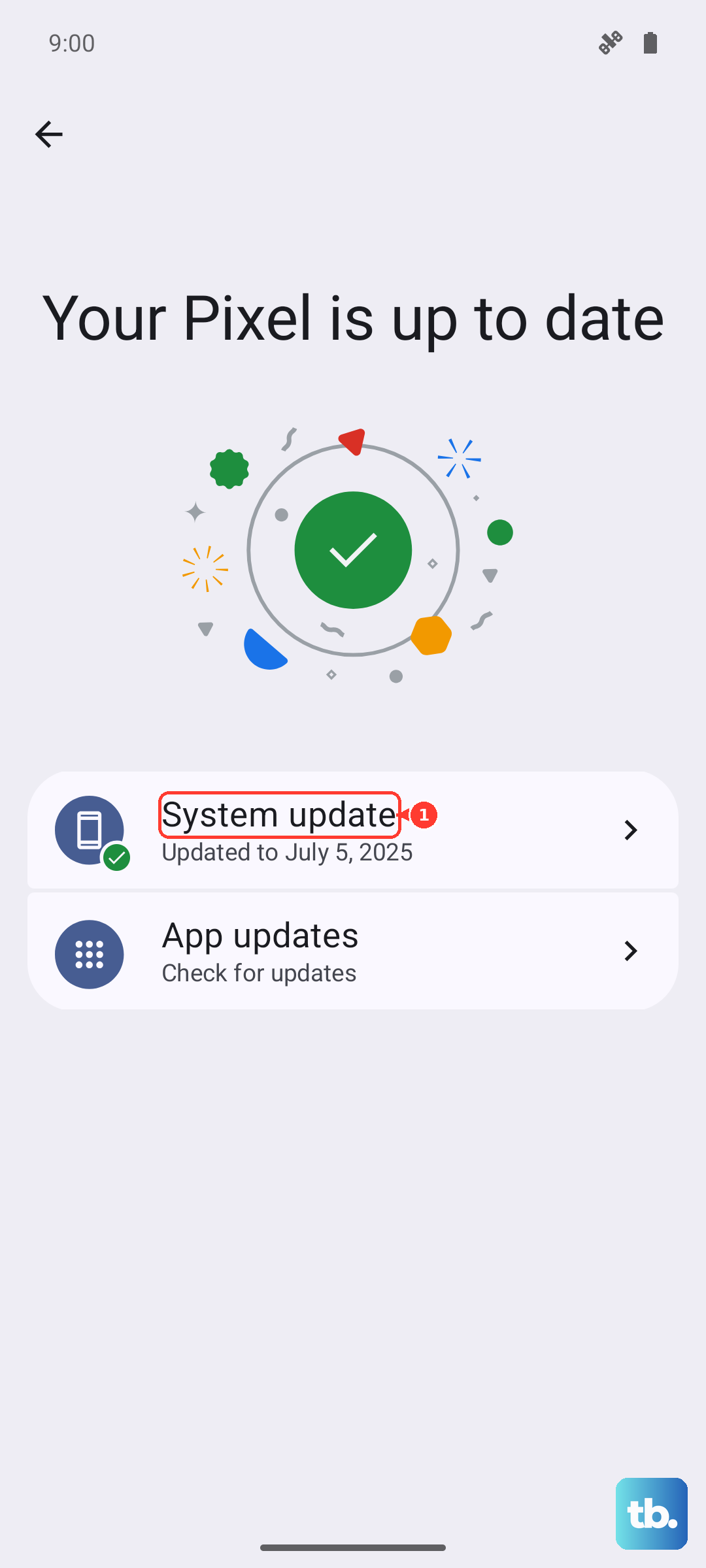
Outdated software is a common culprit for assistant failures. Go to Settings > About phone > MIUI version and tap "Check for updates." Install any available system updates, as they often contain bug fixes for the microphone and AI services.
Don't forget the apps themselves. Open the Google Play Store, tap your profile icon, and go to Manage apps & device > Manage > Updates available. Look for updates to the "Google" app and "Google Assistant." Keeping these updated ensures you have the latest compatibility fixes for MIUI 15.
Inspect the Physical Microphone
The Redmi Note 13 Pro has multiple microphone ports. The primary one is at the bottom next to the USB-C charging port. There's also one at the top for noise cancellation. If these are blocked by a case, dirt, or pocket lint, the assistant won't be able to hear your "Hey Google" command.
I'd gently inspect the small holes. You can use a soft, dry toothbrush or a can of compressed air to clear any debris. Be very careful not to push anything into the port. Also, try removing your phone case temporarily, as some cases can muffle or obstruct the microphone grilles.
Reset App Preferences or Network Settings
If the assistant still won't listen, you can reset app preferences. This reverts all app permissions, notifications, and default apps to their factory state without deleting your personal data. Go to Settings > Apps > Manage apps, tap the three-dot menu in the top right, and select Reset app preferences.
Since many assistant features require an internet connection, a network glitch could be the issue. You can reset your network settings by going to Settings > Connection & sharing > Reset Wi-Fi, mobile networks & Bluetooth. Remember, this will erase all saved Wi-Fi passwords and Bluetooth pairings, so you'll need to reconnect to your networks afterward.
Check for Overheating or Performance Throttling
The Snapdragon 7s Gen 2 chip in your phone can throttle performance if it gets too hot, which might affect background services. If you've been using the 67W fast charger, gaming, or using the camera heavily, the phone might be warm to the touch. Let it cool down for a few minutes and try the voice assistant again.
You can also check if the assistant app is being restricted by MIUI's battery optimization. Go to Settings > Apps > Manage apps, select the Google or XiaoAi app, and tap Battery saver. Make sure it's set to "No restrictions" to prevent the system from putting it to sleep in the background.