
If your Redmi Note 13 Pro videos are stuttering, freezing, or dropping frames, it can turn watching anything into a frustrating experience. This is a common issue, but the good news is that it's usually something you can fix yourself without too much hassle.
Clear the App Cache for Your Video Player
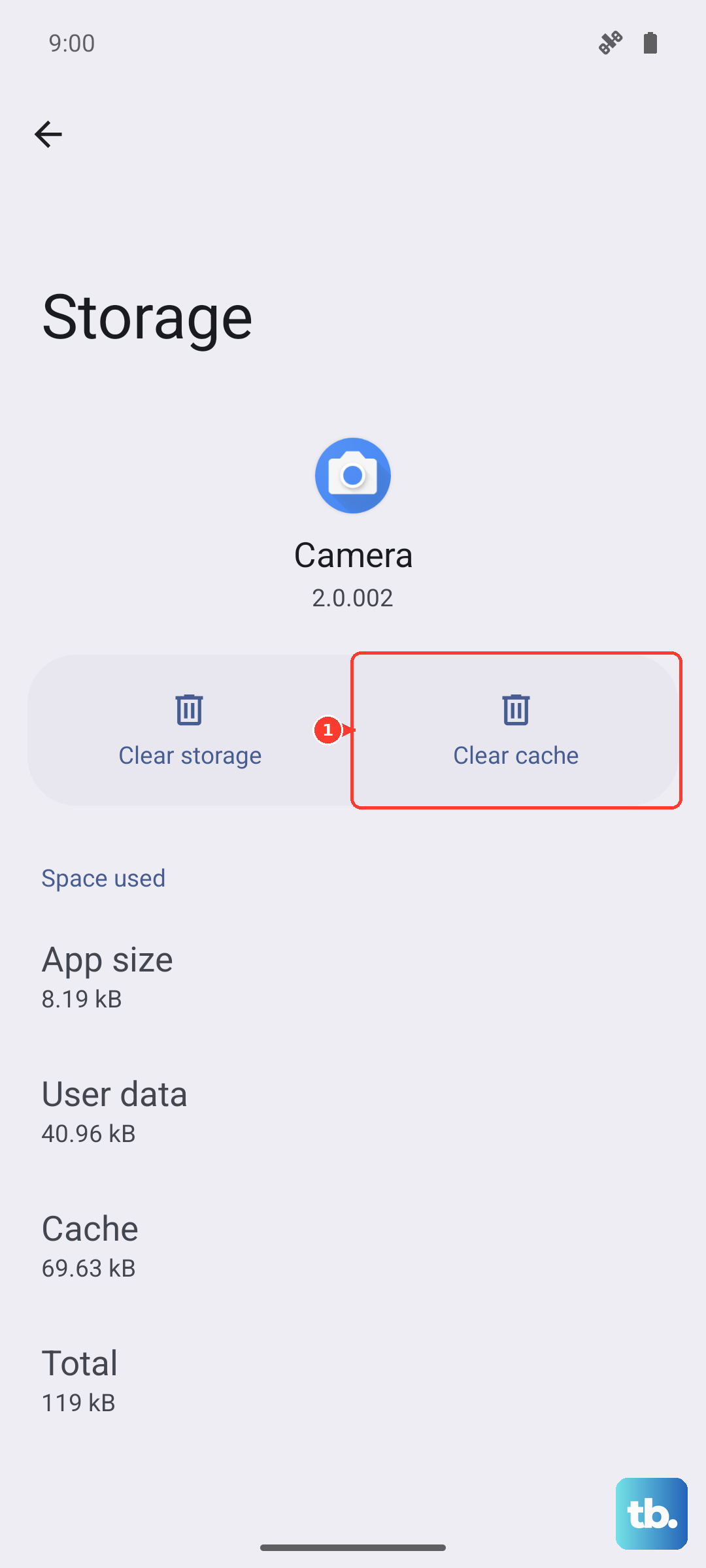
This is often the quickest fix. Over time, the video app you're using (like YouTube, Netflix, or the built-in Gallery) accumulates temporary data that can get corrupted. Clearing this cache forces the app to start fresh without deleting your login info or downloads.
Go to Settings > Apps > Manage apps. Find your video app in the list and tap on it. Select Clear cache. Don't choose "Clear data" unless you're okay with the app resetting completely. After clearing, restart the app and try playing your video again.
Check Your Phone's Temperature
The Redmi Note 13 Pro's Snapdragon 7s Gen 2 processor is powerful, but it can throttle performance if the phone gets too hot. This is especially true during long gaming sessions, 4K video recording, or even while using the 67W fast charger, which generates significant heat.
If the back of your phone feels warm to the touch, let it cool down for a few minutes. Avoid using it while it's charging for a fast top-up. I've seen performance dips clear up almost immediately once the phone returns to a normal temperature.
Free Up Internal Storage Space
When your phone's storage is nearly full, the system struggles to allocate space for video buffering and smooth playback. This can cause constant stuttering, especially with high-resolution files.
Head to Settings > About phone > Storage. Aim to keep at least 10-15GB free. You can quickly clear space by offloading old downloads, moving photos to cloud storage, or uninstalling apps you no longer use. That 200MP camera mode creates huge files, so check your Gallery for shots you can back up and delete.
Disable MIUI Optimization (Temporarily)
MIUI's background optimizations are meant to save battery, but they can sometimes interfere with video playback by aggressively closing or limiting app processes. You can toggle this off to see if it helps.
Go to Settings > About phone. Tap on MIUI version seven times quickly to enable Developer Options. Then, go back to Settings > Additional settings > Developer options. Scroll down and look for "MIUI Optimization." Turn it off, restart your phone, and test your video. Remember, you can always turn it back on later.
Update Your Software and Apps
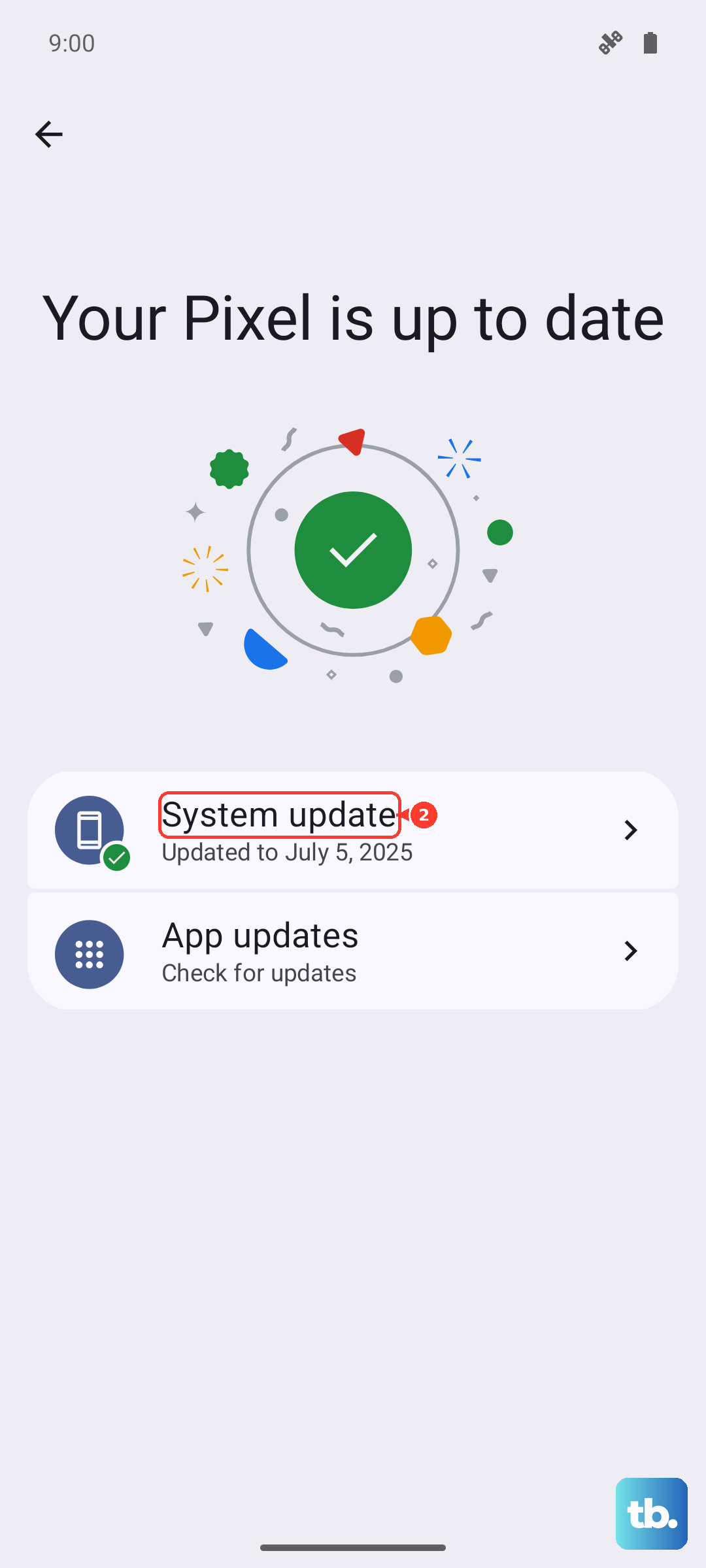
Running an old version of MIUI or your video apps can lead to compatibility bugs that cause lag. Xiaomi regularly releases updates that include performance improvements and bug fixes.
Check for a system update by going to Settings > About phone > System update. For your apps, open the Google Play Store, tap your profile icon, and go to Manage apps & device > Updates available. Install all pending updates.
Perform a Force Restart
A simple restart can clear out temporary system glitches that might be affecting media playback. For the Redmi Note 13 Pro, press and hold the power button for about 15 seconds. Keep holding it until you see the Xiaomi logo appear on the screen, then release. This is a soft reset and won't delete any of your data.
Try a Different Video Player
The issue might be isolated to one specific app. If videos are lagging in the Gallery app, try playing the same file in a third-party player like VLC or MX Player from the Play Store. If the video plays smoothly there, the problem is with the default app, and you might need to wait for an update or clear its data as a next step.
Reset App Preferences
This resets all your app-related settings, like permissions, default apps, and background restrictions, back to their factory defaults. It won't delete any app data, but you will need to re-grant permissions the next time you use an app.
Go to Settings > Apps > Reset app preferences (you might find this under the three-dot menu). Tap reset and confirm. This can resolve conflicts where a system setting is inadvertently limiting your video app's performance.
Check for Network Issues (For Streaming)
If you're only experiencing lag with streaming services like YouTube or Netflix, your internet connection is the likely culprit. The Redmi Note 13 Pro supports strong Wi-Fi, but a weak signal will cause buffering.
Try switching between Wi-Fi and mobile data to see if the problem follows you. If you're on Wi-Fi, restart your router. You can also try lowering the video quality within the streaming app's settings to see if that provides a smooth experience.
Consider a Factory Reset
If you've tried everything else and the lag persists across all video apps, a software issue might be deeply rooted. A factory reset will wipe your phone back to its original state. This is a last resort.
Make absolutely sure you back up everything important first. Then, go to Settings > About phone > Factory reset. Follow the prompts to erase all data. After the phone reboots, set it up as new and test video playback before restoring your full backup, as the backup could potentially restore the problematic state.