
If your Redmi Note 13 Pro is suddenly silent when you should be getting alerts, you're not alone. It's a common hiccup with Android and MIUI, but it's usually something you can fix yourself in a few minutes. I'd start with the quick fixes at the top of this list.
The most common culprit is a simple setting that got toggled by accident, like Do Not Disturb or an app's individual notification permission. Let's get your alerts working again.
Check Do Not Disturb and Silent Mode
First, pull down the notification shade twice to see the full quick settings panel. Look for the "Do Not Disturb" icon (a circle with a line through it) and the bell icon for Silent mode. If either is highlighted, tap it to turn it off.
Also, press the volume up button on the side of your phone. This will bring up the volume slider on screen. Tap the arrow next to it and make sure the "Notification" volume is turned up, not muted.
Restart Your Redmi Note 13 Pro
This is the classic fix for a reason. A quick restart clears out temporary system glitches that can cause the notification service to stall. Just press and hold the power button, then tap "Restart" on the screen.
If the screen is unresponsive, you can force a restart by holding the power button down for about 15 seconds until you feel the phone vibrate and see the Redmi logo appear.
Review App-Specific Notification Settings
MIUI has aggressive battery management that can sometimes block apps from sending notifications in the background. You need to check this per app.
Go to Settings > Apps and select the app that's not alerting you, like WhatsApp or Gmail. Tap on Notifications. Here, make sure "Allow notifications" is switched on.
Also, tap on each category of notification (like "Messages" or "General") and ensure they are enabled and set to make a sound or vibrate.
Disable Battery Optimization for Key Apps
This is a critical step on Xiaomi phones. Battery optimization can prevent apps from running in the background, which stops notifications.
Go to Settings > Apps > Manage apps. Find your problem app and tap on it. Go to Battery saver and select "No restrictions". This tells MIUI to let the app work normally in the background.
Check Autostart Permissions
Related to battery optimization, apps need "Autostart" permission to begin running as soon as you boot your phone. If this is off, they might not start their notification services.
Go to Settings > Apps > Permissions > Autostart. Find the apps you need notifications from (like messaging and email apps) and toggle the switch on for them.
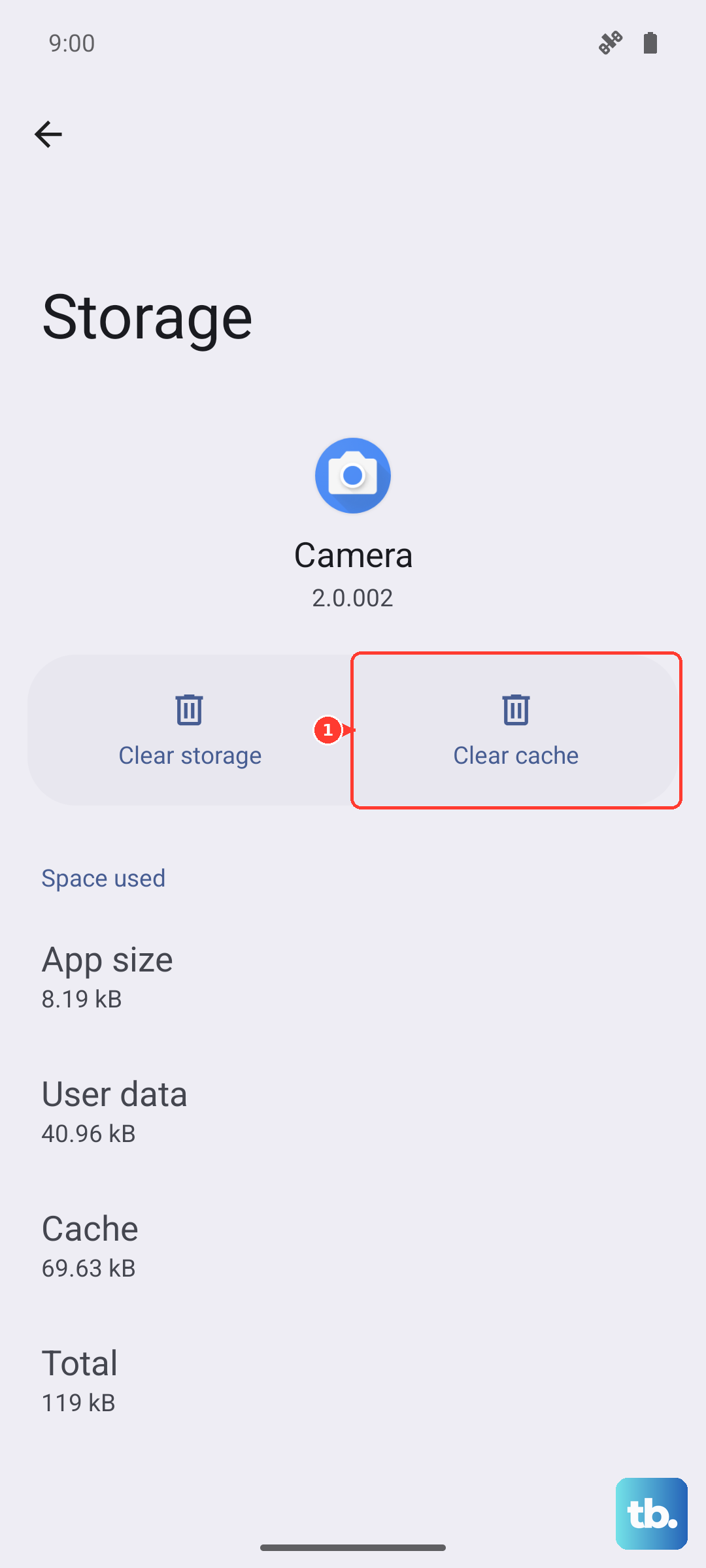
Clear the Cache for the Problem App
Corrupted temporary data in an app can break its notification function. Clearing the cache is safe and won't delete your login info or personal data.
Head to Settings > Apps > Manage apps, select the app, and tap on Clear data. Choose "Clear cache" at the bottom. Do not select "Clear all data" unless you're prepared to log back into the app.
Update the App and Your System
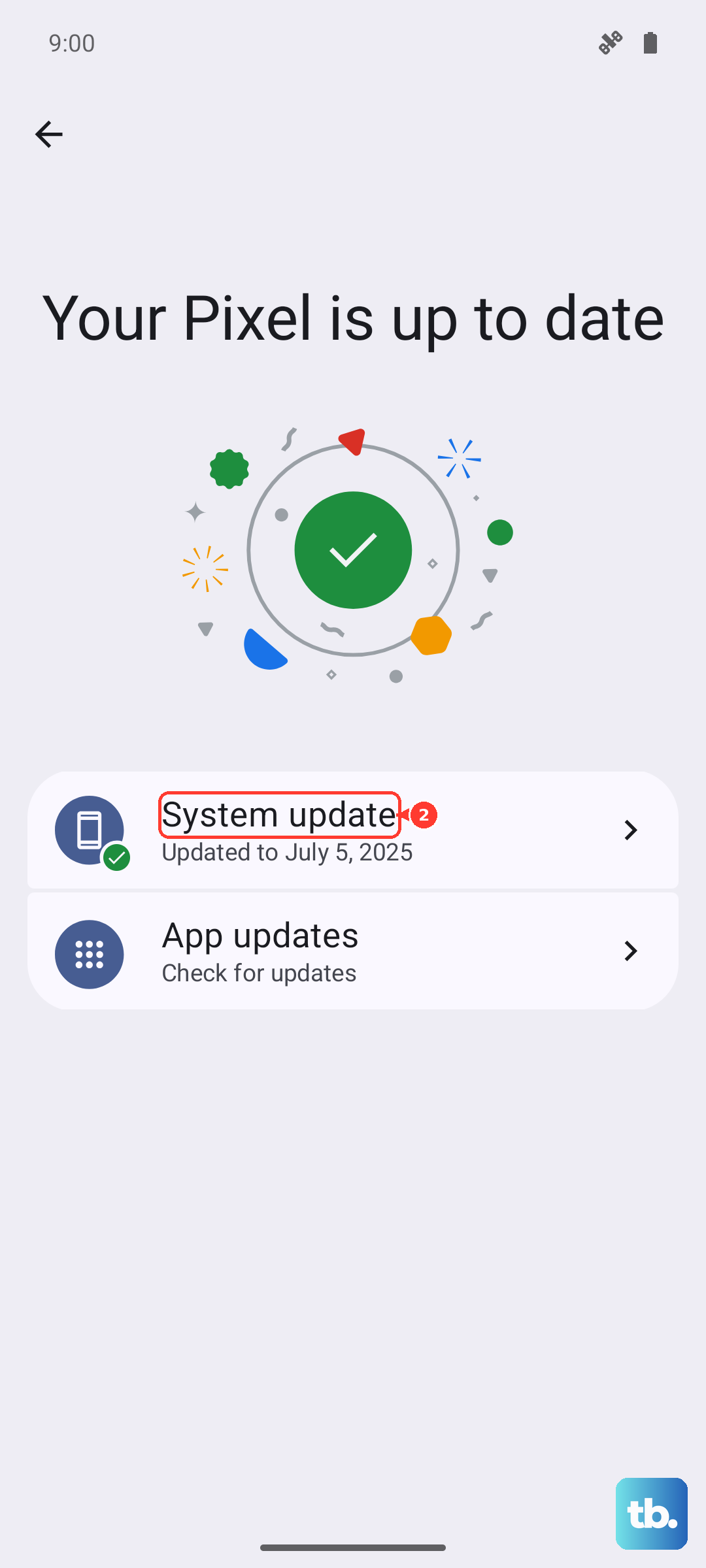
An outdated app might have a bug that breaks notifications. Open the Google Play Store, tap your profile icon, and go to "Manage apps & device" to see available updates.
Also, check for a MIUI system update. Go to Settings > About phone > MIUI version. Tap "Check for updates". Updates often include fixes for notification delivery issues.
Reset App Preferences
This resets all your app permissions, notification settings, and default app assignments back to factory defaults. It won't delete any app data, but you will have to re-allow permissions for things like camera and location.
To do this, go to Settings > Apps > Manage apps. Tap the three dots in the top right corner and select "Reset app preferences". Confirm the action. This can clear up any conflicting permission that's blocking alerts.
Disable MIUI Optimization (Temporary Fix)
This is a hidden developer setting that can interfere with how some apps behave. Turning it off can help test if it's the cause. First, enable Developer Options by going to Settings > About phone and tapping "MIUI version" seven times.
Then, go back to the main Settings, find "Additional settings", and enter "Developer options". Scroll way down to find "Turn on MIUI optimization". Turn it OFF and restart your phone. See if notifications work. Remember to turn it back on later, as it's part of the normal system management.
Check Notification Access for Specific Apps
Some apps, like fitness trackers or battery monitors, need special permission to read notifications. If this is misconfigured, it can break things. Go to Settings > Privacy protection > Special permissions > Notification access.
Review the list here. Generally, only very specific apps should be toggled on, like a smartwatch manager. Having the wrong app here can cause issues.
Factory Reset (Last Resort)
If nothing else has worked, a factory reset will wipe all software glitches. This will erase all data from your phone, so you must back up everything important first using Xiaomi Cloud or Google One.
Once backed up, go to Settings > About phone > Factory reset. Tap "Erase all data" and follow the prompts. After the reset, set up your phone as new and test notifications before restoring a full backup, in case the backup contains the problematic setting.