
When your Redmi Note 13 Pro starts restarting on its own, it can be incredibly disruptive. This issue often pops up due to a software glitch, a misbehaving app, or even a hardware quirk. The good news is you can usually fix it yourself with a few steps.
Before you start, it's a good idea to back up your important stuff. You can use Xiaomi Cloud or just copy your photos and files to a computer. This keeps your data safe in case you need to do a more involved reset later.
Perform a Force Restart
This is almost always the first thing you should try. A force restart clears out minor software hiccups that can cause random reboots. For the Redmi Note 13 Pro, it's straightforward.
Just press and hold the power button on the right side of the phone. Keep holding it for about 15 to 20 seconds, until you see the Xiaomi or Redmi logo appear on the screen. Then you can let go and let the phone boot up normally.
Check for Problematic Apps
Third-party apps are a common culprit. If the restarting started after you installed a new app, that's a big clue. Start by closing all your open apps. Swipe up from the bottom of the screen and hold, then swipe up on each app card to close it.
Next, try booting into Safe Mode. This temporarily disables all third-party apps. To do this, press and hold the power button until the power menu appears. Then, tap and hold the "Power off" option on the screen until you see a prompt to reboot to Safe Mode. Tap OK.
If the phone is stable in Safe Mode, you know a downloaded app is the problem. You'll need to uninstall apps one by one, starting with the most recently installed ones, to find the offender.
Update Your Apps and MIUI
Outdated software can cause all sorts of conflicts. First, update all your apps from the Google Play Store. Open the Play Store, tap your profile icon, and go to "Manage apps & device." Tap "Update all" if updates are available.
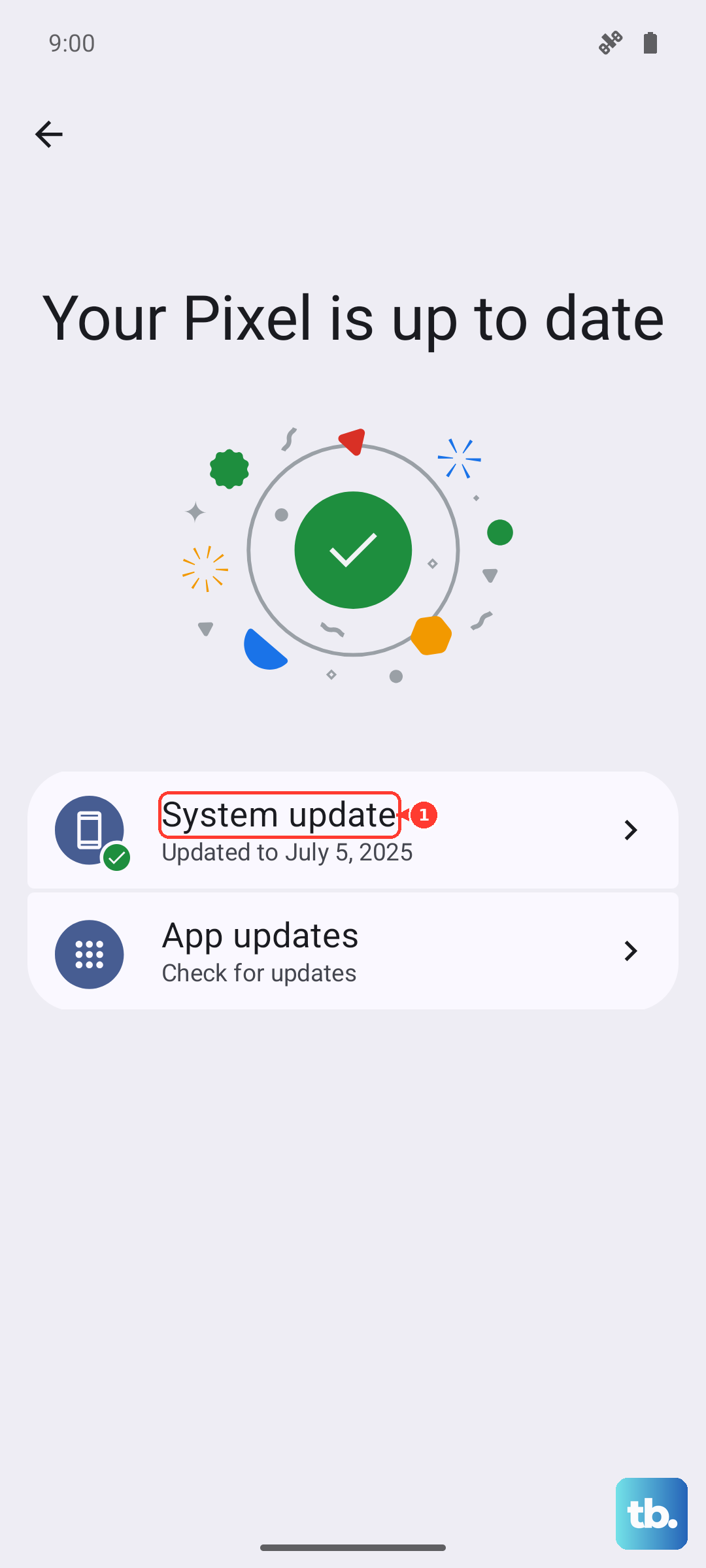
More importantly, check for a system update. MIUI updates often include bug fixes for stability issues. Go to Settings > About phone > MIUI version. Tap "Check for updates" and install anything that's available. Make sure your phone is charged above 50% and connected to Wi-Fi before starting the update.
Free Up Storage Space
If your phone's storage is completely full, it can make the system unstable and lead to crashes. Go to Settings > Storage to see how much space you have left. The Redmi Note 13 Pro has plenty of space, but if you're below 5% free, it's time to clean up.
You can use the built-in cleaner tool in the Security app to remove junk files. Also, consider offloading large videos or moving photos to cloud storage or a computer. I've seen phones stop their restarting loop just by clearing a few gigabytes of space.
Check for Overheating
The Redmi Note 13 Pro's 67W fast charging is great, but it can generate significant heat. The Snapdragon 7s Gen 2 chip can also throttle under sustained heavy use like long gaming sessions. If the phone gets too hot, it might restart to protect itself.
If you notice the phone is warm to the touch, take it out of its case, stop using it for a bit, and move it to a cooler spot. Avoid using the fast charger while playing intensive games, as the combined heat from charging and the processor can push it over the edge.
Reset All Settings
If the problem isn't a specific app, a deeper software setting might be messed up. You can reset all your system settings to their defaults without deleting your personal data like photos and messages.
For Xiaomi/Redmi/POCO, go to Settings > About phone > Factory reset > Erase all data; for OnePlus, go to Settings > Additional settings > Back up and reset > Reset phone. Here, you'll see an option for "Reset all settings." Tap it, enter your lock screen password if asked, and confirm. This will reset Wi-Fi passwords, Bluetooth pairings, and display settings, but your files stay put.
Clear Cache Partition in Recovery Mode
Sometimes, corrupted system cache files can cause boot loops. Clearing this cache can help. First, power off your phone completely. Then, press and hold the Volume Up button and the Power button together until the Mi Recovery screen appears (you'll see a little robot with "No command" text).
Use the volume buttons to navigate to "Wipe data" and press the power button to select it. On the next screen, choose "Wipe cache" instead of "Wipe all data." Confirm the action. Once it's done, select "Reboot" to restart your phone normally.
Perform a Factory Reset
This is your major step before considering a hardware issue. A factory reset will erase everything on your phone, so double-check that your backup is complete. For Xiaomi/Redmi/POCO, go to Settings > About phone > Factory reset > Erase all data; for OnePlus, go to Settings > Additional settings > Back up and reset > Reset phone.
You'll see an option to "Erase all data." Tap it. The phone might ask for your Mi account password as a security step. After confirming, the phone will wipe itself and reboot fresh. Set it up as new initially to see if the restarting stops, rather than restoring a backup which could bring the problem back.
Inspect for Physical Issues
Finally, let's rule out simple hardware problems. First, check your SIM tray. Use the ejector tool that came in the box to remove the tray. Take out the SIM card, check for any visible damage or dust, and reinsert it firmly.
Also, closely inspect your USB-C charging port. Lint and debris can get packed in there, and while it usually affects charging, it can sometimes cause short circuits. Use a non-metallic tool, like a plastic toothpick, to gently clean out the port. Be very careful not to damage the delicate pins inside.
If you've tried all these steps and the phone still restarts randomly, especially if it happens during specific actions or feels very hot, there might be a deeper hardware fault. In that case, reaching out to Xiaomi support or a reputable repair shop for diagnosis would be the next logical step.