
You're staring at your brand new Realme GT 7 Pro, and that Wi-Fi icon just won't light up. It's frustrating, especially on a 2024 flagship that's supposed to handle everything you throw at it. The good news is that Wi-Fi problems on Android, including Realme UI 6.0, are almost always a software hiccup you can fix yourself.
Toggle Wi-Fi and Restart Your Phone
Let's start with the simplest fix. Swipe down from the top of your screen to open the Quick Settings panel. Tap the Wi-Fi icon to turn it off, wait a solid five seconds, then tap it again to turn it back on. This forces the phone's radio to re-scan for networks and can clear up a temporary glitch instantly.
If that doesn't do it, give the phone a full restart. Press and hold the power button until the power menu appears, then tap "Restart." For a more forceful reboot, you can press and hold the power button for about 10 seconds until the screen goes black and the Realme logo reappears. This clears out any stuck processes that might be interfering with connectivity.
Use Airplane Mode to Reset All Radios
This trick works on any phone, and your GT 7 Pro is no exception. Pull down the Quick Settings shade again and tap the Airplane Mode icon. Leave it enabled for at least 15 seconds, this shuts down Wi-Fi, cellular, and Bluetooth completely. After the wait, tap the icon again to disable Airplane Mode. This forces every wireless component to reinitialize from scratch, which often kicks a stubborn Wi-Fi connection back into gear.
Forget the Problem Network
Sometimes your phone holds onto old or corrupted information for a network. To clear it, go to Settings > Wi-Fi & Internet. Tap on the name of the network you're trying to join, then select Forget. Don't worry, this just removes the saved password and settings from your phone.
Now, go back to the list of available networks, tap on the same one again, and re-enter the password carefully. This is the most effective step if you've recently changed your Wi-Fi password or gotten a new router, as your phone might be trying to use credentials that no longer work.
Check for Router and Interference Issues
Before you dig deeper into phone settings, make sure the problem isn't actually with your Wi-Fi source. Unplug your router from the power outlet, wait a full 60 seconds, and plug it back in. This simple reboot fixes more router-related issues than you'd think.
Also, consider potential interference. The Realme GT 7 Pro's powerful Snapdragon 8 Elite chip and modem are robust, but physical obstructions or other devices can cause problems. If you're using the phone near a microwave, baby monitor, or even a dense metal phone case, try moving to a different location. Its IP69 rating means it's built tough, but thick materials can still block signal.
Disable Smart Network Switching in Realme UI
Realme UI includes a feature designed to save battery by switching to mobile data when Wi-Fi is weak. Ironically, it can sometimes prevent a connection altogether. To turn it off, head to Settings > Wi-Fi & Internet > Wi-Fi.
Tap the three-dot menu in the top right and select Advanced. Look for an option called "Smart network switch," "Switch to mobile data," or something similar, and make sure it's toggled off. This tells your phone to stay on Wi-Fi and stop second-guessing the connection.
Turn Off Battery Saver or High-Performance Mode
Your GT 7 Pro has a massive 6500mAh battery, but power-saving features can still affect Wi-Fi. If you have Battery Saver mode enabled, it might restrict background network activity. Go to Settings > Battery and ensure any power-saving mode is switched off.
Conversely, the high-performance modes geared for gaming can also sometimes cause instability as the chip manages thermals. If you're in GT Mode or a similar setting, try switching back to a balanced profile and see if the Wi-Fi stabilizes.
Verify Your Date, Time, and Software
An incorrect date or time can break Wi-Fi authentication because security certificates won't validate. Go to Settings > System Settings > Date & time. Make sure "Set time automatically" and "Set time zone automatically" are both enabled.
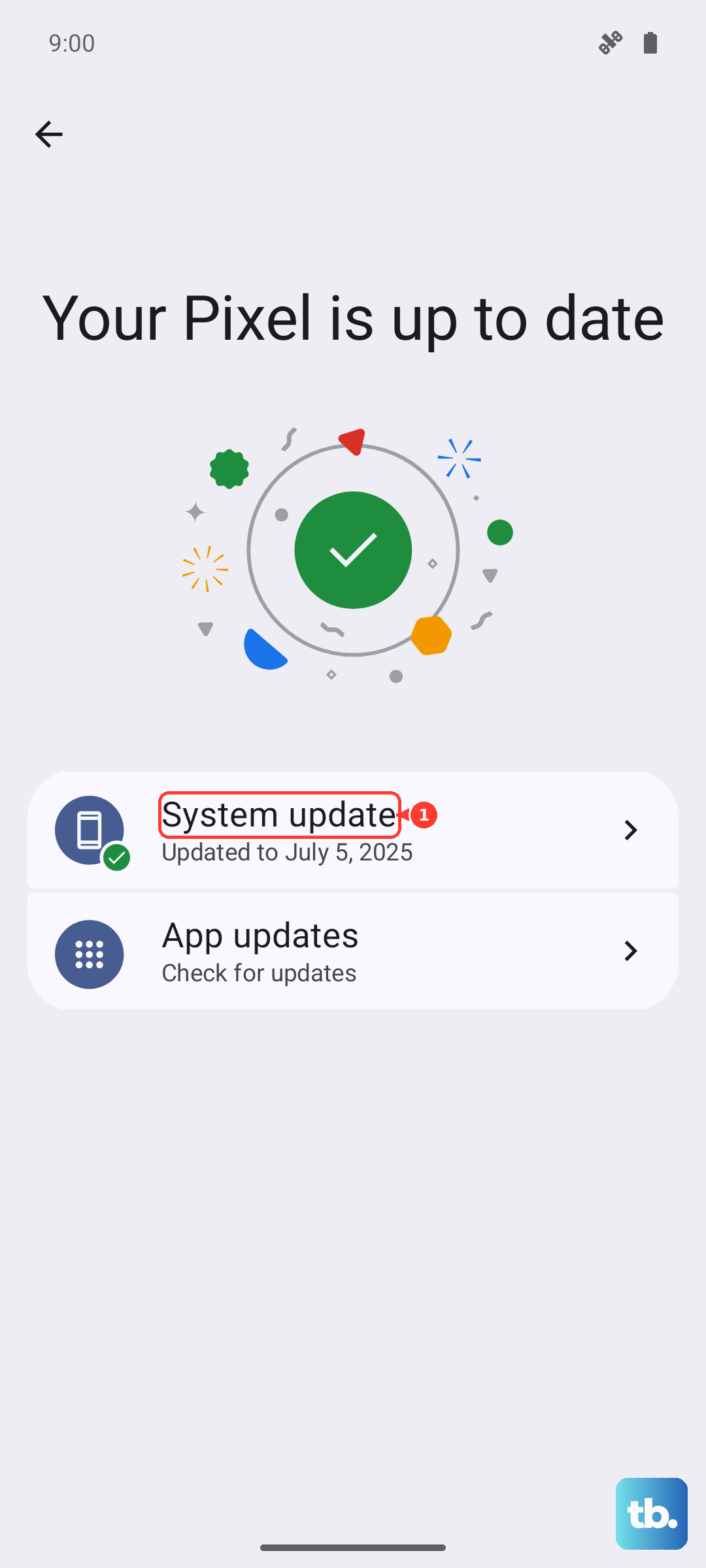
Next, check for a system update. Realme issues patches that fix connectivity bugs. Navigate to Settings > About device > Realme UI version and tap on "Check for updates." Installing the latest software is a crucial step for a 2024 device running Android 15.
Try Booting Into Safe Mode
A third-party app you installed could be causing the conflict. Common culprits are VPNs, ad blockers, or certain "cleaner" apps. To test this, you need to boot into Safe Mode, which temporarily disables all downloaded apps.
Press and hold the power button until the power menu appears. Then, tap and hold the "Power off" option on your screen. A prompt to reboot into Safe Mode should appear, tap "OK." If your Wi-Fi works perfectly in Safe Mode, you know an app is to blame. You'll need to restart your phone to exit Safe Mode and then uninstall recent apps one by one to find the offender.
Reset Your Phone's Network Settings
This is a more thorough step before considering a factory reset. Resetting network settings will erase all saved Wi-Fi networks, Bluetooth pairings, and mobile data preferences, but it won't touch your personal files or apps.
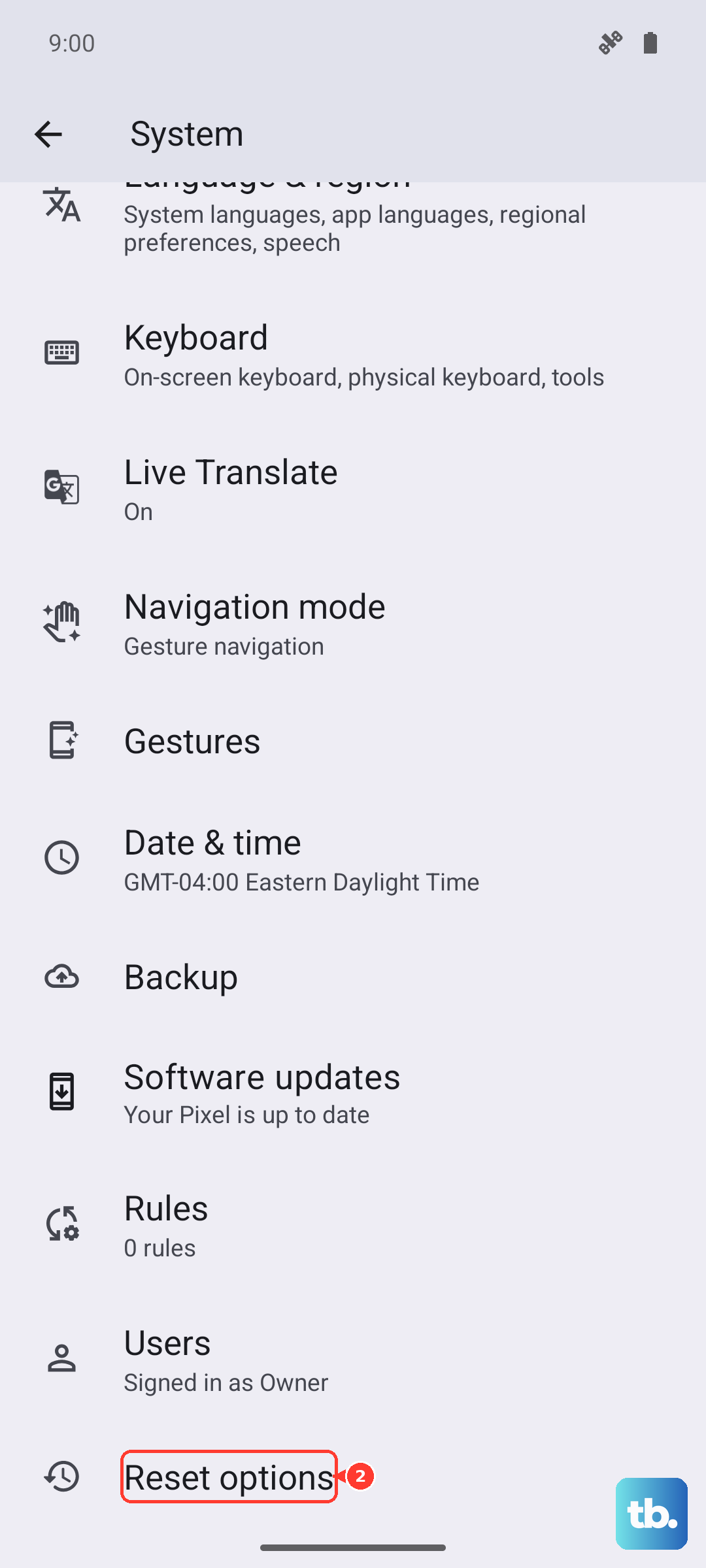
To do this, go to Settings > System Settings > Reset options. Tap on Reset Wi-Fi, mobile & Bluetooth and confirm. After the phone reboots, you'll need to reconnect to your Wi-Fi and re-pair any Bluetooth devices, but it often resolves deep-seated network corruption.
Consider a Factory Reset
This is the last resort. If every other fix has failed and Wi-Fi still doesn't function, a factory reset will return the phone to its original out-of-the-box software state. This will delete all your data, so you must back up everything important first using Google Drive or a computer.
Once backed up, go to Settings > System Settings > Reset options > Erase all data (factory reset). Follow the prompts to complete the process. If Wi-Fi is still broken after a full factory reset, the issue is likely hardware-related. Given the phone's 2024 release, it should still be under warranty, and contacting Realme support would be the next logical step.