When your Realme GT 7 Pro's voice assistant suddenly stops responding, it can feel like you've lost a key feature of your phone. Whether it's Google Assistant or Realme's own voice assistant that's gone quiet, the fix is usually straightforward. I'd start by checking the most common setting that gets accidentally toggled off.
Make Sure Voice Match is Enabled
Open the Google app on your phone and tap your profile picture in the top right corner. Go to Settings > Voice > Voice Match. Here, you need to ensure "Hey Google" is turned on.
If it's already on, try turning it off and back on again. This will prompt you to retrain the voice model. Say "Hey Google" and "Ok Google" a few times when prompted to help your phone recognize you better, especially in different environments.
Check Your Microphone Permissions
Voice assistants need explicit permission to use your microphone. If you recently denied this permission by accident, the assistant won't be able to hear you at all.
Go to your phone's Settings > Apps > Google (or the specific assistant app you use). Tap Permissions and make sure the Microphone permission is set to "Allow." While you're there, also check that the app has permission to run in the background, as this is often required for the "Hey Google" hotword detection to work when the screen is off.
Restart Your Realme GT 7 Pro
A simple restart clears out temporary software glitches that can affect system services like the voice assistant. Press and hold the power button for about 10 seconds until you feel a vibration and see the Realme logo appear as the phone reboots.
This is a good first step for any odd behavior on the GT 7 Pro, given its powerful Snapdragon 8 Elite chip can sometimes have background processes get stuck. The whole process takes less than a minute thanks to the fast storage.
Update Your Apps and System Software
Outdated software is a common culprit. First, open the Google Play Store, tap your profile icon, and go to Manage apps & device. Tap "Update all" to ensure the Google app and Google Assistant are on the latest versions.
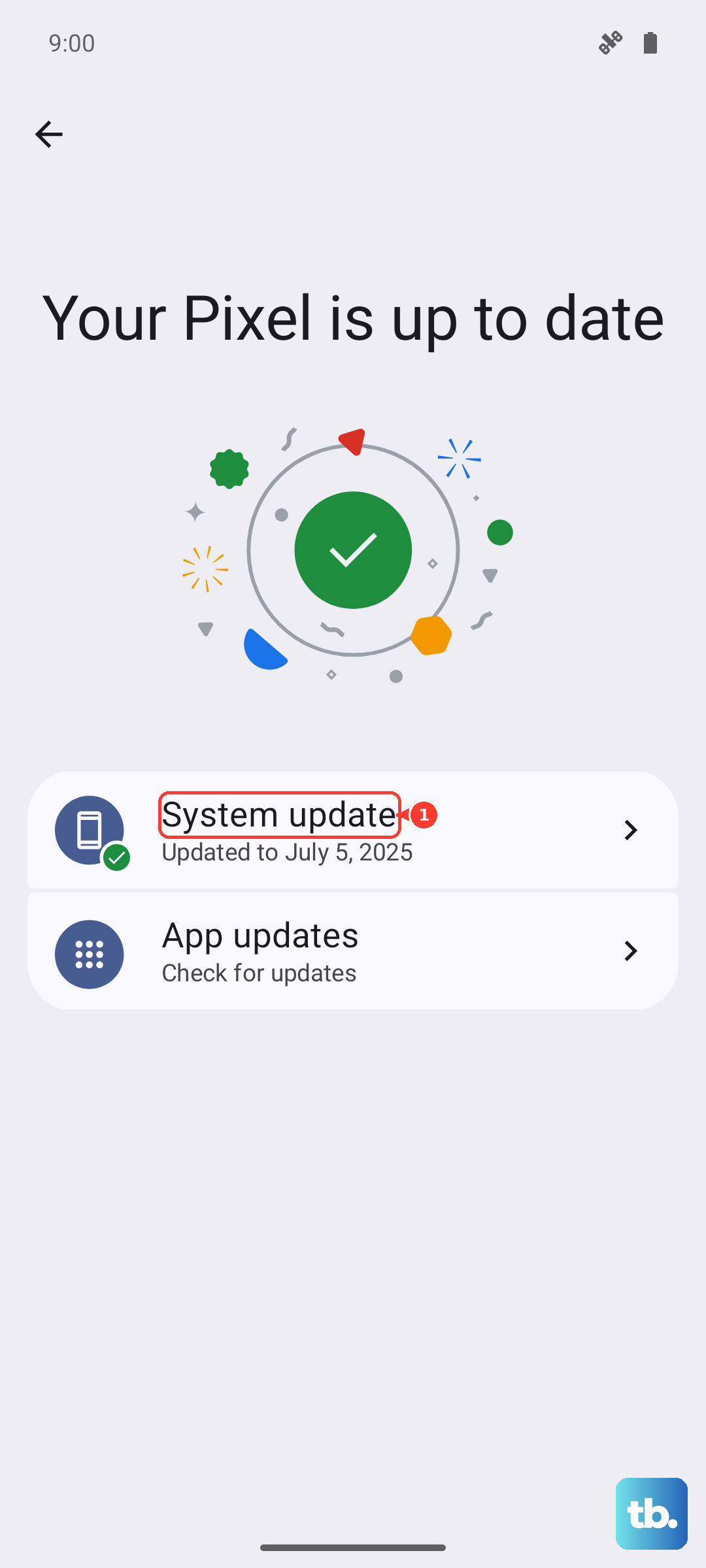
Next, check for a system update. Realme UI 6.0 on Android 15 is still relatively new, and updates frequently bring stability fixes. Go to Settings > About device > tap on the "Realme UI version" banner at the top. If an update is available, install it. I'd recommend doing this while connected to Wi-Fi and with your phone plugged into its 120W charger, as the update process can use a fair bit of battery.
Review Battery Optimization Settings
Android's aggressive battery saving can sometimes prevent the voice assistant from listening in the background. You need to exclude the relevant apps from battery optimization.
Head to Settings > Battery > More battery settings. Tap on "App battery management" and look for an option like "Auto-launch" or "Background freeze." Find the Google app and any assistant service here, and make sure they are allowed to run in the background. This ensures the "Hey Google" detection is always active.
Clear the Google App's Cache and Data
If the assistant opens but behaves oddly or crashes, corrupted cache data might be the issue. Clearing it is safe and won't delete your personal information.
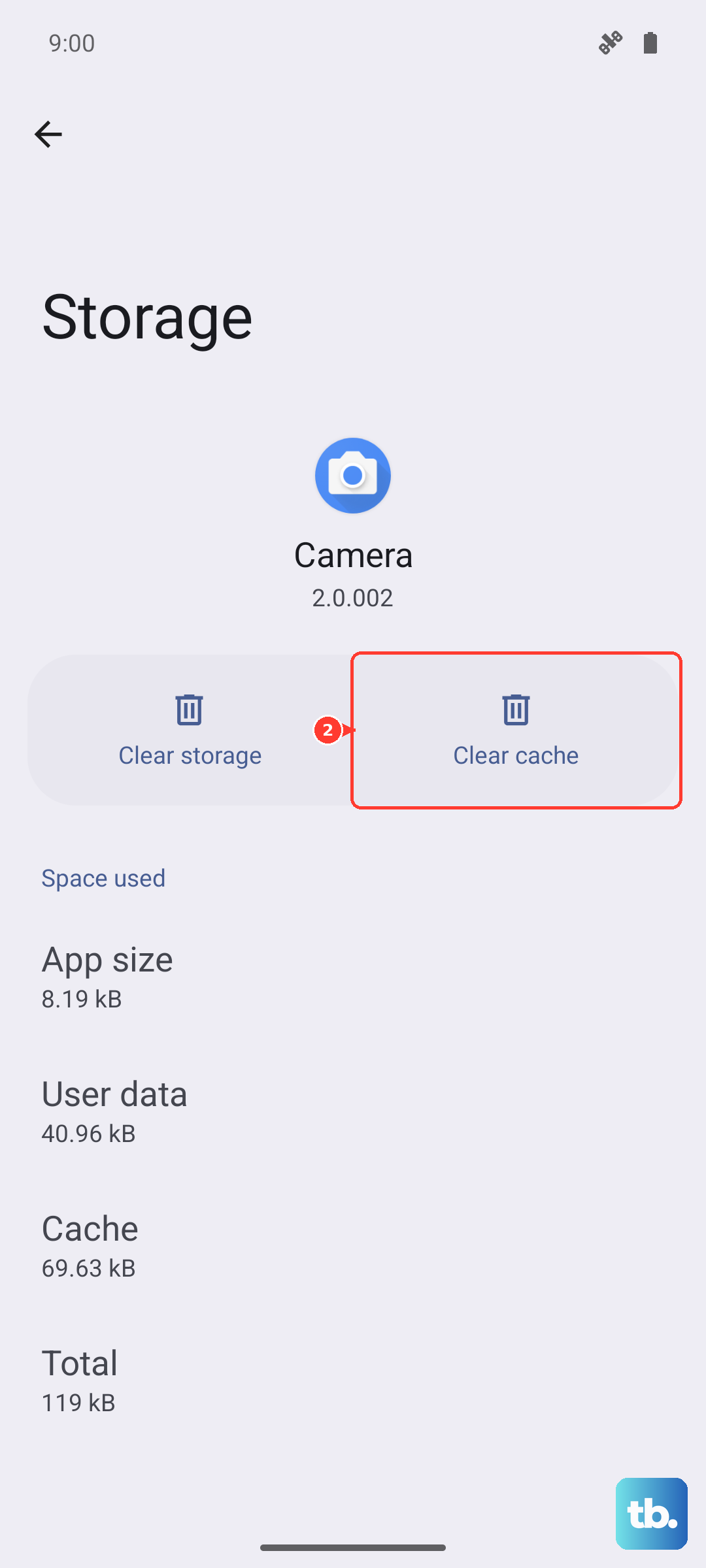
Go to Settings > Apps > Google. Tap Storage usage. First, tap "Clear cache." Test the assistant. If the problem persists, go back and tap "Clear data." This will reset the app's settings, so you'll need to go through the "Hey Google" setup again, but it often resolves deeper glitches.
Check for Physical Microphone Blockages
The Realme GT 7 Pro has multiple microphones for noise cancellation and clear voice pickup. If the primary microphone is blocked, the assistant can't hear your wake word.
Inspect the small pinhole microphone at the bottom of the phone, near the USB-C port. Check for lint, dust, or debris. You can gently clean it with a dry, soft-bristled brush or a blast of compressed air. Also, if you're using a case, make sure it isn't covering or misaligning with the microphone hole. The phone's IP69 rating means it's sealed against dust and water jets, but pocket lint can still get stuck at the openings.
Disable Other Listening Features
Certain accessibility or system features can interfere with the primary voice assistant. Go to Settings > Additional settings > Accessibility. Look for any voice control or sound detection features that might be enabled and turn them off temporarily to test.
Also, if you have any third-party voice assistant apps installed from the Play Store, they might be conflicting. Try uninstalling them or checking their settings to see if they've taken over the microphone access.
Reset App Preferences or Network Settings
If you're still having trouble, you can reset all app preferences. This won't delete any app data, but it will reset permissions, background restrictions, and default app assignments. Go to Settings > Apps > tap the three-dot menu > Reset app preferences.
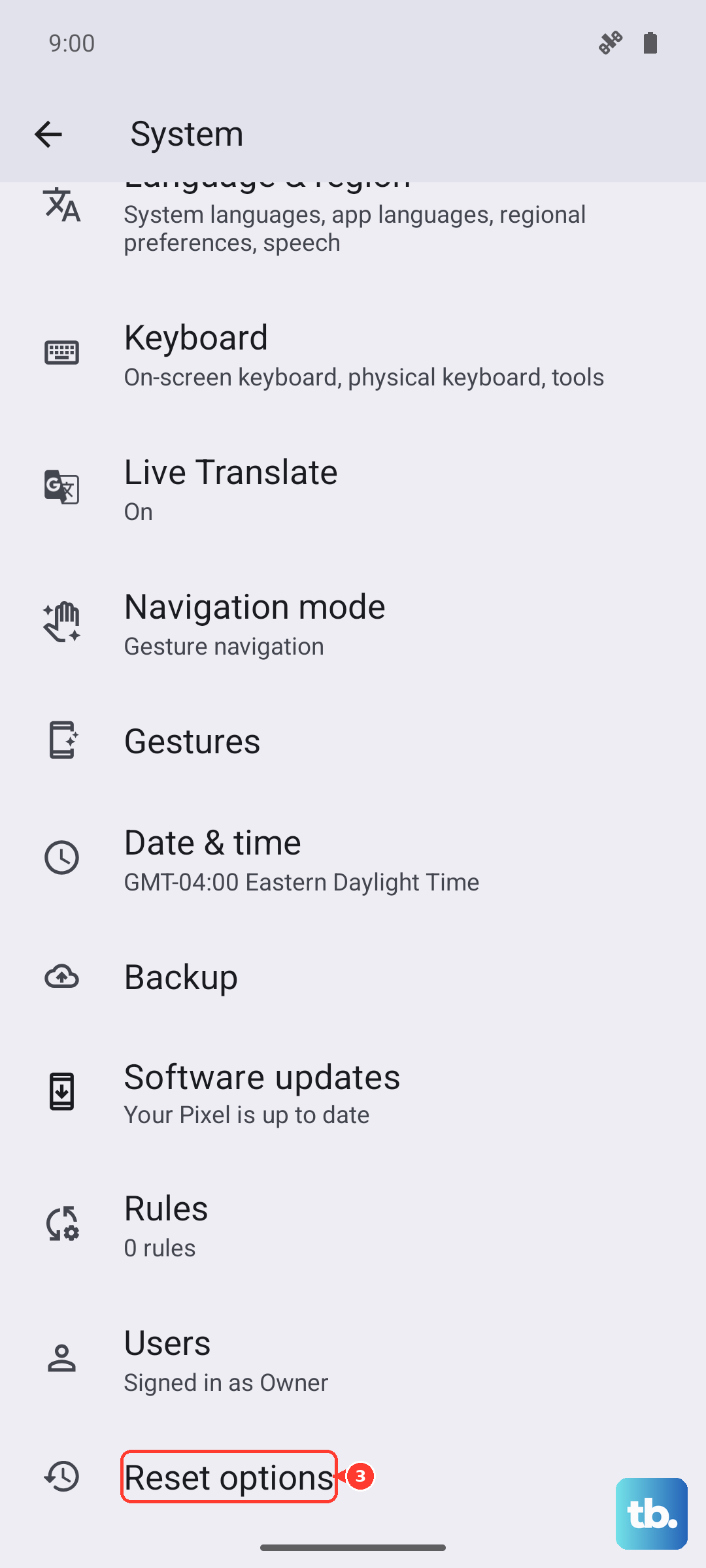
Since many assistant commands require an internet connection, a network glitch could be the issue. You can try resetting your Wi-Fi, mobile data, and Bluetooth connections by going to Settings > System > Reset options > Reset Wi-Fi, mobile & Bluetooth. You'll need to re-enter your Wi-Fi passwords afterward.