Running out of storage on your Realme GT 7 Pro can really slow you down, especially when you're trying to capture a moment with that great camera or download a new game. The good news is that with Realme UI 6.0 and Android 15, you have plenty of tools to clean things up. Here are the most effective ways to free up space on your phone.
See What's Taking Up Space
Start by opening Settings > Additional Settings > Storage. This screen gives you a complete breakdown of what's using your internal storage. Give it a moment to calculate, and you'll see categories like Apps, Images, and Videos. Tapping into each section shows you the biggest files and apps, so you know exactly where to start cleaning.
Clear App Caches and Data
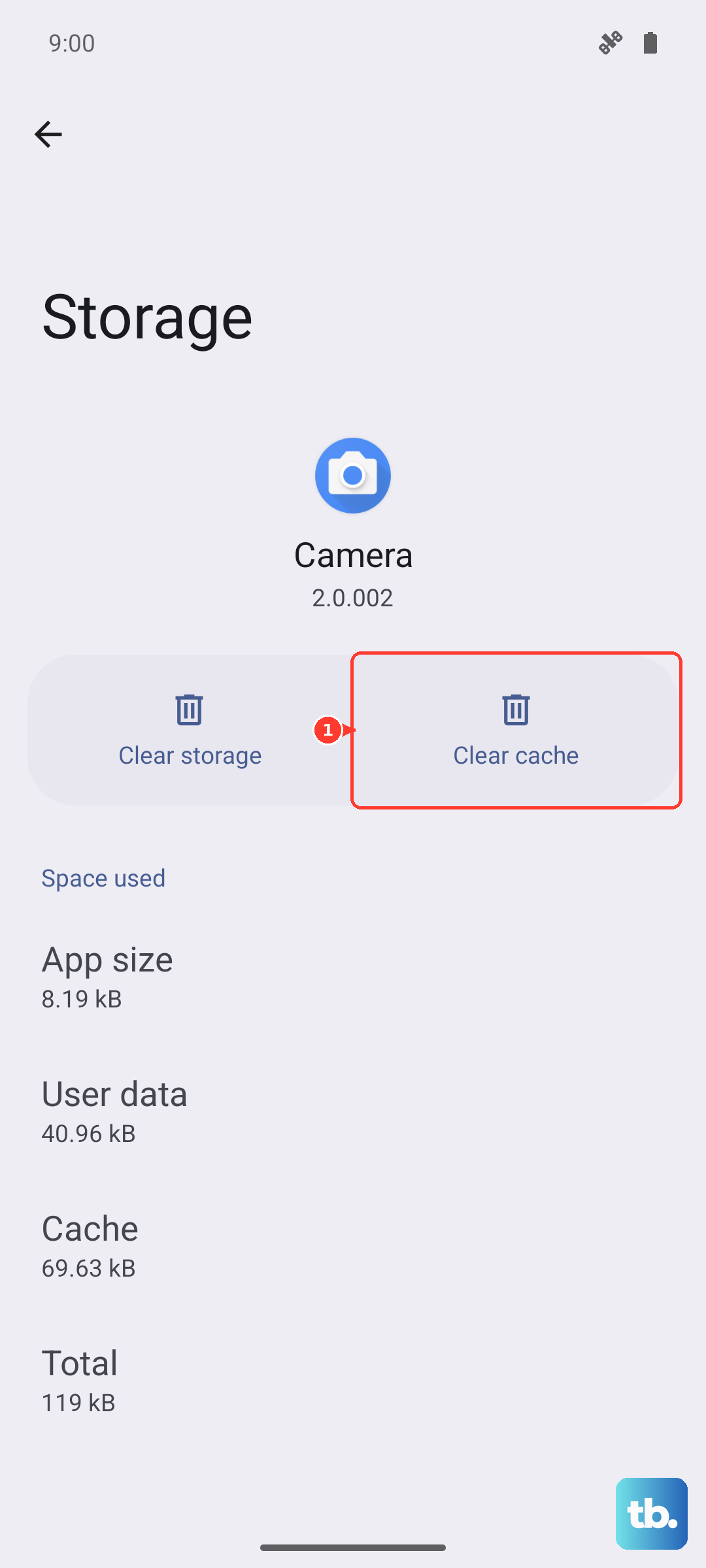
In that same Storage menu, tap on Apps. You'll get a list sorted by how much space each one uses. Tap on any app, especially social media apps like Instagram or TikTok, and you'll see two numbers: the app size and the cache/data. Tap Clear cache first to remove temporary files. If that's not enough, you can tap Clear data, but be aware this will reset the app as if you just installed it, so you'll need to log in again.
Manage Your Photos and Videos
Your photos and 4K videos are likely the biggest storage hogs. Open the Photos app and use the Free up space tool, which can automatically identify blurry photos, screenshots, and large videos you might want to delete. Don't forget to empty the Recently Deleted folder afterward, as items sit there for 30 days. For a more permanent solution, consider backing your media up to Google Photos and using its "Free up space" feature to remove local copies.
Offload or Uninstall Unused Apps
Go back to Settings > Additional Settings > Storage > Apps and scroll through the list. Look for apps you haven't opened in months. You can simply uninstall them, or for apps that came pre-installed (some Realme UI bloatware can't be fully removed), you can often Disable them. This stops them from running and hides them from your app drawer, recovering some space.
Clean Downloaded Files and Documents
Files you've downloaded through your browser or received in messaging apps can pile up. Open the Files by Google app or the built-in File Manager. Go to the Downloads folder and sort files by size. You can safely delete old APK files, PDFs, and documents you no longer need. The cleaner tool in these apps can also find duplicate files and large items you may have forgotten about.
Manage Offline Content in Streaming Apps
Apps like Spotify, Netflix, and YouTube Music store music, podcasts, and videos for offline playback. These downloads can take up several gigabytes. Open each app and navigate to your downloads or offline library. In Spotify, go to Settings > Storage > Delete cache or Remove all downloads. In Netflix, tap your profile icon and go to Downloads to remove watched content.
Clear Browser Cache and History
Whether you use Chrome, the Realme browser, or something else, cached website data builds up quickly. In Chrome, tap the three dots, go to History > Clear browsing data. Select Cached images and files and tap Clear data. For the built-in browser, you'll find a similar option in its settings menu under Privacy or History.
Review and Delete Old Messages
Open your messaging app, like Google Messages. Tap the three-dot menu and look for options like Settings > Storage or Manage storage. Here, you can see how much space is taken by photos, videos, and other files sent in conversations. You can often delete these attachments in bulk without deleting the actual text conversations.
Check for System Updates and Cache
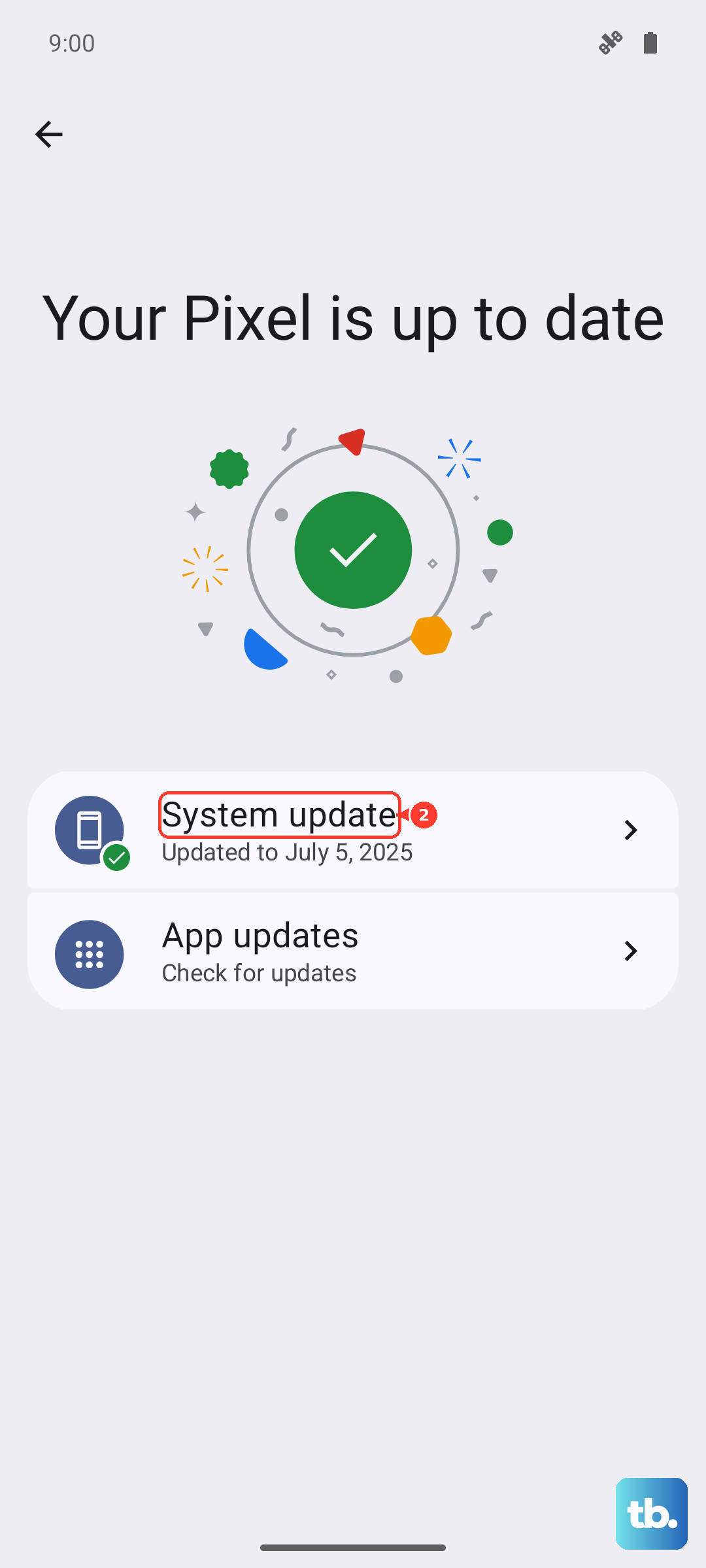
Sometimes, leftover files from old system updates can linger. Go to Settings > About phone > Storage and look for a category like "System" or "Other." If it seems unusually large, a simple restart can sometimes help the system re-index files. Also, ensure your phone is updated to the latest version of Realme UI, as updates often include storage optimizations and bug fixes.