
When your Realme GT 7 Pro's Settings app crashes or refuses to open, it can feel like you're locked out of your own phone. This usually happens due to a temporary software glitch or corrupted app data, especially after a recent update to Android 15 or Realme UI 6.0. The good news is you can almost always fix it yourself.
Force Restart Your Phone
This is the quickest thing to try and often solves the problem right away. A force restart clears the phone's temporary memory and stops any background process that might be interfering with the Settings app.
Press and hold the Power and Volume Up buttons for at least 10 seconds. You'll feel it vibrate and see the Realme logo appear as it reboots. Wait for it to fully start up, then try opening Settings again.
Clear the Settings App Cache
Cache files help apps load faster, but they can get corrupted. Clearing them forces the Settings app to rebuild these files from scratch, which can fix a crash.
Since you can't get into Settings the normal way, you'll need to use the app management screen. Swipe down from the top of your screen to open the notification shade, then tap the gear icon in the top right. If that doesn't work, try opening it through your app drawer by finding the "Settings" app icon and long-pressing it, then selecting "App info".
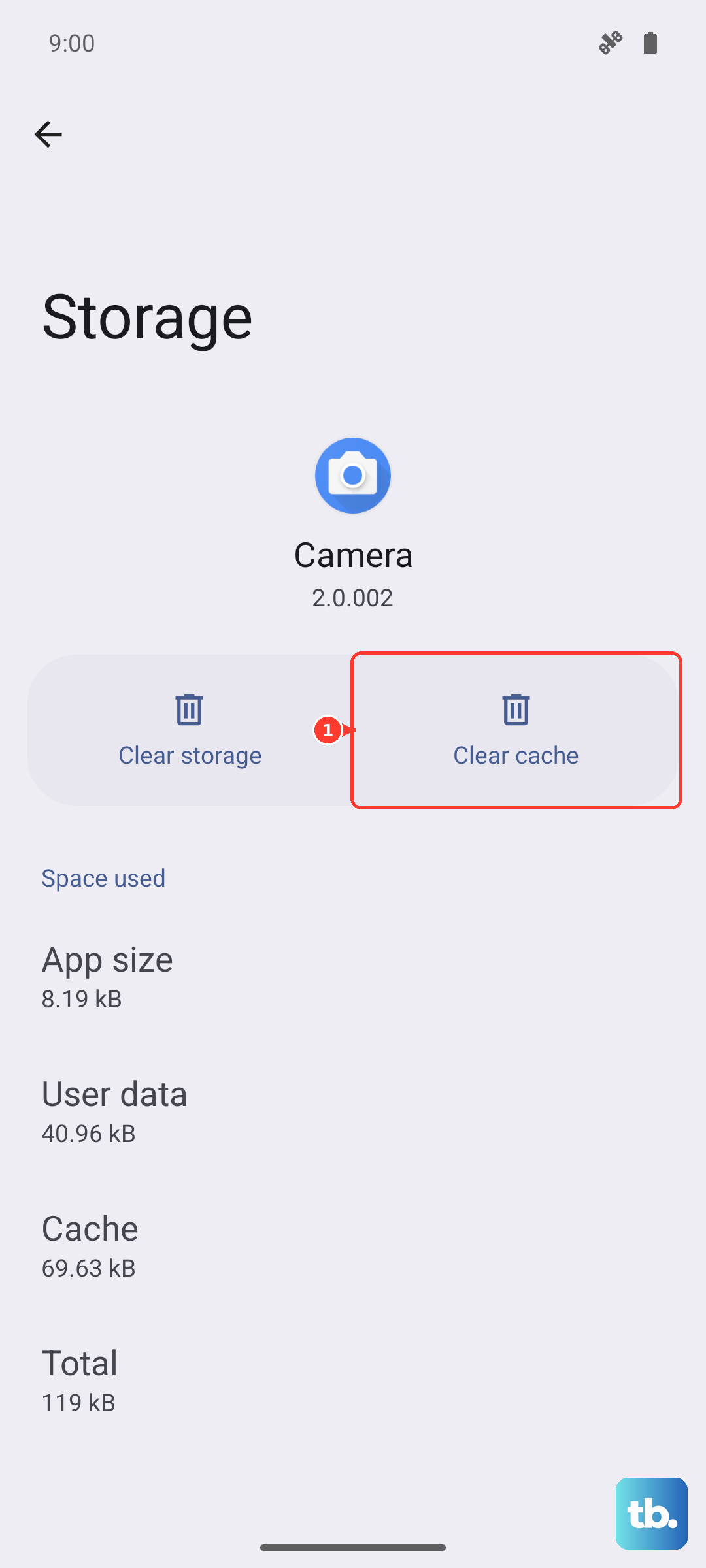
Once you're in the App info page for Settings, tap on "Storage usage". Here, you'll see an option to "Clear cache". Tap it. You don't need to clear data for this first step, as that's more drastic.
Check for a System Update
If the crash started after a recent app update or a new installation, there might be a compatibility issue that Realme has already patched. Software updates on the GT 7 Pro can be checked through a few different paths if the main Settings app is broken.
You can try using the search bar on your home screen. Swipe down and type "Software update". This might pull up a direct shortcut to the update checker. Alternatively, you can ask the Google Assistant by saying, "Hey Google, check for system updates on my phone."
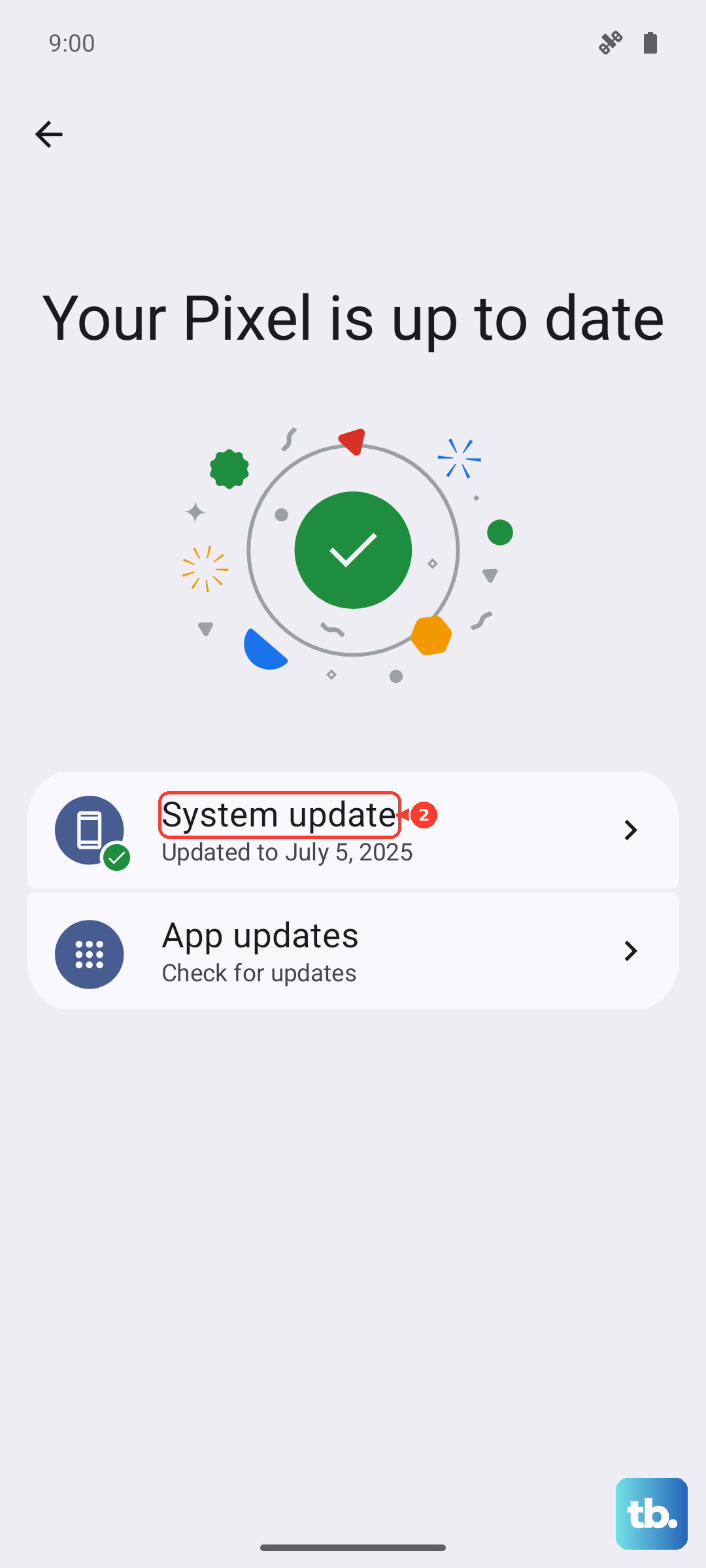
If an update is available, let it install. Your phone's powerful Snapdragon 8 Elite chip and 6500mAh battery mean the process should be quick, and you'll want to be plugged into the included 120W charger to be safe.
Manage Google Play Services
Google Play Services is the backbone for many system functions on Android. If it's acting up, it can cause core apps like Settings to misbehave. You can manage it without needing the main Settings menu.
Go to your app drawer and find the "Google" folder. Inside, look for "Google Play services". Long-press its icon and select "App info". On its info page, tap "Force stop" to shut it down, then immediately tap "Storage & cache".
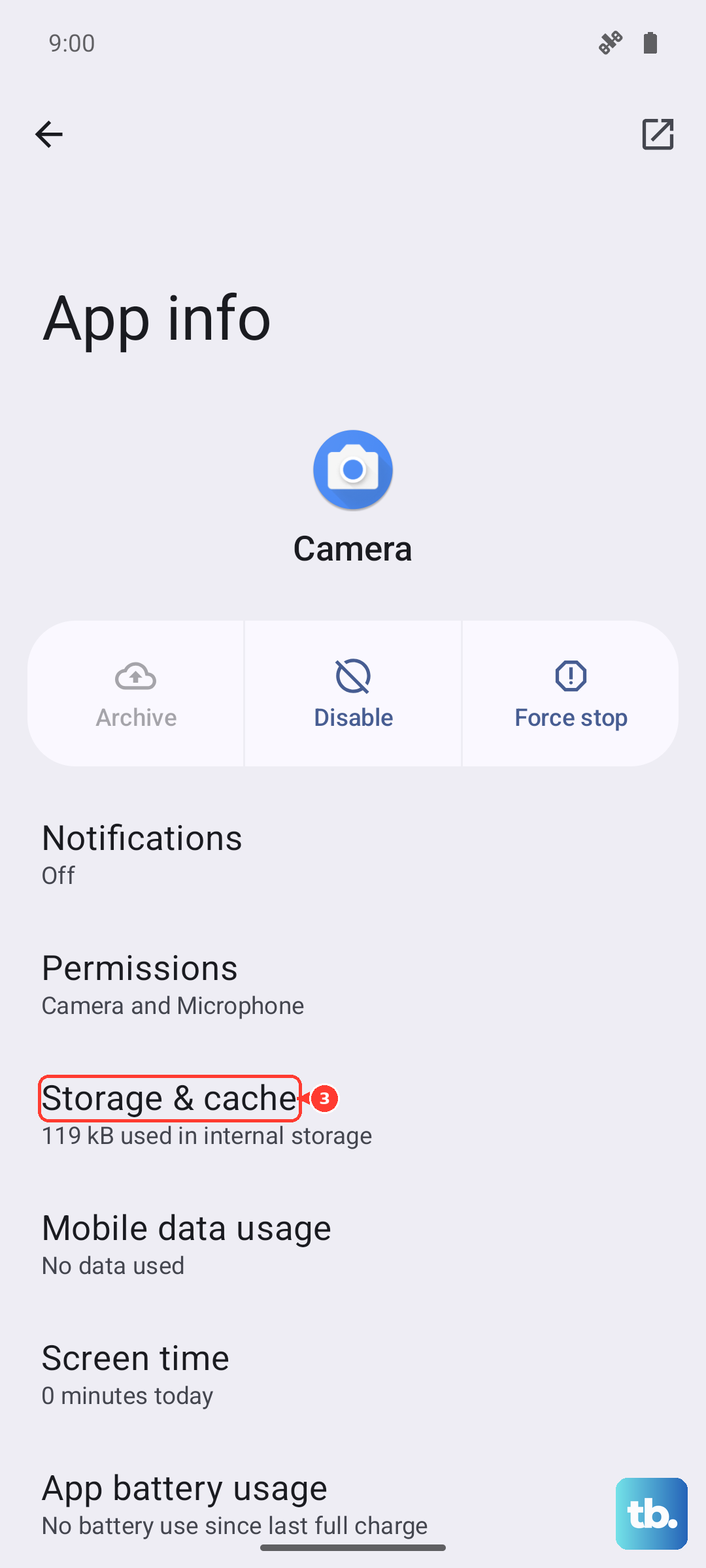
Tap "Clear cache" first. If the problem persists, you can go back and tap "Manage space", then "Clear all data". Don't worry, this will reset some Google-related preferences, but it won't delete your personal files or accounts.
Boot into Safe Mode
This is a great way to check if a third-party app you installed is causing the conflict. Safe mode temporarily disables all apps you downloaded, leaving only the original system software running.
To enter safe mode on the Realme GT 7 Pro, press and hold the power button until the power menu appears. Then, long-press the "Power off" option on your screen. A prompt will ask if you want to reboot to safe mode. Tap "OK".
Once your phone restarts, you'll see "Safe mode" in the bottom corner. Try opening Settings now. If it works perfectly in safe mode, you know a downloaded app is the culprit. You'll need to restart your phone normally and then uninstall recent apps one by one to find the offender.
Reset App Preferences
This is a less-known but very effective fix. It resets all your app-related settings, like permissions, default apps, and background restrictions, back to their factory defaults. It doesn't delete any of your personal app data.
Again, you'll need to access a special settings menu. You can try opening the phone app and dialing *#*#4636#*#*. This opens a testing menu. Look for an option like "Reset app preferences" or go back and try another path.
If the dialer code doesn't work, you can sometimes find it by going to the system settings via the notification shade gear icon, then searching for "Reset app preferences" in the search bar at the top of the settings page.
Perform a Factory Reset
If nothing else has worked, a factory reset is your final software step. This will erase everything on your phone and return it to its out-of-the-box state, so you must back up your photos, messages, and files first. Use Google Drive or copy files to a computer.
Since the Settings app is broken, you'll need to use the hardware key method. First, power your phone off completely. Then, press and hold the volume up button and the power button together until the Realme logo appears.
This will boot you into Recovery Mode. Use the volume buttons to navigate to "Wipe data/factory reset" and select it with the power button. Confirm your choice. After the reset is complete, select "Reboot system now". Your Realme GT 7 Pro will start fresh, and the Settings app should be working again.











