When your Realme GT 7 Pro's microphone stops picking up your voice, it can turn simple tasks like phone calls, video chats, and voice commands into a frustrating experience. The good news is, most microphone problems are software-related and can be fixed without a trip to the repair shop. Let's start by figuring out exactly where the problem is.
Start by confirming the basics with a free quick mic test. It shows a live level meter and lets you hear a short playback, so you know in seconds whether any signal is coming through.
Test Your Realme GT 7 Pro Microphone
Before you try any fixes, it's smart to test the microphones. Your phone has more than one. There's typically a primary mic at the bottom near the USB-C port, one up top for noise cancellation, and sometimes others for video recording.
Open the Voice Recorder app that came with your phone. Tap the record button, speak at a normal volume for about 10 seconds, and then play it back. If your voice sounds clear, the main microphone is likely fine.
If the recording is muffled or silent, try making a regular phone call to a friend or your voicemail. Ask if they can hear you. You can also open the Camera app, switch to video mode, and record a short clip while talking to test the audio there.
Remove Your Phone Case
This is the easiest fix and often the most effective. Some cases, especially rugged or poorly designed ones, can partially or completely cover the microphone holes. Take the case off your GT 7 Pro and run the voice recorder test again.
While the case is off, take a close look at the tiny microphone grilles, particularly the one at the bottom edge. Use a soft-bristled brush, like a clean toothbrush, to gently dislodge any lint or pocket debris that might be clogging it.
Disconnect Bluetooth Accessories
If you have wireless earbuds, a headset, or a smartwatch connected, your phone might be routing all audio through that device. Swipe down from the top of your screen to open the Quick Settings panel and tap the Bluetooth icon to turn it off temporarily.
Now test your microphone again with Bluetooth disabled. I've seen this solve the issue more times than I can count, especially if you were recently using headphones.
Check App Permissions in Realme UI
Android 15 and Realme UI 6.0 give you fine control over what each app can access. If an app like WhatsApp, Zoom, or Discord can't use your mic, it will seem completely broken within that app.
Go to Settings > Privacy > Permission manager. Tap on Microphone. You'll see a list of all your apps. Find the app giving you trouble and make sure it's set to "Allow" instead of "Deny."
Force Restart Your Phone
A quick reboot can clear out temporary software glitches that might be affecting the audio subsystem. On the Realme GT 7 Pro, you force restart by pressing and holding the Power button for about 10 seconds.
Keep holding it until you see the Realme logo appear on the screen, then release. This is different from just turning the screen off and on, and it's a great first step for any odd behavior.
Close and Reopen the Problem App
If the microphone only fails in one specific application, that app's process might have gotten stuck. Swipe up from the bottom of your screen and hold to enter the recent apps view.
Swipe the problematic app all the way up to close it completely. Then, tap its icon on your home screen to launch it fresh. This clears the app's temporary memory and often resolves permission hiccups.
Update Your Apps and Realme UI
Outdated app software can have bugs that break microphone functionality. Open the Google Play Store, tap your profile icon, and go to Manage apps & device. Tap "Update all" to get the latest versions.
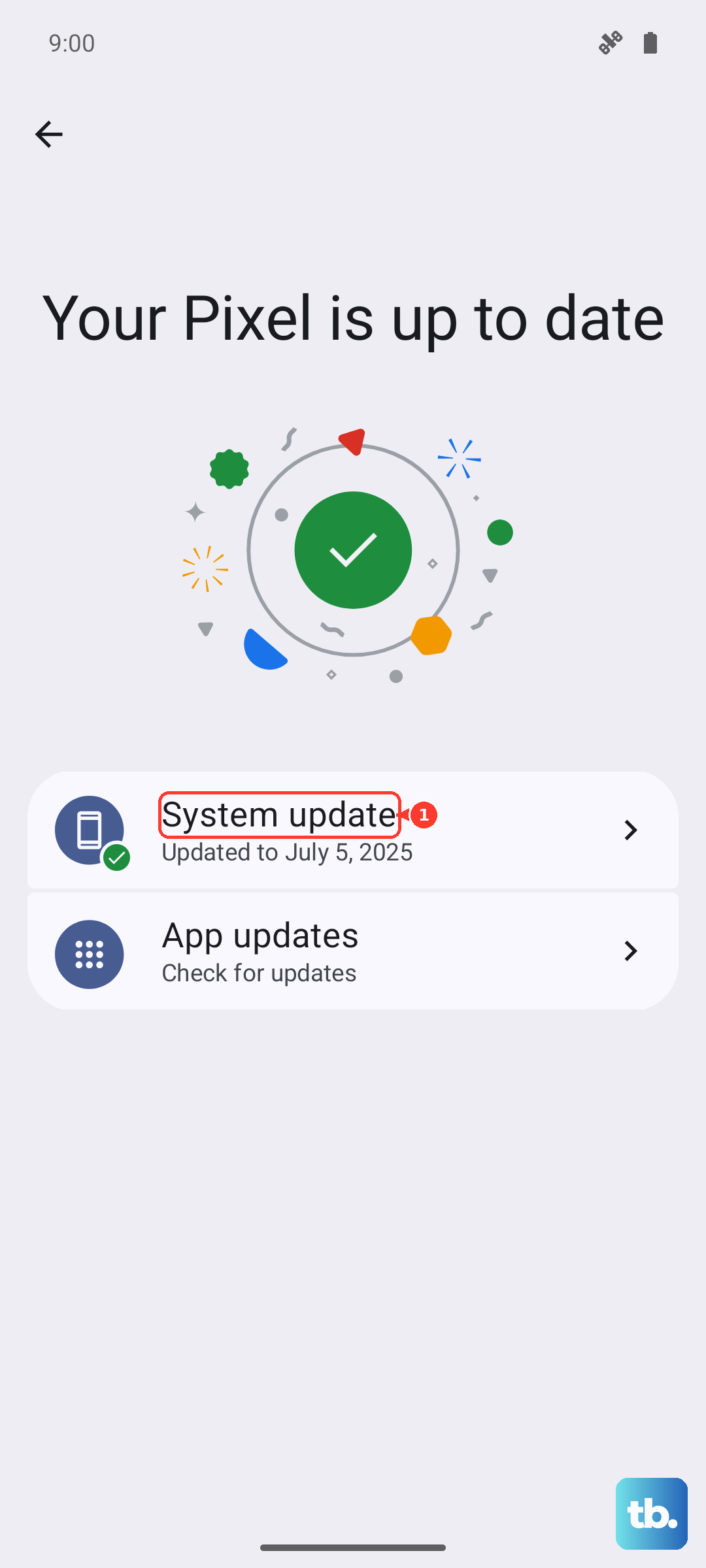
More importantly, check for a system update. Realme pushes fixes for issues like this through OS updates. Go to Settings > About phone > Realme UI version. Tap "Check for updates" and install anything available.
Inspect for Physical Damage or Moisture
The Realme GT 7 Pro has an IP69 rating, which means it's highly resistant to dust and powerful water jets. But if you've recently exposed it to liquids, moisture could still be trapped in the microphone ports.
Check the microphone holes for any visible damage or packed-in dirt. While the phone is resilient, a hard drop could potentially damage internal components. If you see any dents or cracks right around the audio ports, that's a clue.
Reset App Preferences
This is a useful middle-ground step before doing a full factory reset. It resets all your app permissions, notification settings, and default apps without deleting any of your personal data.
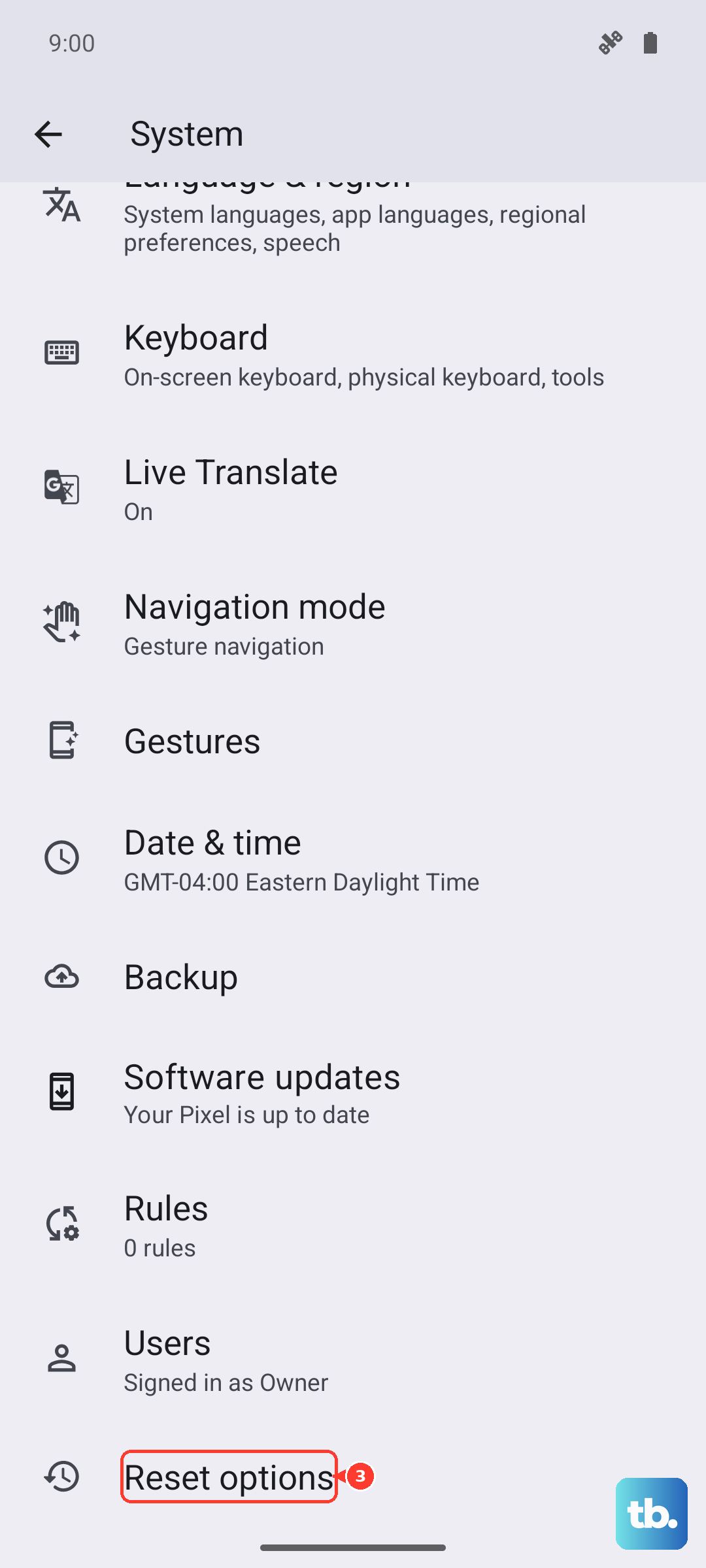
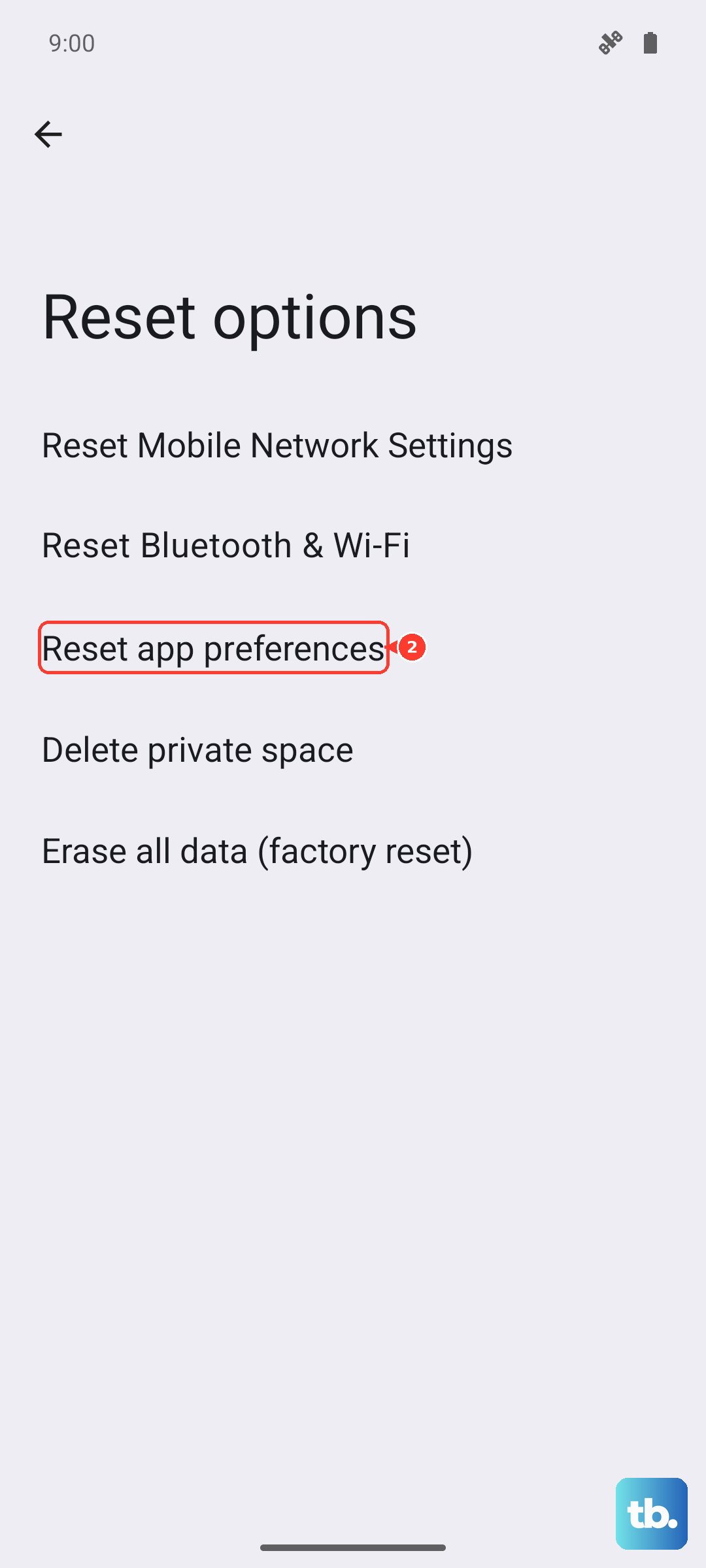
Navigate to Settings > System > Reset options. Tap on Reset app preferences and confirm. After your phone reboots, you'll need to re-grant microphone access to apps when you use them for the first time.
Perform a Factory Reset
If every other step has failed, a factory reset is your last software resort. This will erase everything on your phone, so it's absolutely critical to back up your photos, messages, and files first. Use Google Drive or the built-in backup tool in your settings.
Once backed up, go to Settings > System > Reset options > Erase all data (factory reset). Follow the prompts. After the reset, set up the phone as new and immediately test the microphone before restoring your backup, to see if the problem persists on a clean system.