
That "Unfortunately, the keyboard has stopped" pop-up on your Realme GT 7 Pro is a real conversation killer. It's a common Android hiccup, but with Realme UI 6.0 on top of Android 15, the fix path can be a little specific. Let's get your typing back on track.
Force Stop and Restart the Keyboard App
This is almost always my first move. A simple force stop clears out whatever temporary glitch is hanging up the keyboard service, whether it's the stock Realme keyboard or a third-party one you've installed.
Head to Settings > Apps > See all apps. You might need to tap the three-dot menu and select Show system apps to find the default keyboard. Look for "Realme Keyboard" or "Android System Keyboard." Tap on it, then hit Force Stop. Go back to any app and try to bring up the keyboard again.
Perform a Full Device Restart
If the keyboard is still being stubborn, a full reboot of your GT 7 Pro can work wonders. It clears the system's working memory and stops all background processes, which often resolves app conflicts.
Just press and hold the power button until the power menu appears, then tap restart. If the touchscreen is completely unresponsive, you can force a restart by holding the power button down for a solid 10 seconds or more until you feel the device vibrate and see the Realme logo.
Clear the Keyboard's Cache and Data
Corrupted cache files are a prime suspect. Clearing them is safe, but clearing data will reset the keyboard to its factory settings, so you'll lose any custom dictionaries, themes, or layouts.
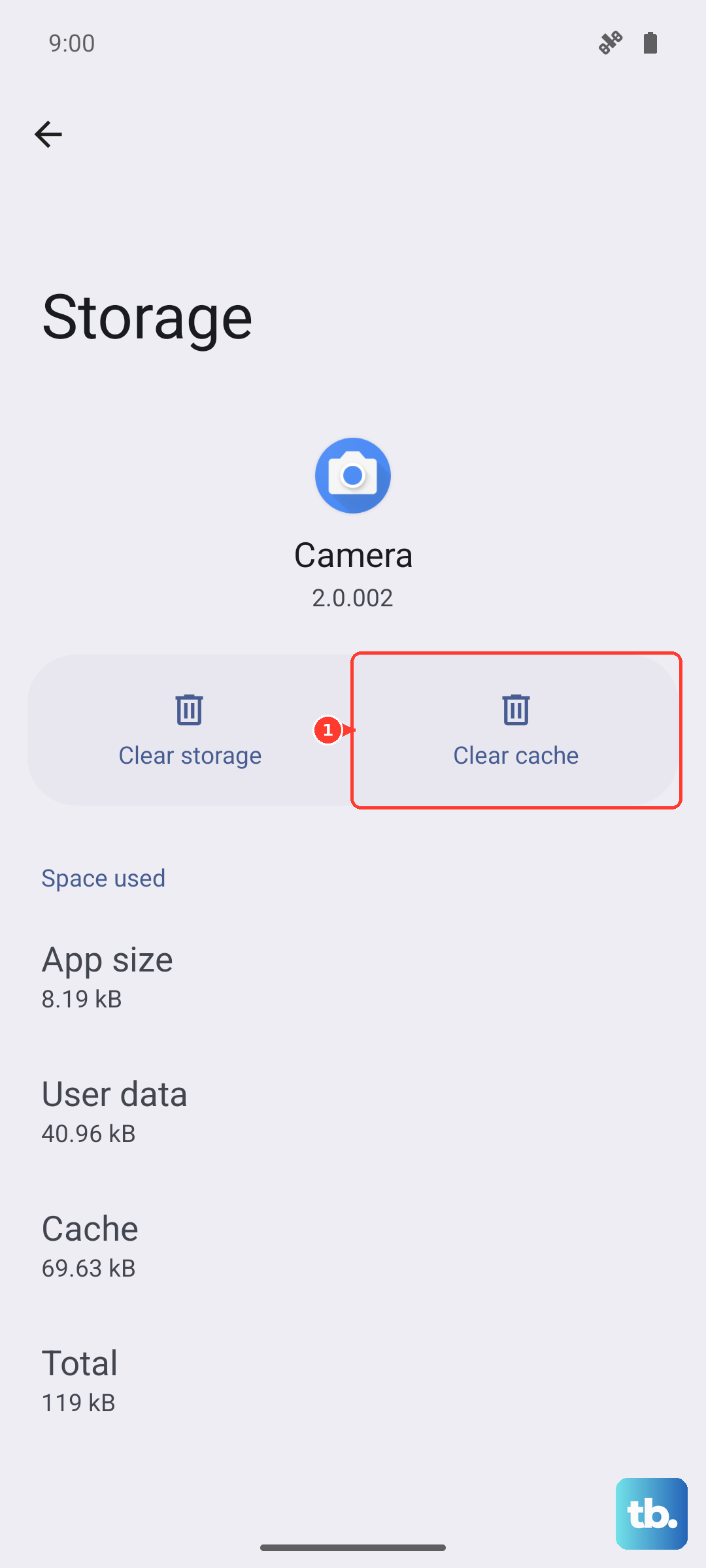
Go back into Settings > Apps, find your keyboard app, and select Storage & cache. Tap Clear cache first and test. If that doesn't work, come back and tap Clear storage or Clear data. You'll have to grant the keyboard permissions again on first use.
Check for Keyboard and System Updates
An outdated keyboard app can clash with newer system software. Open the Google Play Store, tap your profile icon, and go to Manage apps & device. Under updates available, see if your keyboard is listed.
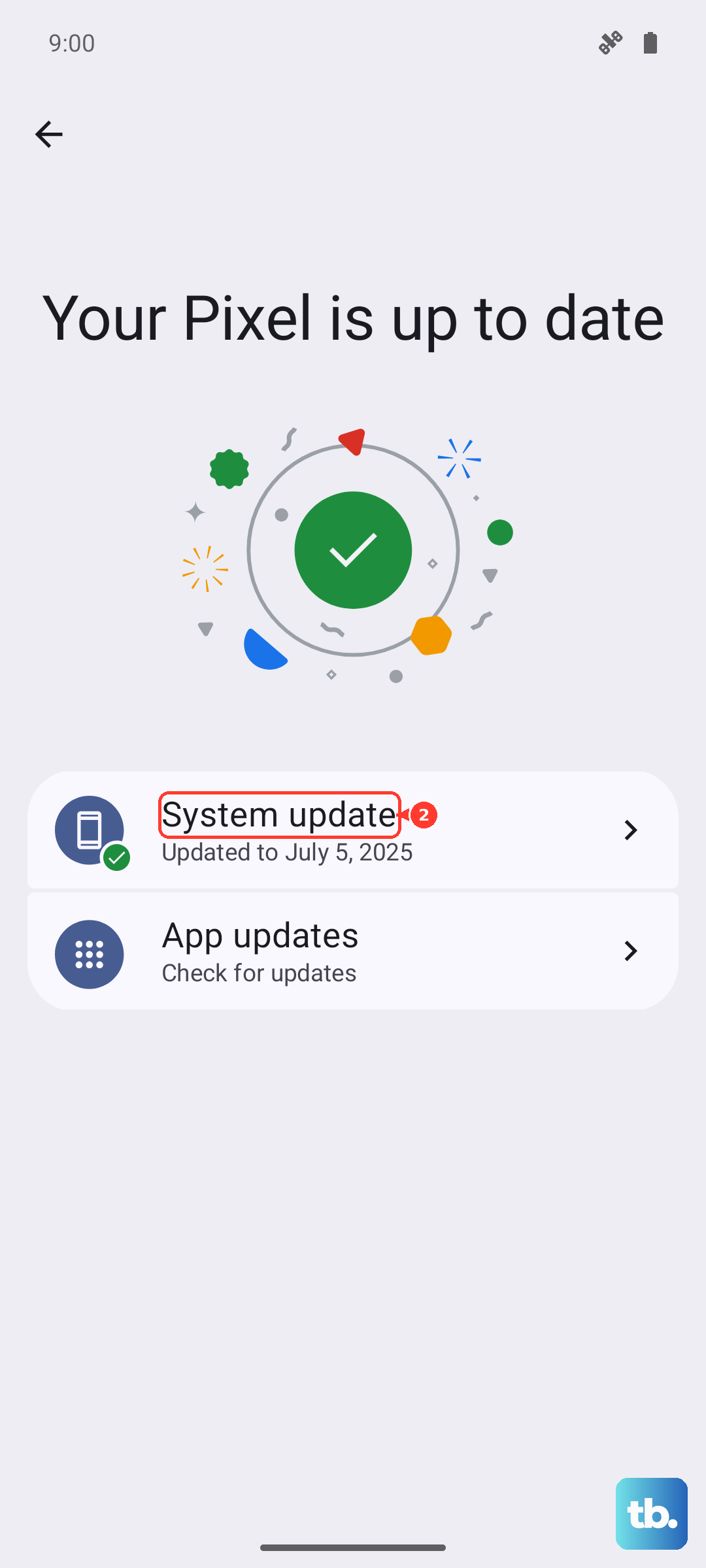
More importantly, check for a system update. Realme is pretty good with updates for its flagship, and a bug fix for the keyboard could be included. Go to Settings > About device > Realme UI version and tap to check for updates.
Reset All Keyboard Settings
Realme UI has a dedicated spot to reset your input settings without wiping the app's data. This can undo a problematic configuration change.
Navigate to Settings > Additional settings > Keyboard & input method. Tap on Default keyboard and make sure your preferred one is selected. Then, go back and look for an option labeled Reset settings or Reset keyboard preferences. This will revert all keyboard-related system settings to default.
Boot Into Safe Mode to Isolate the Issue
If the keyboard works fine sometimes but not in certain apps, a third-party app might be interfering. Booting into Safe Mode temporarily disables all apps you've installed.
Press and hold the power button until the power off menu appears. Then, long-press the "Power off" icon on your screen until you see a prompt to reboot to Safe Mode. Tap it. If the keyboard works perfectly in Safe Mode, you know a downloaded app is the culprit. Start by uninstalling recent apps one by one to find the offender.
Try a Third-Party Keyboard From the Play Store
This is a great workaround while you troubleshoot the main issue. Apps like Gboard or SwiftKey are excellent alternatives. Just install one, and when you go to type something, you'll get a prompt to switch your input method.
You can set it as default in Settings > Additional settings > Keyboard & input method > Default keyboard. I've found that sometimes switching to a third-party keyboard and then back to the stock one can even jolt the original back to life.
Reset All System Settings
This is a bigger step but doesn't delete your personal files or apps. It will reset all your system settings like Wi-Fi passwords, Bluetooth pairings, and display preferences back to factory default, which can eliminate a deep system conflict.
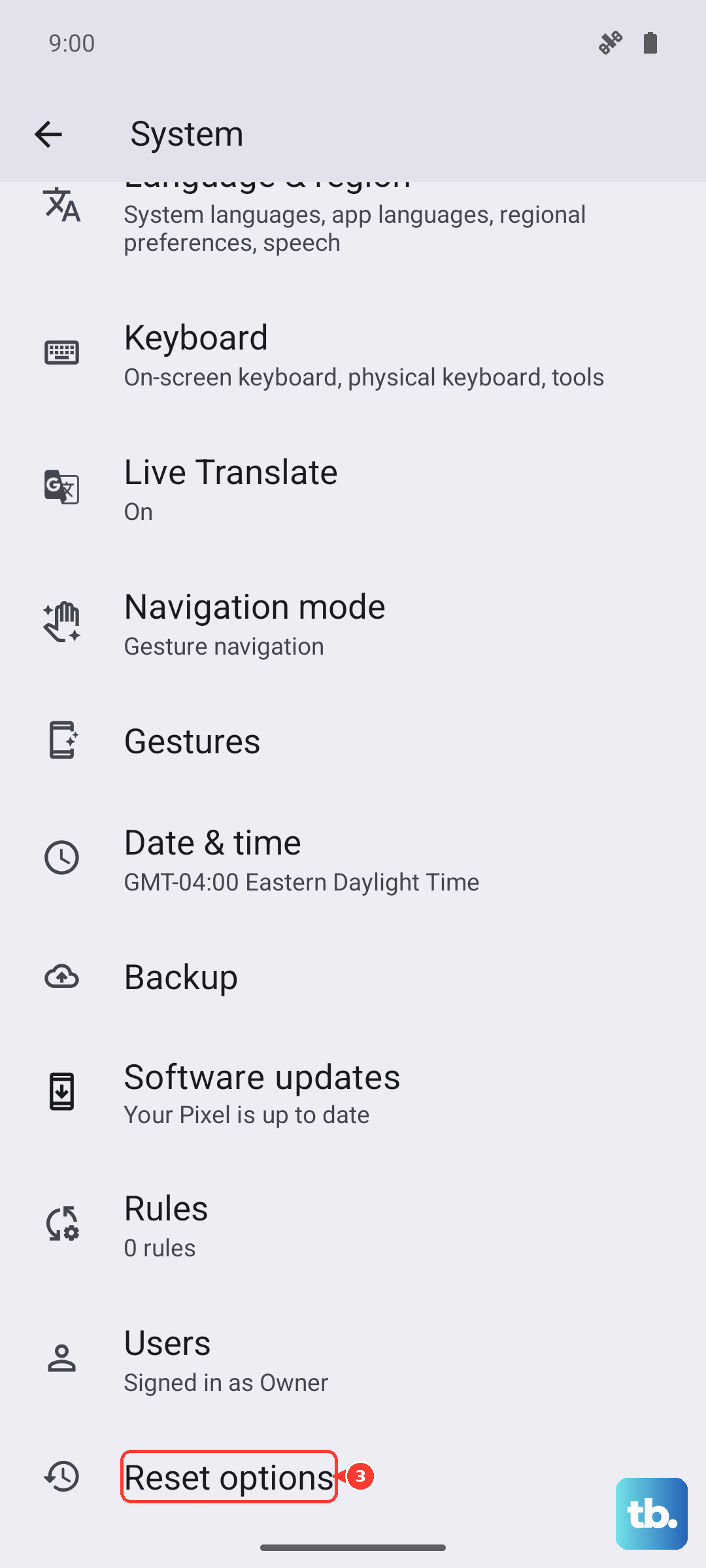
On your Realme GT 7 Pro, go to Settings > System > Reset options. Select Reset all settings and enter your lock screen PIN if prompted. After the phone reboots, you'll need to reconfigure your settings, but your data will be safe.
Check for App-Specific Issues
Sometimes the problem isn't the keyboard itself, but a single app. If the keyboard fails only in, say, WhatsApp or Chrome, try clearing that specific app's cache and data.
Go to Settings > Apps, find the problematic app, and use the Storage & cache option. Clearing the app's cache is harmless. Clearing its data will log you out and reset it within the app, so be sure you know your login details beforehand.