
If your Realme GT 7 Pro's camera app is crashing, freezing, or just showing a black screen, the first thing to try is a simple restart. Press and hold the power button for about 10 seconds until you feel the phone vibrate and the Realme logo appears. This clears out any temporary software glitches that might be hanging up the camera system.
It takes seconds to confirm the camera works with an online camera test. If the preview stays black there too, keep reading, because the steps below target exactly that.
Key Points
- Restart and Update: A force restart is the fastest way to clear a temporary camera crash.
- Clear App Cache and Data: Corrupted local data can cause the camera to freeze or fail to open.
- Check for App Conflicts: Other apps using the camera in the background can lock it out.
- Inspect Physical Hardware: The lens or sensors might be blocked or dirty.
- Boot in Safe Mode: This helps determine if a third-party app is causing the problem.
- Reset Camera Settings: Restoring defaults can fix issues caused by a misconfigured setting.
- Check for System Updates: Realme frequently releases updates with camera stability improvements.
- Scan for Malware: Malicious apps can interfere with hardware permissions.
- Perform a Factory Reset: A last resort to eliminate deep-seated software corruption.
Give the phone a moment to fully boot up, then try opening the camera again. I'd start with this one, as it fixes the issue more often than you'd think.
Clear the Camera App's Cache and Data
Sometimes the camera app's own stored data gets corrupted. This can cause it to freeze on launch or behave erratically. Clearing this data gives the app a fresh start without affecting your photos, which are stored separately.
Go to Settings > Apps > Manage apps. Find and tap on "Camera" in the list. Then, tap on Storage usage. Here, you'll see two options: Clear cache and Clear data.
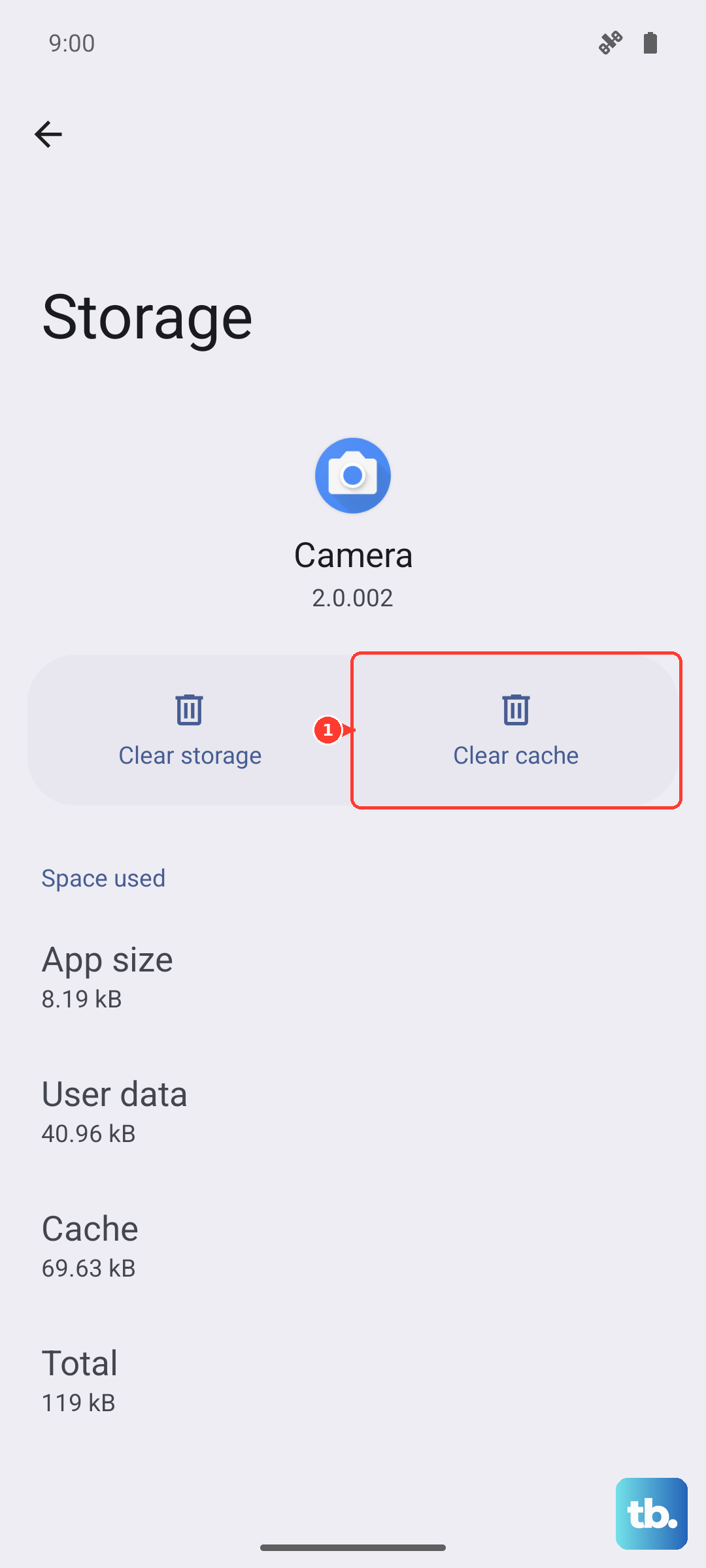
Tap "Clear cache" first and test the camera. If it's still not working, go back and tap "Clear data". Just be aware this will reset all your camera settings back to default, like your preferred shooting mode or grid lines.
Close Other Apps Using the Camera
The GT 7 Pro's camera hardware can only be used by one app at a time. If you have another app running in the background that's accessing the camera, like a video call app, QR scanner, or even a social media app with camera features, it can lock out the main camera app.
Swipe up from the bottom and hold to enter the recent apps view. Swipe away any apps that might use the camera. This is especially common if you were just on a video call or scanning a code. Once they're closed, try your camera again.
Check for Physical Obstructions and Clean the Lens
Take a close look at the camera module on the back of your phone. That large, prominent lens can easily pick up fingerprints and smudges, which will make every photo look hazy or blurry. Give it a gentle wipe with a soft, microfiber cloth.
Also, check that your phone case isn't improperly aligned and covering part of the lens or the nearby sensors. A poorly designed case can block the field of view, causing a black corner in your photos or confusing the autofocus system.
Boot Into Safe Mode
If the camera works fine after a restart but later fails again, a third-party app you installed might be the culprit. Booting into Safe Mode temporarily disables all apps you downloaded, letting you test the core system.
Press and hold the power button until the power off menu appears. Then, press and hold the "Power off" option on your screen. A prompt will ask if you want to reboot to Safe Mode. Tap OK. If the camera works perfectly in Safe Mode, you know a downloaded app is causing the conflict.
You'll need to restart your phone to exit Safe Mode. Then, start uninstalling recently added apps one by one, testing the camera after each one, until you find the offender.
Reset Your Camera Settings
Maybe you changed a setting by accident, or a previous update altered a configuration that's now causing problems. Resetting the camera app's settings back to factory defaults can clear this up. Your photos and videos won't be touched.
Open the Camera app and tap the settings icon (it usually looks like a gear). Scroll all the way to the bottom of the settings list. Look for an option labeled "Restore default settings" or "Reset settings". Tap it and confirm. This will revert everything like resolution, filters, and shooting modes back to how the phone came out of the box.
Install Any Available System Updates
Realme is pretty good about pushing updates for camera performance and bug fixes, especially for a flagship like the GT 7 Pro. An outdated system can have known bugs that affect camera stability.
Go to Settings > About device > tap on "Realme UI version". Your phone will check for updates. If one is available, especially if it mentions camera improvements or system stability, install it. Make sure your phone is charged above 30% and connected to Wi-Fi first.
Scan for Problematic Apps
While rare, a malicious or badly coded app could be interfering with the camera's permissions or system processes. It's worth running a scan with a trusted security app, like the built-in Phone Manager that comes with Realme UI.
You can find it by searching "Phone Manager" in your app drawer or settings. Use its security scan feature to check for anything suspicious. Also, review your app permissions by going to Settings > Privacy > Permission manager and see which apps have camera access. Revoke access for any app that doesn't absolutely need it.
Perform a Factory Reset
This is the last resort, but if none of the software fixes work and the hardware seems fine, a factory reset can wipe out deep system corruption. This will erase all data on your phone, so you must back up everything important first, photos, contacts, messages, app logins.
Once backed up, go to Settings > Additional settings > Back up and reset > Erase all data (factory reset). Follow the prompts. After the reset is complete, set up your phone as new and test the camera immediately before restoring your backup, to see if the problem is truly gone.