
If your Realme GT 7 Pro's battery is draining faster than it should, it can be frustrating, especially with that big 6500mAh battery. The good news is, a few quick settings changes can usually get you back to the multi-day endurance this phone is known for. Let's start with the most common fix.
Check What's Draining Your Battery
Before you change anything, it's smart to see what's actually using your power. Realme UI has a detailed battery section that shows exactly which apps are the culprits. Head to Settings > Battery.
Look at the battery usage graph and the list of apps below it. Pay close attention to any apps showing high background usage. A social media or messaging app running constantly in the background is a very common cause of sudden drain. I'd start my investigation right here.
Manage App Background Activity
If you spot an app using too much power in the background, you can restrict it. Go to Settings > Battery > tap on the problematic app. You'll see options for Background consumption and Power consumption details.
Tap Background consumption and select Restrict. This prevents the app from doing anything when you're not actively using it. It's a great way to clamp down on apps that are too eager to sync data or send notifications.
Adjust Your Display Settings
The display is almost always the biggest battery user on any phone. The GT 7 Pro's bright, high-refresh-rate screen is fantastic, but it can sip power. First, pull down the notification shade twice and lower the brightness slider a bit.
For more control, go to Settings > Display & Brightness. Consider reducing the Screen refresh rate from "High" to "Standard." The difference in smoothness is minor for most tasks, but it can save a noticeable amount of battery. Also, set the Screen timeout to 30 seconds or 1 minute so the screen turns off quickly.
Turn Off Unnecessary Connectivity
Features like Bluetooth, GPS, and mobile data constantly searching for a signal can drain the battery. Get in the habit of toggling off Bluetooth from the quick settings panel when you're not using headphones or a smartwatch.
For location, go to Settings > Location. You can turn it off entirely here, or tap App location permissions to set individual apps to "Allow only while using the app." This stops apps like weather or social media from tracking your location 24/7.
Review and Remove Bloatware
Like many Android skins, Realme UI comes with some pre-installed apps you may not use. These can sometimes run background processes. Go through your app drawer and uninstall any apps you don't recognize or need.
For apps that can't be uninstalled, you can often disable them. Go to Settings > Apps > App management, find the app, and tap Disable. This stops them from running or updating.
Update Your Software and Apps
Software updates often include optimizations and bug fixes that improve battery efficiency. Check for a system update by going to Settings > About device > Realme UI version > tap on the version icon at the top.
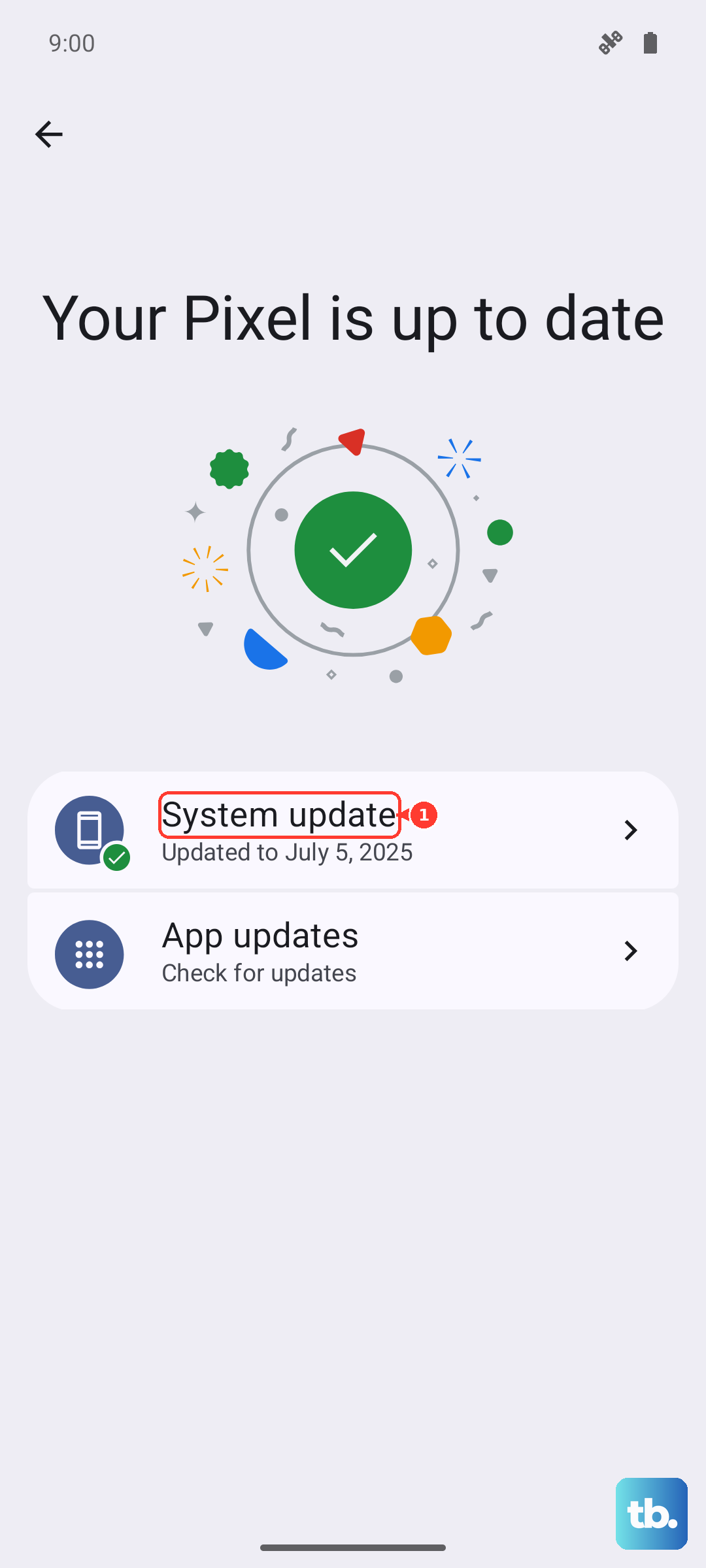
Also, make sure your apps are up to date. Open the Google Play Store, tap your profile icon, and go to Manage apps & device > Updates available. Developers frequently release updates that fix battery-draining bugs.
Use the Built-in Power Saving Modes
The GT 7 Pro has effective power-saving tools. You can turn on Power saving mode from the quick settings or in Settings > Battery. This limits background sync, reduces performance, and lowers screen refresh rate.
For more extreme savings, there's also an Ultra power saving mode in the same menu. This switches the phone to a basic interface with only essential apps like phone and messages, which is perfect for when you're desperate to make the battery last.
Be Smart with the 120W Charging
The included 120W charger is incredibly fast, but that speed generates heat. Heat is the enemy of long-term battery health. Try not to use the phone intensively, like gaming, while it's on the super-fast charger.
For overnight charging, consider using a slower, standard USB-C charger if you have one. Letting the phone trickle-charge slowly is gentler on the battery than repeatedly blasting it from 0 to 100% in 35 minutes.
Check for a Rogue App with Safe Mode
If the drain started suddenly, a recently installed app might be the cause. Boot into Safe Mode to disable all third-party apps temporarily. Press and hold the power button until the power menu appears.
Then, press and hold the "Power off" option on your screen. A prompt to reboot to Safe Mode will appear, tap OK. If the battery life is normal in Safe Mode, you know a downloaded app is the problem. You'll need to uninstall apps one by one to find the culprit.
Reset All Network Settings
Sometimes, issues with Wi-Fi or mobile data connectivity can cause the modem to work overtime, draining the battery. Resetting these settings can help. Go to Settings > System settings > Reset phone.
Tap Reset Wi-Fi, mobile & Bluetooth. This will erase all saved networks and Bluetooth pairings, so you'll need to reconnect to your Wi-Fi and devices afterward. It won't delete any personal data like photos or messages.
Perform a Full Software Reset
If you've tried everything else and the battery is still terrible, a factory reset is the last software step. This will erase everything on your phone, so make sure you have a complete backup first. Go to Settings > System settings > Reset phone > Erase all data (factory reset).
After the reset, set the phone up as new without restoring a backup initially. This rules out any corrupted data from your old setup. If the battery life is great on a fresh install, you know it was a software issue.