
A touchpad that won't respond turns your sleek Razer Blade 16 into a desktop PC with extra steps. Whether the cursor is frozen, clicks aren't registering, or multi-finger gestures have stopped working, these solutions will get you back in control.
Toggle the Touchpad On
First, check if the touchpad was accidentally disabled. On the Razer Blade 16, you can quickly toggle it by pressing the Fn + F10 keys. Look for a small LED indicator on the F10 key itself, which lights up when the touchpad is turned off. You can also verify this in Windows by going to Settings > Bluetooth & devices > Touchpad and ensuring the touchpad is set to "On."
Perform a Full Restart
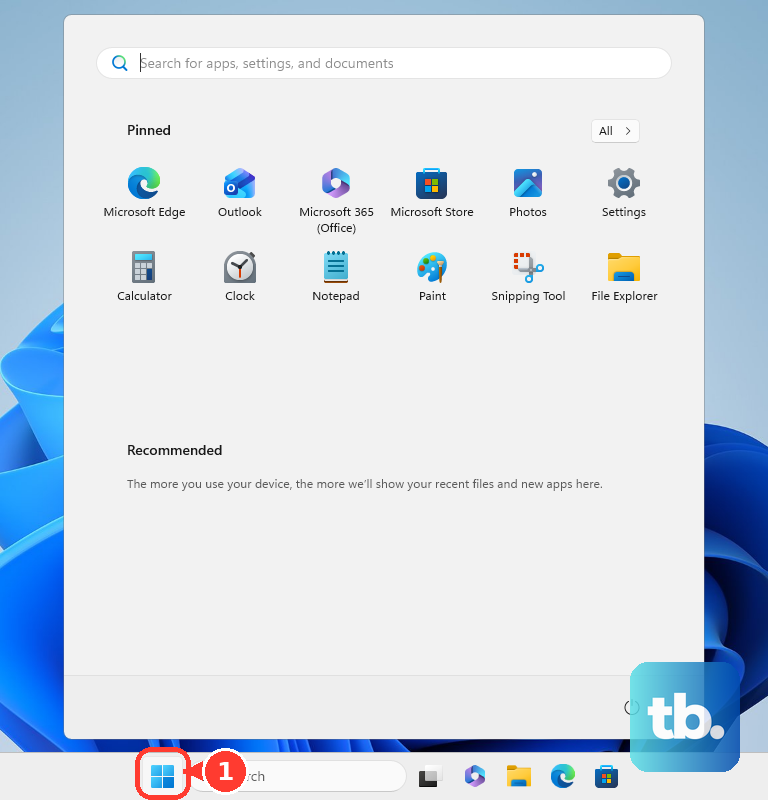
If the touchpad stopped working after the laptop woke from sleep, a simple restart is often the fastest fix. This reloads all the drivers, including the one for your touchpad. Use your keyboard to navigate: press the Windows key, then use the Tab and arrow keys to select the power icon and choose Restart.
Unplug Any External Mouse
Windows has a setting that can automatically disable the internal touchpad when an external mouse is connected. Unplug any USB mouse or disconnect your Bluetooth mouse, then test the touchpad. To stop this from happening in the future, go to Settings > Bluetooth & devices > Touchpad and look for the setting that says "Leave touchpad on when a mouse is connected" to make sure it's checked.
Update Your Touchpad Driver
Outdated or corrupted drivers are a common culprit. Press Windows key + X and select Device Manager. Expand the "Mice and other pointing devices" section. Right-click on the device listed (it's often called a "Precision Touchpad" or "Synaptics") and select Update driver. Choose "Search automatically for drivers." For the most reliable update, I'd also check Razer's support site for any specific touchpad drivers for your Blade 16 model.
Clean the Touchpad Surface
The glass surface can become unresponsive if there's too much oil or moisture from your fingers. Power off the laptop and gently wipe the touchpad with a dry, soft microfiber cloth. If needed, you can slightly dampen the cloth with water, but avoid getting any liquid near the edges. Make sure your fingers are clean and dry before testing again.
Check the BIOS Setting
It's rare, but the touchpad can be disabled in the system BIOS. To check, restart your Razer Blade 16 and immediately start pressing the F1 or Del key repeatedly to enter the BIOS. Navigate using your keyboard arrows and look for an "Internal Pointing Device" or similar option in the menus, ensuring it is set to "Enabled." Save and exit.
Reinstall the Touchpad Driver
If updating didn't help, try a clean reinstall. Go back to Device Manager under "Mice and other pointing devices." Right-click on your touchpad driver and choose Uninstall device. Check the box that says "Attempt to remove the driver software for this device" if it appears, then restart your laptop. Windows will install a basic driver upon reboot, which should get it working. Then, install the latest driver from Razer's website for full functionality.
Run a System File Check
Corrupted Windows system files can sometimes interfere with hardware. Open the Start menu, type cmd, right-click on "Command Prompt," and select Run as administrator. In the window, type sfc /scannow and press Enter. Let the scan complete; if it finds and fixes errors, restart your laptop and test the touchpad.
Consider Hardware or Software Conflicts
If the touchpad is completely dead, even in the BIOS screen, it could point to a hardware issue. A loose internal ribbon cable, which can happen if the laptop was bumped, is a possibility. Also, take a look at Razer Synapse. In my experience, while it's great for RGB and performance profiles, it can occasionally be resource-heavy or cause conflicts. Try closing Synapse from the system tray to see if the touchpad responsiveness improves.