
When your Razer Blade 16's webcam shows a black screen, isn't detected by apps like Zoom or Teams, or gives you an error, it can stop your video calls and recordings dead in their tracks. The fixes are usually straightforward, starting with the most common culprit.
Start with a free online camera test to rule out a hardware fault. If a live preview appears there but not in your app, the camera is fine and the app is the problem.
Check the Camera Privacy Shutter
First, take a quick look at the top bezel of your screen. The Razer Blade 16 has a physical privacy shutter you can slide to cover the camera lens. Make sure it's fully open. It's an easy thing to miss, and if it's closed, your apps will see nothing but black.
Verify Windows Privacy Settings
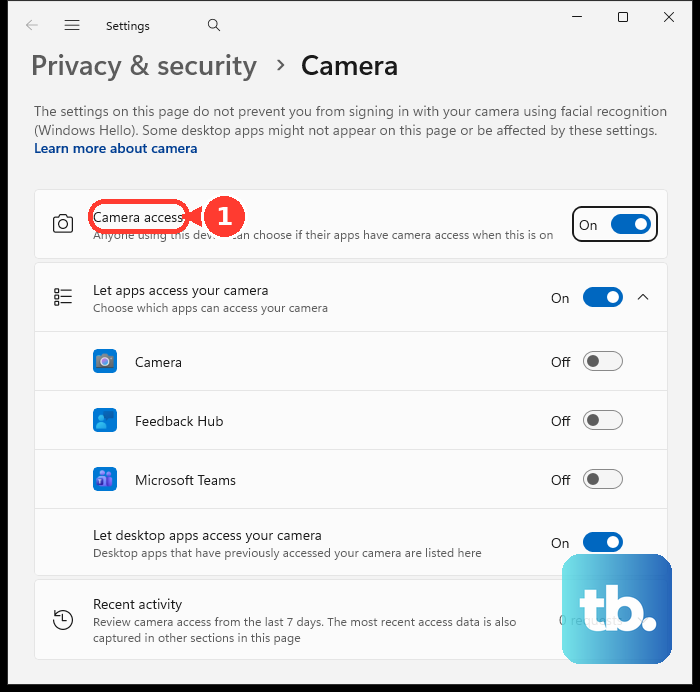
Windows can block camera access system-wide. Press the Windows key and type "camera privacy" to open the settings. Make sure the toggle for Camera access is turned on. Then, scroll down to see the list of apps and ensure the one you're trying to use (like Chrome or Discord) has permission enabled.
Test with the Windows Camera App
Open the built-in Camera app from your Start menu. This is a great diagnostic tool. If the camera works perfectly here, then the hardware is fine and the problem is isolated to your other application's settings. If it's black or gives an error here, the issue is with Windows or the driver.
Close Other Camera Applications
Your webcam can only be used by one program at a time. If you have another app running in the background, even minimized to the system tray, it can lock the camera. Open Task Manager with Ctrl+Shift+Esc, look for any video conferencing apps, and end their tasks before trying your camera again.
Update Your Camera Drivers
Outdated or corrupted drivers are a frequent cause. Right-click the Start button and select Device Manager. Expand the Cameras section, right-click on your Razer Blade camera, and choose Update driver. Select "Search automatically for drivers" and let Windows look. I'd start with this one, as it resolves a lot of detection issues.
Perform a Clean Reinstall of the Driver
If a simple update didn't work, a clean reinstall might. Back in Device Manager, right-click the camera again, but this time select Uninstall device. Check the box that says "Delete the driver software for this device" if it appears. Restart your laptop. Windows will detect the hardware on boot and install a fresh driver.
Check for Windows Updates
Head to Settings > Windows Update and click "Check for updates." Install any available feature or quality updates. Microsoft often includes fixes for hardware compatibility. Don't forget to also click Advanced options > Optional updates, as camera driver updates sometimes hide there.
Manage Razer Synapse
Razer Synapse is powerful for controlling your laptop's performance and RGB, but it can sometimes interfere with other hardware. Try closing Synapse completely from the system tray. If your webcam starts working, you may need to check for a Synapse update or adjust its settings. In my experience, keeping Synapse updated helps avoid these conflicts.
Reset the Camera App
If the issue is only with the Windows Camera app, you can reset it. Go to Settings > Apps > Installed apps, find "Camera" in the list, click the three dots next to it, and select Advanced options. Click the Reset button. This clears the app's cache and settings without affecting your personal files.