
The Blue Screen of Death on your Razer Blade 16 is Windows hitting the emergency stop button. It's usually a driver throwing a fit, a piece of hardware acting up, or a corrupted system file. While the specific error code gives you a clue, these general fixes will tackle the most common culprits behind a BSOD on this laptop.
Write Down the Stop Code
When the blue screen flashes, look for the all-caps error code. On the Blade 16, you'll often see things like DRIVER_IRQL_NOT_LESS_OR_EQUAL, SYSTEM_SERVICE_EXCEPTION, or VIDEO_TDR_FAILURE. Jot it down. That code points to the general category of the crash, which is useful if the basic fixes don't work.
Restart and See if It Happens Again
A one-off BSOD can just be a temporary driver hiccup. Restart your laptop normally. If it boots to Windows and runs fine for a while, you probably just had a fluke. If the blue screen comes back immediately or within a few minutes of normal use, you've got a recurring problem that needs fixing.
Boot Into Safe Mode
If the crashes are constant and you can't reach the desktop, you need to get into Safe Mode. On the Blade 16, you can do this by holding the Shift key while you click the Restart option in the Windows power menu. After it reboots, go to Troubleshoot > Advanced options > Startup Settings > Restart. When it comes back up, press the 4 key to boot into Safe Mode. This loads Windows with only the essential drivers, which helps rule out software conflicts.
Uninstall Recent Updates or Drivers
Think about when the crashes started. If it was right after a Windows Update, you can roll it back. Go to Settings > Windows Update > Update history > Uninstall updates and remove the most recent quality update or feature update. If the trouble began after you updated a driver, especially the GPU driver, roll that back in Device Manager. I've seen a bad NVIDIA driver update cause immediate BSODs on gaming laptops like this.
Update Your Drivers, Especially the GPU
Outdated or buggy drivers are the number one cause of BSODs on a performance machine. Don't just rely on Windows Update. For your NVIDIA GPU, go directly to NVIDIA's website and download the latest Game Ready Driver. It's also a good idea to check Razer's support page for your specific Blade 16 model and download their latest chipset and other system driver package.
Run the System File Checker
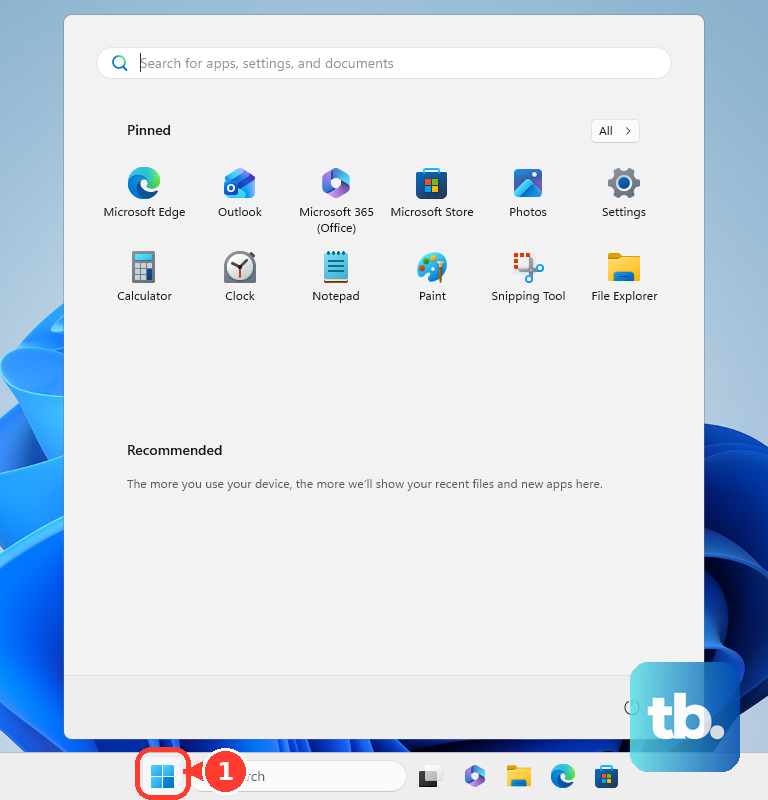
Corrupted Windows system files can trigger all sorts of crashes. Open the Start menu, type cmd, right-click on Command Prompt, and select Run as administrator. In the black window, type sfc /scannow and press Enter. Let it run through its scan; it will automatically repair any corrupted files it finds. If it finds problems it can't fix, run DISM /Online /Cleanup-Image /RestoreHealth first, then try sfc again.
Check for RAM Issues
Faulty memory is a classic BSOD trigger. Search for Windows Memory Diagnostic in the Start menu and run it. Choose to restart now and check for problems. Your Blade 16 will reboot and run a memory test before Windows loads. If it finds any errors, it's a strong sign that one of your RAM sticks might be failing and may need replacing.
Check Your SSD's Health
Storage problems can also cause crashes. Open an Administrator Command Prompt like before and type chkdsk C: /f /r. It will schedule a check for the next restart. Say yes, restart your laptop, and let it run. This looks for bad sectors and file system errors on your main drive. If it reports a large number of bad sectors, your SSD could be failing.
Monitor for Overheating
The Razer Blade 16 packs serious power into a thin chassis, which can lead to high temperatures. If BSODs happen during gaming or other heavy tasks, overheating is a likely suspect. Use a monitoring tool like HWiNFO64 to check your CPU and GPU temps under load. Make sure the laptop's vents are clear, consider using a cooling pad, and check that your fans are working. In Razer Synapse, you can try setting a more aggressive fan profile.
Reset Windows
If you've tried everything and the blue screens won't stop, a Windows reset is your next step. Go to Settings > System > Recovery and click Reset this PC. Choose Keep my files. This will reinstall Windows while keeping your personal documents, which often clears out deep-seated driver conflicts or system corruption that other tools can't touch.