
Your Pixel Buds A-Series microphone isn't working. People can't hear you on calls, voice memos record nothing, or one bud's mic drops out while the other works fine. This is usually a quick fix once you know where to look.
Start by confirming the basics with a free microphone test. It shows a live level meter and lets you hear a short playback, so you know in seconds whether any signal is coming through.
The most common culprit is debris blocking the tiny microphone openings on the buds. Grab a flashlight and inspect the bottom of each bud, near the charging pins. You'll see a small mesh circle, that's the mic. A dry soft-bristle brush (like a clean toothbrush) across the mesh gently lifts off earwax or lint without damaging anything. If buildup is stubborn, press a piece of tape against the mesh and pull straight up. This removes residue without shoving it deeper.
Check In-Ear Detection and Fit
The Pixel Buds A-Series rely on in-ear detection to know when to activate the mic for calls. If the sensor doesn't detect the bud in your ear, it may keep the mic muted or switch it to the other bud. Open the Pixel Buds app (Android 6.0 or newer) and look for In-ear detection under the settings gear. Toggle it off temporarily and test the mic. If calls suddenly work fine with detection off, the issue is the fit or the sensor.
Try swapping the included foam tips for a tighter seal. A loose fit can prevent the stabilizer arc from pressing firmly, which the in-ear detection interprets as "not in ear." Push the buds in a little deeper and rotate them back slightly so the arc hooks into the outer ear.
Give the Pixel Buds App Mic Permission
Android apps need explicit microphone permission, and your Pixel Buds app itself may not have it granted. Go to Settings > Apps > See all apps > Pixel Buds > Permissions. Make sure Microphone is set to Allow. The same applies to whichever app you're using for calls or voice recording (Phone, WhatsApp, Google Meet, etc.). Android 14 and later sometimes revoke permissions after system updates, so it's worth double-checking.
Reset the Pixel Buds A-Series
A full reset clears any internal mic state confusion between the buds and the case. Put both buds in the charging case and leave the lid open. Press and hold the button on the back of the case for 30 seconds. The status light will flash white, then amber, then white again. Close the lid and reopen it, then re-pair the buds with your phone. This is the factory reset method for the A-Series, and it often fixes mic dropouts that come from firmware bugs or case sensor glitches.
Update Firmware Through the Pixel Buds App
Google pushes firmware updates for the A-Series through the Pixel Buds app. If you haven't updated in a while, a known mic dropout bug from early 2025 might still be on your buds. Open the app while the buds are connected and in your ears. Scroll to More settings and tap Firmware update if it appears. If no update shows, your firmware is current or the update is pending. Leave the case plugged in via USB-C (5W input, no wireless charging) with your phone nearby on Wi-Fi for about 30 minutes, and the update will install automatically.
Turn Off Adaptive Sound Temporarily
The Adaptive Sound feature on the A-Series uses the built-in microphones to listen to your environment and adjust volume. In rare cases, this microphone monitoring can interfere with call audio routing. Open the Pixel Buds app, go to Sound and toggle Adaptive Sound off. Make a test call and see if the mic behaves normally. If it does, leave Adaptive Sound off until the next firmware update fixes the glitch.
Test With a Voice Recorder App
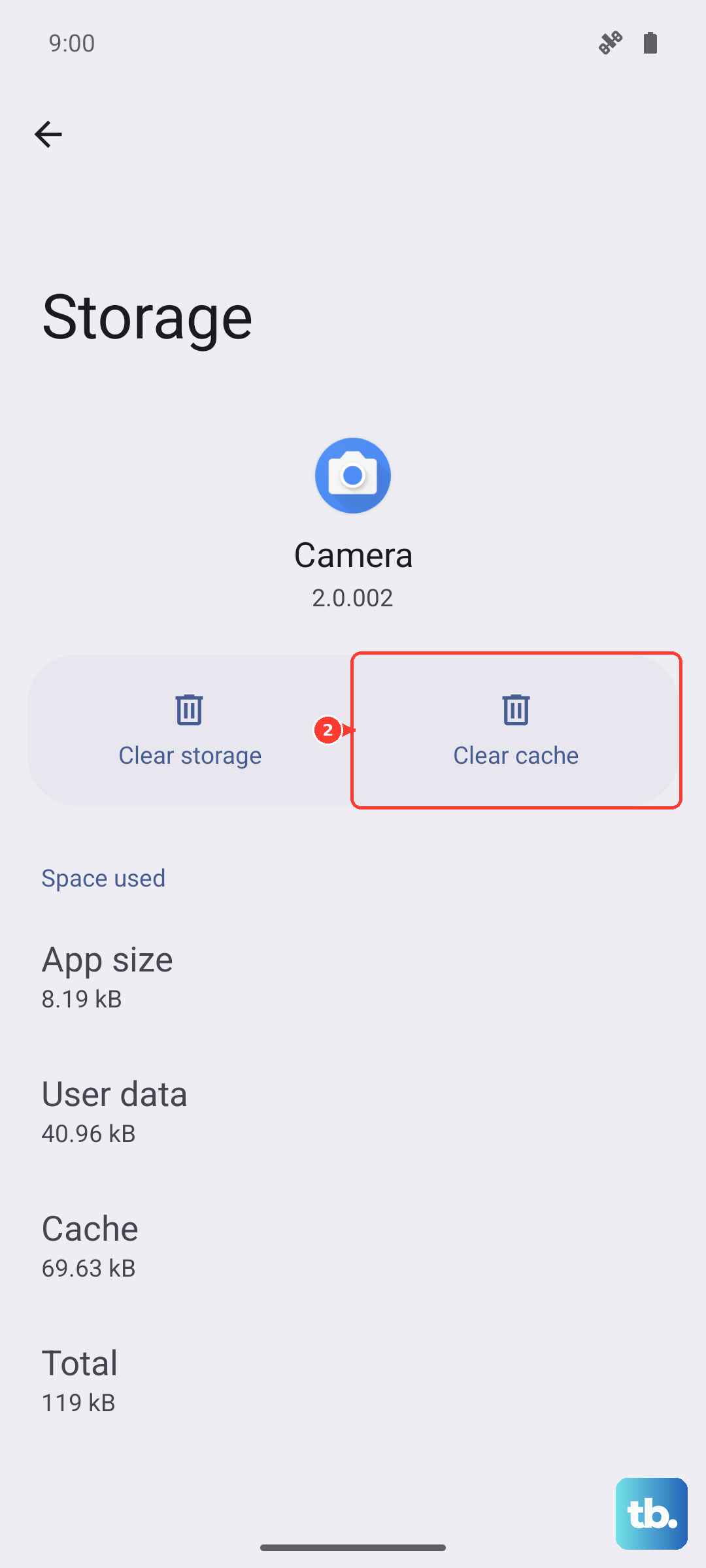
If the mic problem only appears in one specific app, test it with a basic voice recorder app like Google's Recorder or any simple recording app. If that captures your voice clearly, the Pixel Buds mic hardware is fine and the issue is within the app's audio settings. Try clearing the app's cache: Settings > Apps > that app > Storage & cache > Clear cache. If that doesn't help, uninstall and reinstall the app.
One Bud Drops Out? Check the Case Sensor
The Pixel Buds A-Series have a known issue where the case sensor occasionally fails to register a bud correctly, leaving that bud in a zombie state. If one mic consistently doesn't work, try removing both buds from the case, waiting 10 seconds, and placing them back in. Close the lid for 5 seconds, then open it and reinsert the buds in your ears. This resets the contact pins and often wakes up the mic on the stubborn side.
If a specific bud still can't record anything after all these steps, the microphone on that bud is likely a hardware fault. Google covers this under the one-year limited warranty if you're still inside that window. You can contact Google Support for a replacement on just the affected bud.