
Pixel Buds A-Series firmware updates have a few hard requirements that most people don't realize until the update hangs or silently fails. The case needs enough charge to relay the file, the Pixel Buds app needs explicit permission to access nearby devices, both earbuds must be in the case with the lid open, and your Android phone has to stay within Bluetooth range for the whole download. Miss any one of these and the update either stalls or finishes without actually applying the firmware.
The number one culprit is a case battery too low to push the update. Google requires the case to be above 50% before it'll even attempt a firmware push. Plug the case into its USB-C cable (5W input, so be patient) and let it charge for at least 30 minutes. Many stuck updates fix themselves the second the case has enough juice.
Grant the Pixel Buds App the Right Permission
If you installed the Pixel Buds app recently, it might not have Nearby Devices permission, and without that, the app can't talk to the case reliably enough to push firmware. Open your phone's Settings > Apps > Pixel Buds > Permissions > Nearby devices and check that it's set to Allow. If it says Don't Allow, that's your blocker, no other troubleshooting will help until you flip that switch.
Plug the Case In, Wireless Charging Isn't an Option Here
The A-Series case only charges over USB-C, and at a modest 5W rate. There's no wireless charging, no fast charging. Open the Pixel Buds app, tap your buds, and look at the case battery percentage. If it's below 50%, plug it in and wait for the indicator to show green. Keep the lid closed while charging so both buds get topped up too, each bud needs at least 30% individually for the update to start.
Once the case hits 50% or more, open the lid and leave it open. The update only proceeds when the case lid is open and both buds are seated inside.
Keep Both Buds in the Case With the Lid Open
Firmware is applied to both earbuds simultaneously. If you accidentally pull one out or the case lid closes, only the bud still inside gets the update, and the other one stays on the old firmware. That mismatch can cause odd behavior like one earbud not connecting or audio cutting out. Place both buds in their slots, open the lid, and leave the case still for the entire update window. The Pixel Buds app will show a progress bar, wait until it says the update is complete before touching anything.
Stay Close to Your Phone
The Pixel Buds app manages firmware over Bluetooth from your phone. If you walk to another room or your phone locks and goes to sleep, the connection can drop and the update stops. Set your phone right next to the case, ideally within a couple feet. If you want to be extra safe, plug your phone in too so it doesn't go into deep sleep. Don't pick up the phone or navigate away from the app until the update finishes.
Clear the Pixel Buds App Cache
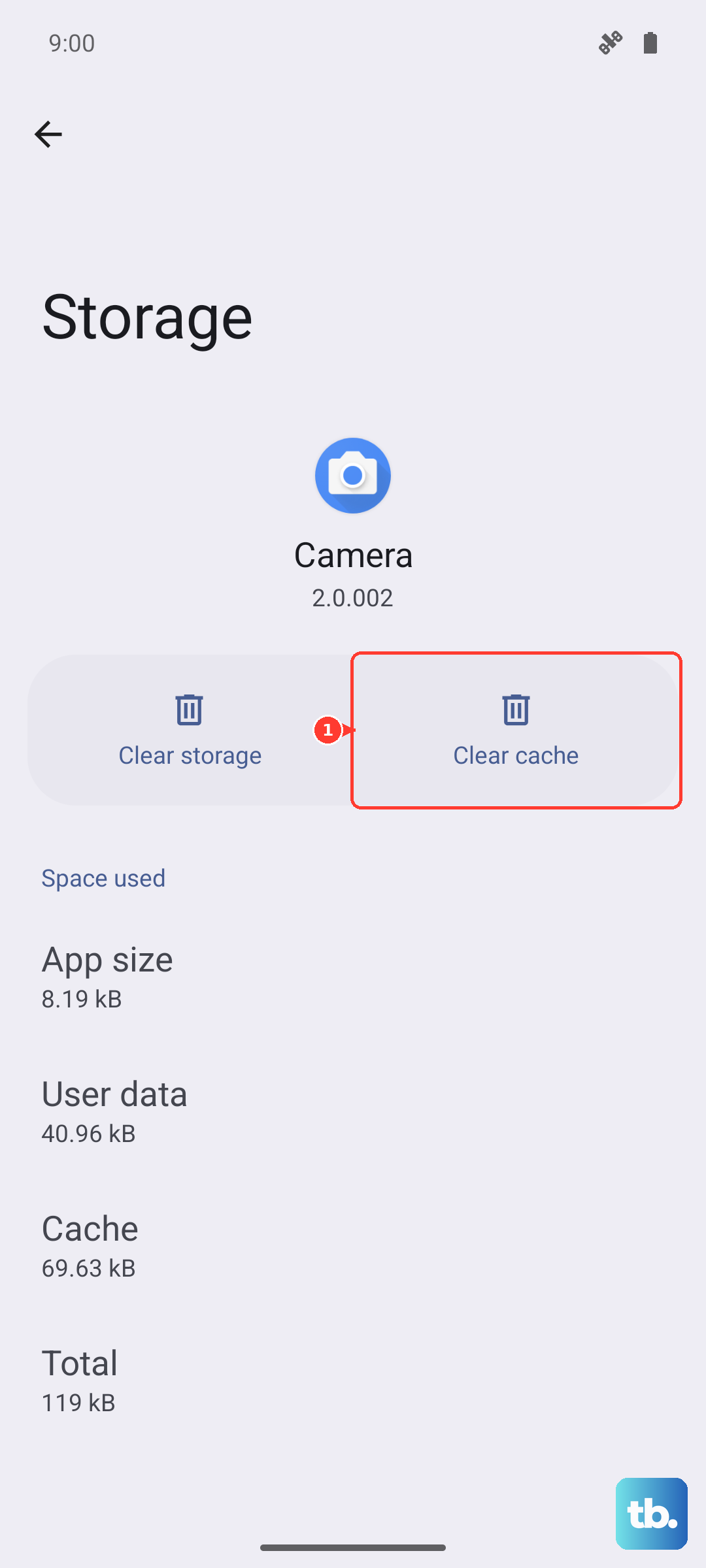
Sometimes a partial download leaves a corrupted firmware file in the app's cache, and every subsequent update attempt tries to reuse that broken file. Go to your phone's Settings > Apps > Pixel Buds > Storage > Clear cache. Don't tap Clear data unless the cache clear alone doesn't help, because that step erases your in-app settings like voice shortcuts and gesture preferences. After clearing the cache, reopen the Pixel Buds app and try the update again. The app will download a fresh firmware file from Google.
If You See "Cannot Reconnect to Earbuds" Mid-Update
This is the classic mid-update failure that Google documents. If you see that message, do not retry the update immediately, your buds are in a half-updated state, and another attempt can corrupt them further. Wait at least five minutes, then reboot your phone completely (power off and on, not just a screen lock). After the reboot, open the Pixel Buds app, and the update should resume cleanly. Skipping the wait or the reboot is the most common reason this error loops endlessly.
Check Bluetooth Stability Before Trying Again
Play a song for a few minutes after your buds reconnect. If you hear audio cut out or dropouts during that test, the Bluetooth link isn't stable enough for a firmware push. Move closer to your phone, turn off other Bluetooth devices nearby (like smartwatches or speakers), and only attempt the update again once music plays through without hiccups.
Reset the Buds and Re-Pair
If the update keeps failing despite full battery, proper permissions, and a stable connection, a factory reset often clears whatever corrupted state is blocking it. Hold the button on the back of the case for about 30 seconds. You'll see the LED flash a different color (usually orange, but the exact hue isn't critical). The buds will reset and disconnect from your phone. Re-pair them through the Pixel Buds app by opening the case lid near your unlocked Android device, then follow the setup card that appears.
After re-pairing, the app should offer the firmware update again. A clean post-reset update has a much higher success rate than fighting with a half-broken state.
Update the Pixel Buds App Itself
Sometimes the issue is on the app side, not the buds. Open Google Play Store, search for Pixel Buds, and tap Update if one is available. Older versions of the app can have bugs that interfere with firmware deployment for the A-Series specifically. Updating to the latest release often smooths out the update process.
Last Resort Options
If nothing above works, try borrowing a different Android phone and running the update from that device. This bypasses any Bluetooth stack corruption or permission issues tied to your primary phone. Alternatively, wait 24 to 48 hours and try again. Google occasionally pulls a firmware version after discovering bugs, and during that pull window, updates silently fail for everyone until they republish a fix. Patience sometimes solves the problem on its own.