

You double-click a PDF and nothing happens. Or it opens in the wrong app, downloads instead of displaying, shows a blank page, or throws an "Access denied" error. Whether you are trying to read it in your browser or in Adobe Acrobat, a PDF that will not open is usually a fixable settings or installation issue, not a damaged file.
The quickest fixes also cover the most common causes: an out-of-date reader, the wrong default app, a browser set to download instead of view, or a security setting blocking the file. The sections below run from quickest to most involved.
Pick the section that matches where the PDF is failing (Acrobat, your browser, Windows, Mac, or your phone), and follow the steps as written.
Update Adobe Acrobat or Reader First
If the PDF fails inside Adobe Acrobat or Acrobat Reader, an outdated install is the most common cause, because skipped security updates can stop files from opening. Update before trying anything else.
- 1.Open Acrobat Reader or Acrobat.
- 2.Choose Help > Check for Updates.
- 3.Follow the on-screen instructions and install the latest update, then reopen the PDF.
If the file still will not open after updating, move on to the steps below.
Set Acrobat as the Default PDF Reader
If the PDF opens in an app you did not expect (or refuses to open at all), the file type may be pointed at the wrong program. Tell your system which app should own PDFs.
Right-click the PDF file and choose Open with > Choose another app. Select Adobe Acrobat Reader or Adobe Acrobat in the list, turn on Always use this app to open .pdf files, then confirm.
This reassigns every PDF on your system to that reader, so the next file you open should behave correctly.
Repair the Acrobat Installation
A damaged Acrobat install, or damaged files it depends on, can block PDFs even after an update. Acrobat has a built-in repair tool: open Acrobat Reader or Acrobat, choose Help > Repair Installation, let it finish, then reopen the PDF.
If Acrobat still misbehaves, close all background programs and restart Acrobat, and scan the PDF for malware. Acrobat and Reader block PDFs that do not meet PDF standards or that may contain harmful content, so check with whoever sent the file that it is safe. You can also run Acrobat as an administrator through the app's Advanced Properties.
Disable Protected Mode for "Access Denied" Errors
If you see "There was an error opening this document. Access denied," Acrobat's Protected Mode is likely blocking the file. This commonly affects PDFs opened from external locations such as OneDrive, email attachments, or network shares.
Open Acrobat's Preferences (on macOS, choose Acrobat > Preferences) and select Security (Enhanced) under Categories. Deselect Enable Protected Mode at startup, select OK, then close and reopen Acrobat and open the PDF.
Protected Mode is a sandbox that isolates risky files, so re-enable it once you have confirmed the document is trustworthy.
Stop Your Browser From Downloading Instead of Opening
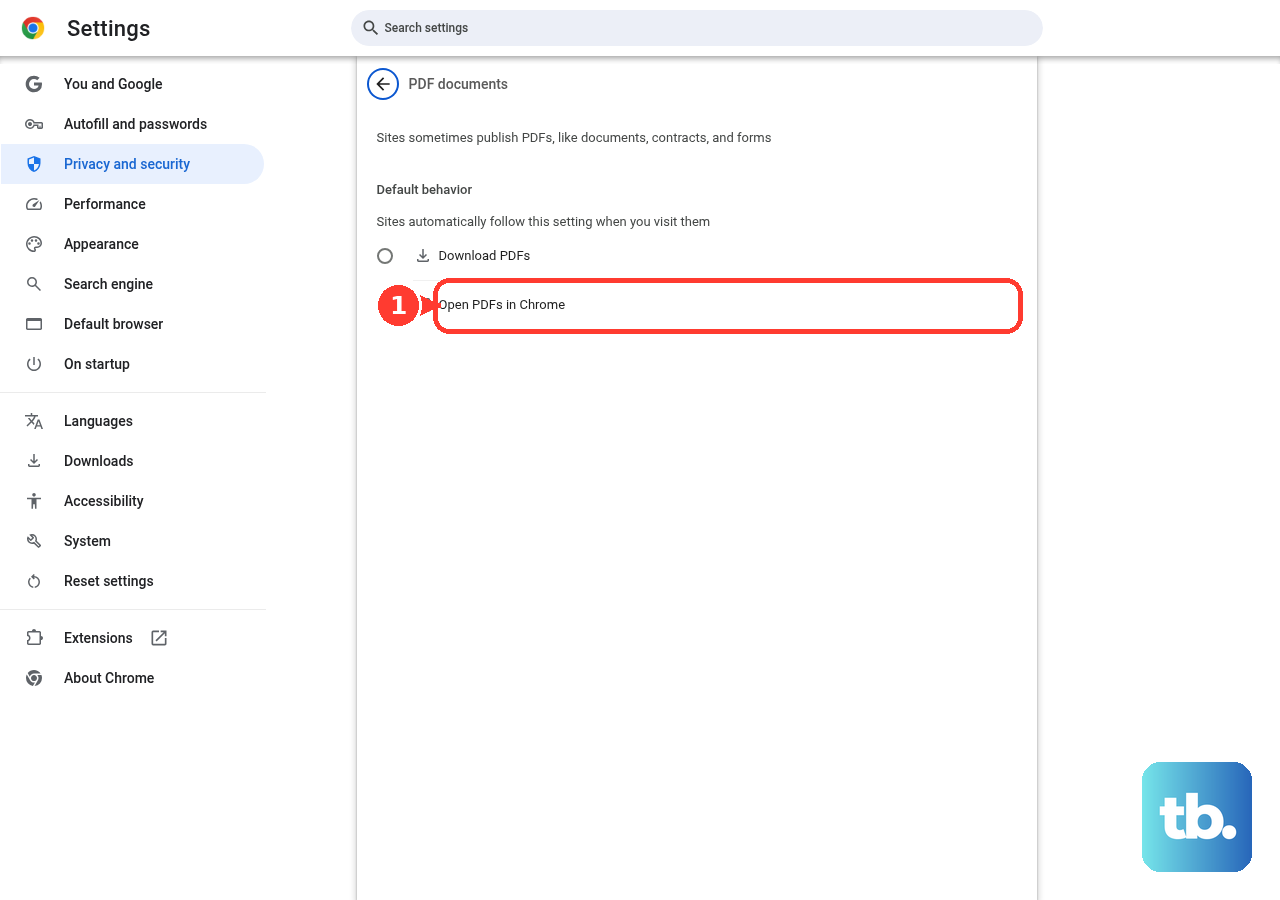
If clicking a PDF link in Google Chrome saves a file instead of displaying it, the inline viewer is switched off. Type chrome://settings/content/pdfDocuments in the address bar, or go to Settings > Privacy and security > Site settings > Additional content settings > PDF documents. Choose Open PDFs in Chrome so files open in the built-in viewer instead of downloading.
Inside Chrome's built-in viewer you also have a Download button (with With your changes or Without your changes options) and a menu offering Open in new tab and Download. If you want a backup copy, Save to Drive in the top right stores it in a "Saved from Chrome" folder in Google Drive (you need to be signed in to a Google Account, and it is not available in Incognito or Guest mode).
Fix the Built-in PDF Viewer in Firefox
Mozilla Firefox has its own PDF viewer, and most failures here come from the wrong handler being selected, an extension conflict, or a default-app loop. Start by confirming the handler.
Open Firefox Settings and find the Applications list. Locate Portable Document Format (PDF) and set the action to Open in Firefox, which is the built-in viewer (it was previously labeled "Preview in Firefox").
If a PDF renders blank or shows wrong fonts or colors, click the Download or Save button in the viewer toolbar to open it in your system's default PDF app instead. If no PDFs open in Firefox at all, an extension may be intercepting the viewer. Disable all extensions to find the conflicting one by testing in Firefox Troubleshoot Mode, and also try the default theme or a fresh profile.
If Firefox keeps opening the file in endless new tabs, Firefox itself has been picked as the program to handle PDFs rather than its built-in viewer. Make sure the action is set to Open in Firefox, and not Use Firefox (default). If pages are blank or windows spawn uncontrollably, turn off hardware acceleration in Firefox settings.
Clear the Cache and Fix Microsoft Edge
If PDFs fail to load in Microsoft Edge, corrupted cached files or too many extensions eating memory are the usual culprits. Work through these steps in order.
- 1.Go to Settings and more > History > Open history page > Delete browsing data.
- 2.Set Time range to All time, check Browsing history and Cached images and files, then select Clear now.
- 3.Uninstall extensions you do not need to free memory.
- 4.Close Edge completely and reopen it, and restart the computer if needed.
- 5.Update Edge via Settings and more > Settings > About Microsoft Edge, which checks for and applies any available update.
If problems persist, close Edge and repair it from Start > Settings > Apps > Installed apps > Microsoft Edge > Modify, select Yes at the prompt, then Repair. Your browser data and settings should not be affected.
Open Protected (Rights-Managed) PDFs in Edge
Some PDFs are rights-protected (IRM) and will only open in Edge under specific conditions. If a protected file refuses to load, check your version and credentials.
Go to Settings and more (the three-dot icon, upper right) > Settings > About Microsoft Edge and confirm you have version 83.0.478.37 or later. Sign in to Edge with your work or school credentials, then open the protected PDF and select Open > Open in browser.
If it still will not open, the document may use an older protection format, such as PDFs from IRM-protected SharePoint libraries. Use the Microsoft Purview Information Protection viewer or Foxit Reader instead; both handle .ppdf files and older protected .pdf files. Edge supports protected PDFs on Windows 8 through Windows 11 and macOS 10.12 and later.
Change the Default PDF App in Windows
On Windows the .pdf file type can revert to a browser or another app. Reassign it system-wide.
- 1.Open Settings > Apps > Default apps, or type
ms-settings:defaultappsin the Run box. - 2.In the file type search box, type
.pdfand select the .pdf result. - 3.Choose the app you want, for example Adobe Acrobat Reader.
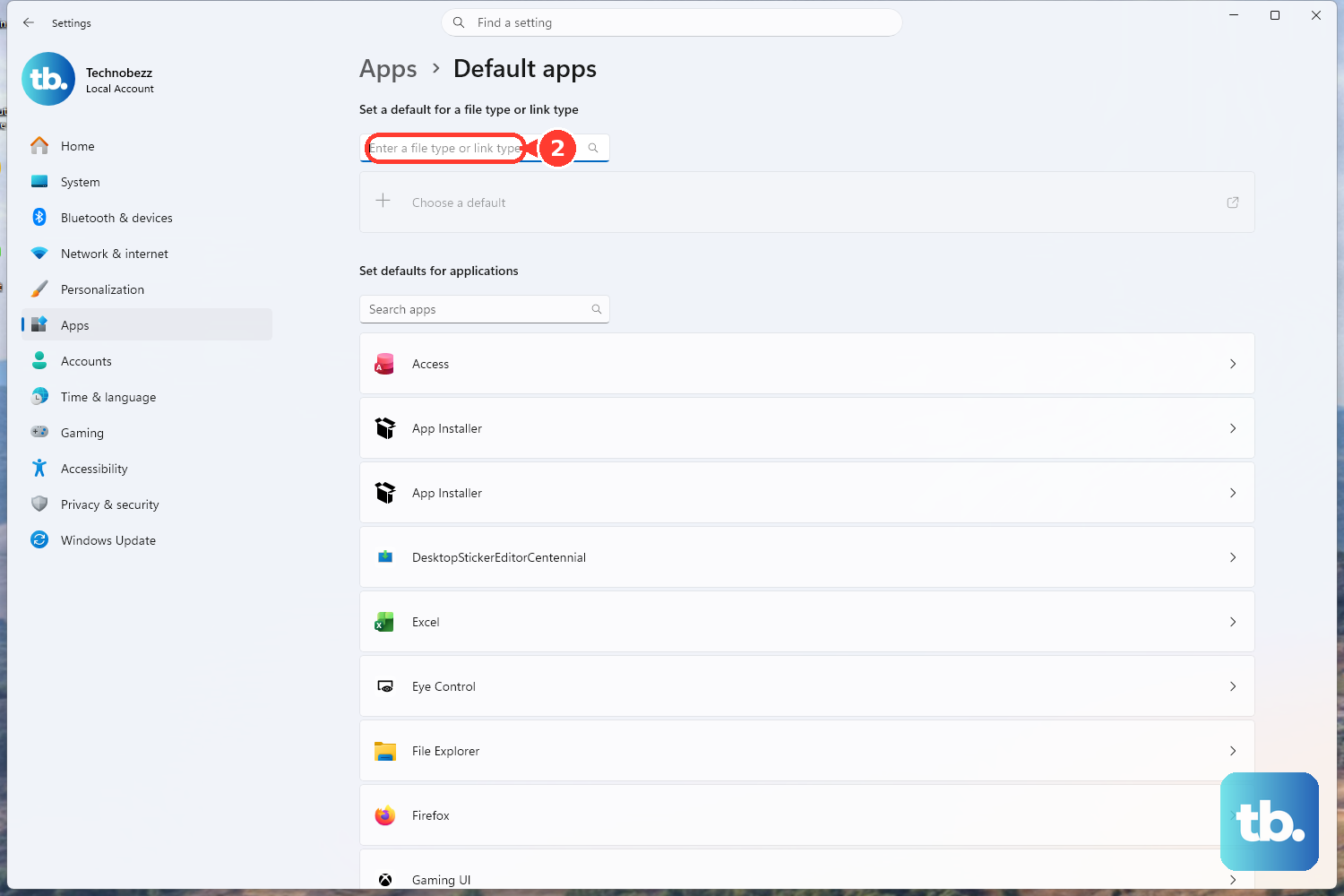
Alternatively, under Set defaults for applications, select the app (such as Adobe Acrobat Reader), then select the .pdf entry and choose that app.
Open a PDF in Preview on Mac
On a Mac, if another app keeps grabbing your PDFs, force the file to open in Preview. In Preview, choose File > Open, select the PDF, then click Open. You can also double-click the PDF in Finder.
To force a specific PDF into Preview when another app claims it, select the file in Finder and choose File > Open With > Preview. For files in iCloud Drive, click iCloud Drive in the Finder sidebar, then double-click the PDF.
Update or Reinstall the Acrobat Reader Mobile App
On iPhone, iPad, or Android, a missing or out-of-date Adobe Acrobat Reader app is the usual reason a PDF will not open.
Confirm Adobe Acrobat Reader is installed, then check the App Store or Play Store for a pending update and install it. Restart the device after updating and try the PDF again. If it still fails, uninstall and reinstall Adobe Acrobat Reader.
On iOS, be careful: uninstalling Acrobat Reader can erase local PDFs stored in the app, so back them up first. On Android, verify the Acrobat app version, the Android OS version, and the default PDF-app setting, then update the app and reboot.
Frequently Asked Questions
Why do I get an "Access denied" error when opening a PDF?
That message ("There was an error opening this document. Access denied.") usually means Acrobat's Protected Mode is blocking a file from an external location like OneDrive, email, or a network share. Disable it in Acrobat's Preferences (on macOS, Acrobat > Preferences) under Security (Enhanced) by deselecting "Enable Protected Mode at startup," then restart Acrobat.
Why does my browser download PDFs instead of opening them?
The inline viewer may be switched off. In Chrome, go to chrome://settings/content/pdfDocuments and choose "Open PDFs in Chrome" so files display in the built-in viewer. In Firefox, set the PDF action to "Open in Firefox" in Settings.
Can I edit a PDF in my browser's built-in reader?
Not its contents. Microsoft says you can view and print a PDF in a browser reader such as Edge or Chrome, but you cannot edit its text there (Edge does let you add ink, highlights and notes). To edit the content, open the PDF in the desktop version of Word, which converts it to an editable .docx copy.
Why does Firefox keep opening my PDF in endless new tabs?
Firefox has been set as the program that handles PDFs (for example through "Use Firefox (default)"), which triggers an infinite loop. Set the PDF action to "Open in Firefox" instead, which uses the built-in viewer correctly.
Will repairing Microsoft Edge delete my history and passwords?
No. Repairing Edge from Start > Settings > Apps > Installed apps > Microsoft Edge > Modify > Repair should not affect your browser data and settings.
What if the PDF still will not open after all of this?
The file itself may be damaged, not a valid PDF, or blocked as potentially harmful. Try a different copy of the file, scan it for malware, and confirm it opens on another device or in a different reader to isolate whether the problem is the file or your setup.