You open Outlook to check your email, and instead of your inbox you get a password box. You type your password, it disappears, and seconds or minutes later it pops up again. Sometimes it accepts the password and then asks once more after the next restart.
For the reset itself, a browser based random password generator builds a long random password in one click. It runs entirely on your device, so the new password is never transmitted anywhere.
This loop almost always traces back to a stored credential that has gone stale, a recent password change you have not mirrored in Outlook, or an outdated app with a known bug. None of those require you to start over from scratch.
Work through the fixes below in order. The first few are the quickest and resolve the most common cases, so most people never reach the end of the list. Each section names the surface it applies to (classic Outlook for Windows, new Outlook for Windows, Outlook for Mac, or the mobile app), so jump to the one that matches you.
Confirm Your Username and Password First
Before changing any settings, rule out the simplest cause. Passwords are case sensitive, so check that Caps Lock is off and retype it slowly.
Your username must be your full email address (for example, [email protected]), not just the part before the @ sign.
If you recently changed your password with your email provider, such as Gmail, Outlook is still sending the old one, so update it.
The same applies if a corporate policy expired your password and forced a reset.
Clear Cached Credentials in Windows Credential Manager
This is the single most common fix on classic Outlook for Windows. A stale or corrupted credential sits in the Windows vault, and Outlook keeps replaying it.
- 1.Close Outlook completely.
- 2.Open Control Panel and go to User Accounts > Credential Manager > Windows Credentials. (If View by is set to Category, click User Accounts first, then Credential Manager.)
- 3.Find every entry with "Outlook" in the name. For Exchange or Microsoft 365, also look for entries that start with "MicrosoftOffice15_Data:SSPI" or "MicrosoftOffice16_Data:SSPI".
- 4.Click each entry to expand it, then click Remove (or Remove from Vault). Repeat for every relevant entry.
- 5.Restart Outlook (restarting the PC is recommended) and sign in again, ticking "Remember my credentials" when prompted.
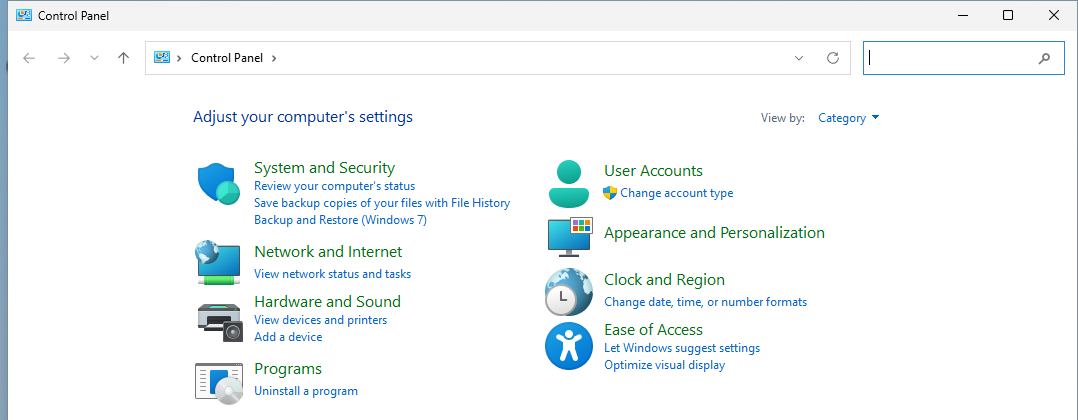
For the specific case where switching the Exchange protocol from RPC over HTTP to MAPI over HTTP triggered the loop, remove those SSPI entries and then re-enter your credential in the format domain\user.
Update Outlook and Office
Several password-prompt loops are known bugs that Microsoft fixed through updates. If clearing credentials did not hold, get current.
Open Outlook and go to File > Office Account (or File > Account).
Under Update Options, click Update Now.
Let the updates install, then restart Outlook.
This is the documented fix for Outlook 2016 repeatedly asking for credentials, and for older versions prompting after a domain password change.
Update the Stored Password or Server Login Info
If your provider password changed, point Outlook at the new one directly.
Open Outlook, select File, and use the dropdown under Account Information to select the account.
Select Account Settings.
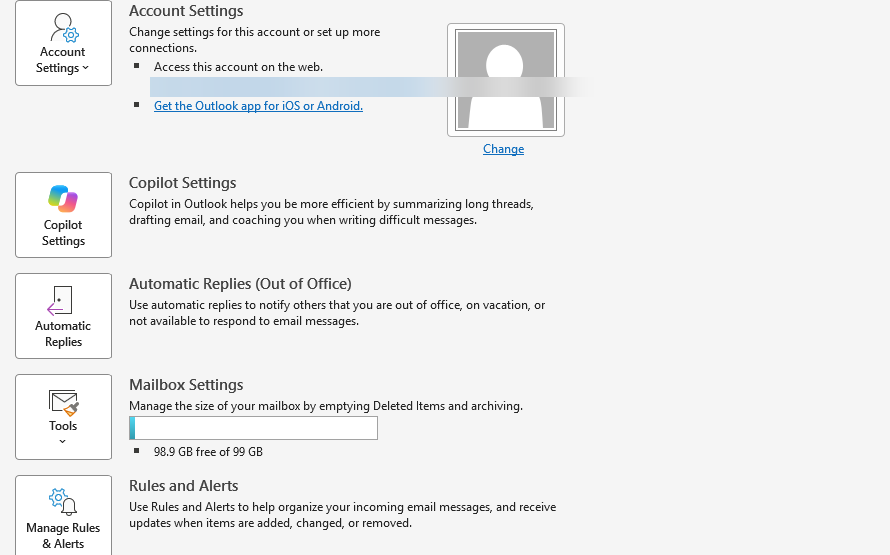
Choose Server Settings to change the incoming and outgoing login information and password.
Finish with Next, then Done.
Enable the Remember Password Checkbox (POP/IMAP)
For POP or IMAP accounts, a missing checkbox makes Outlook forget the password every time.
Go to Control Panel > Mail.
Click Email Accounts.
Select the account and click Change.
Under Logon Information, make sure the Remember password box is checked.
Click Next, then Finish.
This option does not exist for Exchange or Microsoft 365 accounts, so skip this fix if that is your account type.
Adjust the Security Tab (Exchange / Microsoft 365)
On Exchange and Microsoft 365 accounts, two settings on the Security tab can drive the loop.
Go to File > Account Settings > Account Settings.
Select the affected account and click Change.
Click More Settings, then open the Security tab.
Uncheck "Always prompt for logon credentials" and click OK.
On older Outlook builds affected by the Exchange prompt loop, set the "Logon network security" list on that same Security tab to "Anonymous Authentication", then click OK, Next, Finish, Close. Note that Outlook 2016 and recent Outlook 2013 builds do not have this setting, so this step does not apply to them.
Run Microsoft's Automated Diagnostic
For Microsoft 365 or Exchange Online accounts, run an automated check. On the official Microsoft troubleshooting article about Outlook continually prompting for a password, select the "Diag: Outlook keeps asking for my password" link.
It runs automated checks and returns solutions for the detected issue, and is intended for newer Outlook 2013/2016 builds connecting to Exchange Online.
Use an App Password if Two-Step Verification Is On
If you use a Microsoft or Outlook.com account with two-step verification in an app that doesn't support two-step verification, use an app password instead of your normal password. Since September 16, 2024, Outlook.com accounts can no longer connect through Basic Authentication, and Outlook 2007, 2010, 2013, 2016 MSI and 2019 LTSC don't support Modern Authentication for Outlook.com. If you use one of those versions, upgrade to the latest Outlook or use the free Outlook app.
Sign in to your Microsoft account security settings at account.microsoft.com/security.
Open Advanced security options and scroll down to the App passwords section.
Select Create password.
Copy the generated app password.
In the Outlook desktop app for Office 2010 or earlier, select File > Account Settings under Info, then double-click your Microsoft account. Enter the app password in the Password box, select Remember password, and click OK.
App passwords are only relevant when two-step verification is on and the app does not support modern sign-in. Modern apps do not need them.
Remove and Re-add the Account (Classic Outlook)
If nothing above sticks, force a fresh modern sign-in by removing the account.
Select File in the upper-left corner.
Select Account Settings > Account Settings.
Select the account, then select Remove.
Confirm the warning about offline cached content by selecting Yes.
Re-add the account afterward.
If it is your only account, create a new location for your data first before removing it.
Remove and Re-add the Account (New Outlook for Windows)
The new Outlook handles this from Settings rather than File.
Open Settings (gear icon) > Accounts > Email accounts.
Find the affected account and select Manage beside its name.
Select Remove under Account details.
Re-add it via Add account at the bottom of the folder list, or Settings > Accounts > Add account.
For non-Microsoft accounts (Gmail, Yahoo, iCloud, IMAP/POP), the Remove Account window offers "Remove from all devices", which deletes it everywhere it was added to Outlook, so choose "this device" if you only want it gone here.
Fix Keychain Prompts on Outlook for Mac
On Mac, the loop usually comes from duplicate authentication tokens or broken keychain permissions. Start with the simpler permission reset.
When the keychain dialog appears, click Always Allow (you may see this up to three times per app).
If prompts persist, quit all Office apps.
Open Keychain Access (Spotlight > keychain).
Select the login keychain in the top-left pane.
From the File menu, choose Lock Keychain "login".
Relaunch an Office app, enter your Mac admin password when prompted, and sign in again.
This issue can be triggered by moving Office out of the default /Applications folder, so keep it there.
If the loop continues on legacy Outlook 2016 for Mac, delete the cached tokens: quit all Office apps, open Keychain Access, then search and delete items for "Exchange", items of type "MicrosoftOffice15_2_Data:ADAL:" found under "adal", and the "Microsoft Office Identities Cache 2" and "Microsoft Office Identities Settings 2" items found under "office".
Outlook will prompt you to sign in fresh afterward, and this affects all Office apps that use modern authentication.
The permanent fix is to install the Outlook update version 15.31.0 or later.
Reset or Reinstall on the Mobile App (iOS and Android)
On the Outlook mobile app, clear the local cache first.
Force-close and reopen the app.
Open Outlook > Settings > select the affected account > tap Reset Account.
Let the account re-sync.
If sign-in keeps failing or the app crashes, clear the device browser cache, then uninstall and reinstall the Outlook app.
For a Microsoft 365 work or school account that keeps prompting, reset your password if your organization allows self-service reset; otherwise contact your IT admin.
Rule Out an Add-in or Corrupted Profile
If the prompts only happen in classic Outlook for Windows, an add-in or damaged profile may be the cause.
Start Outlook in safe mode by running Outlook.exe /safe.
If that stops the prompts, disable add-ins via File > Options > Add-ins, set Manage to COM Add-ins, click Go, and re-enable them one at a time to find the culprit.
If the profile itself is corrupted, create a new one via Control Panel > Mail > Show Profiles > Add, then re-add the account.
Frequently Asked Questions
I entered my password and ticked "Remember my credentials", so why does it ask again after a restart?
Because the old stored credential is never overwritten. The tick only lasts the current Windows session. The real fix is to delete the stored credential in Credential Manager or install the relevant Outlook update.
The "Remember my credentials" box does nothing even when checked. What gives?
If your administrator uses Office Group Policy to prevent saving Basic Authentication credentials, the checkbox still appears but has no effect when ticked. That is an organizational policy, not a bug on your end.
Why do I see "The connection to Microsoft Exchange is unavailable" when I cancel the prompt?
Cancelling the Microsoft 365 credential prompt produces that error along with the note that Outlook must be online or connected. It is expected when you dismiss the box instead of signing in; resolve the underlying prompt rather than cancelling it.
Do I still need an app password if I use a modern version of Outlook?
No. App passwords are only needed when two-step verification is on and the app does not support modern two-step sign-in. Modern apps handle the sign-in directly, so you can use your normal password.
I can't find the "Logon network security" setting on the Security tab. Where is it?
Outlook 2016 and recent Outlook 2013 builds had that setting removed or disabled, so it is not there. The Anonymous Authentication fix only applies to older builds that still show it.
Will deleting keychain items on my Mac affect my other Office apps?
Yes. Removing the Exchange, adal, and "Microsoft Office Identities Cache 2"/"Settings 2" items affects all Office apps that use modern authentication, and each will prompt you to sign in again afterward.