
When your OPPO Find X8 Pro gets stuck on an update, it can leave you staring at a frozen progress bar or an error message. This usually happens during a ColorOS or Android version update. The good news is you can almost always get it moving again with a few specific steps.
Force Restart Your Phone
This is the quickest fix for a frozen update screen. Just press and hold the Power button on the right side of your Find X8 Pro for about 10 seconds. Keep holding until you see the OPPO logo appear and the phone restarts. This simple reboot can clear the temporary glitch that's halting the process.
Check Your Wi-Fi Connection
Large ColorOS updates require a strong, stable Wi-Fi connection. Go to Settings > Wi-Fi and make sure you're connected. Try loading a webpage to test the speed. If it's slow, restart your router. Avoid using public Wi-Fi networks, as they often block large downloads or have data limits that can interrupt the update.
Free Up Storage Space
Your Find X8 Pro needs several gigabytes of free space to download and unpack an update. Head to Settings > About phone > Storage to see how much you have left. If you're low, clear your app cache or move photos and videos to cloud storage. Deleting a few large, unused apps is often the fastest way to make room.
Clear the Update Package Cache
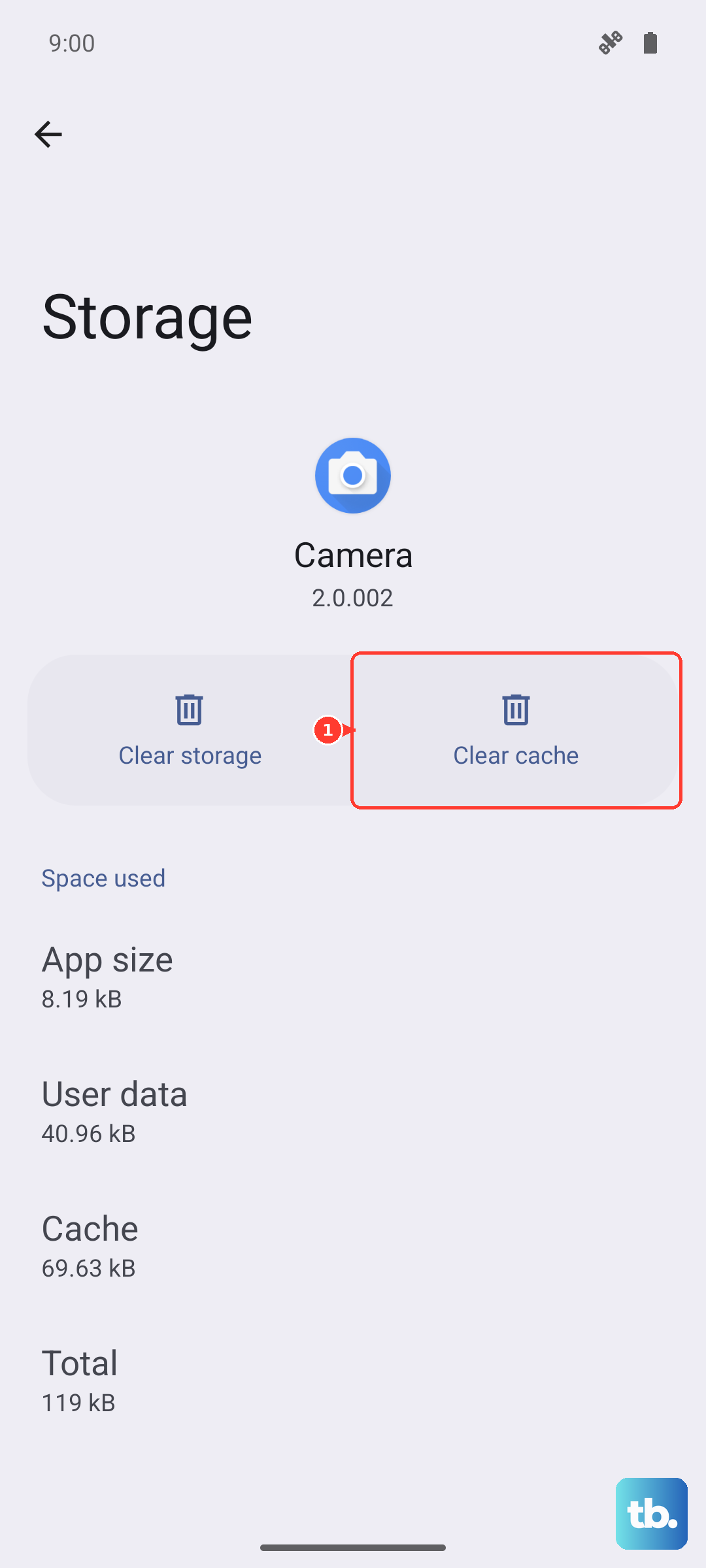
If a partial download is corrupted, it can block a new attempt. Go to Settings > Apps > App management. Tap the three-dot menu, select Show system apps, and find the Software Update app. Tap into it, then select Storage usage and tap Clear cache. After that, go back to Settings > About phone > Software update and try again.
Reset Your Network Settings
Sometimes the network configuration gets in the way. This step will forget all your saved Wi-Fi networks and Bluetooth pairings. Go to Settings > Additional settings > Backup and reset > Reset phone > Reset network settings. Confirm the reset, then reconnect to your Wi-Fi and attempt the update once more.
Update Using Mobile Data
While major updates typically require Wi-Fi, you can sometimes download smaller security patches over cellular. If your Wi-Fi seems unreliable, you can enable this. Go to Settings > About phone > Software update, tap the gear icon in the top right, and toggle on Auto-download over mobile data. Then try checking for the update again.
Check for Server Issues
The problem might not be with your phone at all. When OPPO releases a major ColorOS update, their servers can get overloaded with millions of download requests. This can cause timeouts and failures. If other fixes aren't working, wait a few hours or try again late at night when server traffic is lower.
Update Using a Computer
If the over-the-air update is completely stuck, using a PC can bypass the issue. You'll need to download the official OPPO PC Suite software from their website. Connect your Find X8 Pro to your computer with the included USB-C cable, open the PC Suite, and look for a software update option. This method downloads the file to your computer first, which is often more reliable.
Ensure Your Phone is Compatible
While the Find X8 Pro is a 2024 flagship and will receive updates for years, it's worth confirming the update is meant for your specific model. Go to Settings > About phone and check your model number. Occasionally, regional variants get updates at different times. If an update isn't showing up, it may simply not have rolled out to your device yet.