
Seeing that "No SIM" or "SIM card not detected" message on your OPPO Find X8 Pro can stop you in your tracks. You can't make calls, send texts, or use mobile data. The good news is this is usually a simple glitch you can fix yourself, often in under a minute.
I'd start with the most common fix, which is a simple restart. Press and hold the Power button for about 10 seconds until you feel a vibration and see the phone reboot. This clears out any temporary software hiccups that might be preventing the SIM from being recognized.
Check Airplane Mode and SIM Toggle
After restarting, swipe down from the top of your screen to open the Quick Settings panel. Look for the Airplane Mode icon and tap it to turn it on. Wait about 10 seconds, then tap it again to turn it off. This forces your phone's modem to reconnect to the network from scratch.
Next, you should verify the SIM is actually enabled in your settings. Open the Settings app and go to Mobile Network. You should see your SIM card listed here. Make sure the toggle next to it is switched on. If you have a dual-SIM model, check both lines.
Inspect and Clean the Physical SIM
If the software checks don't work, it's time to look at the physical card. Power your phone off completely. Find the SIM ejector tool that came in the box (it's usually in the paperwork sleeve) and gently push it into the small hole on the SIM tray, which is on the bottom edge of the phone.
Carefully pull the tray out and remove the SIM card. Hold it under a good light and look at the gold contacts. You're checking for any visible scratches, dirt, or corrosion. Gently wipe the gold contacts with a clean, dry microfiber cloth. A little bit of isopropyl alcohol on a cotton swab can help with stubborn grime, but let it dry completely before reinserting.
Also, take a quick look inside the SIM tray slot on the phone for any debris. Blow into it gently or use a can of compressed air to clear any dust. When reinserting, make sure the SIM card is seated correctly in the tray and that the tray goes back in smoothly without forcing it.
Update Your Phone's Software
Software bugs in ColorOS 15 or the underlying Android 15 can sometimes cause SIM detection issues. It's always worth checking for an update, as manufacturers frequently patch these kinds of problems.
Go to Settings > About device > Software update. Tap "Check for updates." If an update is available, download and install it. Your phone will restart during this process. After it boots back up, check if it recognizes your SIM card.
Reset Your Network Settings
This is a more thorough step that clears all your saved network configurations without touching your personal photos, apps, or messages. It will erase your Wi-Fi passwords, Bluetooth pairings, and mobile network settings, returning them to factory defaults.
To do this, open Settings and go to Additional settings. Tap on Back up and reset, and then select Reset phone. Here, choose Reset network settings. Confirm your choice and let the phone complete the reset. You'll then need to reconnect to Wi-Fi and re-pair Bluetooth devices, but it often resolves stubborn SIM issues.
Check and Reset APN Settings
Incorrect Access Point Name (APN) settings can prevent your phone from registering on your carrier's network properly, which can sometimes be mistaken for a SIM problem. First, you should check if your APN is configured correctly.
Go to Settings > Mobile Network > select your SIM > Access Point Names. Your carrier's APN should be listed and selected. If you're unsure, the safest move is to reset them. Tap the three-dot menu in the top right and select "Reset to default." Your phone will populate the standard APN for your carrier. If you need specific settings, you may have to enter them manually using details from your carrier's website.
Try Manual Network Selection
Your phone usually searches for and connects to the strongest network signal automatically. Sometimes this process can get stuck. You can force it to search again and pick your network manually.
Navigate to Settings > Mobile Network. Tap on Network operators. The phone will begin searching. When the list populates, find your carrier's name and tap on it to select it manually. Wait a moment to see if the connection stabilizes and the "No SIM" error disappears.
Clear Cache for SIM Services
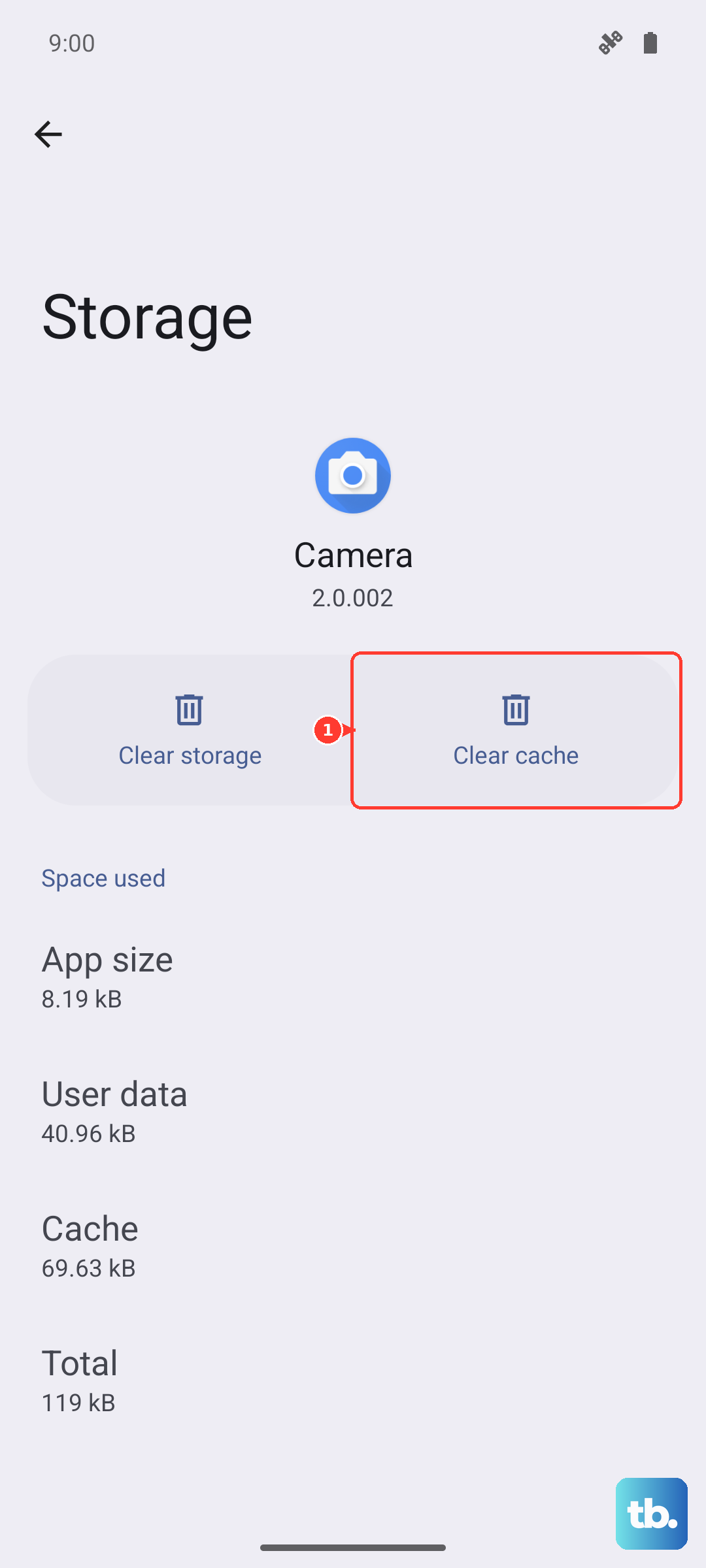
Over time, cached data from system apps that manage your SIM can become corrupted. Clearing this cache can help. Go to Settings > Apps > Manage apps.
Tap the three-dot menu and select "Show system." Now, look for apps related to the SIM or phone services. Key ones to check are Phone Services, SIM Toolkit, and Carrier Services. Tap on each one, go to Storage usage, and tap "Clear cache." Do not select "Clear data" as this may remove important information.
Test Your SIM in Another Device
This is the definitive test to figure out where the problem lies. Take your SIM card out of your Find X8 Pro and put it into another unlocked phone. If the other phone also says "No SIM" or fails to connect, the issue is with the SIM card itself.
In that case, you'll need to contact your mobile carrier. They can check the status of your line and, if needed, provide you with a replacement SIM card, which usually solves the problem if the card is faulty.
Consider the eSIM Option
The OPPO Find X8 Pro supports eSIM technology. If your physical SIM card slot seems problematic or you keep having issues, switching to an eSIM might be a permanent solution. You'll need to contact your carrier to see if they support eSIM activation and to get a QR code to scan.
Once activated, your digital SIM profile is stored directly on the phone, eliminating any problems with the physical tray or card contacts. This is especially useful if you travel frequently, as you can easily add a local data eSIM profile alongside your main line.