
When your OPPO Find X8 Pro starts restarting on its own, it's a major disruption. This can happen for a few reasons, often related to a misbehaving app, a software glitch in ColorOS 15, or even the phone's powerful Dimensity 9400 chipset getting too warm. The good news is you can usually fix it yourself.
Before you start, it's a smart idea to make sure your photos and important files are backed up. You can use Google Drive or OPPO's built-in cloud backup, just in case you need to do a more serious reset later on.
Force Restart Your Phone
This is almost always the first thing to try. A force restart clears the phone's temporary memory and can stop a minor software hiccup that's causing the loop. For the Find X8 Pro, it's very straightforward.
Just press and hold the Power button on the right side of the phone. Keep holding it for about 10 seconds, or until you see the OPPO logo appear on the screen and the phone begins to restart. Let go of the button once you see the logo.
Check for a Problematic App
Third-party apps are a very common cause of random restarts. A buggy or poorly optimized app can crash and take the whole system with it. Start by checking which apps you installed or updated just before the problem began.
Try booting the phone into Safe Mode. This temporarily disables all third-party apps. To enter Safe Mode on the Find X8 Pro, press and hold the Power button until the power menu appears. Then, tap and hold the "Power off" option on the screen until you see a prompt to reboot to Safe Mode. If the phone is stable in Safe Mode, you know a downloaded app is the culprit.
Update Your Apps and System
Running outdated software is a classic recipe for instability. Developers release updates to fix bugs that can cause crashes. First, open the Google Play Store, tap your profile icon, and go to Manage apps & device. Look for any pending app updates and install them all.
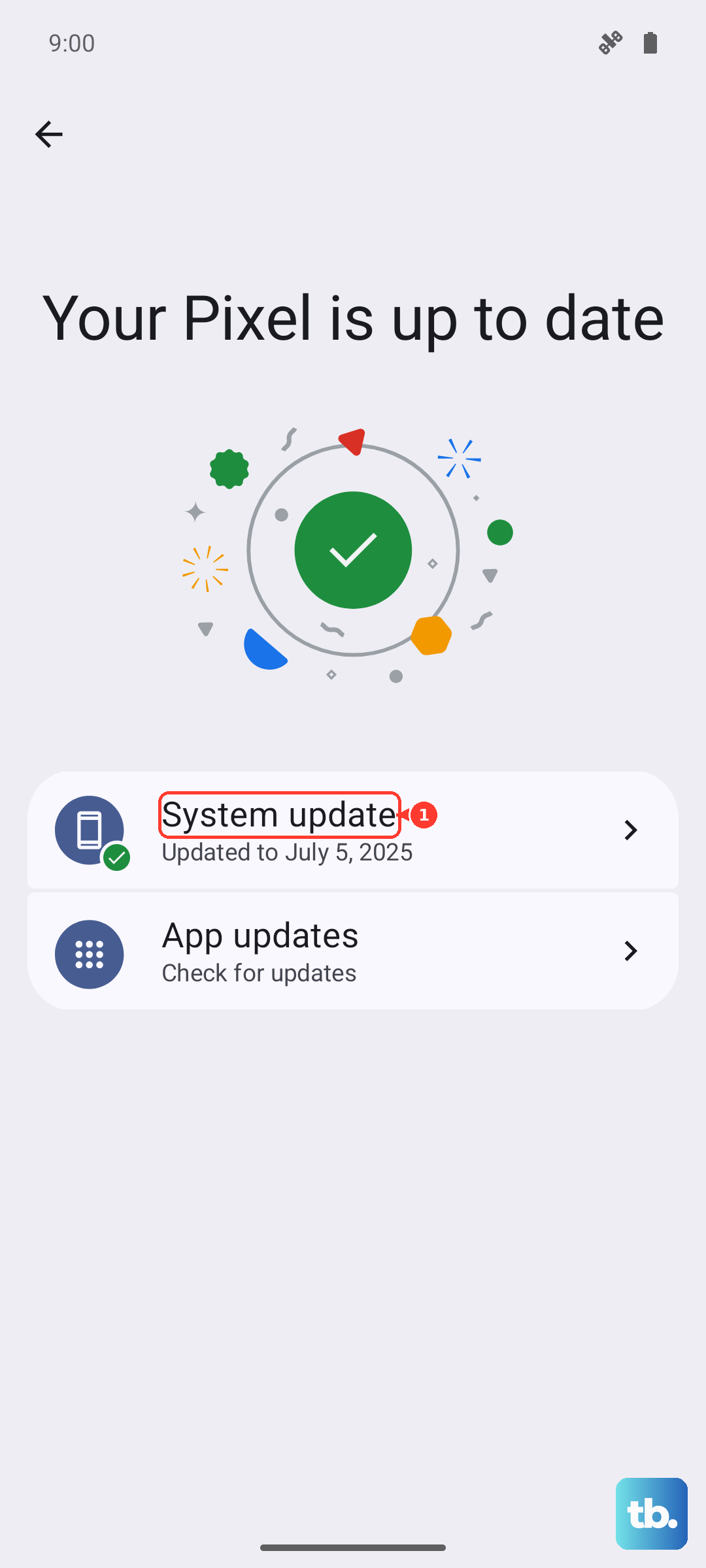
Next, check for a system update. OPPO regularly pushes out updates to ColorOS that improve stability and security. Go to Settings > About device > Software update and tap to check manually. If an update is available, install it while your phone is connected to Wi-Fi and has a good charge, preferably using the included 80W SUPERVOOC charger.
Manage Your Phone's Temperature
The Dimensity 9400 chip in the Find X8 Pro is incredibly powerful, but it can generate significant heat during long gaming sessions, 8K video recording, or while using the 50W wireless AIRVOOC charger. If the phone gets too hot, it will protect itself by shutting down or restarting.
If your phone feels warm to the touch and is restarting, take it out of its case and let it cool down on a flat, hard surface. Avoid using it while it's charging, especially with the fast 80W wired or 50W wireless charging, and close any demanding apps. I've found that giving it a 10-minute break often resolves heat-related restarts.
Free Up Storage Space
When your phone's internal storage is nearly full, the operating system doesn't have enough room to work properly. This can lead to all sorts of strange behavior, including random reboots. It's a good habit to keep at least 10% of your storage free.
Head to Settings > About device > Storage to see what's taking up space. The large photos and videos from the dual periscope cameras can fill storage quickly. Use the built-in cleanup tool or manually offload files to Google Photos or another cloud service.
Reset Your Network and App Preferences
Sometimes, corrupted network or app settings can cause system conflicts. You can reset these without losing your personal data like photos or messages. This is a great middle-step before a full factory reset.
Go to Settings > Additional settings > Back up and reset. Here, you'll find two useful options. Tap Reset network settings to clear all Wi-Fi, mobile data, and Bluetooth connections. You can also tap Reset app preferences, which resets app permissions and default apps without deleting the apps themselves.
Check for a Faulty SIM Card
A damaged or poorly seated SIM card can sometimes cause the phone to reboot, especially when searching for a network signal. This is a quick and easy thing to rule out.
Use the SIM eject tool that came in the box (a paperclip works too) to pop open the SIM tray on the bottom edge of the phone. Carefully remove the SIM card and inspect the gold contacts for any dirt or damage. Give it a gentle wipe with a soft, dry cloth and reinsert it firmly. Restart your phone and see if the problem continues.
Perform a Factory Reset
If you've tried everything else and the phone is still restarting, a factory reset is the most comprehensive software fix. This will erase all your data and return the phone to its original out-of-the-box state, so a backup is absolutely essential before you proceed.
You can do this from within the settings if the phone is still accessible. Go to Settings > Additional settings > Back up and reset > Erase all data (factory reset). Follow the prompts, enter your lock screen password, and confirm. The phone will take several minutes to reset and reboot.
Use Recovery Mode for a Clean Install
If the phone is stuck in a constant restart loop and you can't access the settings menu, you'll need to use Recovery Mode. This lets you wipe the phone's data partition from a special boot menu. You'll need a computer with the OPPO USB drivers installed for this to work properly.
First, power the phone off completely. Connect it to your computer with a USB-C cable. Now, press and hold the Volume Down button and the Power button at the same time. Keep holding them until you see the OPPO Recovery screen appear. Use the volume buttons to navigate to the "Wipe data" option and press the power button to select it. Confirm your choice to erase everything. Once done, select "Reboot" to start fresh.